ICSR translation
In PV, you can find different tools designed to support multilingual studies and simplify their safety data reporting and submission processes.
The Translation Review feature of PV is designed for multilingual studies, where safety data is reported and submitted in different languages. This feature ensures a valid interpretation of the ICSR details in all languages, providing an additional level of scrutiny.
-
In the PV application header, select the ICSR tab.
 Figure 1. Accessing ICSR list
-
On the ICSR List page that opens, from the Actions column next to your ICSR, select More
 > Translation Review
  .
.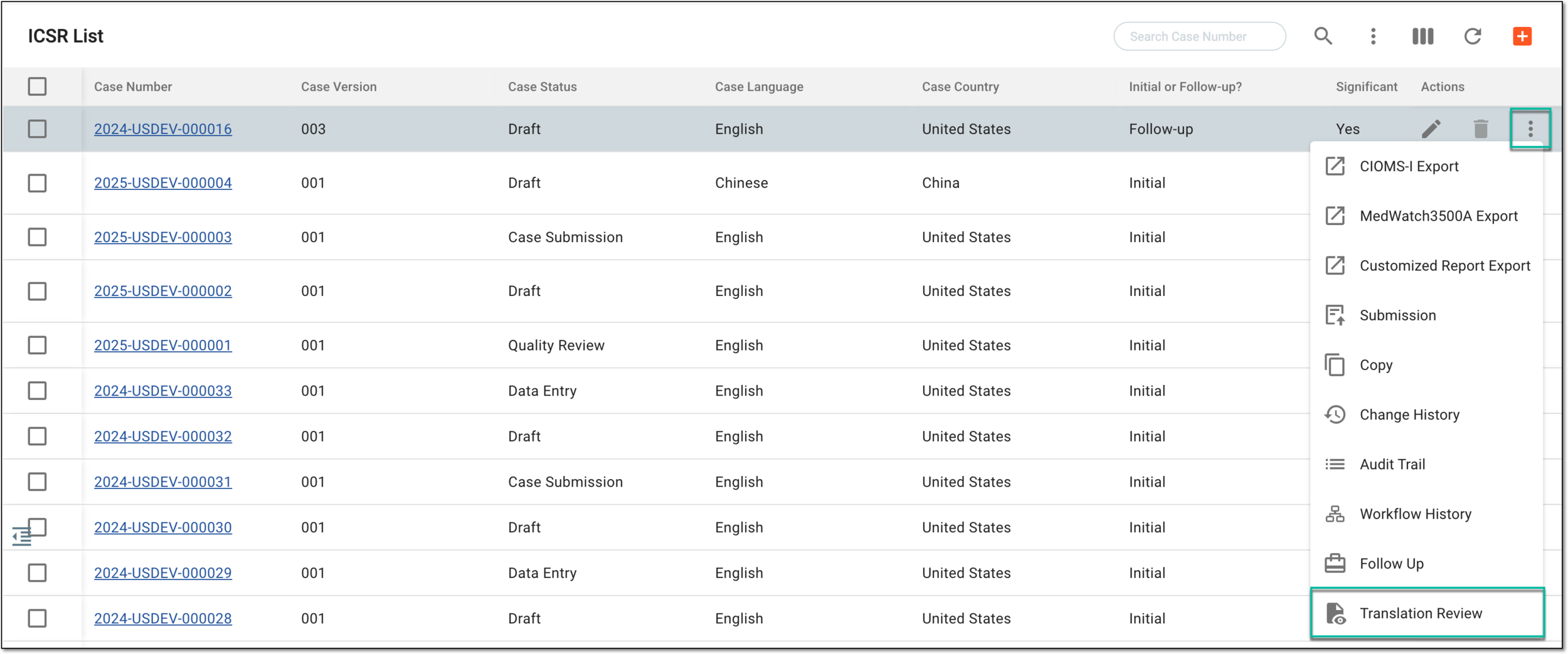 Figure 2. Accessing translation review from ICSR list
Tip
You can also open the ICSR details by selecting its case number or Edit
 and from the details
page, select More > Translation Review .
and from the details
page, select More > Translation Review .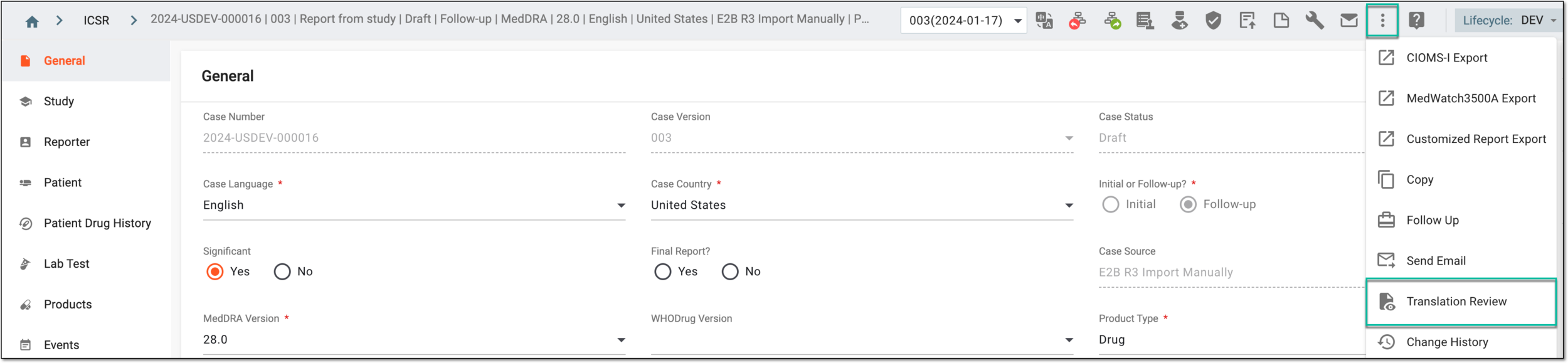 Figure 3. Accessing translation review from ICSR details
-
On the page that opens, review the translation of the ICSR data using available tools as explained in the following table.
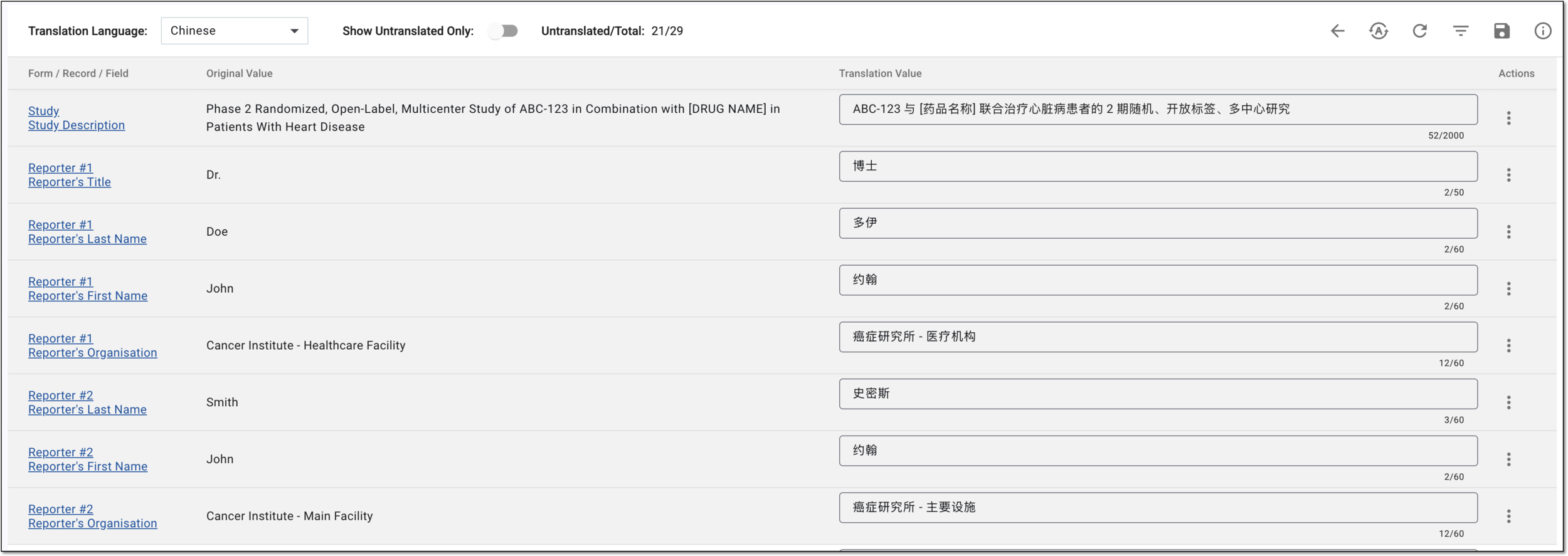 Figure 4. Reviewing ICSR translation
Element
Details
Translation Language
Select the target language of the ICSR translation.
Currently, only English and Chinese translation languages are supported in PV.Show Untranslated Only
Organize translation view as follows:
-
Turn on this toggle to only show untranslated fields and hide the translated ones.
-
Turn off this toggle to show all the ICSR fields intended for translations—both translated and untranslated ones.
Untranslated/Total
Represents the number of fields for whose values translations are missing and the total number of fields intended for translation in the ICSR.
Auto Translation
Select
 to autotranslate all untranslated field values using AI.
Form / Record / Field
Represents the names of the ICSR form, the sequential number of the form record, and the field whose original value and its translation are being reviewed.
Selecting this value brings you to the exact ICSR form and record where you can see the field and its value in context to ensure proper translation review.
You can adjust the fields intended for translation in the cases of your study.Original Value
Review the safety data value reported in the ICSR in its original language.
Translation Value
Review and amend the translation of the original value to ensure its correctness. Enter the translation manually if needed, or apply autotranslation.
Upon saving attempt, the translation value that exceeds the allowed maximum field length is highlighted red; shorten the text
                                        to proceed with saving.
If the line is highlighted yellow, it means that the translation is entered for the field with no original value (for instance, the null flavor options can be considered as missing value). In this case, the highlight is only informative, and the translation is saved; no additional actions are required.More
Select
next to the row of your interest to access the following options:-
Auto Translation
: select this option to immediately autotranslate the original value
text of the field to the selected language.Note that for already translated fields, this option overwrites the existing translation text. -
Edit Original
: select this option to adjust the original text value in the dialog that opens.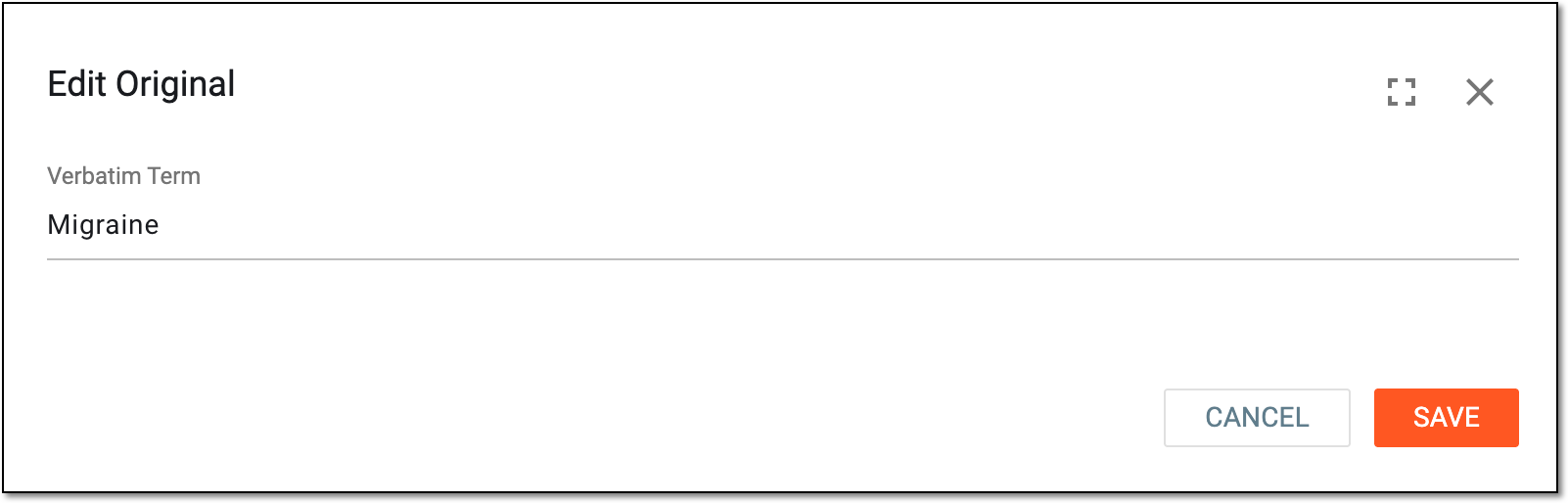 Figure 5. Editing original value
SAVE
Select
 to implement the changes.
 -
Once saved, the translation values are applied and will be used for ICSR generation for submission in the respective language.
The Translation Review feature of PV is designed for multilingual studies, where safety data is reported and submitted in different languages. This feature ensures a valid interpretation of the ICSR details in all languages, providing an additional level of scrutiny.
Using the AI technology integrated to PV, you can autotranslate all or individual fields of your ICSR and then review these translations to adjust them if needed. This simplifies the translation procedure, minimizing manual data entry.
-
In the PV application header, select the ICSR tab.
Figure 1. Accessing ICSR list
-
On the ICSR List page that opens, from the Actions column next to your ICSR, select More
> Translation Review .Figure 2. Accessing translation review from ICSR list
Tip
You can also open the ICSR details by selecting its case number or Edit
and from the details
page, select More > Translation Review .Figure 3. Accessing translation review from ICSR details
-
On the page that opens, from the Translation Language menu, select the target language.
Tip
Currently, only English and Chinese translation languages are supported in PV.
-
Once the language is selected, do one of the following:
-
To translate all untranslated fields in bulk, from the workspace toolbar, select Auto Translation
.
For already translated fields, this option does not affect the existing translation texts. -
To translate a single field, next to it, select More
> Auto Translation
. For an already translated field, this option overwrites the existing translation text.
 Figure 4. Selecting options to autotranslate single or all fields
-
Upon selection, the system autotranslates all the fields or the selected one into the target language. These translations can be reviewed and adjusted if needed.
In PV, you can manage your ICSRs and prepare them for submission to different regulatory authorities and in different languages.
With the Translation feature, you can add translation to the fields of ICSR forms during the processing of its current version.
-
In the PV application header, select the ICSR tab.
Figure 1. Accessing ICSR list
-
On the ICSR List page that opens, in the table, locate the ICSR record of your interest. Then select its case number to open the details page in the new browser tab.
Alternatively, from the Actions column next to your ICSR, select Edit
to open
the ICSR details in the same browser tab. Figure 2. Accessing ICSR details
-
On the page that opens, from the left pane, select the form of your interest.
-
In the form that opens, locate the field to which you want to add translation, and next to it, select Translation
 .
.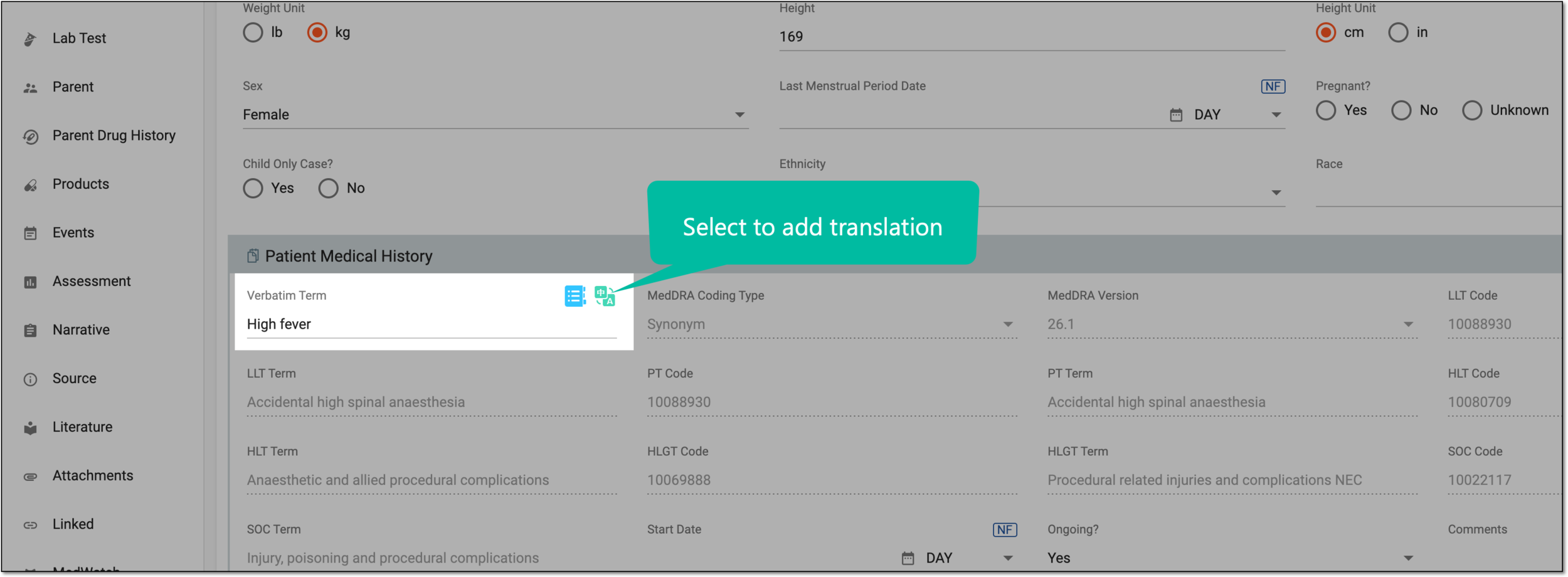 Figure 3. Selecting to add translation
-
In the Translation dialog that opens, add the translation as explained in the following table.
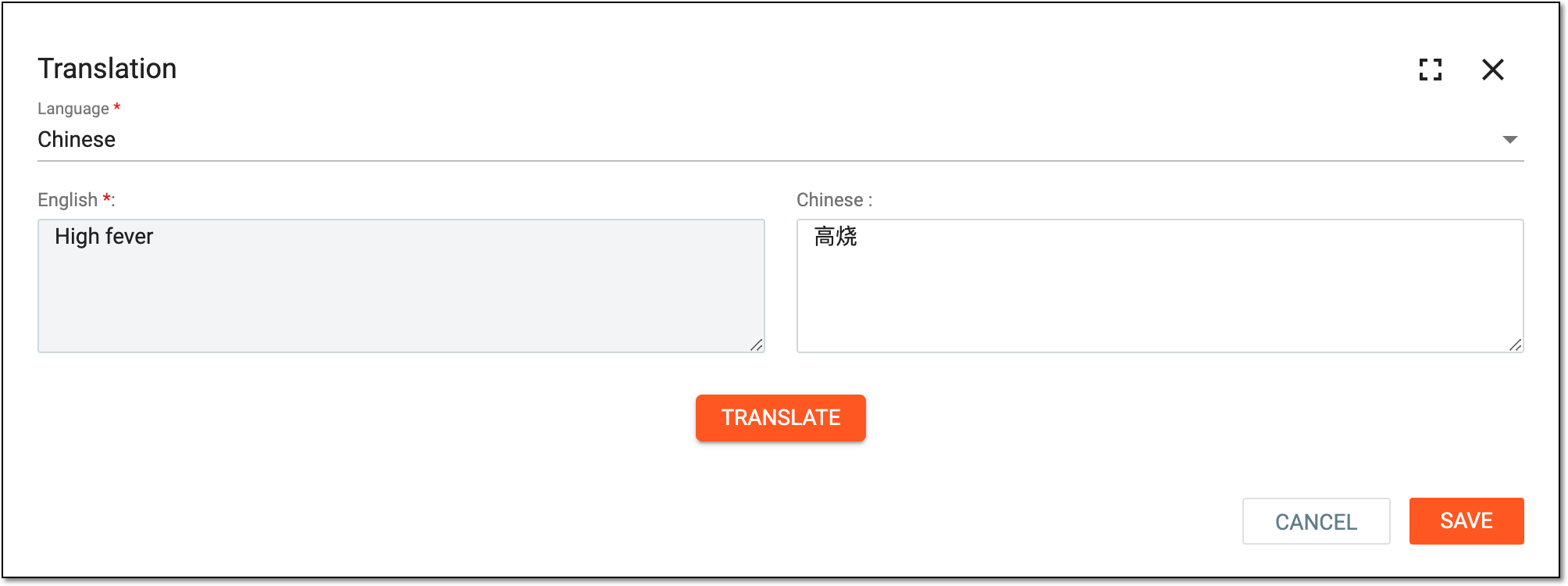 Figure 4. Translating field
Tip
In the following table, mandatory elements are marked with an asterisk (*).
Element
Details
Language*
Select the language in which you want to add translation.
Currently, only English and Chinese translation languages are supported in PV.English*
Represents the value in English that you want to translate. The field is read-only.
TRANSLATE
Select
 for the system to autotranslate your text into the target language.
Chinese*
Represents the translation text in Chinese.
For some values, the translation text can be autopopulated if it is preconfigured in the system. For instance, when completing the Study form of the ICSR, the Study Description and its Translation values are pulled from the study configuration page in PV.Full Screen
Select
 to view in full screen. The full-screen display is supported for long text fields.
SAVE
Select
 to apply the changes.
CANCEL
Select
 to discard the changes without saving.
Once saved, the translation is added to your field. The system now considers the selected language of submission—English or Chinese—and populates the translated fields with values in the respective language.
Tip
If the original text changes, you need to repeat the translation procedure to have the most up-to-date translation text.
The Bilingual View feature of PV is designed for multilingual studies, where safety data is reported and submitted in different languages. With bilingual view enabled, you can see your ICSR forms in both original and translation languages side by side, ensuring a valid interpretation of their details and providing an additional level of scrutiny.
-
In the PV application header, select the ICSR tab.
Figure 1. Accessing ICSR list
-
On the ICSR List page that opens, in the table, locate the ICSR record of your interest. Then select its case number to open the details page in the new browser tab.
Alternatively, from the Actions column next to your ICSR, select Edit
to open
the ICSR details in the same browser tab.Figure 2. Accessing ICSR details
-
On the ICSR details page that opens, from the workspace toolbar, select Bilingual View
 .
. Figure 3. Enabling bilingual view
-
In the bilingual view that becomes enabled, the original case language is on the right, and the translated version is on the left. Review the ICSR data by switching between the forms and entering or adjusting translation values.
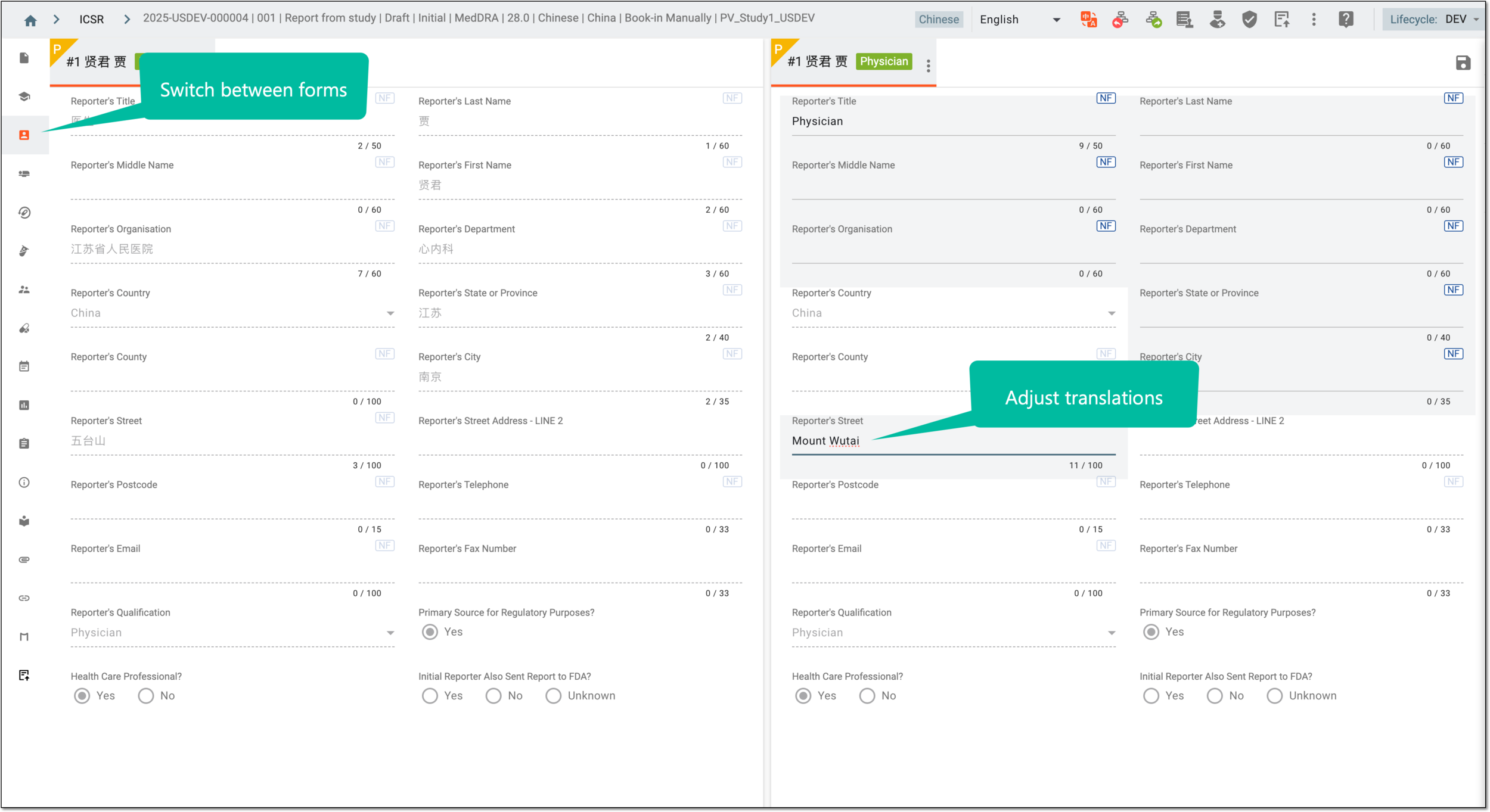 Figure 4. Reviewing translations in bilingual view
-
Select Save the Translation
to implement the translation value changes before switching the form, otherwise, the data
is lost.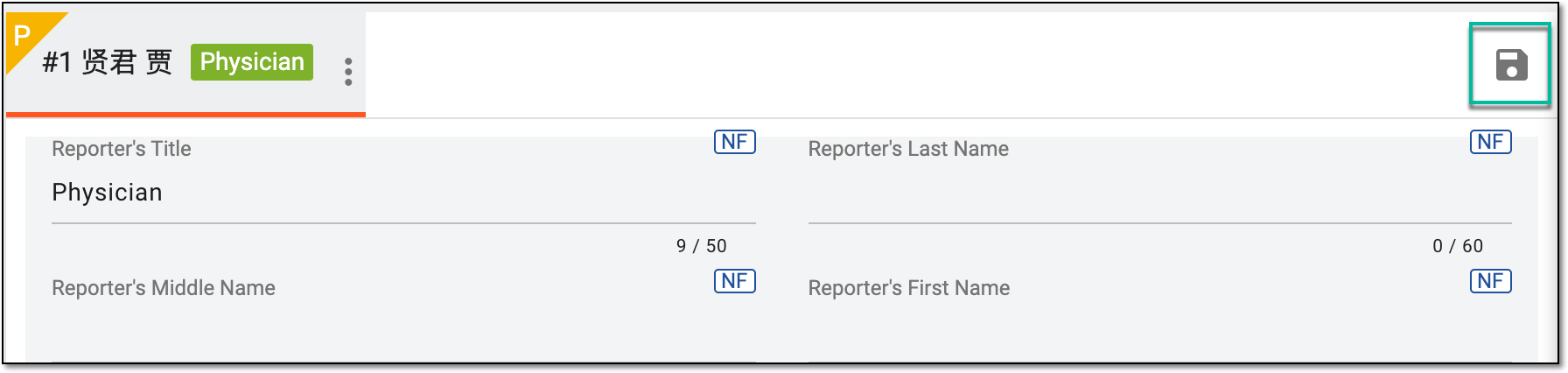 Figure 5. Saving translation
You have analyzed and adjusted your ICSR in original and translation languages. You can go back to the standard ICSR view by selecting Bilingual View 
The Bilingual View feature of PV is designed for multilingual studies, where safety data is reported and submitted in different languages. With bilingual view enabled, you can see your ICSR forms in both original and translation languages side by side.
In a bilingual view, you can access and analyze the translation history for your ICSR, as it is vital to keep a record of data interpretations for compliance and traceability reasons. The history provides an exhaustive, structured log of translations, helping you trace what they were, who performed them, and when.
-
In the PV application header, select the ICSR tab.
Figure 1. Accessing ICSR list
-
On the ICSR List page that opens, in the table, locate the ICSR record of your interest. Then select its case number to open the details page in the new browser tab.
Alternatively, from the Actions column next to your ICSR, select Edit
to open
the ICSR details in the same browser tab.Figure 2. Accessing ICSR details
-
On the ICSR details page that opens, from the workspace toolbar, select Bilingual View
.Figure 3. Enabling bilingual view
-
Once the bilingual view is enabled, from the workspace toolbar, select More
> Translation
History  .
.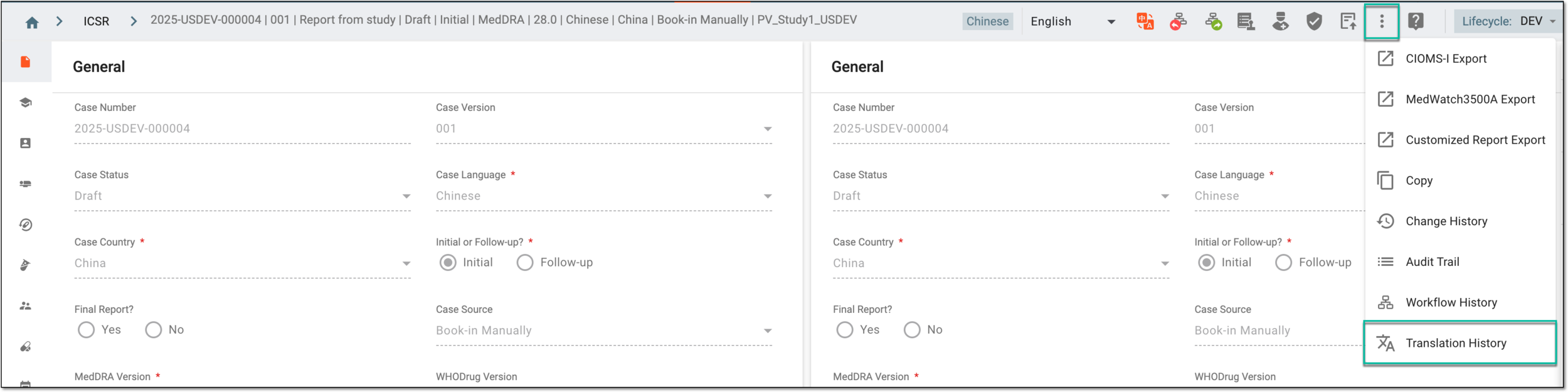 Figure 4. Accessing translation history
-
In the Translation History dialog that appears, analyze the details of all the translations applied to all the ICSR fields from their first entry and up to date.
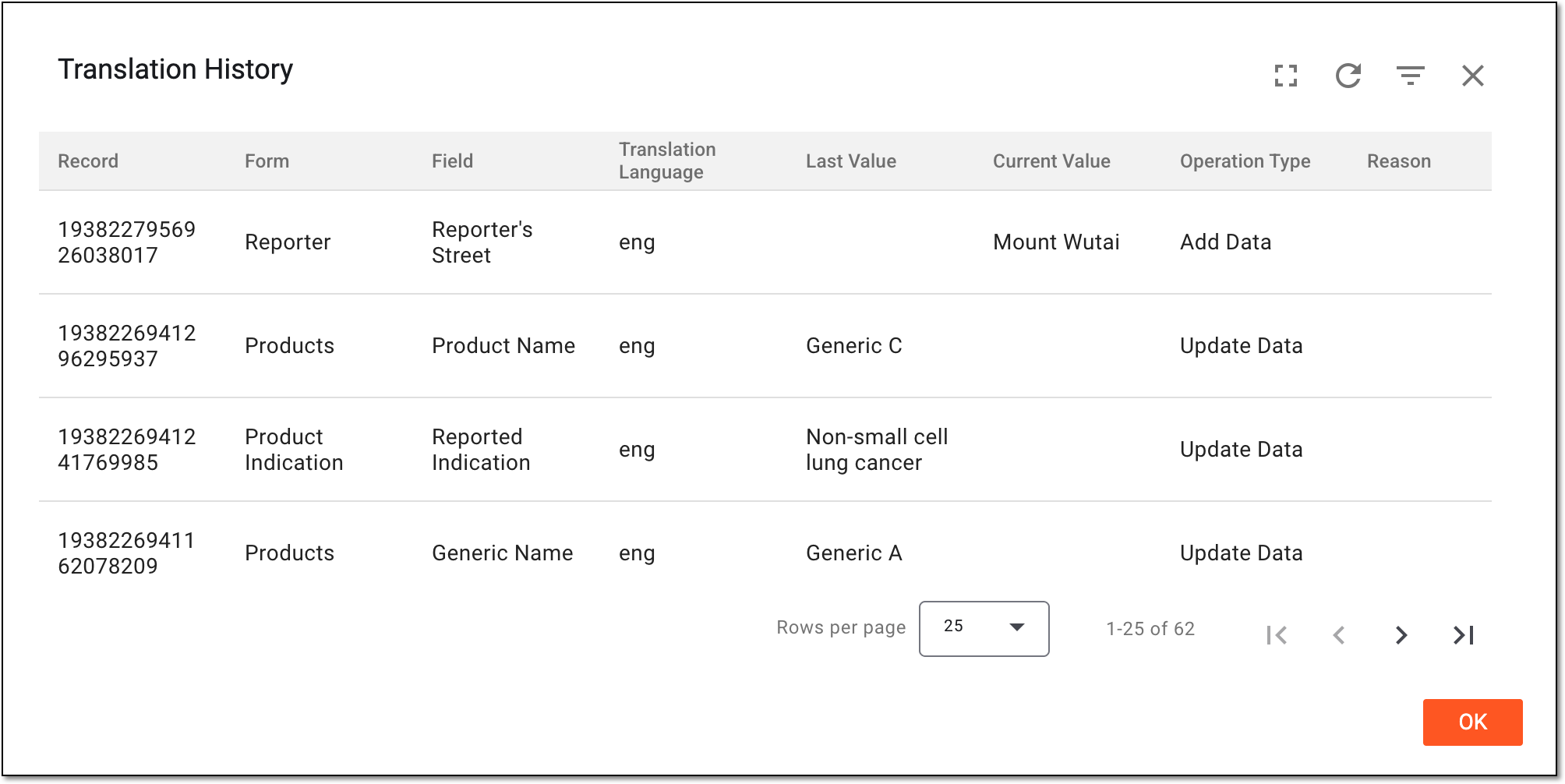 Figure 5. Analyzing translation history
You have analyzed the translation history for the ICSR. You can now select OK to close the dialog and return to reviewing the case in bilingual view.