Forward ICSR workflow route
The Forward Route feature enables the promotion of ICSRs from one workflow status to another. Once the route is forwarded, the ICSR inherits a new user-defined status that has been configured during the workflow design.
Important
The workflow of the ICSR review and approval process can be customarily configured by the EDETEK administrator according to the client's requirements.
Some workflow stages might include system validation to prevent ICSRs from being forwarded to the next stage without completing all the activities or meeting the requirements of the previous one.
-
In the PV application header, select the ICSR tab.
-
From the left pane, select ICSR List.
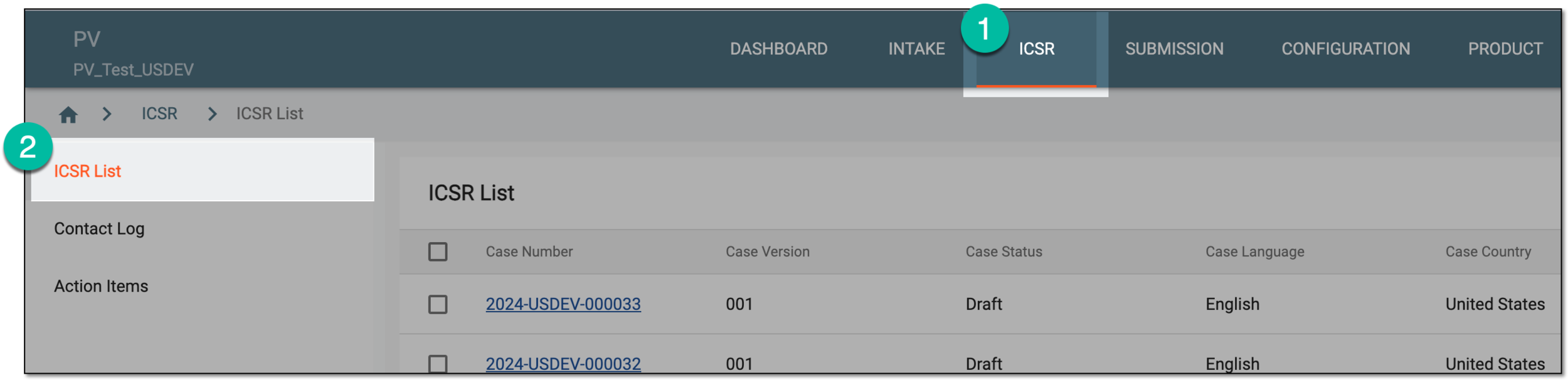 Figure 1. Accessing ICSR list
-
On the ICSR List page that opens, in the table, locate the ICSR record for which you need to forward a route. Then select its case number to open the details page in the new browser tab.
Alternatively, from the Actions column next to your ICSR, select Edit
 to open the
ICSR details in the same browser tab.
to open the
ICSR details in the same browser tab. Figure 2. Selecting to edit ICSR
-
On the page that opens, from the toolbar, select Forward
 .
. -
In the Forward dialog that appears, fill in the fields as suggested in the following table.
Important
The details you need to provide for action confirmation depend on the authentication method configured for you in the system—via SSO or via providing your login and password.
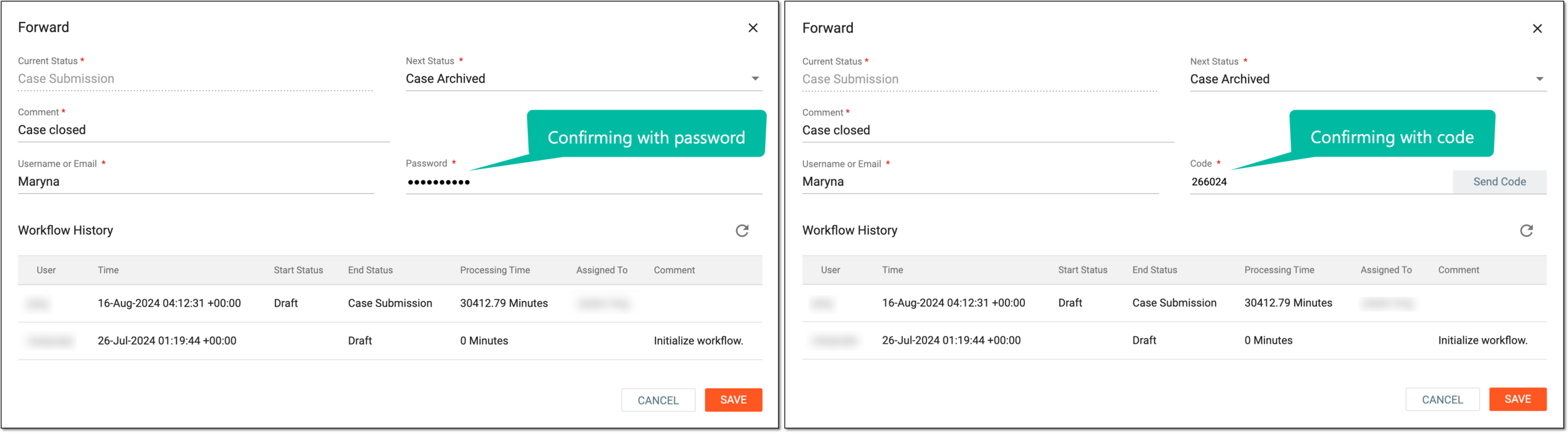 Figure 3. Forwarding route
Tip
In the following table, mandatory elements are marked with an asterisk (*).
Element
Details
Current Status*
This field is disabled by default and it represents the current workflow status of the ICSR.
Next Status*
Select the next workflow status for the selected ICSR.
Assign to*
Assign a user who needs to review the workflow status change and take corresponding actions.
The list of assignees is based on their study access permission granted via ADMIN.Comment
Enter a comment to follow your data if needed. This comment is included in the notification email for the assigned user, so you can use it to communicate any specific details to them.
The field can be optional or mandatory depending on the status configuration to which you are forwarding the route.
Username or Email*
Enter your username or email for which the eClinical system access is configured.
Password*
Enter the password that you use to log in to the eClinical system.
The field is only available if you use the authorization method by providing your login and password.Send Code
Select
 to send the temporary PIN code to your email for which the SSO method is configured.
The PIN code is valid for 5 minutes before it expires. Select
again to send another email and regenerate the PIN if required.The button is only available if you use the authorization method via SSO.Code*
Enter the temporary PIN code that you received via email.
The field is only available if you use the authorization method via SSO.Workflow History
Use the table data to analyze all the previous workflow route changes for the case, including the details on what was done, by whom, when, and so on.
SAVE
Select
 to confirm the intended action.
CANCEL
Select
 to discard the implemented changes.
Important
For security, the system logs you out after three failed attempts to confirm your identity with a password or code.
-
In the Validation dialog that may appear, view the generated field-, record-, and configuration-level workflow validation errors if any.
For instance, the ICSR cannot be forwarded from the Data Entry to Quality Review status if adverse events are not coded according to the MedDRA dictionary, and it cannot be forwarded to the Case Submission status if there are empty mandatory fields or forms.
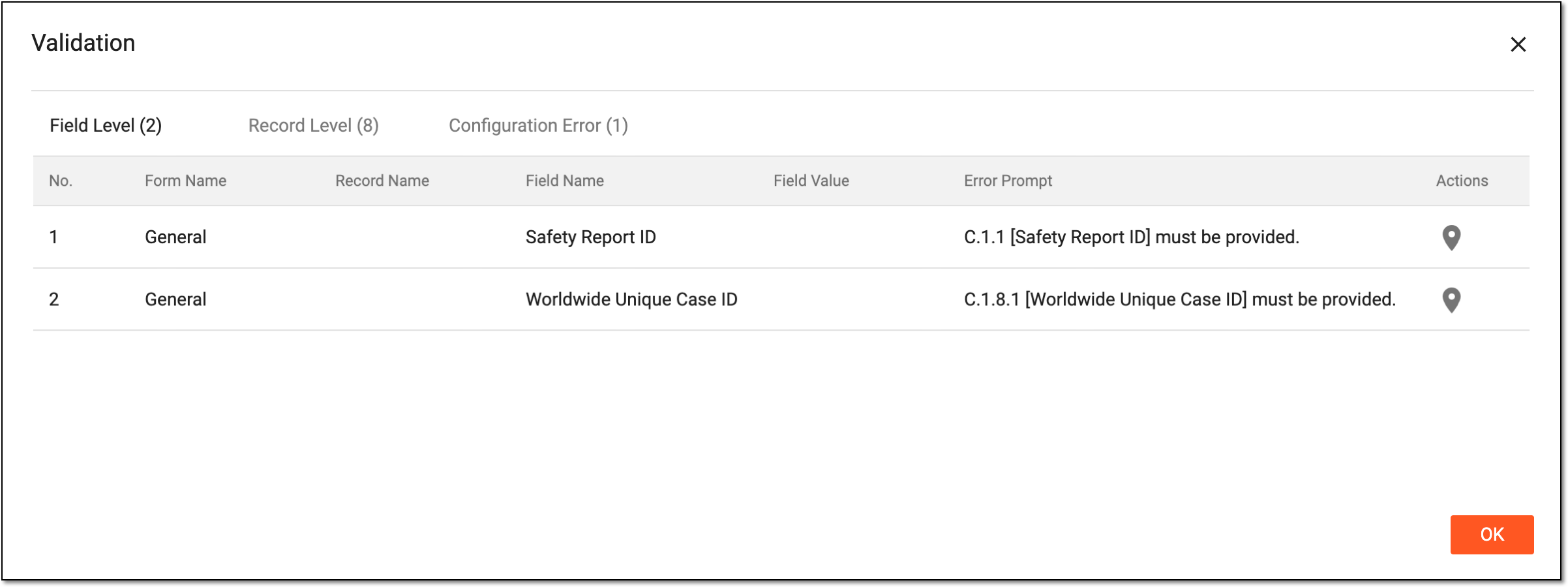 Figure 4. Receiving validation errors
Important
The Validation dialog may not appear if no validation rules have been configured for a specific workflow route.
-
Select Locate
 next to the needed validation error to go to its location within the case. Resolve all validation errors that you
can navigate between from the interactive panel of the case.
next to the needed validation error to go to its location within the case. Resolve all validation errors that you
can navigate between from the interactive panel of the case.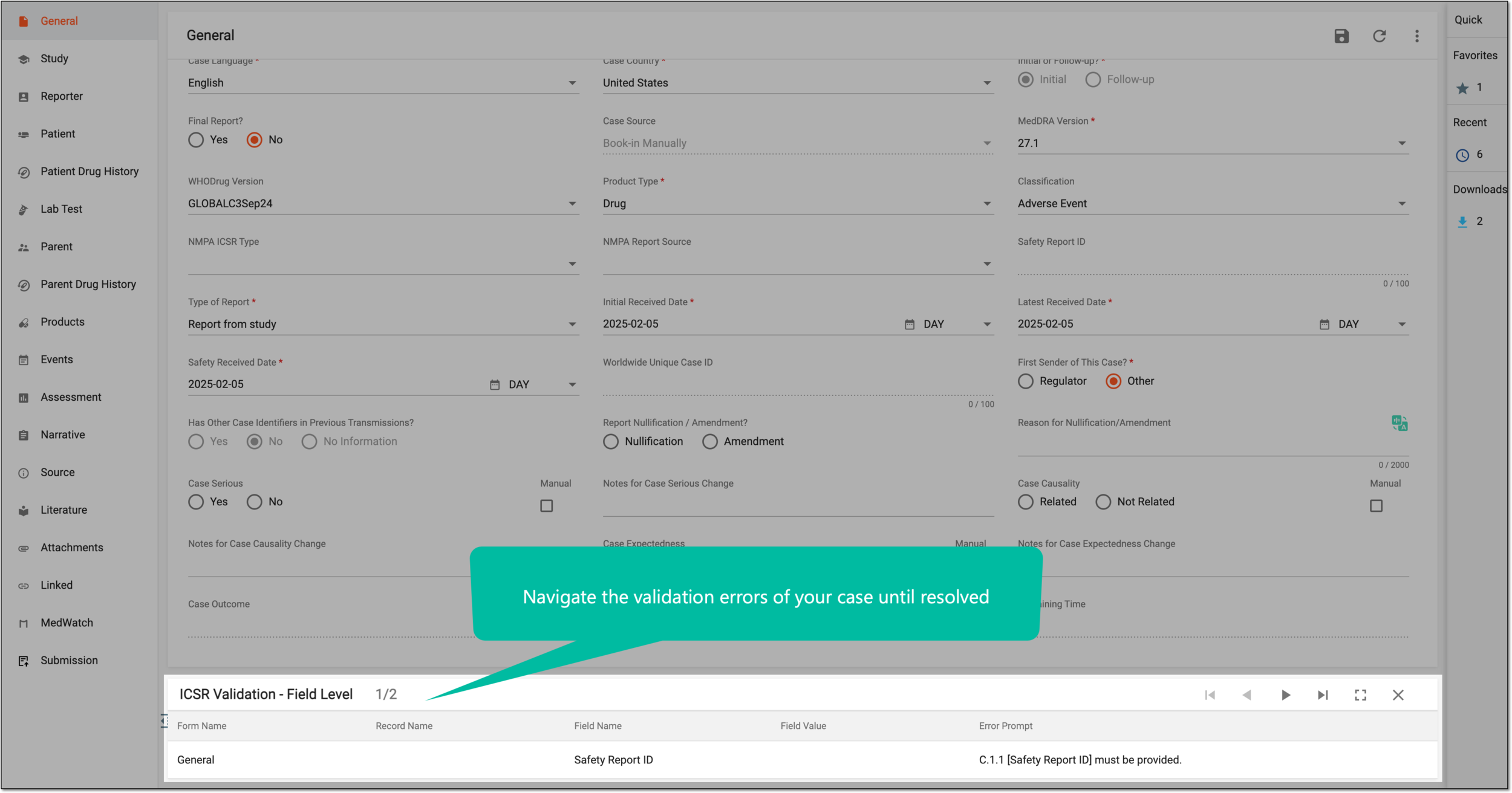 Figure 5. Navigating validation error panel
-
After resolving the validation errors, repeat steps 1-5 of this procedure to forward your case to the needed route.
Once the action is confirmed with no validation errors, the route is forwarded. The assignee receives an email notification including the link for the user to easily access the system and the specific page that requires attention. To open the needed page, the user must log in to the system upon clicking the link.