Initiate workflow validation upon route forward/return
A workflow is a multistep route of different statuses that a user may go through while handling ICSR cases. A workflow validation is run in the background whenever a new route is enabled. Workflow validation rules are configured by authorized users beforehand.
For instance, the current configuration of PV states that all action items must be closed before forwarding the case route to the Case Submission status.
This section explains how to initiate validation and access errors upon ICSR workflow route changes, however, there is also an option to run ICSR validation at any time, for instance, upon data entry to verify that sufficient data and the quality of data collected are present in a case as per regulatory requirements.
Important
Currently in PV, the default ICSR workflow has ten statuses, such as Draft, Data Entry, Quality Review, Translation, Medical Review, Unblinding, Final Review, Case Submission, Case Archived, and Invalid. The workflow of the ICSR review and approval process can be customarily configured by the EDETEK administrator according to the client's requirements.
-
In the PV application header, select the ICSR tab.
-
From the left pane, select ICSR List.
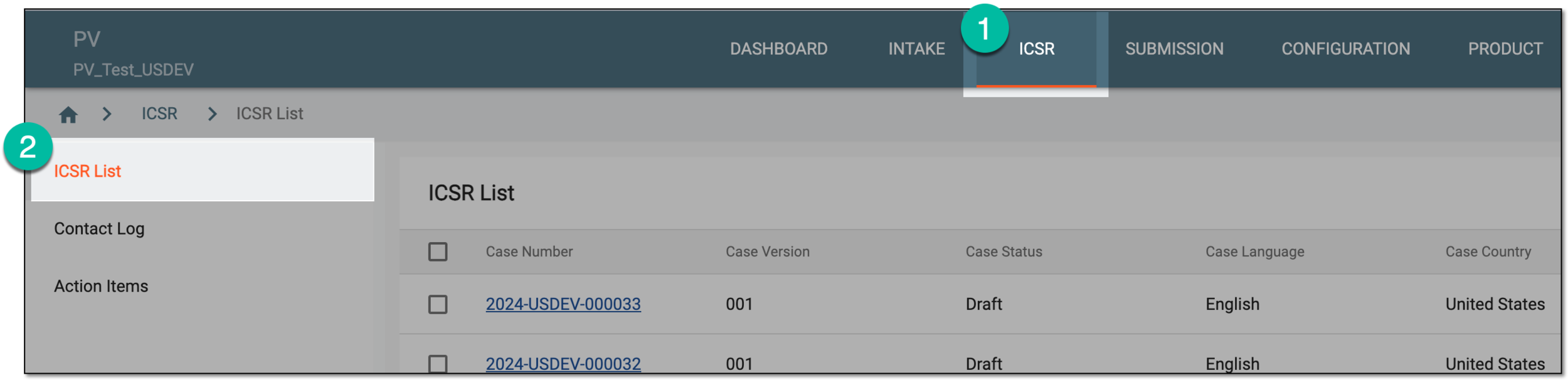 Figure 1. Accessing ICSR list
-
On the ICSR List page that opens, in the table, locate the ICSR record for which you need to forward a route. Then select its case number to open the details page in the new browser tab.
Alternatively, from the Actions column next to your ICSR, select Edit
 to open the
ICSR details in the same browser tab.
to open the
ICSR details in the same browser tab. Figure 2. Selecting to edit ICSR
-
On the page that opens, change the route by selecting Forward
 or Return
 .
.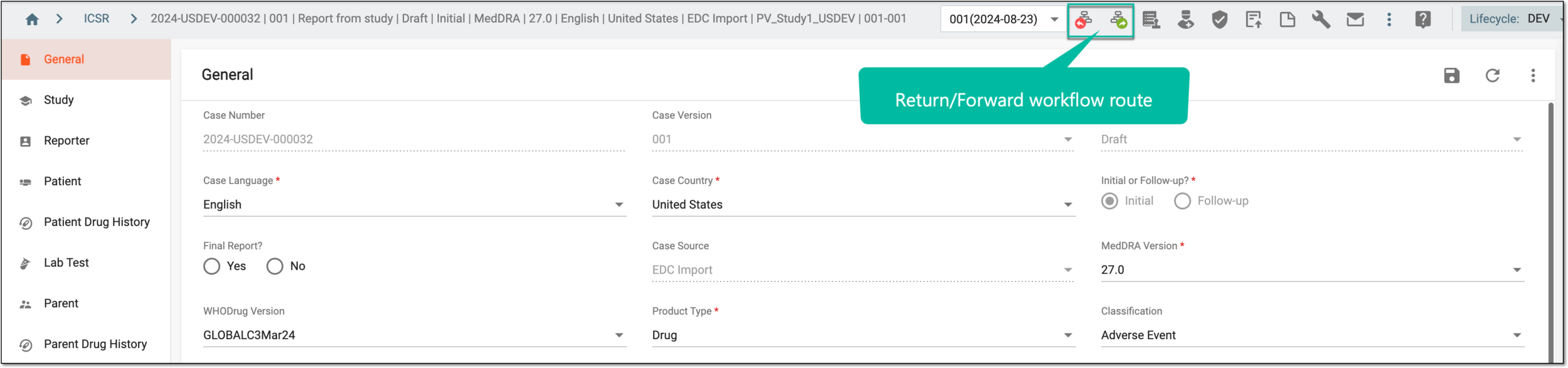 Figure 3. Returning/Forwarding route
Tip
For more details on moving the case between workflow routes, see the Forward ICSR workflow route and Return ICSR workflow route sections.
-
In the Validation dialog that may appear, view the generated field-, record-, and configuration-level workflow validation errors if any.
For instance, the ICSR cannot be forwarded from the Data Entry to Quality Review status if adverse events are not coded according to the MedDRA dictionary, and it cannot be forwarded to the Case Submission status if there are empty mandatory fields or forms.
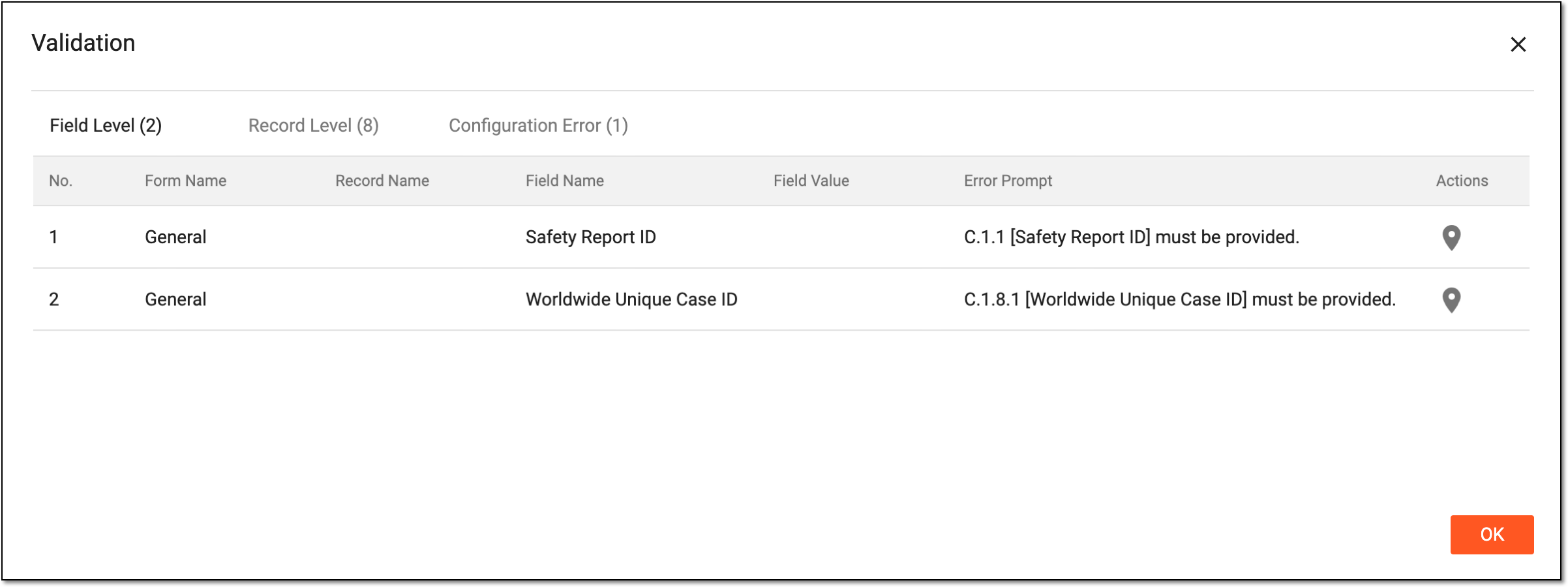 Figure 4. Receiving validation errors
Important
The Validation dialog may not appear if no validation rules have been configured for a specific workflow route.
-
Select Locate
 next to the needed validation error to go to its location within the case.
 -
Proceed to resolve all validation errors that you can navigate between from the interactive panel of the case.
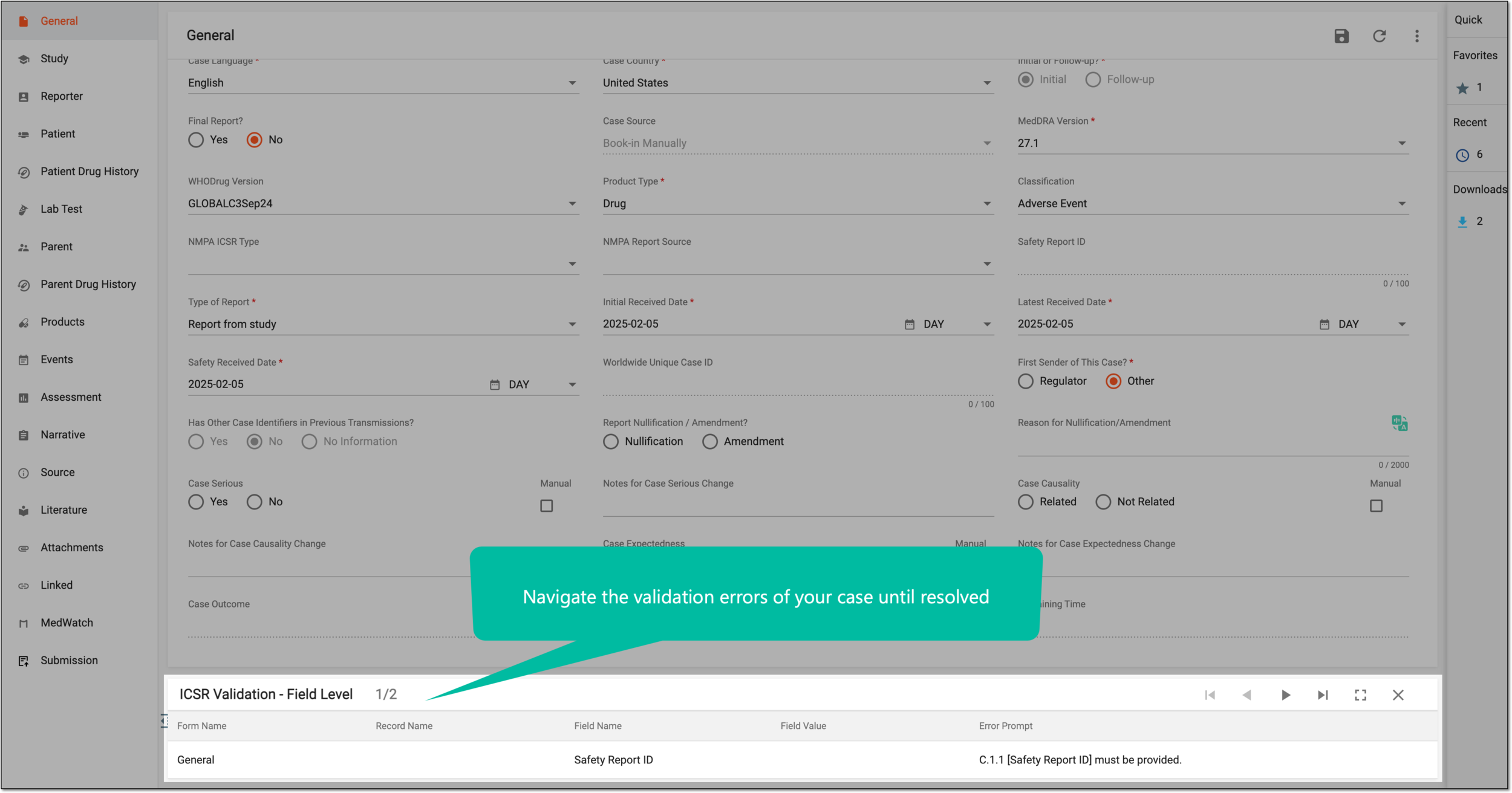 Figure 5. Navigating validation error panel