Create follow-up ICSR manually
In PV, we can differentiate between two types of Individual Case Safety Report (ICSR):
-
An initial ICSR if this is the first time the case is reported.
-
A follow-up ICSR if the data is an updated version of the previously reported case.
In PV, you can create the follow-up ICSR based on the safety data pulled from EDC via data extraction task management or XML file upload. You can also add the follow-up case manually and insert all the required data manually, for instance, if the information is taken from a paper form.
You can create a follow-up version manually for cases initially imported from EDC and for cases initially created manually in PV.
Important
Currently, authorized users can manually create follow-up versions only for ICSR with the workflow status Case Archived, the Report Nullification / Amendment value not equal to Nullification, and the Final Report value not equal to Yes.
The permissions and conditions for performing follow-up operations can be configured by the EDETEK administrator according to the client's requirements.
Be aware that the follow-up operation is irreversible. Once the follow-up operation is completed, the system creates a new copy of the selected ICSR with the same case number, and the existing case version is automatically increased. The new copy also includes field data entered by a user in the Initial workflow status.
Tip
For the definition of amendment report and nullification report, please refer to the ICH E2B (R3) implementation guideline.
-
In the PV application header, select the ICSR tab.
-
On the ICSR List page that opens, do one of the following:
-
If you want to create a follow-up version directly from the ICSR list, then in the table, locate the required ICSR. In the Actions column next to your ICSR, select More
 > Follow Up
  .
.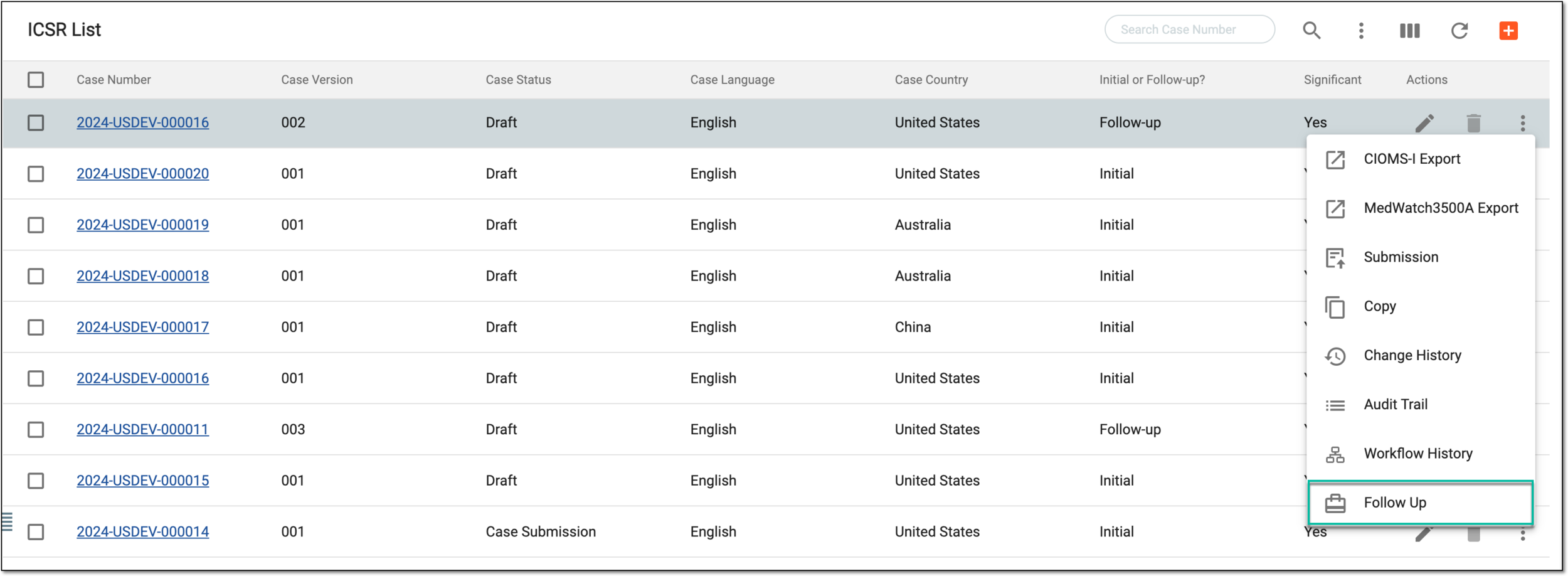 Figure 1. Creating follow-up from ICSR list
-
If you want to review some ICSR details before creating the follow-up, then from the table, select the case number or Edit
 next to the ICSR for which you are considering to add the follow-up. Then on the page that opens, you can review the needed details and from the toolbar, select More > Follow Up .
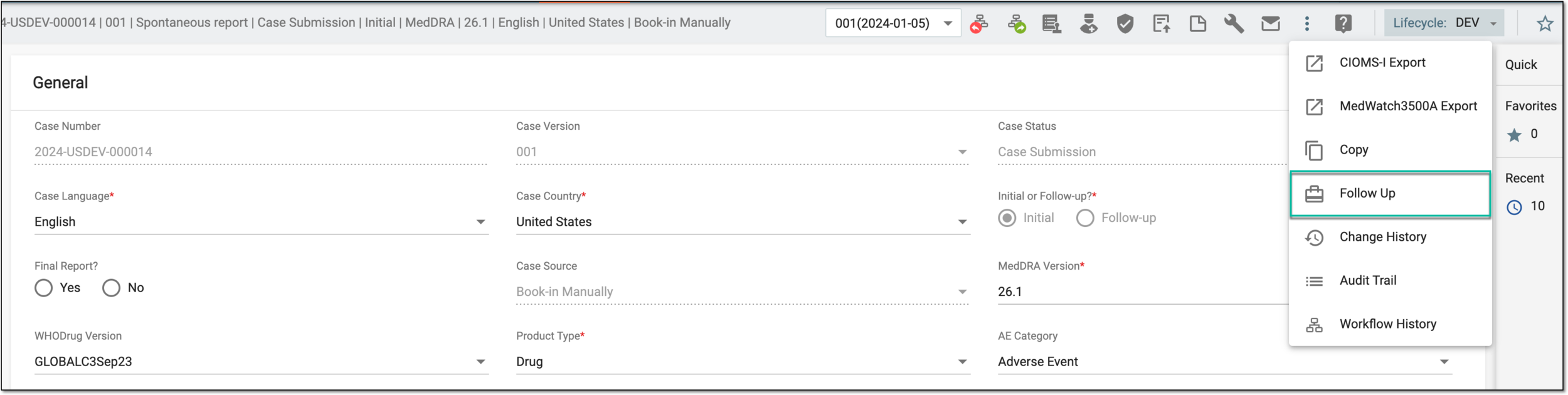 Figure 2. Creating follow-up from ICSR details page
-
-
In the Create follow-up report for [case number] dialog that opens, configure the fields as explained in the following table.
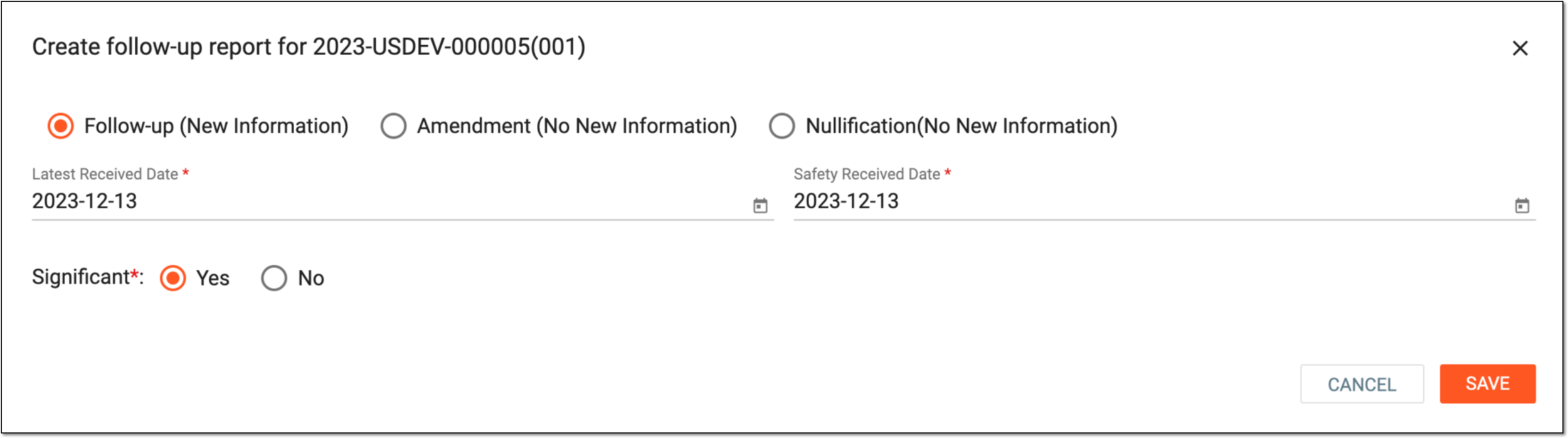 Figure 3. Creating follow-up ICSR
Element
Details
Follow-up (New Information)
Select this option to create a follow-up ICSR based on the newly received data on the previously reported case. The follow-up report creation triggers the creation of an additional case version as follows: follow-up 002, follow-up 003, and so on.
Amendment (No New Information)
Select this option to create an amendment for the previously reported case.
An amendment can be created if data within an ICSR needs to be corrected or updated (for instance, due to the findings during internal review or audits that showed inaccurate data that needs correction). Currently, creating the amendment triggers a new case version creation.
For example, a temperature of 37.9 was entered during the follow-up 002, and upon review of the source document, the correct value is 37.6. A new case version "003" will be created for the amendment.
Nullification(No New Information)
Select this option to nullify the previously reported case that became invalid due to updated information.
The nullification can be done to transmitted ICSRs due to a variety of reasons, for example, if duplicate ICSRs exist, or a previously valid ICSR becomes invalid upon a new follow-up report).
Latest Received Date*
Select the date when the latest information on the reported case has been received.
This field is only available if the Follow-up (New Information) option is selected.
Safety Received Date*
Select the date when the safety department first received the case that is the subject of the ICSR.
This field is only available if the Follow-up (New Information) option is selected.
Significant*
Select one of the following options:
Note that the significance of a follow-up report must be assessed by the safety team specialists.Reason for Nullification/Amendment*
Enter the reason for ICSR nullification or amendment.
This field is only available if the Amendment (No New Information) or Nullification(No New Information) option is selected.
SAVE
Select
 to implement the changes.
CANCEL
Select
 to discard the changes and close the dialog.
Upon saving, the selected follow-up report is created. Now you can manage your ICSR as per your business scenario.