E2B R3 import
E2B R3 standard is a guideline for the electronic transmission of Individual Case Safety Reports (ICSRs) in pharmacovigilance. By implementing this standard, the PV system enhances the quality and accuracy of adverse event data by ensuring consistency, quality, and compliance with regulatory requirements.
In PV, you can use the E2B R3 import feature for safety information exchange from one database to another in one of the following ways—via manual file upload or gateway file import.
-
Manual upload becomes useful if you already have your XML files and want to import them into the system for further processing.
-
Gateway import becomes useful in automating the file exchange process with the respective sender. This way, you can configure a submission setting for your senders and receive their XML files automatically, eliminating the amount of manual operations and enhancing user experience.
In the following sections, you can learn how to access and manage your E2B R3 import files.
E2B R3 standard is a guideline for the electronic transmission of ICSRs in pharmacovigilance. In the PV application, you can use the manual import feature for a safe E2B R3 file exchange from one database to another.
All the E2B R3 XML files previously uploaded to the PV system can be accessed for further processing, review, and other actions from the Manual Upload table.
-
In the PV application header, select the INTAKE tab.
-
On the page that opens, from the left pane, select E2B R3 Import.
-
In the Manual Upload table that opens, analyze the list of previously imported XML files as explained in the following table.
 Figure 1. Manual Upload table for E2B R3 import
Tip
The records on the list are based on the study access permission granted to you via ADMIN.
Column
Details
File
Represents the name of the uploaded XML file that is an active link you can select to download the file to your computer.
Status
Represents the current status of the import, such as Not Processed, Processed Success, Processed Failed, Complete Import, or Partial Import.
Total Number
Represents the total number of ICSRs in the uploaded XML file.
Imported Number
Represents the number of ICSRs whose data is imported into the system upon processing out of the total number of ICSRs in the uploaded XML file.
Creator
Represents the name of the user who uploaded the XML file.
Create Time
Represents the date and time when the XML file was uploaded.
Modified Time
Represents the date and time of the latest modification of the imported data.
Modified By
Represents the name of the user who performed the latest modification to the imported data.
You have analyzed the list of E2B R3 files manually uploaded to the PV system.
E2B R3 standard is a guideline for the electronic transmission of ICSRs in pharmacovigilance. In the PV application, you can use the gateway import feature for a safe E2B R3 file exchange from one database to another.
All the E2B R3 XML files previously received by the PV system from a gateway import can be accessed for further processing, review, and other actions from the Gateway Received table.
-
In the PV application header, select the INTAKE tab.
-
On the page that opens, from the left pane, select E2B R3 Import.
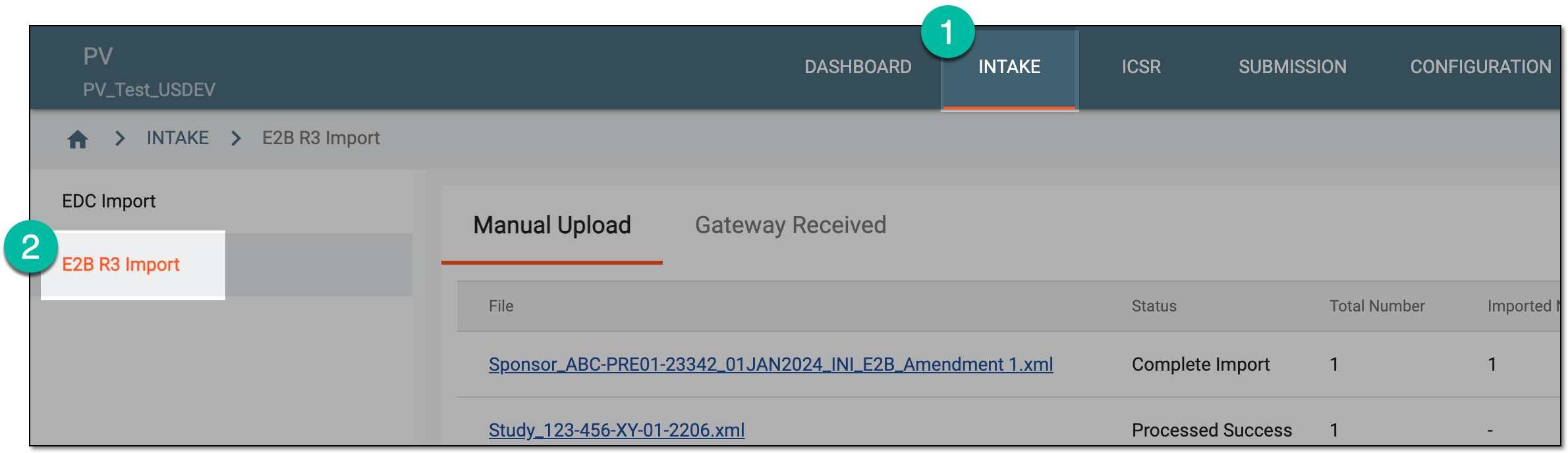 Figure 1. Accessing E2B R3 import
-
In the contents panel, select the Gateway Received tab.
-
In the Gateway Received table that opens, analyze the list of previously imported XML files as explained in the following table.
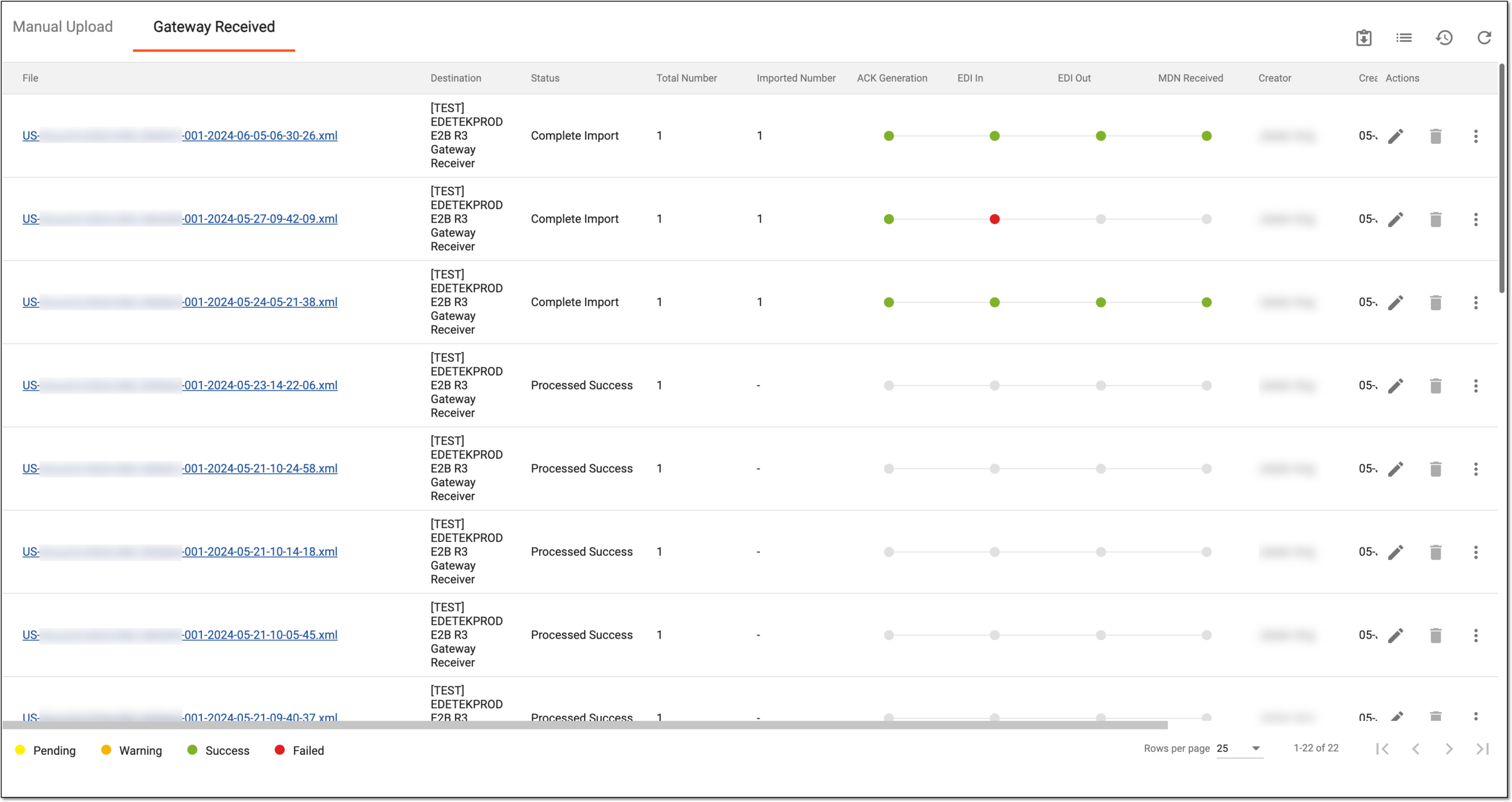 Figure 2. Gateway Received table for E2B R3 import
Tip
The records on the list are based on the study access permission granted to you via ADMIN.
Column
Details
File
Represents the name of the received XML file that is an active link you can select to download the file to your computer.
Destination
Represents the name of the file receiver destination—to where the file is being sent. This is established upon submission setting configuration for a sender.
Status
Represents the current status of the import, such as Not Processed, Processed Success, Processed Failed, Complete Import, or Partial Import.
Total Number
Represents the total number of ICSRs in the uploaded XML file.
Imported Number
Represents the number of ICSRs whose data is imported into the system upon processing out of the total number of ICSRs in the uploaded XML file.
ACK Generation
Represents the color-coded status of the acknowledgment (ACK) generation on the PV side as follows:
-
Pending
 : indicates that the case is reviewed but the ACK is not generated.
 -
Success
 : indicates that ACK is generated successfully.
 -
Warning
 : indicates that there is an issue with ACK generation.
 -
Failed
 : indicates that the ACK generation failed due to a problem with an XML file. Contact the
EDETEK administrator to resolve the issue.
: indicates that the ACK generation failed due to a problem with an XML file. Contact the
EDETEK administrator to resolve the issue.
For the gateway-received E2B R3 files, you have to generate ACK manually after the file is successfully reviewed.EDI In
Represents the color-coded status of the acknowledgment (ACK) message sent from PV to the EDETEK EDI service as follows:
-
Pending
: indicates that the ACK message is generated but not yet sent to EDI. -
Success
: indicates that the ACK message is sent successfully to EDI. -
Failed
: indicates that the ACK message sending failed due to a problem with an XML file. Contact
the EDETEK administrator to resolve the issue.
EDI Out
Represents the color-coded status of the acknowledgment (ACK) message sent from the EDI service to the receiving destination via the internet as follows:
-
Pending
: indicates that the ACK message is not yet sent from EDI to the receiver. -
Success
: indicates that the ACK message is sent successfully from EDI to the receiver. -
Failed
: indicates that the ACK message sending failed due to a problem with an XML file. Contact
the EDETEK administrator to resolve the issue.
MDN Received
Represents the color-coded status of the acknowledgment (ACK) message on the receiving destination side as follows:
-
Pending
: indicates that the ACK message has not yet reached the receiver destination. -
Success
: indicates that the ACK message reached the receiver destination but is not yet loaded
to their safety system.
Creator
Represents the name of the user who received the XML file.
Create Time
Represents the date and time when the XML file is received.
Modified Time
Represents the date and time of the latest modification of the imported data.
Modified By
Represents the name of the user who performed the latest modification to the imported data.
-
You have analyzed the list of E2B R3 files received by the PV system from the established senders via a gateway import.
All the E2B R3 XML files previously uploaded to the PV system or received by the PV system from a gateway import can be accessed for further processing, review, and other actions from the Manual Upload table. Search for the files you need more quickly using simple and advance search.
-
In the PV application header, select the INTAKE tab.
-
On the page that opens, from the left pane, select E2B R3 Import.
Figure 1. Accessing E2B R3 import
-
In the contents panel, select the Manual Upload or Gateway Received tab based on the origin of the files you want to find.
-
On the resulting page, use the search options as follows.
-
From the workspace toolbar, select Search
 .
. Figure 3. Accessing advanced filters to find E2B R3 files
-
On the Advanced Search page that opens, use the available filters and their combinations to find the needed files as explained in the following table.
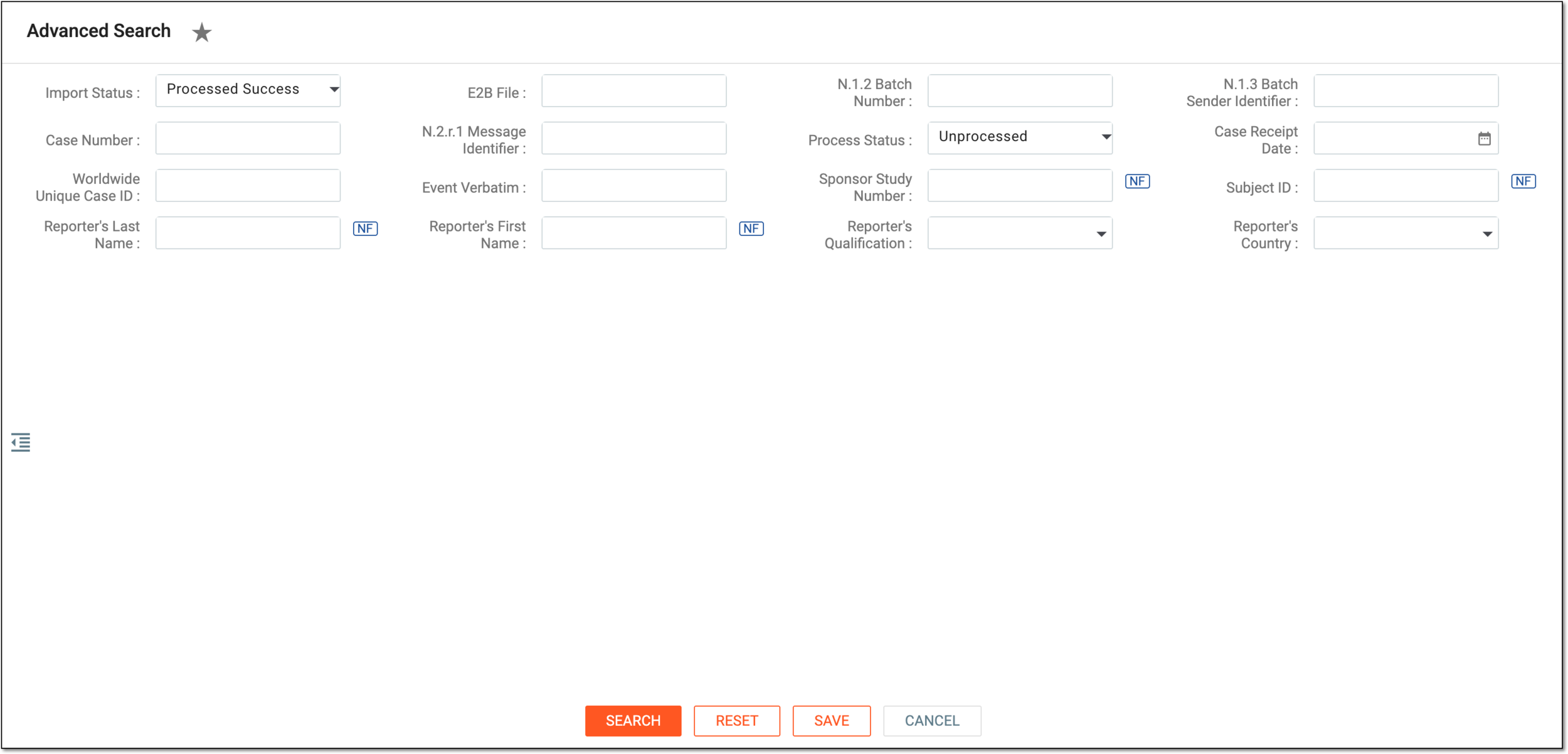 Figure 4. Using advanced filters to find E2B R3 files
Element
Details
Import Status
Select the status of the file import, such as Not Processed, Processed Success, Processed Failed, Complete Import, or Partial Import to search for files in a certain state of importing to the system.
E2B File
Enter the file name or part of it to search for files containing the entered element in their title.
N.1.2 Batch Number
Enter the unique tracking number assigned by the sender to each file to retrieve a file containing a specific case.
N.1.3 Batch Sender Identifier
Enter the identifier of the origin of the ICSR reports, such as, company name or regulatory authority to retrieve a file containing a specific case.
Case Number
Enter the unique ID that the ICSR obtains once the file is successfully reviewed and the new or follow-up case report is created based on it. This is helpful to find files based on which the ICSR is already created.
N.2.r.1 Message Identifier
Enter a unique tracking identifier assigned to a specific ICSR message transmitted by the sender to search for the file containing a specific case.
Process Status
Select the processing status of the report, such as Unprocessed, Initial Report, Update Report, Follow-up Report, and Reject Import to search for files in a certain state of validation.
Case Receipt Date
Select the date when the safety department received the most recent case data to search for the file containing a specific case.
Worldwide Unique Case ID
Enter the unique international identifier assigned to the case to search for the file containing a specific case.
Event Verbatim
Enter the original reporter's words or short phrases used to describe the first reported event to search for the files containing specific cases.
Sponsor Study Number
Enter the study number assigned by the sponsor to search for the files containing cases reported for a certain study.
Subject ID
Enter the unique identifier of a patient (subject) assigned to them by the sponsor in the course of a clinical trial to search for the files containing cases reported for a certain subject.
Reporter's Last Name
Enter the last name of the primary reporter of the case to search for the files with cases reported by the same person.
Reporter's First Name
Enter the first name of the primary reporter of the case to search for the files with cases reported by the same person.
Reporter's Qualification
Select one of the available qualifications of the primary reporter of the case to search for the files with cases reported by the same professional, for instance, risk manager, physician, and so on.
Reporter's Country
Select one of the available countries of the primary reporter's location to search for the files with cases reported in the same region.
Null flavor
Select
 next to the field to activate the options No Information, Masked, Unknown, and so on. In the case reports, this is used to provide the reason for missing data. Thus, use this in search to find cases with missing data for certain fields and a specific reason.
You can find the details of the available null flavor options and their codes in Appendix A. Null flavor specification.SEARCH
Select
 to retrieve the list of files satisfying the applied filters.
RESET
Select
 to clear all the entered filter values and start fresh.
SAVE
Select
 to save and use the saved filter set when needed.
CANCEL
Select
 to discard the search and return to the E2B R3 import list.
-

Once done, the E2B R3 files satisfying your search parameters are displayed in the Manual Upload or Gateway Received tab for further maintenance.
Tip
The search results are based on the study access permission granted via ADMIN.