Generate and send ACK
E2B R3 standard is a guideline for the electronic transmission of Individual Case Safety Reports (ICSRs) in pharmacovigilance. In the PV application, you can use the gateway import feature for a safe E2B R3 file exchange from one database to another.
Once you receive the E2B R3 XML file from a sender and it is successfully processed and reviewed, you have to confirm to the sender that the gateway import went well and the ICSR is created in the PV system. For this, you need to manually generate and send the acknowledgment (ACK) package.
-
In the PV application header, select the INTAKE tab.
-
On the page that opens, from the left pane, select E2B R3 Import.
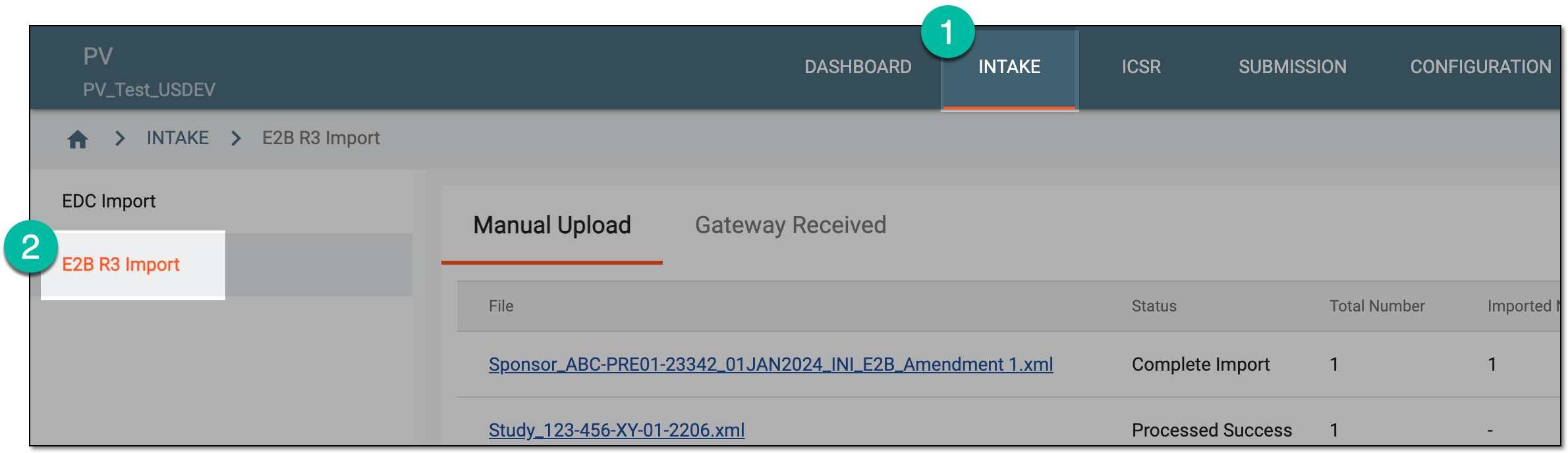 Figure 1. Accessing E2B R3 import
-
In the contents panel, select the Gateway Received tab.
-
In the Gateway Received table that opens, locate the XML file for which you need to generate and send ACK. Then from the Actions column, select Edit
 .
.Tip
You can see the uploaded files with cases based on the study access permission granted via ADMIN.
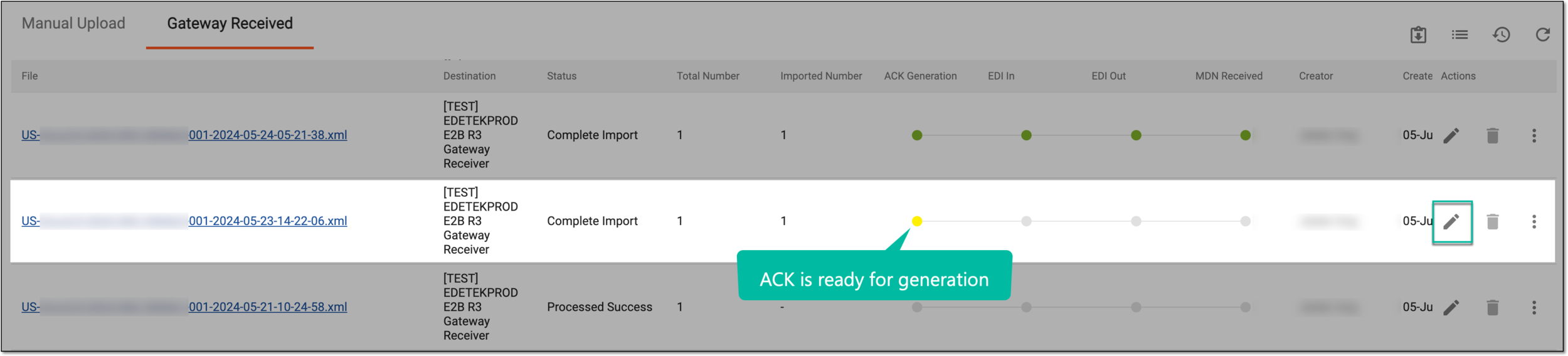 Figure 2. Accessing imported file details
-
On the page that opens, from the workspace toolbar, select ACK Generation
 .
.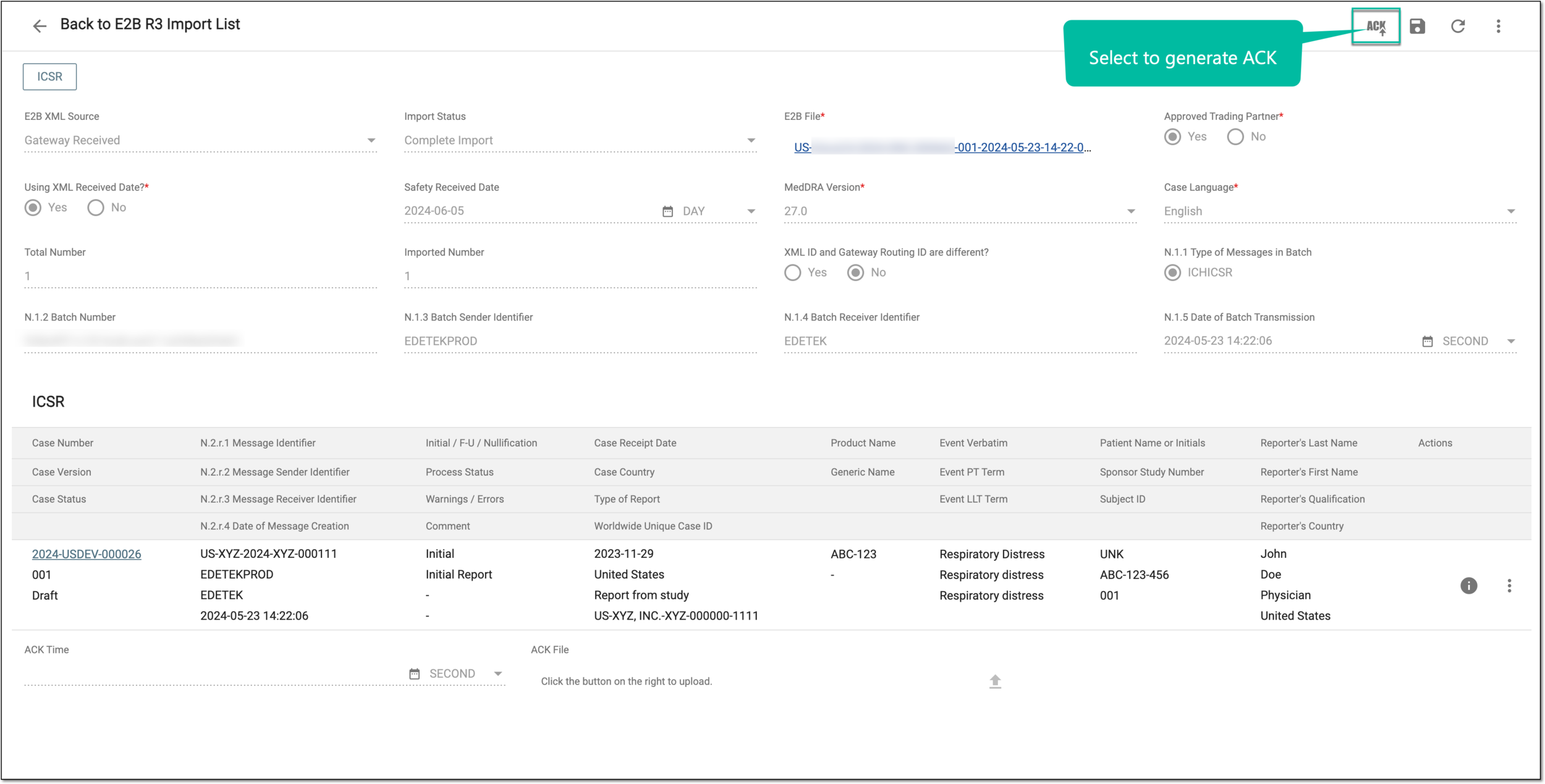 Figure 3. Generating ACK
-
Once generated, review the details of the ACK package and from the workspace toolbar, select ACK Send
 .
.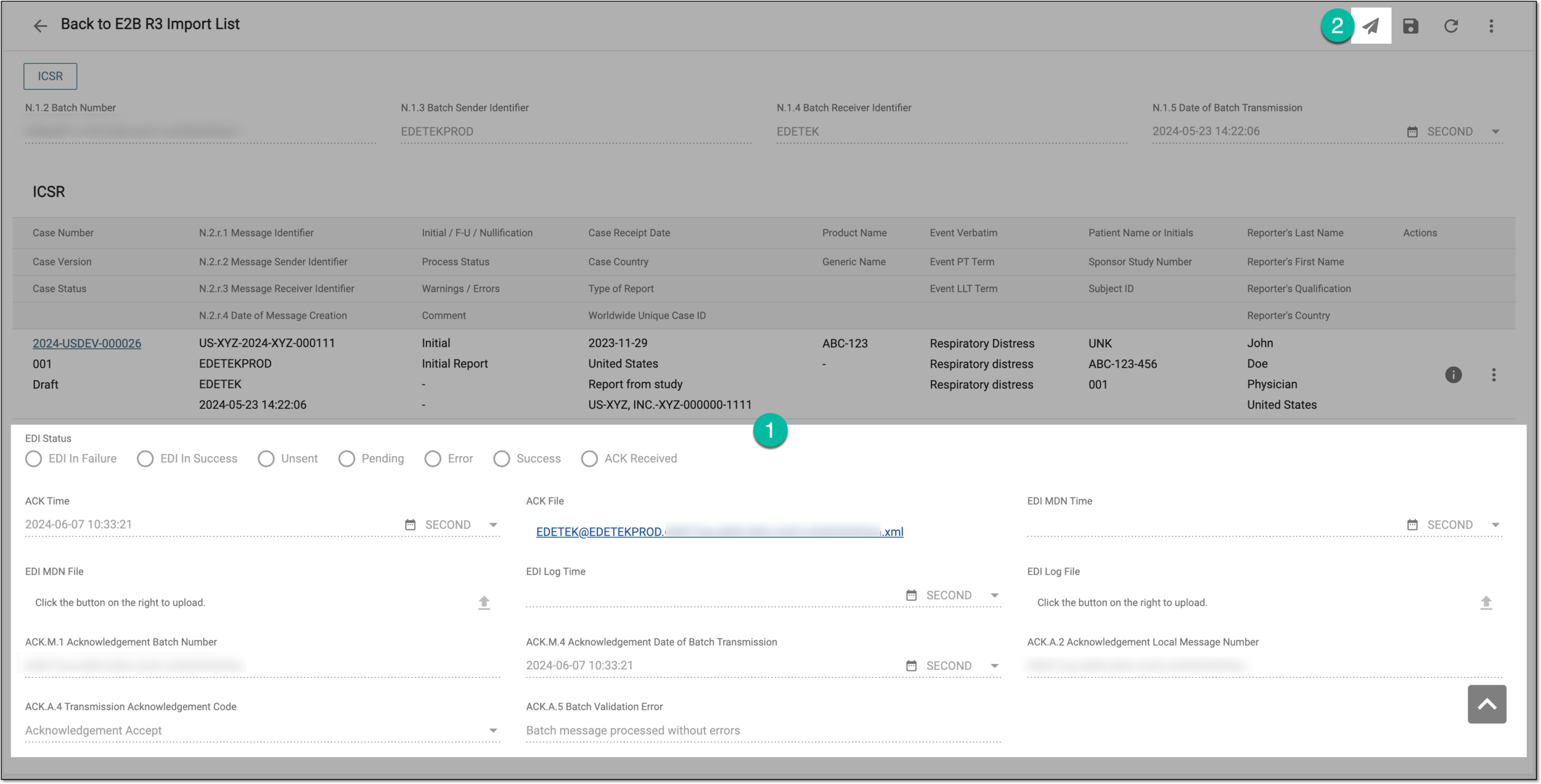 Figure 4. Sending ACK
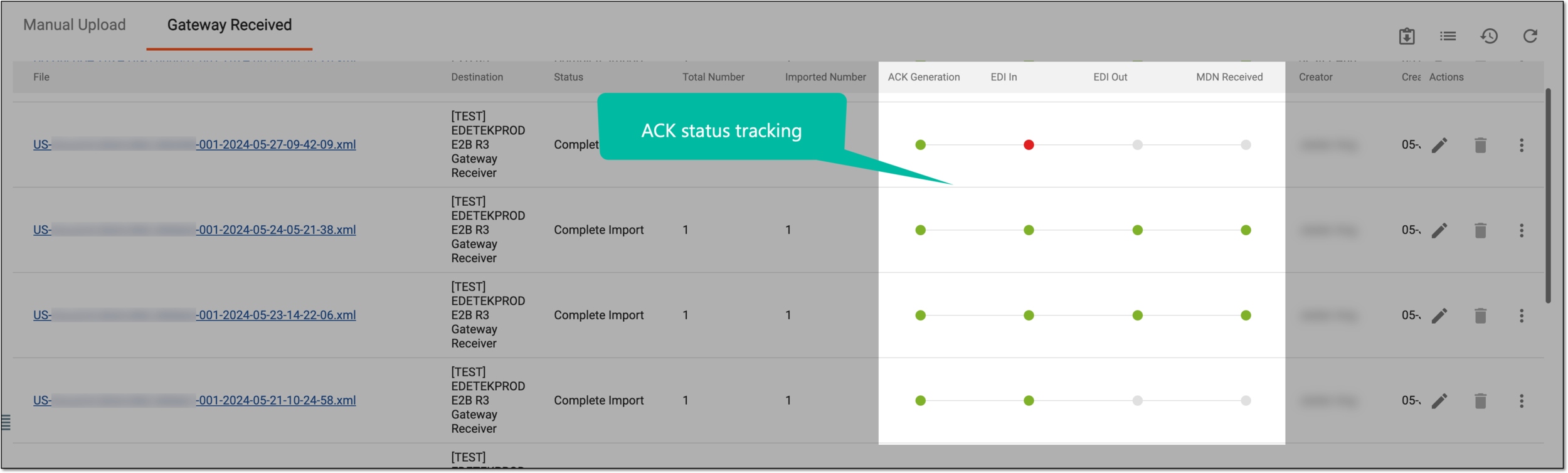
Once done, the ACK package is sent. You can track the current status of the operation in the EDI Status block or select ACK Tracking  .
.
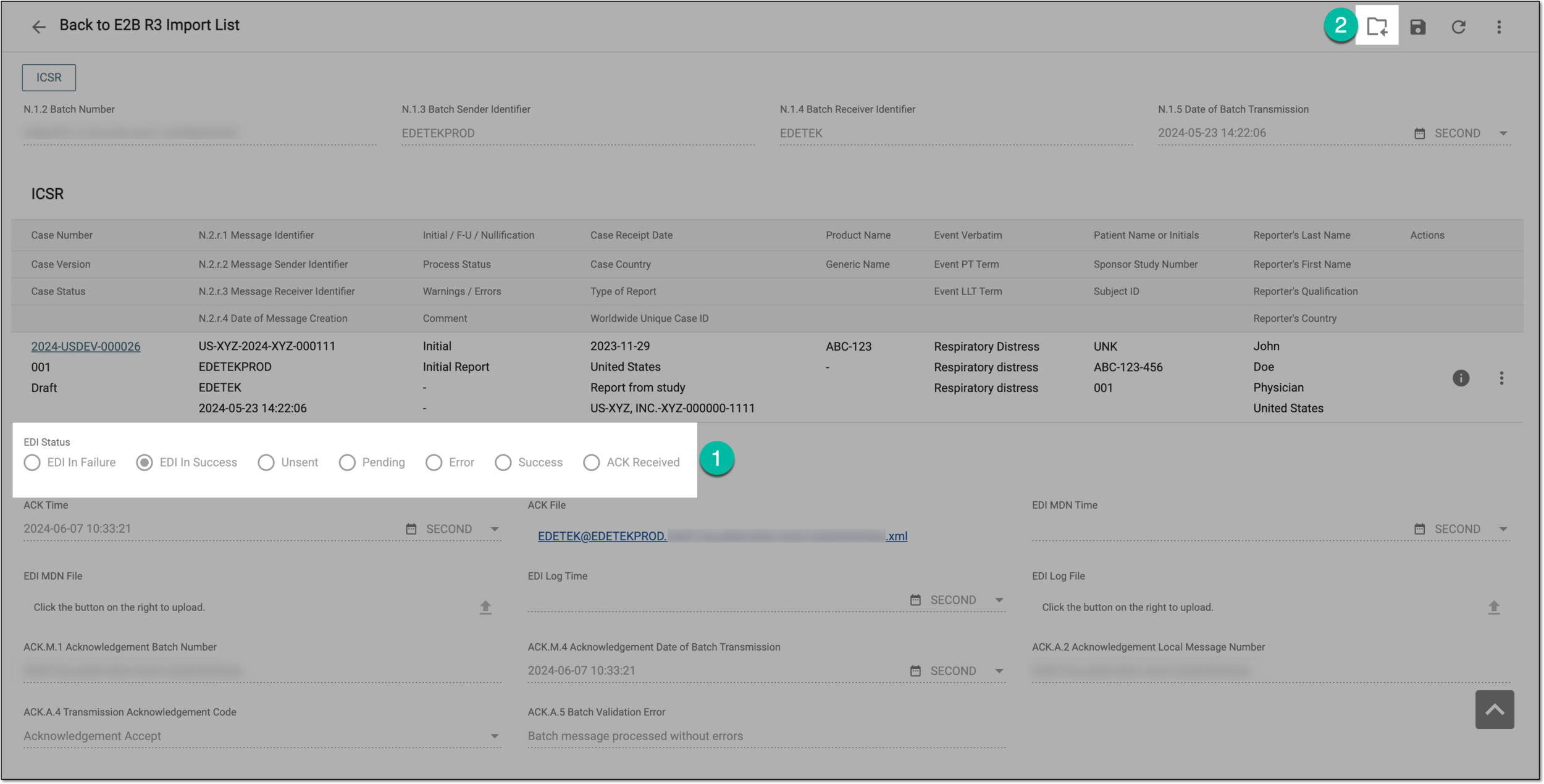
You can also track the current ACK status from the Gateway Received page.