Review ICSR extracted from E2B R3 import
By implementing the E2B R3 standard, the PV system enhances the quality and accuracy of adverse event (AE) data by ensuring consistency, quality, and compliance with regulatory requirements.
In PV, you can create ICSRs using the E2B R3 import by uploading an XML file with your case data or receiving such a file via a gateway. Once imported and processed, the resulting ICSR data must be reviewed. The review at this point is intended to validate the data as ready for ICSR management.
-
In the PV application header, select the INTAKE tab.
-
On the page that opens, from the left pane, select E2B R3 Import.
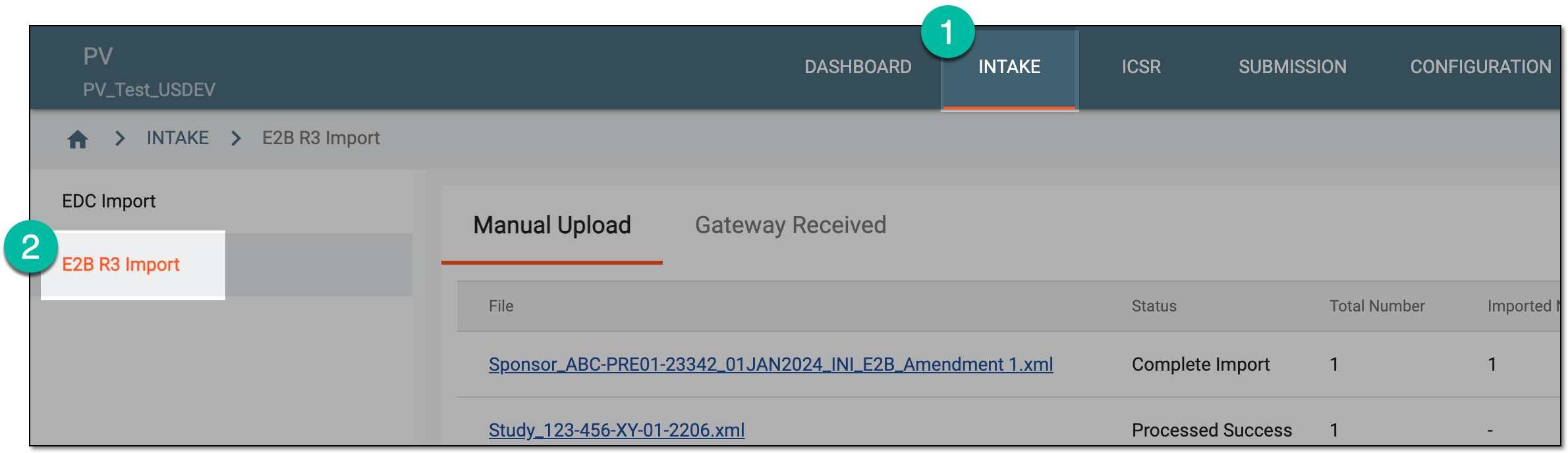 Figure 1. Accessing E2B R3 import
-
Based on where your imported file resides, select the Manual Upload or Gateway Received tab.
-
In the table that appears, locate the record of your interest and from the Actions column next to it, select Edit
 .
. Figure 2. Selecting to edit import record
-
On the page that opens, go to the ICSR table and locate the report you want to review. Then from the Actions column next to it, select Review
 .
.Tip
You can see the uploaded files with cases based on the study access permission granted via ADMIN.
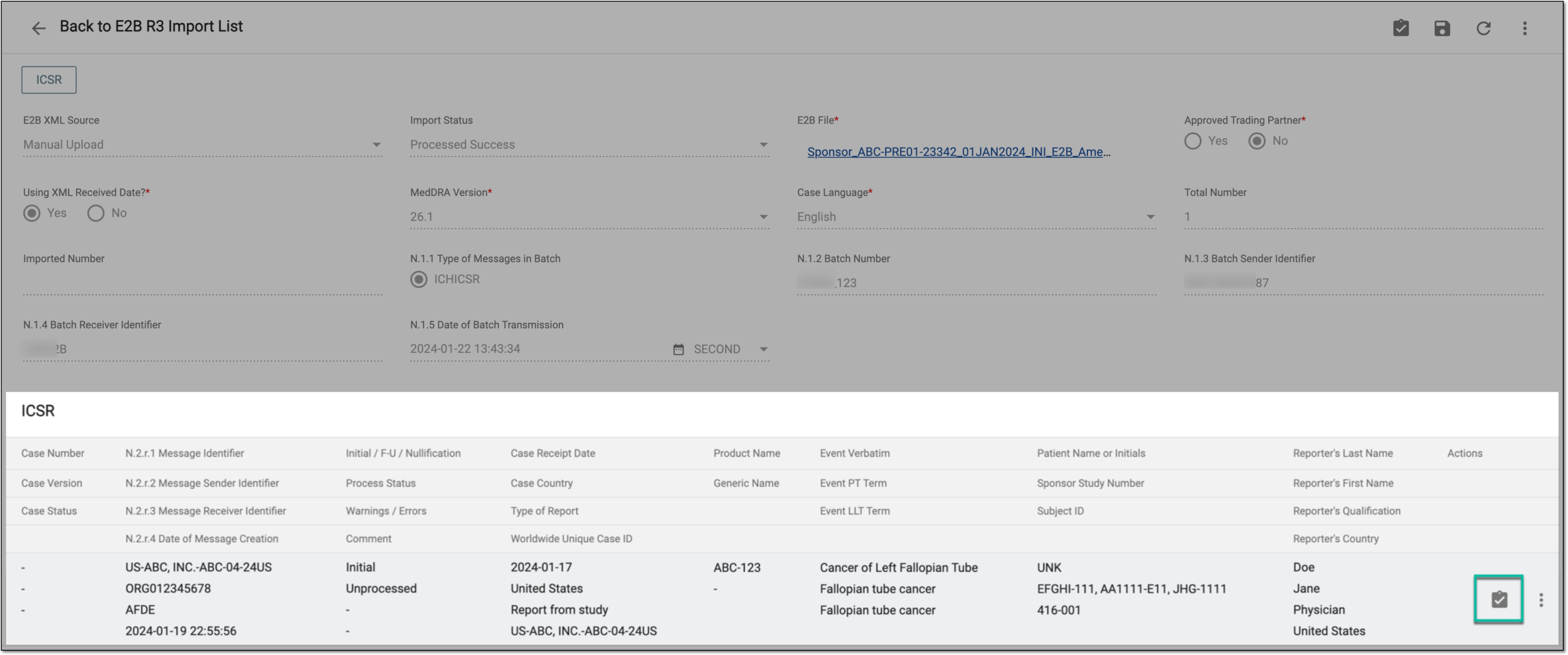 Figure 3. Selecting to review ICSR
-
On the ICSR page that opens, from the left pane, go through all the nodes with mismatched data and implement the needed fixes. Remember to save your changes so as not to lose them.
Tip
If the differences from the previous ICSR version are in the fields intended for review according to your study configurations, once the new version is created in PV, you need to translate such fields individually or using translation review.
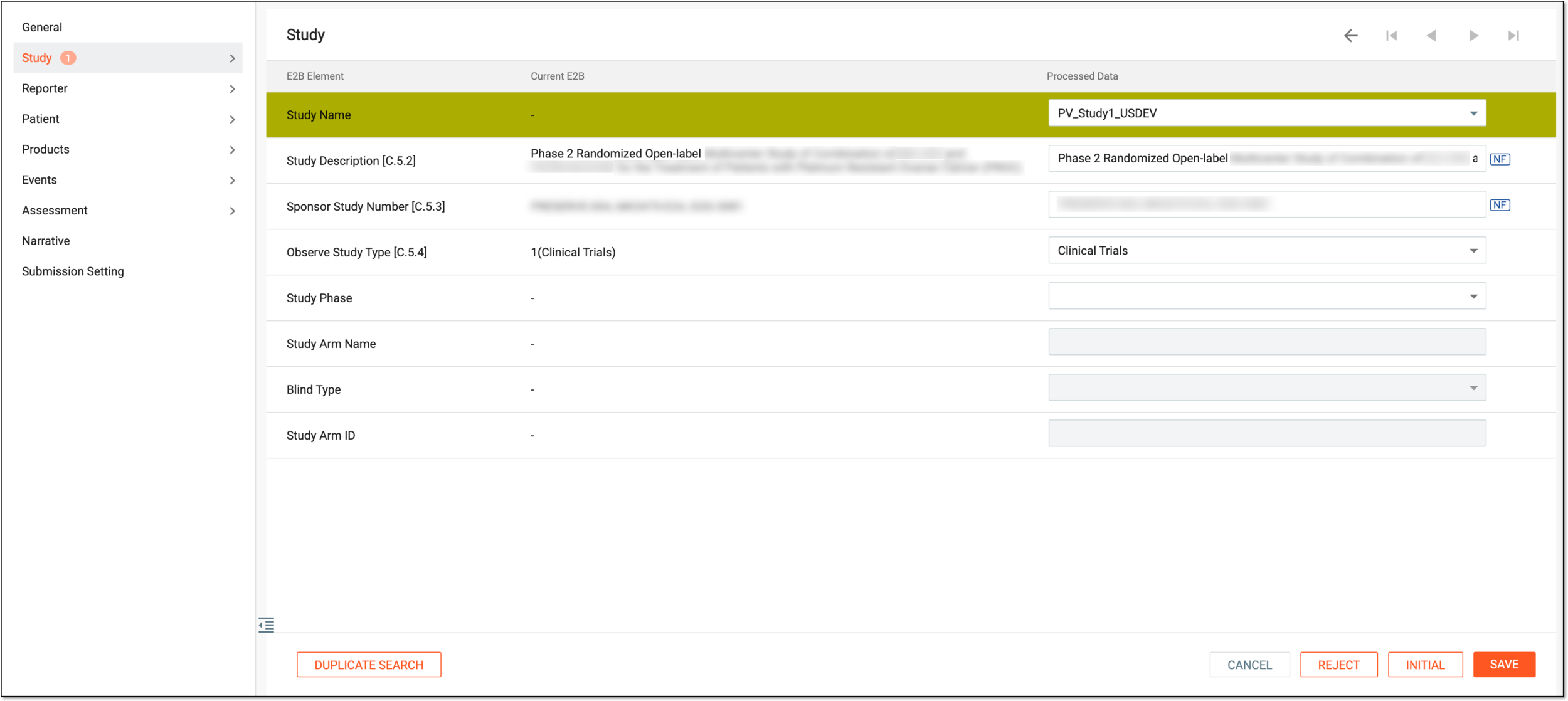 Figure 4. Reviewing ICSR
There can be the following scenarios of mismatches upon ICSR import:
-
The value is missing from the XML file for the mandatory field in the PV system. Enter the appropriate value in the respective field to fix this issue and save your changes.
-
The code list values do not match the PV system. To resolve the issue, contact your safety database administrator to determine whether to add a new code list to PV or let the XML provider resend the correct file.
Tip
The system highlights the mismatched items and adds icons with the number of mismatches next to such records. Once corrected and saved, the icon is grayed out. The parent node is considered fixed only after all the child nodes are fixed.
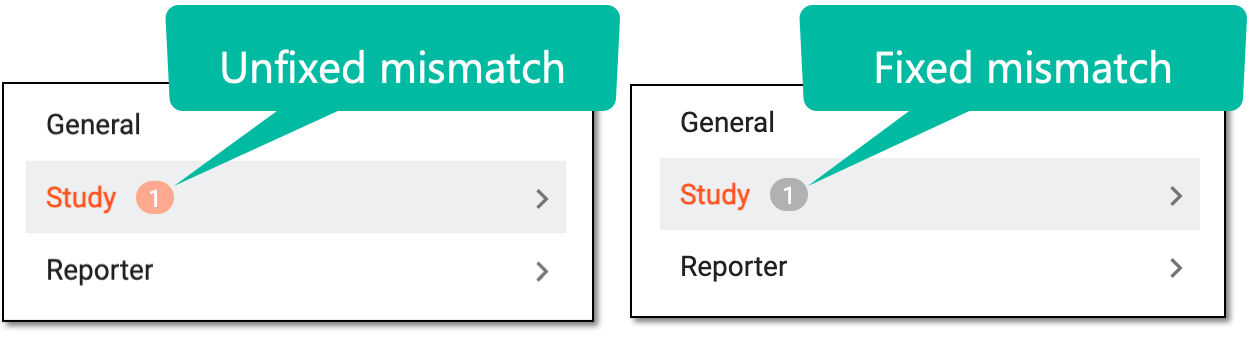 Figure 5. Comparing fixed and unfixed mismatch icons
-
-
Once reviewed and fixed all the data, perform one of the actions explained in the following table.
Action
Details

Select this button to save the implemented changes.

Select this button to import the data as an initial version of the ICSR report.
This button is only available if the imported case status is Initial.
Select this button to import the report as follow-up data on the case that exists in the PV system.
This button is only available if the imported case status is Follow-up.
Select this button to access the duplicate search functionality and find if the reports with the same specific parameters already exist in the system.

Select this option to compare data of multiple versions of the same case.
This button is only available if the system detects cases with the same Worldwide Unique Case ID value or if it is configured manually by the safety team that this is the version of another existing
                                  report.
Select this button to reject the imported ICSR.

Select this button to cancel the safety data review.
Important
If the uploaded XML file contains duplicated records within the same ICSR form, upon selecting FOLLOW-UP or INITIAL, the system prompts you with a dialog detecting the duplicated records. Fix the records to make them unique or delete unnecessary duplicates, otherwise, you cannot proceed with this follow-up creation.
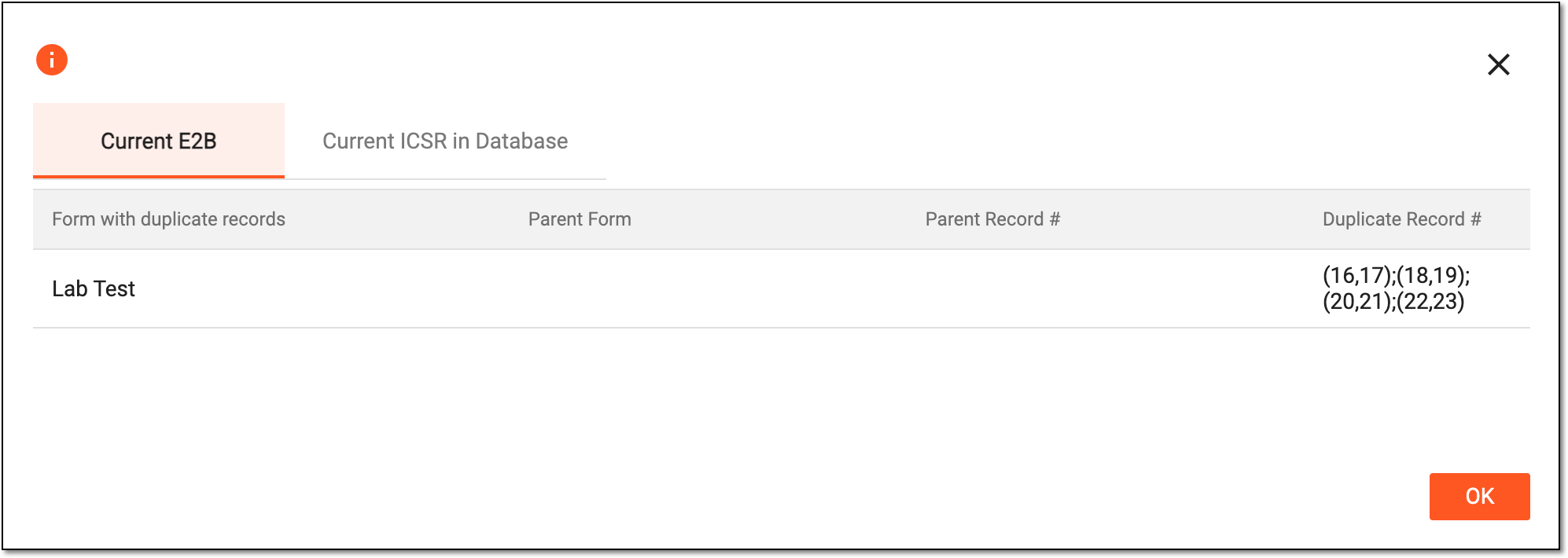 Figure 6. Detecting duplicated records
-
For the INITIAL, FOLLOW-UP, and REJECT operations, the confirmation dialog appears. Proceed with confirmation as suggested in the following table.
Important
The details you need to provide differ depending on the authorization method configured for you in the system—via SSO or via providing your login and password.
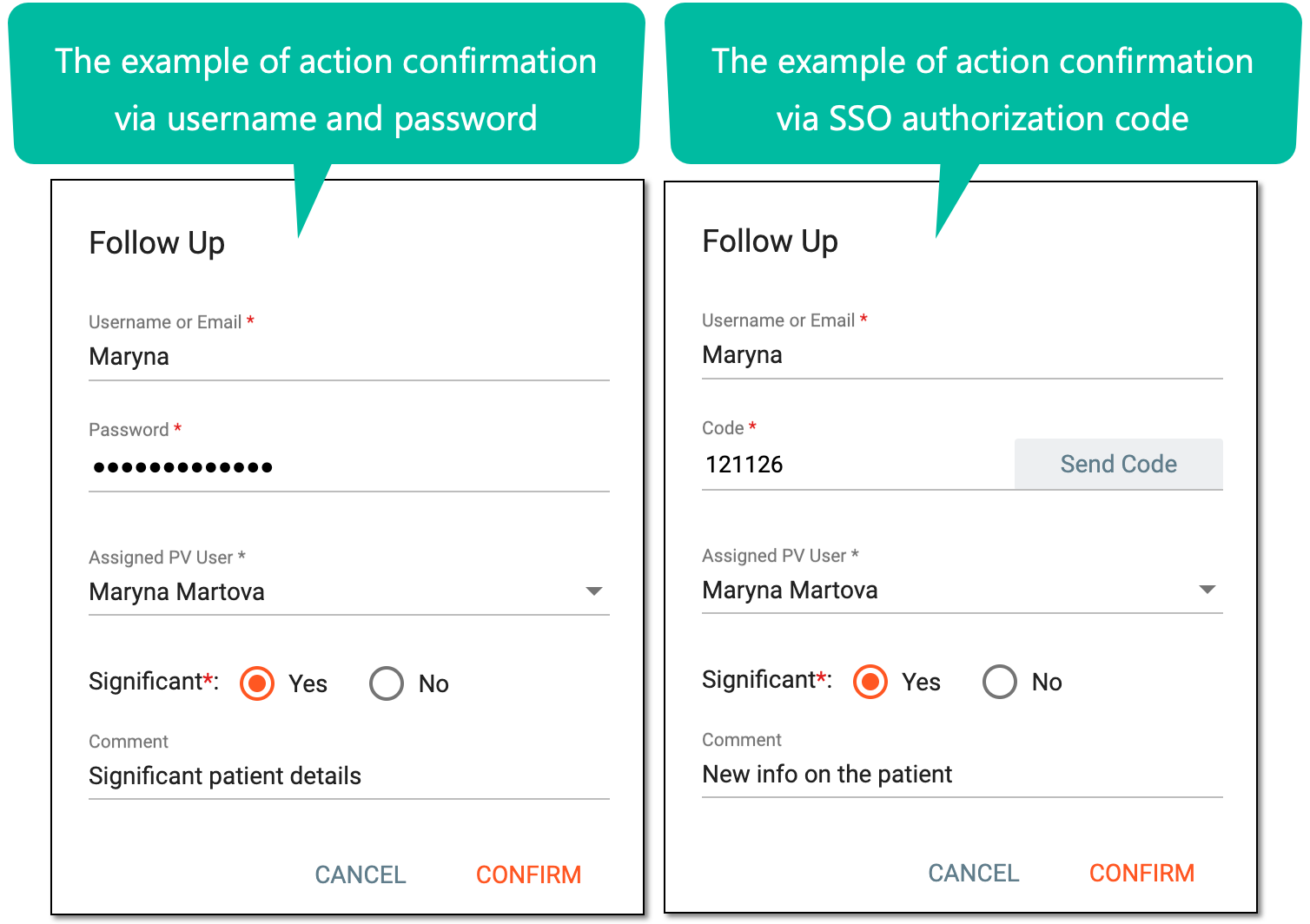 Figure 7. Confirming your action via SSO or user credentials
Tip
In the following table, mandatory elements are marked with an asterisk (*).
Element
Details
Authorization via username and password
User Name
Automatically populates with the username of the current user and cannot be manually changed.
Password*
Enter the password that you use to log in to the eClinical system.
Authorization via SSO
Username or Email*
Enter your username or email for which the SSO access is configured.
SEND CODE
Select
 to send the temporary PIN code to your email for which the SSO method is configured.
The PIN code is valid for 5 minutes before it expires. Select again to send another email and
regenerate the PIN if required.Code*
Enter the temporary PIN code that you received via email.
Case-related details
Assigned PV User*
Select the user to be assigned for the ICSR processing in PV. Upon confirmation, this user gets an email notification to process the new data in PV.
This field is only applicable to the initial safety data. When processing the follow-up data or rejecting import, there is no assignee.The list of assignees is based on their study access permission granted via ADMIN.Significant*
Select one of the following options:
-
Yes: select this option if the follow-up report contains new information that needs to be submitted to regulatory authorities.
The definition of clinical significance varies per sponsor, but mostly it requires new information or changes in the previous reports concerning one of the four validity criteria—identifiable reporter, identifiable patient, adverse event, or suspect medicinal product. Other information that may impact the overall clinical significance of the case is any change in causality assessment, study information, concomitant medications, medical history, and so on.
-
No: select this option if the follow-up report does not need to be submitted to regulatory authorities.
For instance, a change in the status of a MedDRA code/term from current to noncurrent due to a MedDRA version change can be considered non-significant as long as it has no impact in the medical context of the case.
This field is only available when confirming the action of creating the follow-up case version from the imported file.Comment
Enter a comment to follow your data if needed. This comment is included in the notification email for the assigned user, so you can use it to communicate any specific details to them.
This field is mandatory for the rejection operation.CONFIRM
Select
 to confirm the intended action.
CANCEL
Select
to discard the implemented changes.Important
For security, the system logs you out after three failed attempts to confirm your identity with a password or code.
-
Once confirmed, your respective operation is completed. If your data import fails, here are some scenarios how to troubleshoot the failure:
-
MedDRA autocoding failed. To troubleshoot, manually code the term according to the project or company coding convention.
-
Other system-triggered errors or validation rule failures. If such occurs, the system prompts you with the respective system message. Modify the data according to the error prompt.