Edit E2B R3 import record
In PV, you can create ICSRs using the E2B R3 import by uploading an XML file with your case data or receiving such a file via a gateway. Once imported but not yet processed, you can perform certain changes to your import record, for instance, replace the XML file or change the MedDRA version.
The functionality to edit information and replace XML files during the import process aims to ensure that the correct XML file is uploaded and that the import process is successful (to correct any mismatched data or missing fields).
In general, when importing XMLs, there shouldn't be much change because we have to preserve the data as it is transferred. But there can be exceptions, for instance, if the sponsor requests changes or if some missing or mismatched data hinder the import and we need to correct the XML for successful data import.
Important
Editing of details is only available for the import record that is not yet processed. Once processed, all the fields become read-only.
-
In the PV application header, select the INTAKE tab.
-
On the page that opens, from the left pane, select E2B R3 Import.
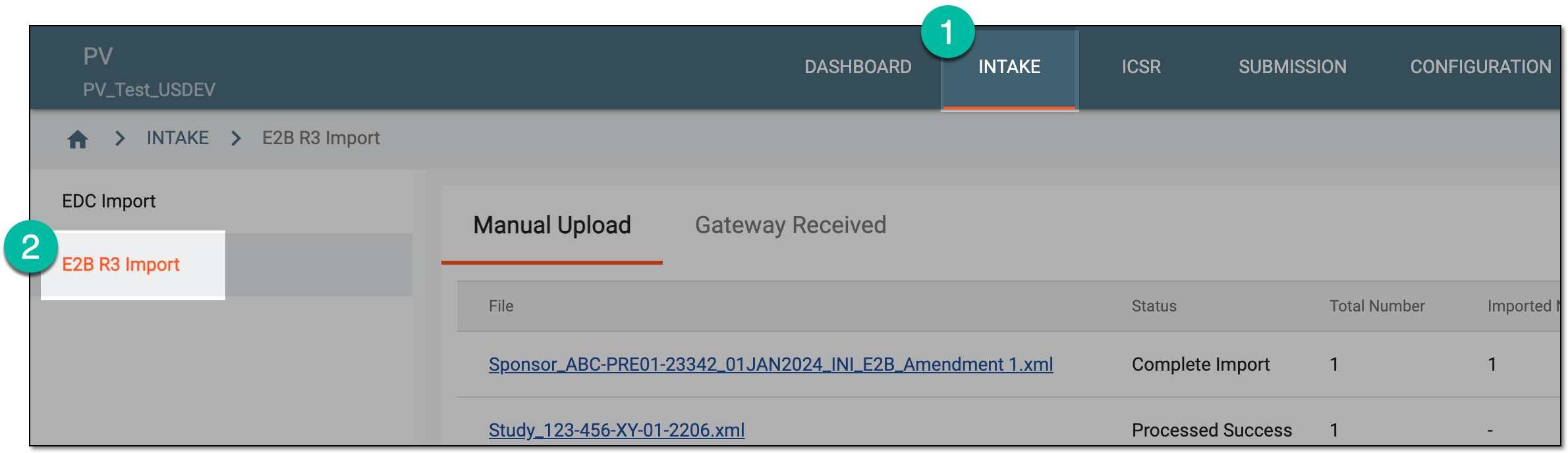 Figure 1. Accessing E2B R3 import
-
Based on where your imported file resides, select the Manual Upload or Gateway Received tab.
-
In the table that appears, locate the unprocessed file of your interest and from the Actions column next to it, select Edit
 .
.Tip
You can see the uploaded files with cases based on the study access permission granted via ADMIN.
 Figure 2. Selecting to edit unprocessed import record
-
On the resulting page, update the configurations as explained in the following table.
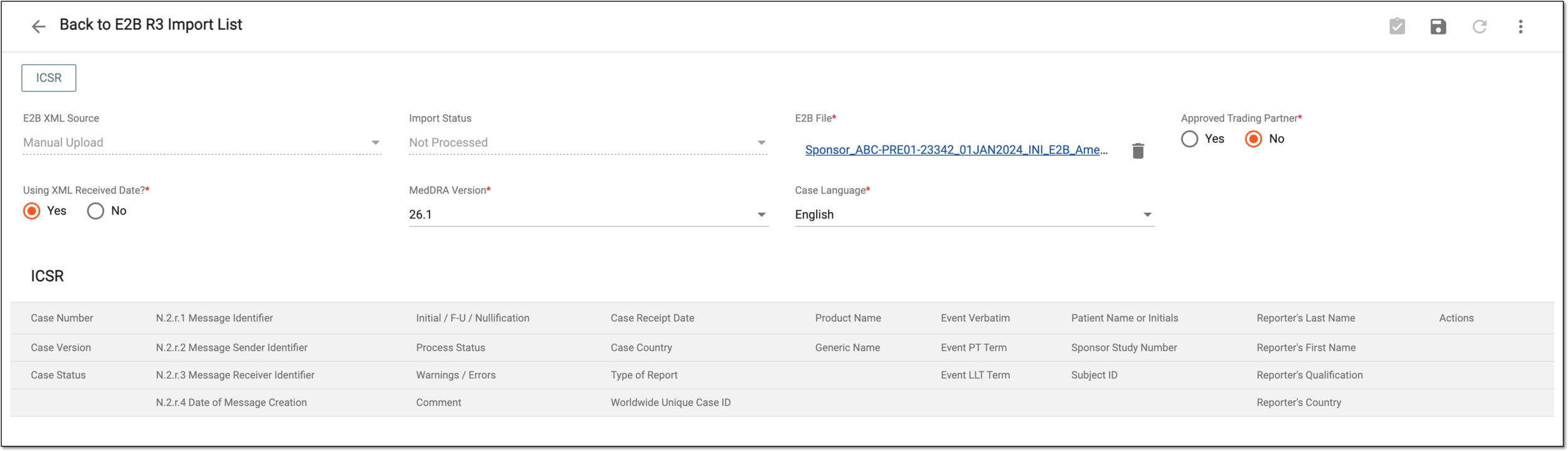 Figure 3. Uploading and configuring E2B R3 import
Element
Details
E2B XML Source
Represents the method of how the import file is acquired by the system—via manual upload or gateway-received. This is a read-only field.
Import Status
Represents the current status of the import file. The default value is Not Processed and as the import file passes through its lifecycle, the status changes automatically to the appropriate one: Processed Success, Processed Failed, Complete Import, Partial Import, and Reject Import. The status cannot be amended manually.
E2B File*
Replace your file if needed by selecting Delete
 to remove the existing file and then selecting Upload File
  and choosing another E2B R3 import file.
You can also download the XML file by selecting the file name link.Approved Trading Partner*
Select one of the following options:
-
Yes: select this option for the system to check if the XML file contains sender ID and Receiver ID values in its submission configurations. If selected and the file does not have the stated details, the system prompts you with a respective error message upon saving.
-
No: select this option if you do not need to check if the XML file contains sender ID and Receiver ID values in its submission configurations. If selected, you can save your uploaded file disregarding if it has the stated details.
Using XML Received Date?*
-
Yes: select this option if you want to use the data from the uploaded file to fill in the dates of acquiring the safety data.
-
No: select this option if you want to manually specify the dates of acquiring the safety data via the Latest Received Date and Safety Received Date fields.
Latest Received Date
Select the date to specify when the latest version of the AE/SAE case data reported in your file has been received.
This field is only available if the Using XML Received Date? value is No.Safety Received Date
Select the date to specify when the safety department first received the AE/SAE case reported in your file.
This field is only available if the Using XML Received Date? value is No.MedDRA Version*
Select the MedDRA version according to customer migration requirements. Usually, the latest current version of the dictionary is used.
Case Language*
Select the language of the case report according to customer migration requirements.
SAVE
Select
 to save the implemented changes.
 -
Once saved, your edits are implemented.