Delete E2B R3 import record
In PV, you can create ICSRs using the E2B R3 import by uploading an XML file with your case data or receiving such a file via a gateway. The list of all previously imported files is maintained via the Manual Upload and Gateway Received tables.
You can delete import records based on the company policy and standard operating procedures. However, there are restrictions for deletion that prevent users from deleting records for already imported cases, cases received from external senders via a gateway, and so on, hindering the procedure of import handling.
Important
You can only delete records for manually uploaded XML files with Not Processed, Processed Success, or Processed Failed status. The gateway-received E2B R3 import records cannot be deleted.
-
In the PV application header, select the INTAKE tab.
-
On the page that opens, from the left pane, select E2B R3 Import.
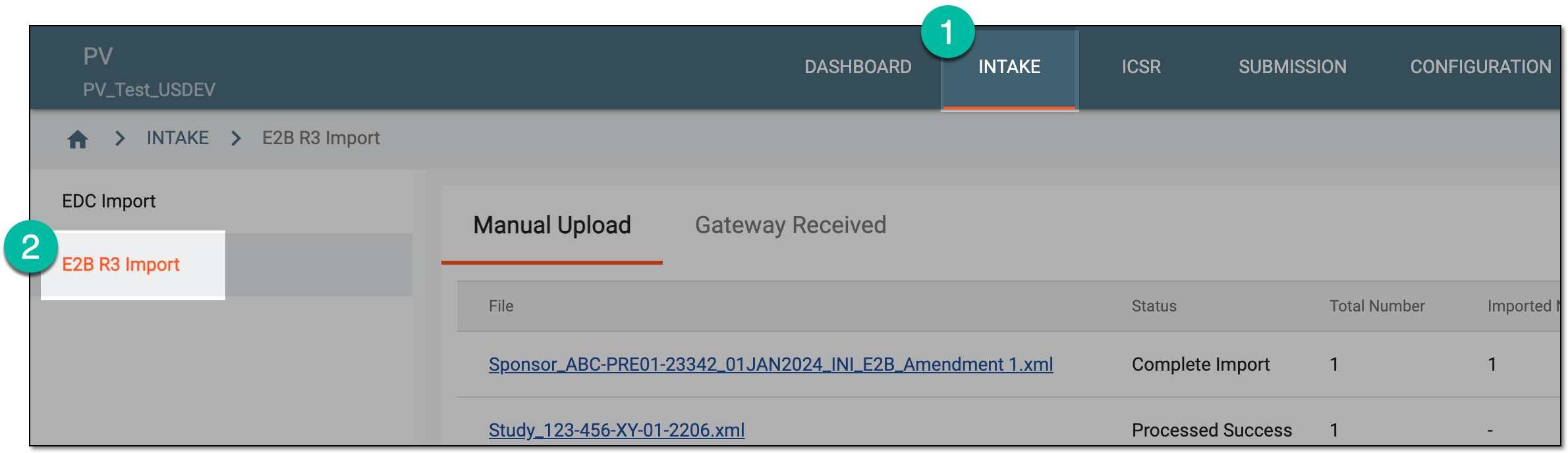 Figure 1. Accessing E2B R3 import
-
From the contents panel, select the Manual Upload tab.
-
In the table that appears, locate the record you want to remove and from the Actions column next to it, select Delete
 .
.Tip
You can see the uploaded files with cases based on the study access permission granted via ADMIN.
 Figure 2. Deleting import record
-
In the confirmation dialog that opens, select
 to proceed with deletion.
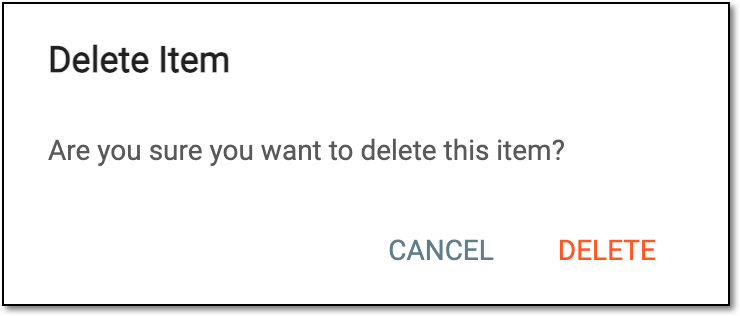 Figure 3. Confirming deletion
Once confirmed, the E2B R3 manual import record is removed and disappears from the list.