Download E2B R3 import file
In PV, you can create ICSRs using the E2B R3 import by uploading an XML file with your case data or receiving such a file via a gateway. The Manual Upload and Gateway Received tables maintain the lists of all previously imported files that you can download to your computer in XML format.
-
In the PV application header, select the INTAKE tab.
-
On the page that opens, from the left pane, select E2B R3 Import.
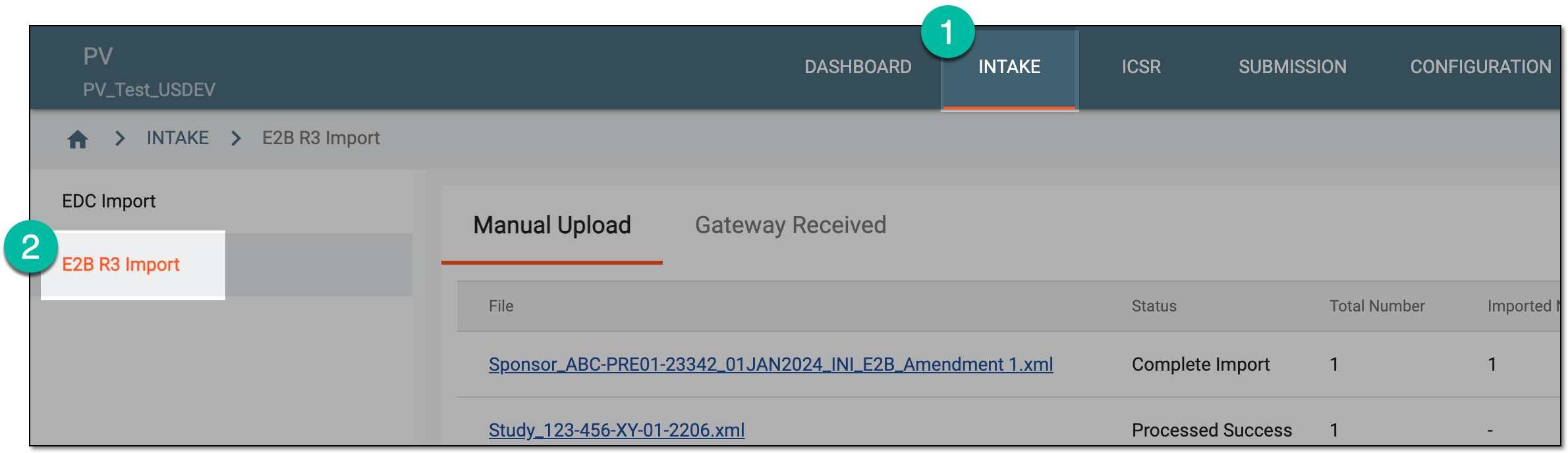 Figure 1. Accessing E2B R3 import
-
Based on where your imported file resides, select the Manual Upload or Gateway Received tab.
-
In the table that appears, locate the record from which you want to download the file and select the file name that appears as an active link.
Tip
You can see the uploaded files with cases based on the study access permission granted via ADMIN.
 Figure 2. Downloading XML file
Tip
You can also download the file by selecting Edit
 to open the import record details and from the
E2B R3 File field, selecting the file name.
to open the import record details and from the
E2B R3 File field, selecting the file name. Figure 3. Downloading XML file from import record details page
Once saved, the file is downloaded and available on your computer.