View extracted ICSR audit trail
In PV, you can manually upload an XML file or receive such a file via a gateway to import your case data to the system and create an ICSR for further management.
Once the data is processed and reviewed, and the ICSR is successfully imported into PV, or at any time during these processes, you can view the audit trail for each of the cases extracted from the import file. This functionality might be of help if you need to reconstruct the course of the events with the imported data for a specific case.
-
In the PV application header, select the INTAKE tab.
-
On the page that opens, from the left pane, select E2B R3 Import.
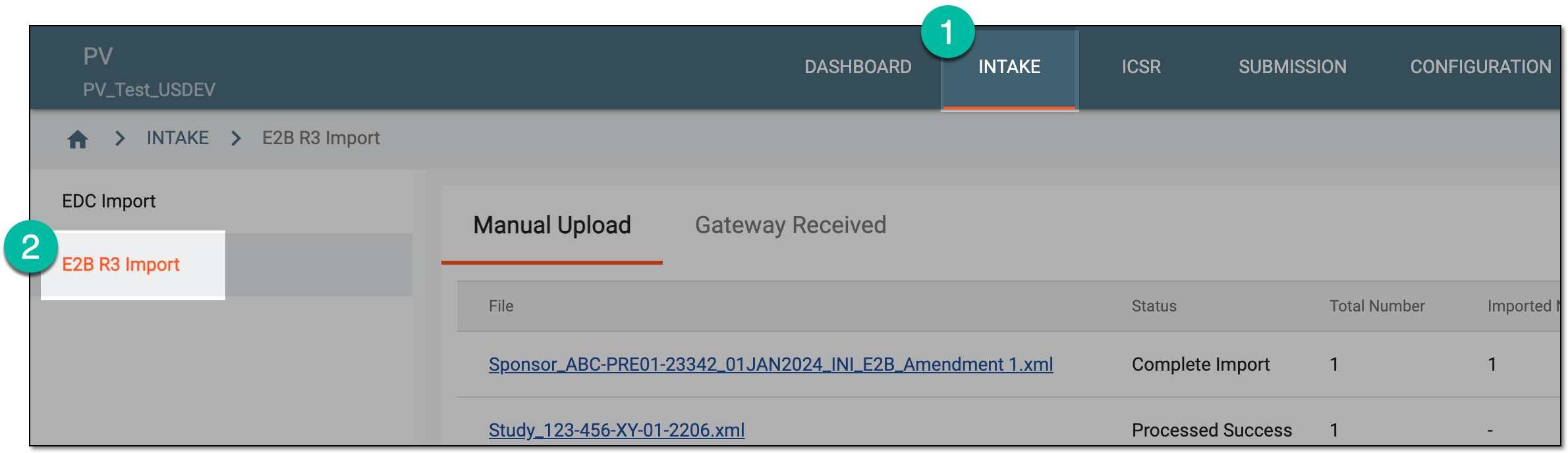 Figure 1. Accessing E2B R3 import
-
Based on where your imported file resides, select the Manual Upload or Gateway Received tab.
-
In the table that appears, locate the record of your interest and from the Actions column next to it, select Edit
 .
.Tip
You can see the uploaded files with cases based on the study access permission granted via ADMIN.
 Figure 2. Selecting to edit import record
-
On the page that opens, go to the ICSR table and locate the report you want to view. Then from the Actions column next to it, select More
 > Audit Trail
  .
.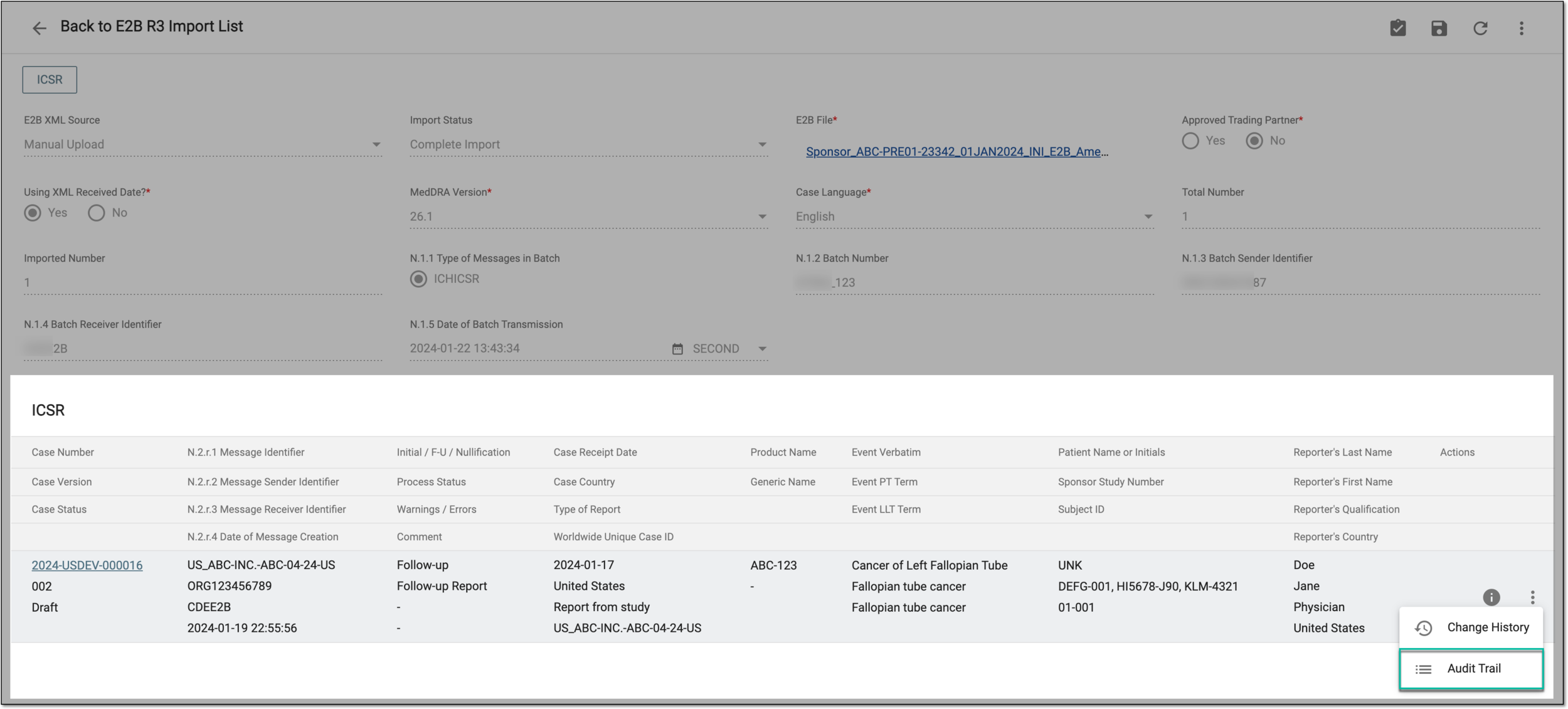 Figure 3. Selecting to view ICSR audit trail
-
In the Audit Trail dialog that opens, view the log of operations performed with the imported data.
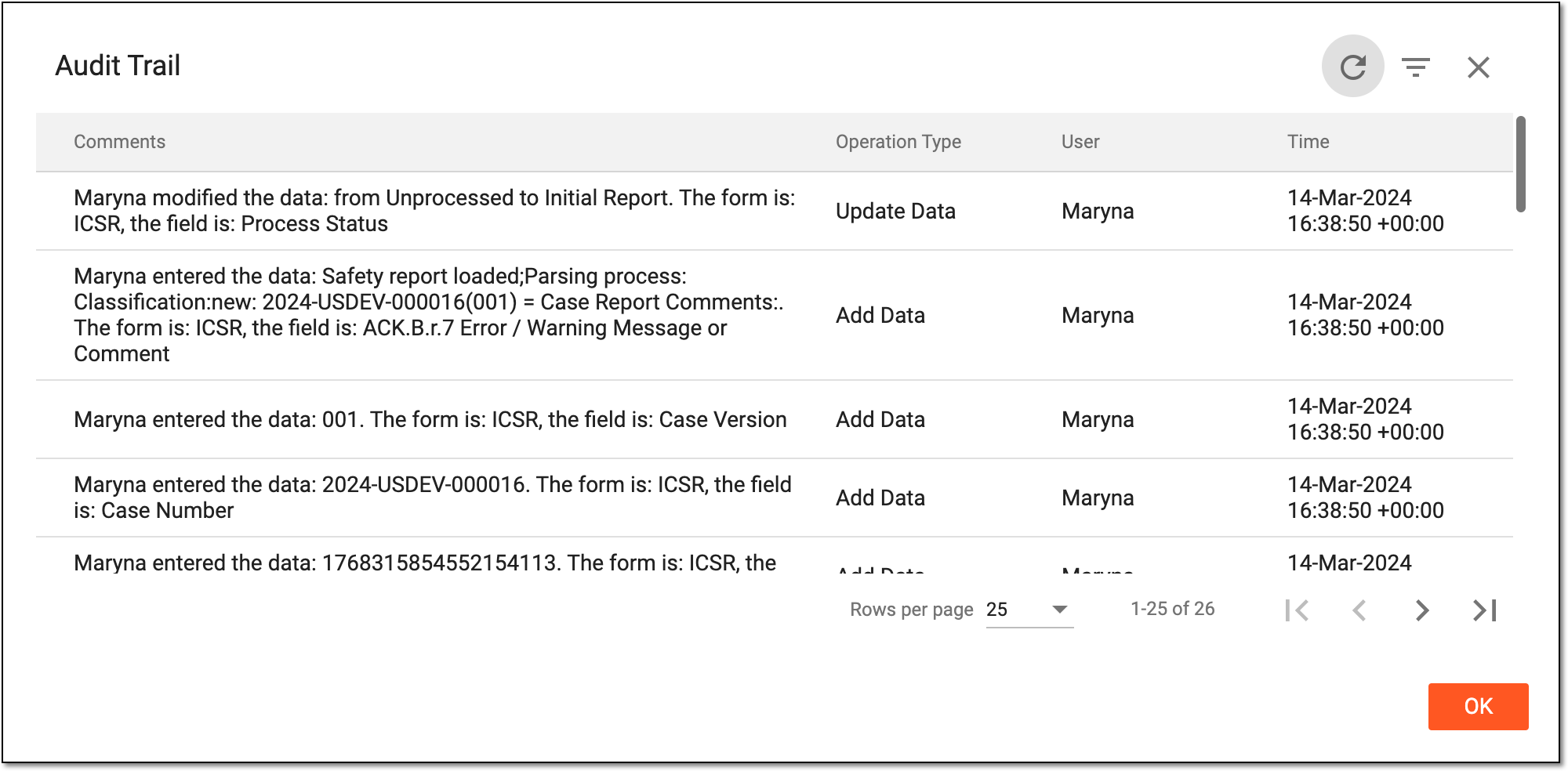 Figure 4. Viewing ICSR audit trail
-
Select
 to close the dialog.
You have viewed the audit trail for the imported ICSR data.