Use saved advanced filters
In PV, when you need to find the ICSR by such details as a report type or date, subject's or reporter's name, submission details, and more, you can use the advanced search. The advanced filters can also serve to check for ICSR duplicates in the system.
For faster results, you can save the commonly used filter sets and then use them to find the ICSRs of your interest efficiently.
-
In the PV application header, based on your objective, do the following:
-
Select the ICSR tab to access the ICSR list.
 Figure 1. Accessing ICSR list
-
Select the INTAKE tab and then, from the left pane, select E2B R3 Import. On the resulting page, select the Manual Upload or Gateway Received tab based on the origin of the files of your interest.
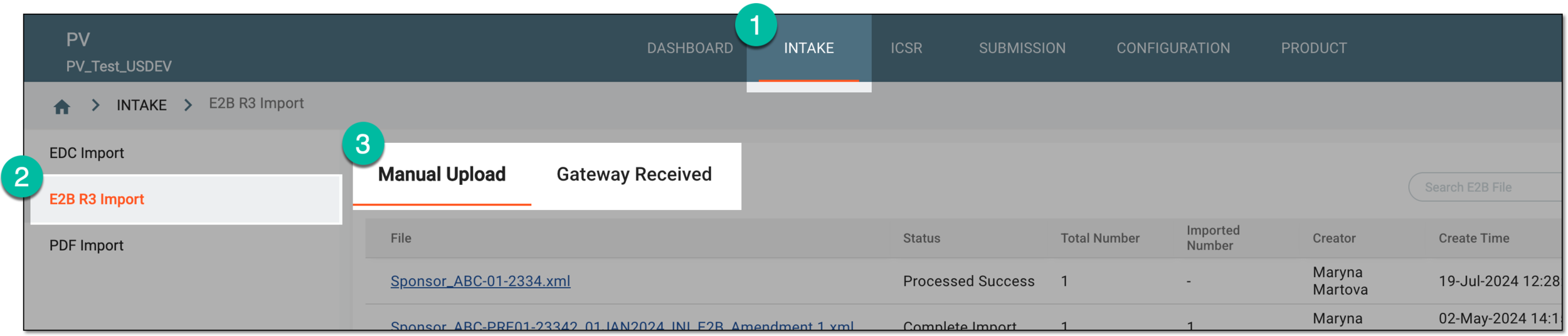 Figure 2. Accessing E2B R3 import files
-
-
On the page that opens, from the workspace toolbar, select Search
 .
. Figure 3. Example of accessing advanced search
-
On the Advance Search page that opens, select Saved Filters
 .
.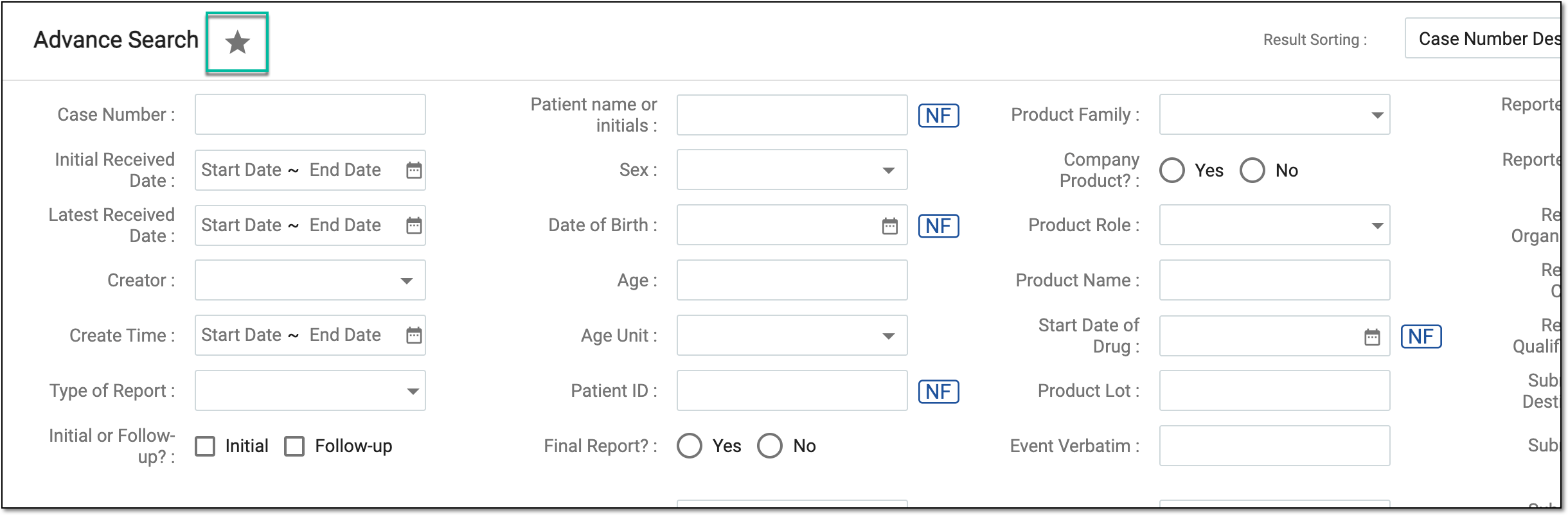 Figure 4. Accessing saved filter sets
-
In the Saved Filters List dialog that opens, select one of the previously saved filters.
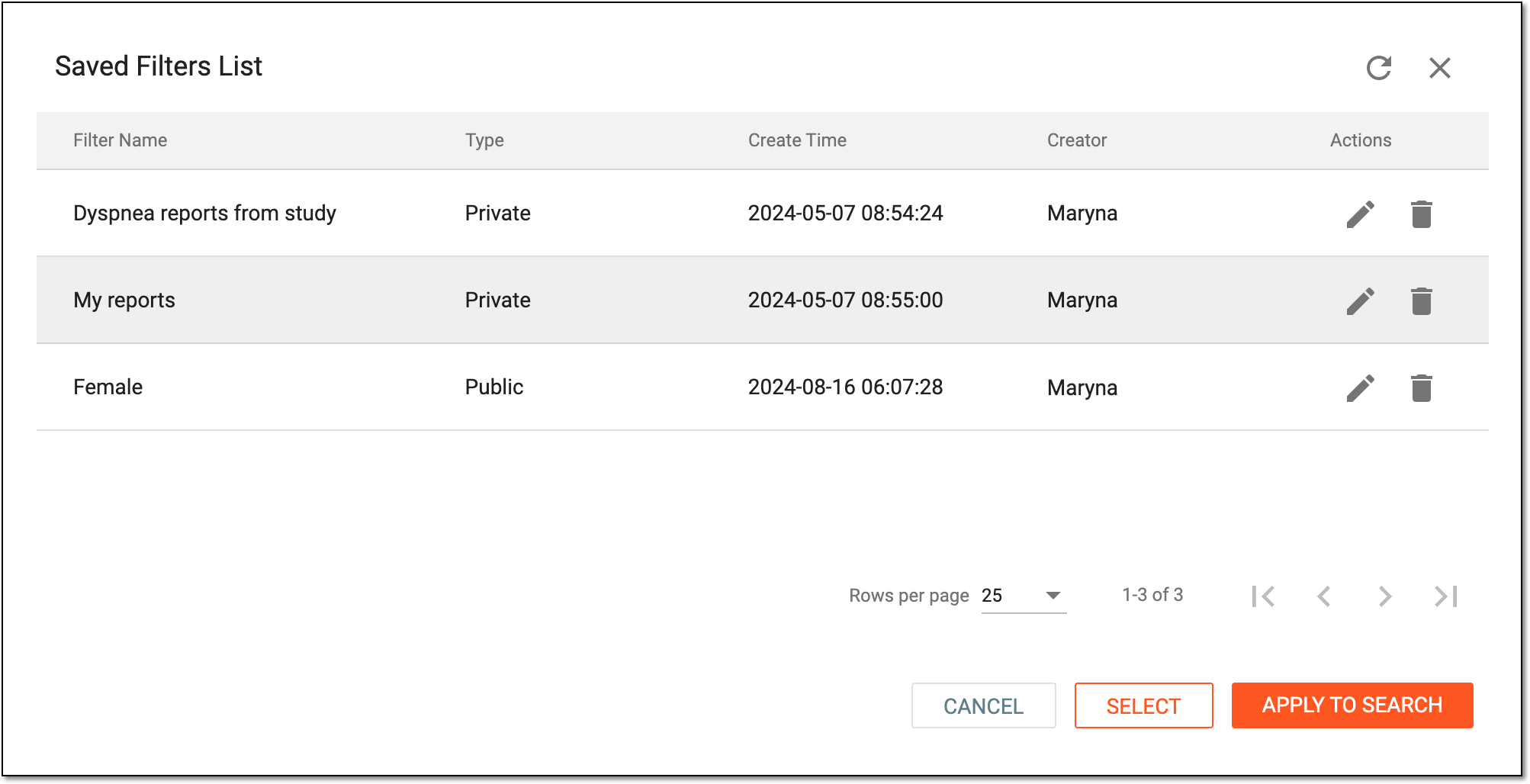 Figure 5. Selecting saved filter
-
Select one of the following options as needed:
-
 : to return to the Advance Search page with the filters from the selected set applied where you can
add more search parameters or clear some of the filters.
: to return to the Advance Search page with the filters from the selected set applied where you can
add more search parameters or clear some of the filters. -
 : to apply the filters from the saved set and go directly to the search results.
-
Upon filter application, you can work with the search results per your needs, for instance, indicate duplicated ICSR, or else. In PV, you can also edit the saved filter sets to update them to your current needs.