Edit saved advanced filter settings
In PV, when you need to find the ICSR by such details as a report type or date, subject's or reporter's name, submission details, and more, you can use the advanced search. The advanced filters can also serve to check for ICSR duplicates in the system.
For faster results, you can save the commonly used filter sets and then use them to find the ICSRs of your interest efficiently. You can also edit the previously saved filter sets to change their name and specify if they are publicly available or private and only available to you.
-
In the PV application header, based on your objective, do the following:
-
Select the ICSR tab to access the ICSR list.
 Figure 1. Accessing ICSR list
-
Select the INTAKE tab and then, from the left pane, select E2B R3 Import. On the resulting page, select the Manual Upload or Gateway Received tab based on the origin of the files of your interest.
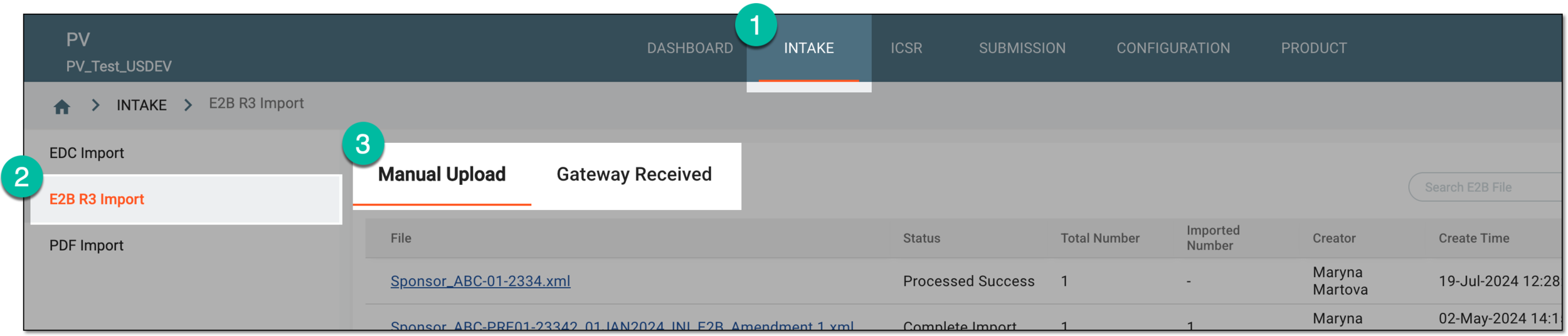 Figure 2. Accessing E2B R3 import files
-
-
On the page that opens, from the workspace toolbar, select Search
 .
. Figure 3. Example of accessing advanced search
-
On the Advance Search page that opens, select Saved Filters
 .
.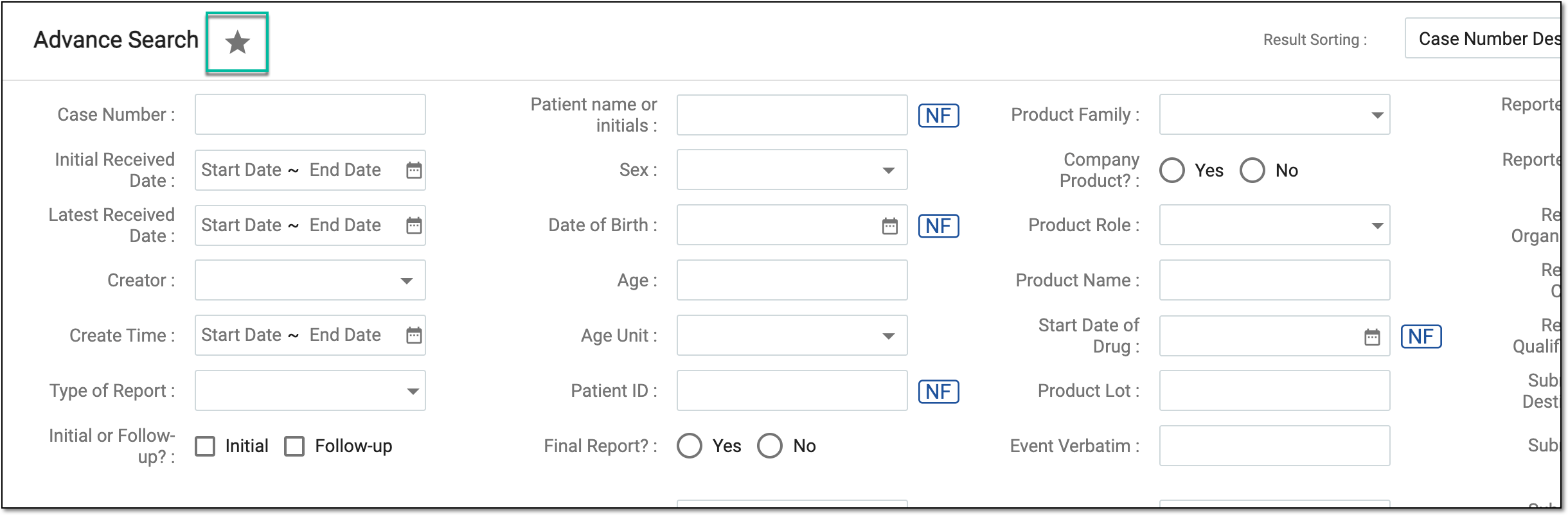 Figure 4. Accessing saved filter sets
-
In the Saved Filters List dialog that opens, in the Actions column next to the saved filter set, select Edit
 .
.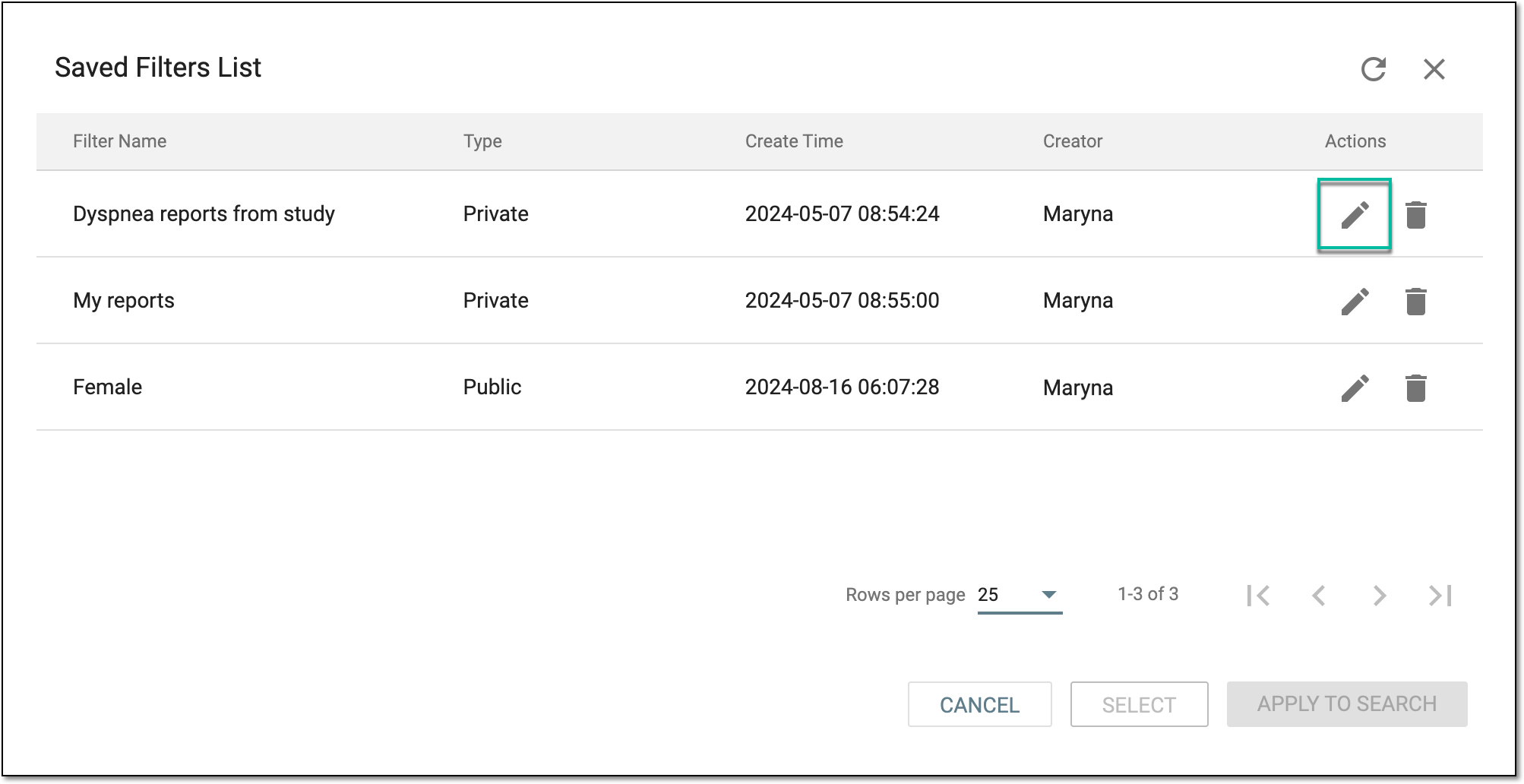 Figure 5. Selecting to edit advance filter set
-
In the Edit Filter dialog that opens, update the fields as explained in the following table.
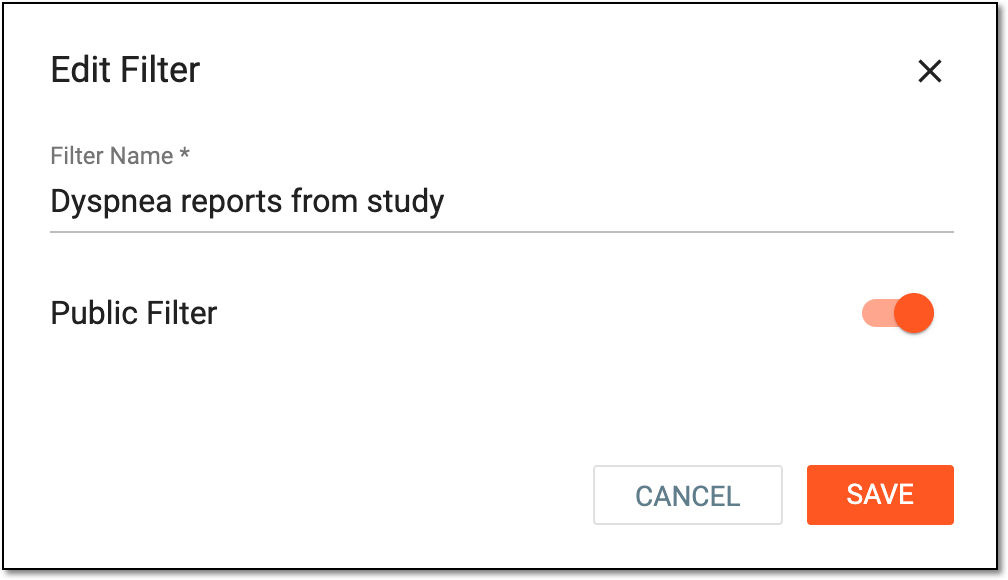 Figure 6. Editing advance filter set
Tip
In the following table, mandatory elements are marked with an asterisk (*).
Element
Details
Filter Name*
Enter the descriptive name to depict the filters within, especially if you share this filter set and need other users to understand what it represents and how it can be used.
Public Filter
Set the toggle as follows:
-
Turn the toggle on to make the saved filter set available for other PV users.
-
Turn the toggle off to make the saved filter set available only for you.
SAVE
Select
 to save the implemented filter set.
CANCEL
Select
 to discard the changes and return to the Advance Search page.
 -
Upon saving, the filter set is edited.