Configure submission setting
In PV, before you run the ICSR report generation or ICSR submission function, you need to configure submission setting information, such as the organization, type of data, contacts, and other details. Later, when running those activities, you select the submission destination, and the configured info appears in submission packages such as XML, MedWatch 3500A, and CIOMS-1.
Another use of the submission setting is to configure sender details to be able to receive E2B R3 import files automatically via an established gateway.
-
In the PV application header, select the CONFIGURATION tab.
-
On the page that opens, in the left pane, select the Submission Setting subtab.
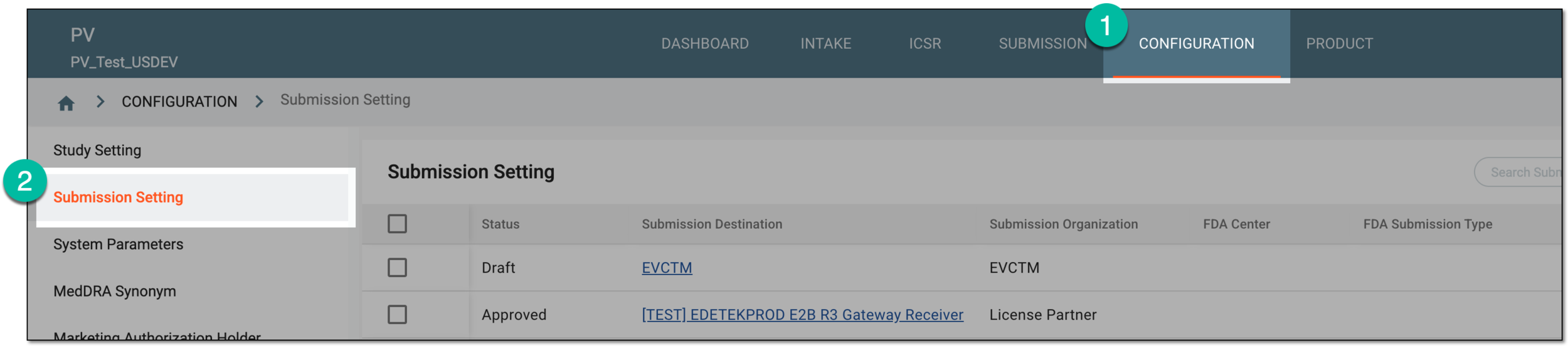 Figure 1. Accessing submission setting configuration
-
On the Submission Setting page that opens, from the workspace toolbar, select New
 .
.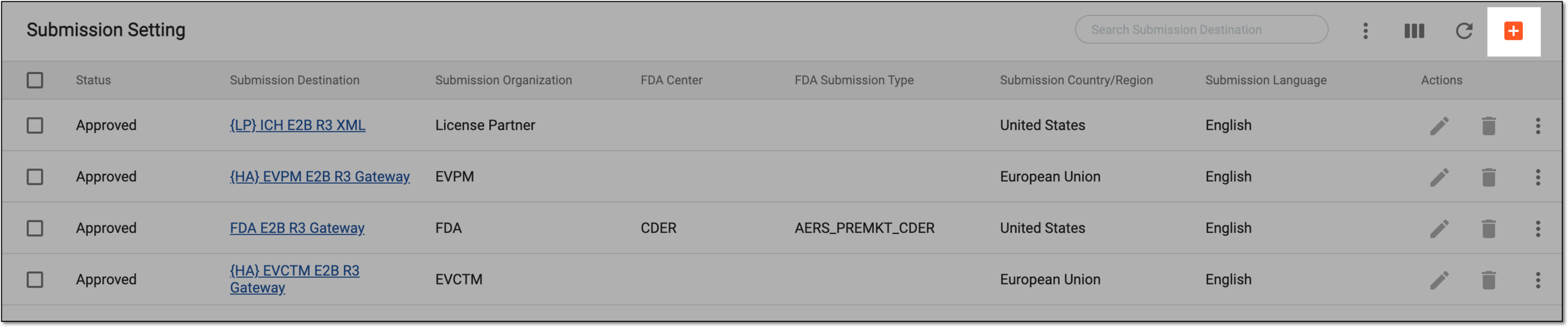 Figure 2. Selecting to add new submission setting
-
In the submission setting form that appears, configure the data as explained in the following table.
Important
The submission setting form fields can differ from the ones depicted in the following figure and table depending on the selected submission method.
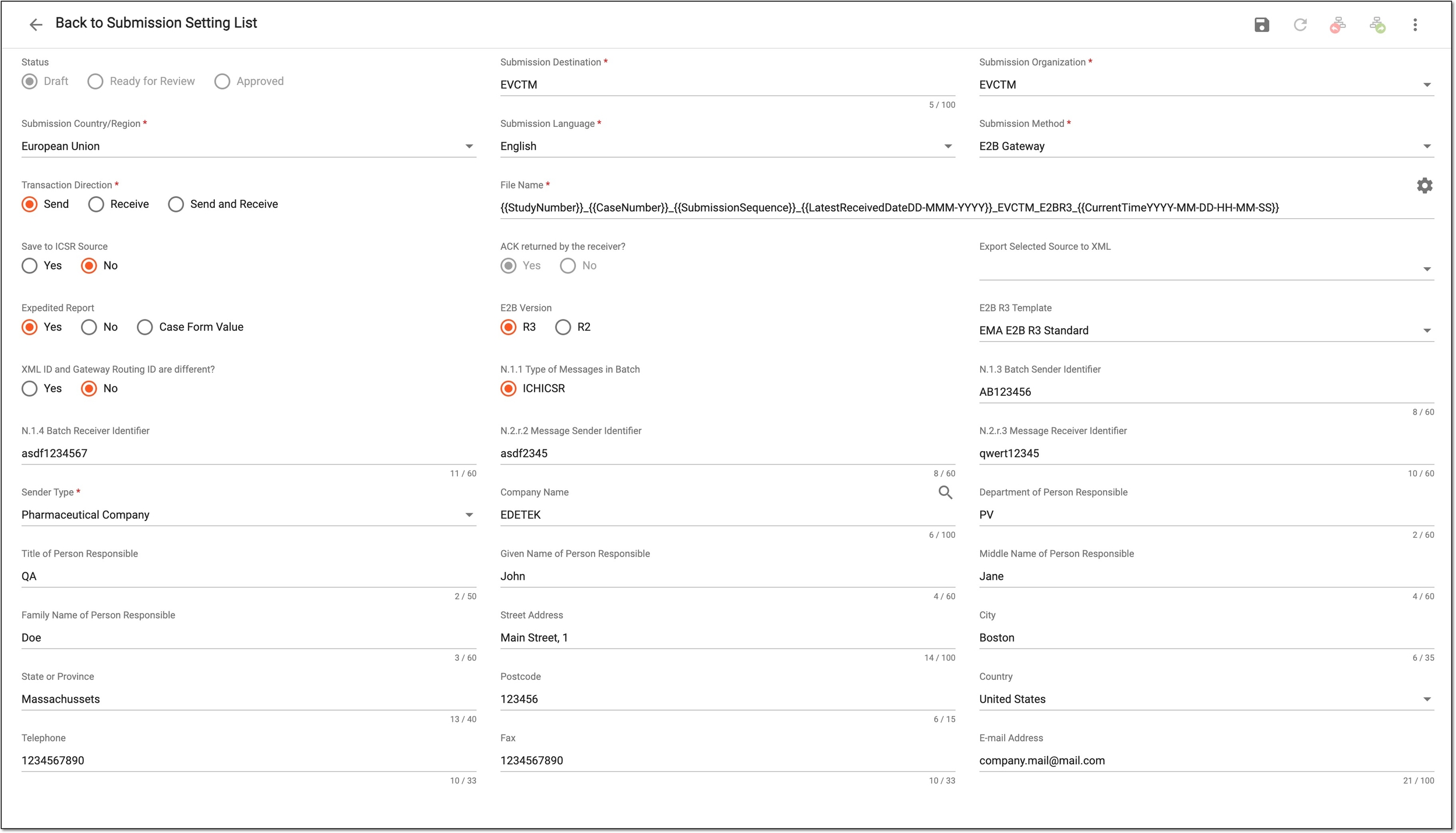 Figure 3. Configuring submission setting
Tip
In the following table, mandatory elements are marked with an asterisk (*).
Element
Details
Status
Represents the current status of the submission setting. The field is updated automatically once the submission setting passes the approval stages and its route is forwarded or returned.
By default upon creation, the status is Draft.
Submission Destination*
Enter a descriptive name to define the destination of your submission package. For instance, you can enter the names of the organization and the department to which you will submit the data.
Submission Organization*
Select the organization that is the receiver of the submission.
If you select FDA, two more fields become available: FDA Center and FDA Submission Type.FDA Center
Select the institution of the FDA to which you want to submit the data.
FDA Submission Type
Select one of the submission types acceptable by the FDA.
Submission Country/Region*
Select the country or region for the regulatory authorities of which the submission setting is configured.
Submission Language*
Select the language of the submitted data.
The selected language influences the options available for the MAH selection in the Company Name field.Submission Method*
Select the method of the data submission, for instance, E2B gateway or E2B XML file.
Transaction Direction*
Select one of the following options:
Make sure to select the Receive or Send and Receive option when configuring the submission setting for E2B R3 file import via a gateway. Otherwise, the system cannot receive
                                  files from senders.
This field becomes mandatory when the Submission Method value is E2B Gateway or E2B XML File.File Name*
Define the naming convention expression for all files to follow when generated by the system for this submission method. You can enter the expression manually, however, you can also select Set File Name
 and use preconfigured placeholders for convenience.
Set File Name
Select
in the File Name field to open the Set File
Name dialog and configure your file name convention using the available placeholders by dragging them to the editor area. The placeholders are as follows:Additionally to placeholders, enter the needed custom text such as CIOMS, MedWatch, E2B R3, and so on.
It is strongly recommended to separate all parts of the naming convention with an underscore.Save to ICSR Source
Select one of the following options:
ICSR Source Mapping
Select the type of the file, for instance, Final CIOMS, Final MedWatch, and so on. This value is to be populated to the Type field of the Source form upon automatically saving (attaching) the generated submission file there.
This field is only available if Yes is selected in the Save to ICSR Source
                                  field.
Expedited Report
Select one of the following options:
This field is only available if the Transaction Direction is set to Send or
                                  Send and Receive, meaning that this submission setting can be used to transmit records out of PV to the respective receiver destination.
ACK returned by receiver?
Represents if the submission receiver sends the acknowledgment (ACK) message upon receiving the submission package.
This field is only available and automatically set to Yes when the Submission
                                  Method value is E2B Gateway and the Transaction Direction value is set to Send or
                                  Send and Receive.
Sender Type*
Select the type of legal entity/person submitting the data, for instance, a pharmaceutical company or a patient.
Company Name
Manually enter the name of the company/institution that submits the data or select Marketing Authorization Holder Search
 and from the resulting dialog, select one of the preconfigured MAH records.
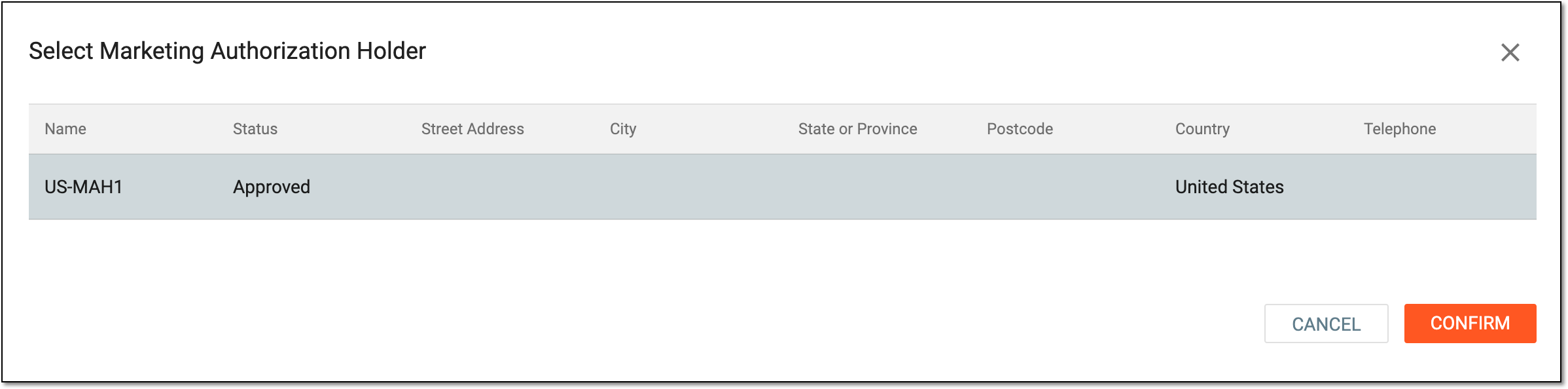 Figure 4. Selecting MAH
If the MAH is selected from the list of existing, the City, State or Province, Postcode, Country, Telephone, Fax, and E-mail Address fields are populated with
                                  the respective preconfigured values. If some of the fields remain empty, it means that this value is not configured for your MAH record.
Department of Person Responsible
Enter the department name to which the person responsible for the submitted data belongs.
Title of Person Responsible
Enter the position name that the person responsible for the submitted data occupies.
Given Name of Person Responsible
Enter the first name of the person responsible for the submitted data.
Middle Name of Person Responsible
Enter the middle name of the person responsible for the submitted data.
Family Name of Person Responsible
Enter the last name of the person responsible for the submitted data.
Street Address
Enter the street and other address details of the submitted data sender.
City
Enter the city in which the submitted data sender is located.
State or Province
Enter the state or province in which the submitted data sender is located.
Postcode
Enter the postal code of the submitted data sender.
Country
Select the country in which the submitted data sender is located.
Telephone
Enter the contact telephone number of the submitted data sender.
Fax
Enter the contact fax number of the submitted data sender.
E-mail Address
Enter the contact email address of the submitted data sender.
SAVE
Select
 to save the implemented changes.
Upon saving, the submission setting is saved and you can initiate the review and approval process by forwarding the route of this record.