Forward/Return submission setting route
In PV, before you run the ICSR report generation or ICSR submission function, you need to configure submission setting information, such as the organization, type of data, contacts, and other details. Later, when running those activities, you select the submission destination, and the configured info appears in submission packages such as XML, MedWatch 3500A, and CIOMS-1.
To ensure accurate configuration, the PV system provides an option to establish the review and approval process. Each approval process step is assigned to dedicated personnel and accomplished by forwarding or returning routes. The submission setting is created with the Draft status and an authorized user or creator forwards the route to Ready for Review. Once the assigned user reviews and validates changes, they forward the route to Approved.
Once the submission setting is approved, it cannot be edited. However, if some eligible changes are required, the authorized user can return the route to roll back to the Draft status and allow for the edits. Once done, the review process is repeated to validate the changes until the status becomes Approved.
Important
The workflow of the submission setting review and approval process can be customarily configured by the EDETEK administrator according to the sponsor's requirements.
-
In the PV application header, select the CONFIGURATION tab.
-
On the page that opens, in the left pane, select the Submission Setting subtab.
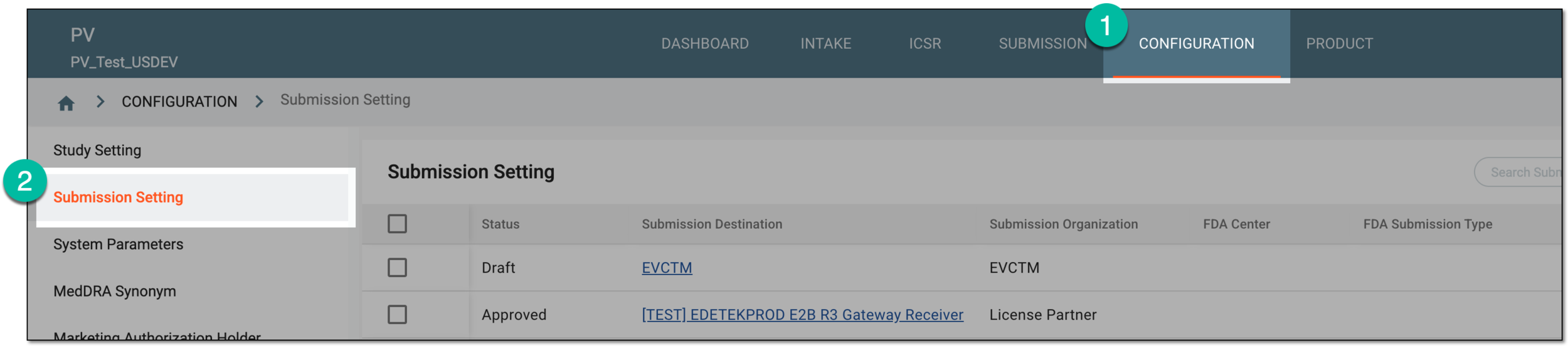 Figure 1. Accessing submission setting configuration
-
In the Submission Setting table that appears, go to the submission setting for which you want to change route. Then in the Actions column next to it, select Edit
 .
.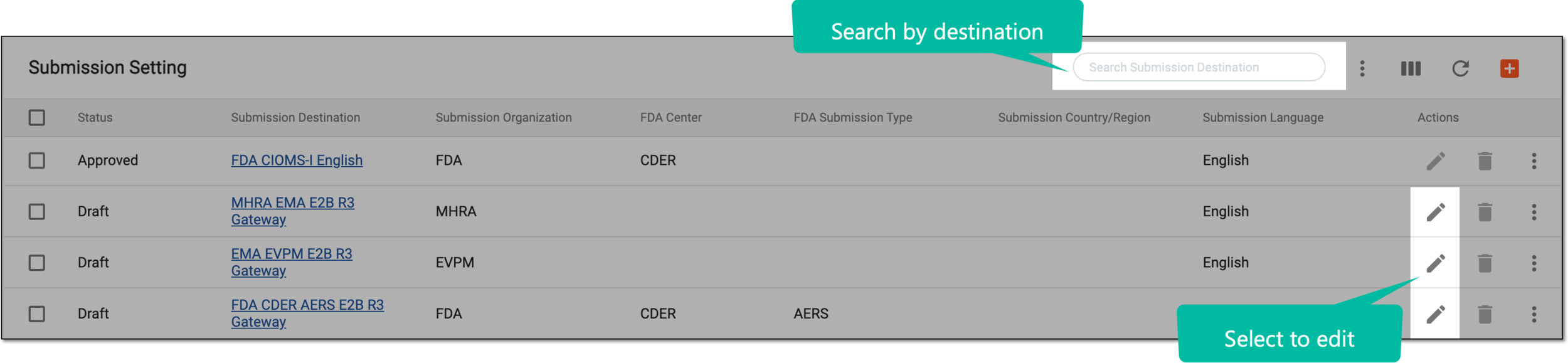 Figure 2. Selecting to edit records
Tip
From the workspace toolbar, use the Search Submission Destination filter to facilitate the location of the needed record.
-
On the submission setting page that opens, from the workspace toolbar, select one of the following options:
-
Forward
 : to upgrade the submission setting to the next available status, for instance, from Draft to Ready for Review. This might be done to send the submission setting record for review or approval.
 -
Return
 : to retreat the submission setting to the previously available status, for instance, from Approved to Draft. This might be done to make the submission setting record available for edits and reinitialize the review and approval process.
 Figure 3. Forward and return route options
-
-
In the Return or Forward dialog that appears depending on your selection, complete the configurations as explained in the following table.
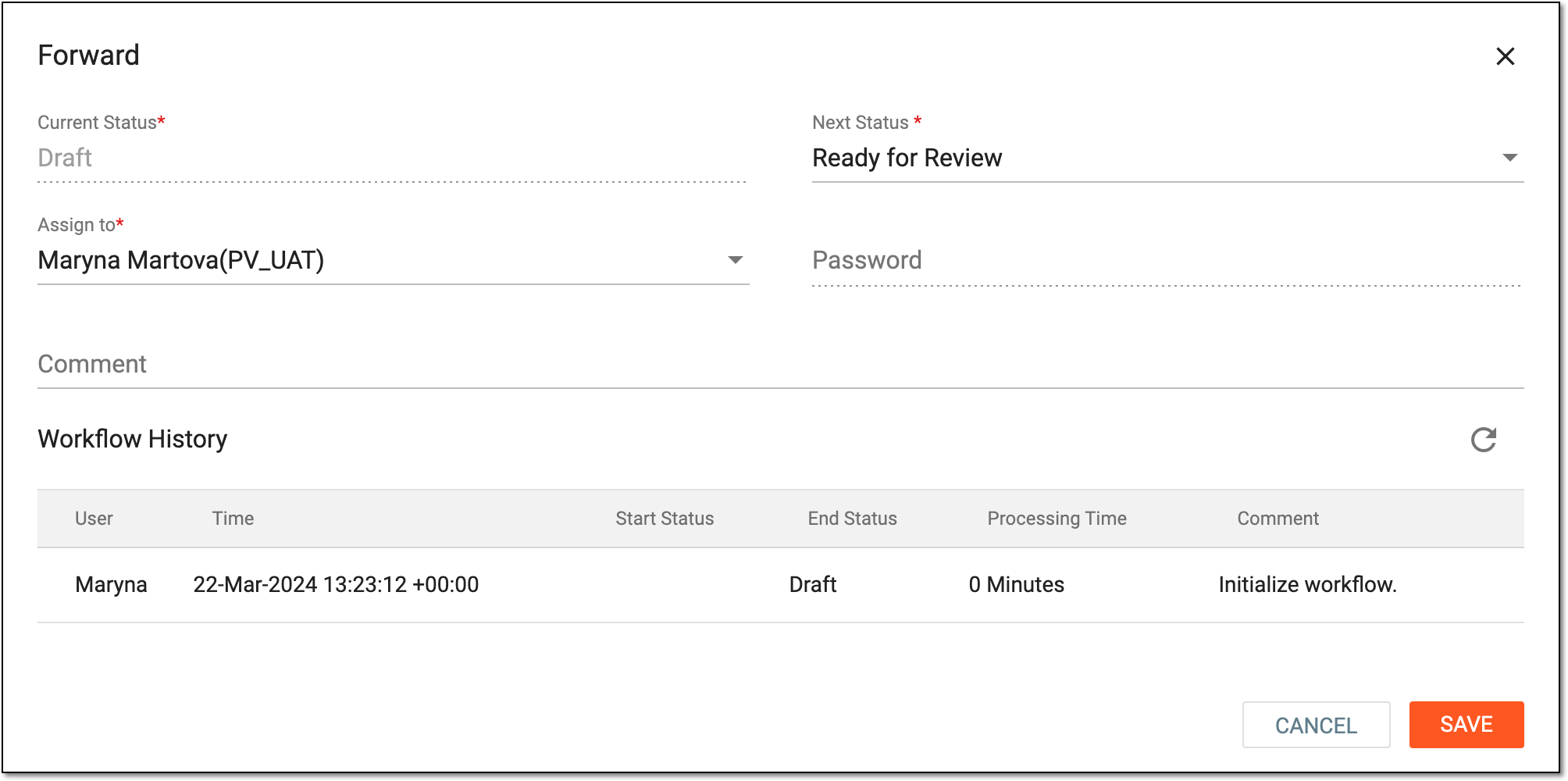 Figure 4. Forwarding route
Tip
In the following table, mandatory elements are marked with an asterisk (*).
Element
Details
Current Status*
Represents the current status of the submission setting.
The list of statuses, their flow, and their number can be configured per the sponsor's request by the EDETEK administrator.Next Status* / Return Status*
-
When forwarding the route, select the next available status for your submission setting.
-
When returning the route, select the previous available status for your submission setting.
Assign to*
Select the dedicated user who must review and approve the submission setting details.
The list of assignees is based on their study access permission granted via ADMIN.Password
Enter the password to confirm your action.
Comment
Enter the comment to communicate additional details to the assignee, if needed.
Workflow History
Represents the table view of all the previous workflow changes for your submission setting, who performed them, and when.
SAVE
Select
 to save the implemented changes.
CANCEL
Select
 to discard the changes without saving.
Important
For security, the system logs you out after three failed attempts to confirm your identity with a password or code.
-
Once saved, the submission setting route is forwarded or returned according to the configured workflow. The assigned user can now act on it accordingly.