View comprehensive study analytics report
In EDC, the Study Analytics dashboard gives you different charts to get an instant insight into the current state of the EDC processes and entities, such as sites, subjects' phases, opened/answered queries, and so on.
In the Comprehensive Report, you can view the visually presented data from the dashboard charts in a tabular form as shown in the following figure.
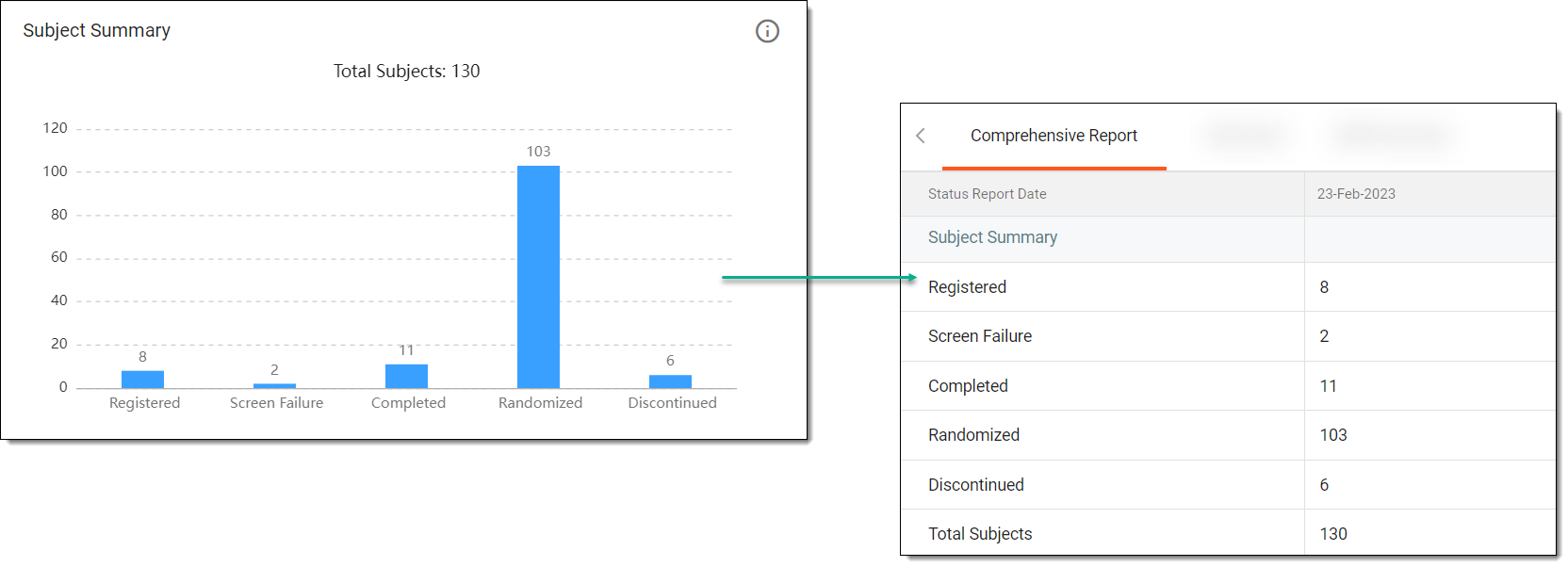
The report displays data from the following charts: Site Summary, Subject Summary, eCRF Summary, Query Summary, Query Aging Summary, and Total Answered Query. You may be required to view data in the comprehensive report if you want to export charts' data to your local machine for sharing or analysis purposes, and so on.
-
In the EDC application header, select the DASHBOARD tab.
-
On the page that opens, go to the Study Analytics tab and from the workspace toolbar, select
 .
. -
On the page that opens, in the Comprehensive Report table, view the details of the charts as explained in the following table.
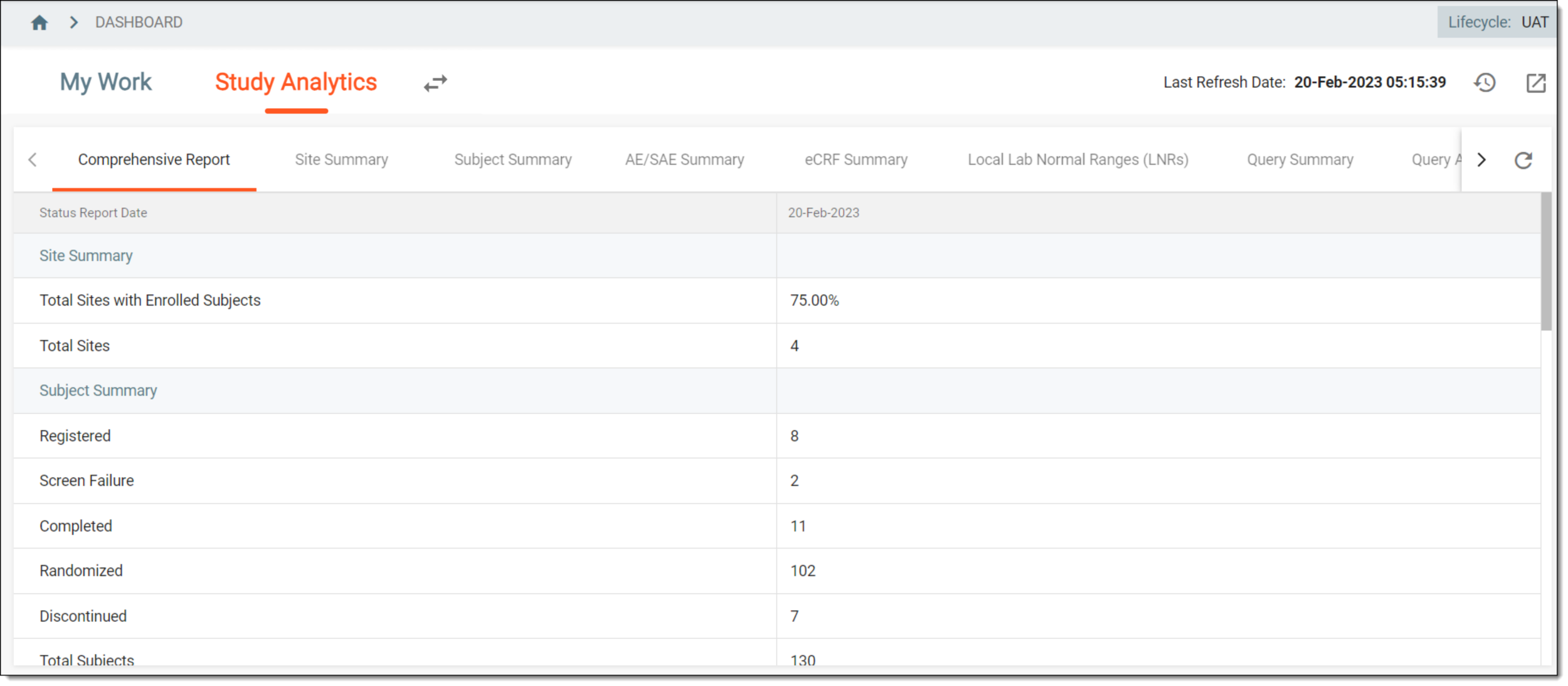 Figure 2. Comprehensive Report
Element
Details
Status Report Date
Represents the date on which the data displayed in the Comprehensive Report is fetched from across the EDC application.
Site Summary
Represents the data for the Site Summary pie chart, such as the count of Total Sites with Enrolled Subjects and Total Sites.
Subject Summary
Represents the data for the Subject Summary bar chart, such as the number of subjects with the following statuses: Registered, Randomized, Discontinued, and so on.
eCRF Summary
Represents the data for the eCRF Summary bar chart, such as the forms that are in the following phases: Initial, Tempsaved, Completed, and so on.
Query Summary
Represents the data for the Query Summary bar chart, such as the count for Open Manual Queries, Answered System Queries, and so on.
Total Open Query to Sites
Represents the data for the Query Aging Summary bar chart, such as the number of queries existing during a specific time interval, such as in the last ten days, last three months, and so on.
Total Answered Query
Represents the data for the Total Answered Query bar chart, such as the number of answered queries pending review and approval from the sponsor and data manager (DM).
-
If required, after viewing the Comprehensive Report, you can switch to any of the following tables to view the corresponding elaborative summary of the chart as follows.
 Figure 3. Navigating to other tables
You have viewed the comprehensive report of the dashboard charts. You can now select to go back to the Study Analytics page.