Analyze AE/SAE summary details
With the Study Analytics dashboard, you can view different charts to get a quick insight into the current state of the EDC processes and data elements, such as sites, subjects' phases, opened/answered queries, and so on. In the AE/SAE Summary pie chart, you instantly get a summary of the adverse events identified and recorded in the existing subjects in the system.
If you want to view a detailed analysis of the adverse events, then using this functionality, you can get detailed information about every adverse event reported, such as the sponsor identification number, the name of the study, and the site in which the adverse event has been reported, and so on.
-
In the EDC application header, select the DASHBOARD tab.
-
On the page that opens, select the Study Analytics tab.
-
From the AE/SAE Summary pie chart, select Go Details
 .
.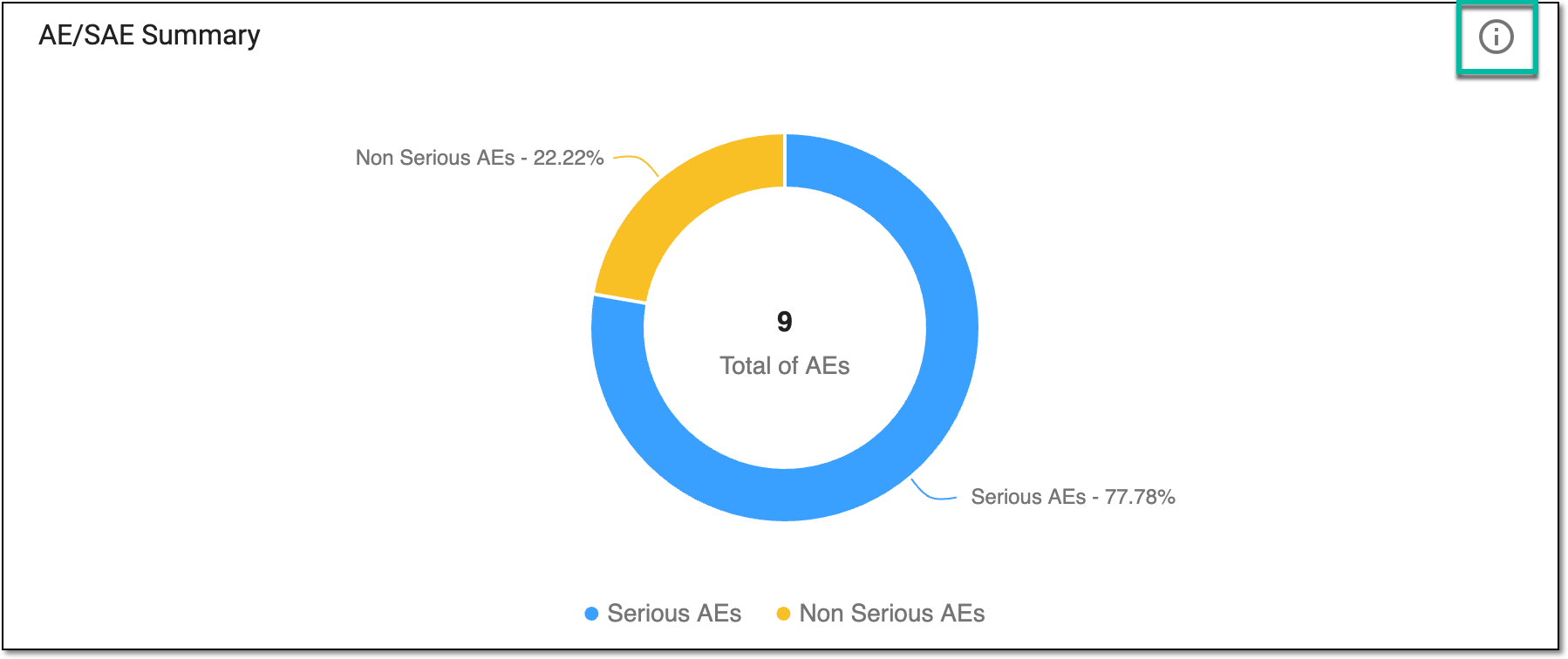 Figure 1. Selecting option to view AE/SAE summary details
-
On the page that opens, in the AE/SAE Summary table, analyze the subject details as explained in the following table.
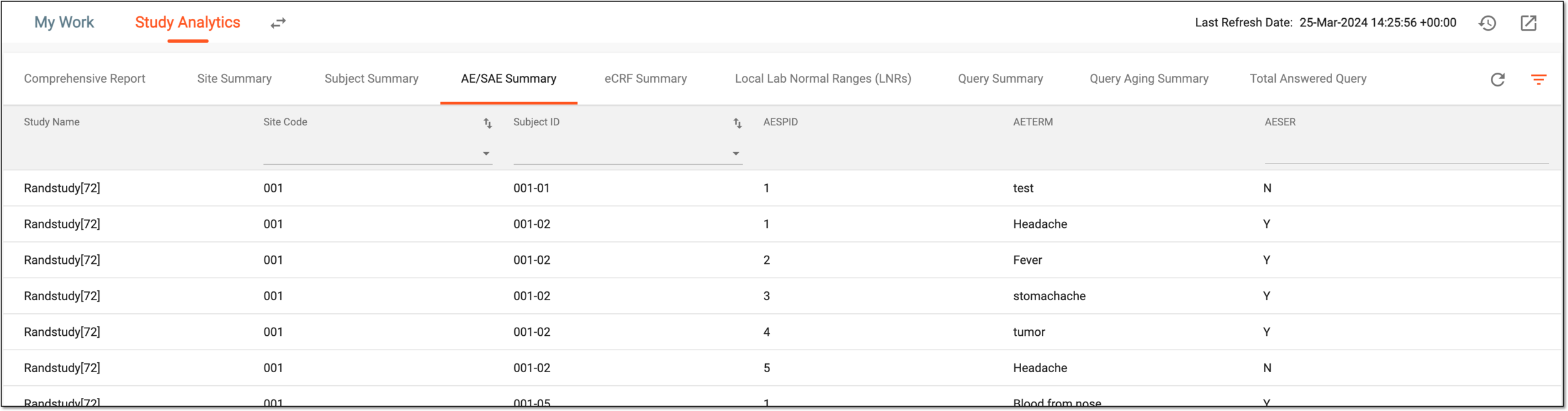 Figure 2. AE/SAE summary details
Tip
From the page shown in the figure, you can navigate to any of the following tables to view the corresponding elaborative summary of the chart:
Element
Details
Study Name
Represents the study name in which the adverse event is reported.
Site Code
Represents the site code in which the adverse event is reported.
Subject ID
Represents the identification code of the subject for which the adverse event is reported.
AESPID
Represents the sponsor identification number of the reported adverse event.
AETERM
Represents the reported term of the adverse event, such as headache, vomiting, and so on.
AESER
Represents whether the reported adverse event is serious (Y) or not (N).
Once you have analyzed the adverse event details, from the workspace toolbar, select  to go back to the Study Analytics page.