Analyze SAE form signature summary details
With the Study Analytics dashboard, you can view different charts to get an instant insight into the current state of the EDC processes. In the SAE Form Signature Summary pie chart, you instantly get information about the total number of SAE forms intended for a signature, how many are already signed, and how many still await signature.
Furthermore, you can also view elaborative details about the SAE forms intended for a signature such as how many are signed and how many are not in a form of a table.
-
In the EDC application header, select the DASHBOARD tab.
-
On the page that opens, select the Study Analytics tab.
-
From the SAE Form Signature Summary pie chart, select Go Details
 .
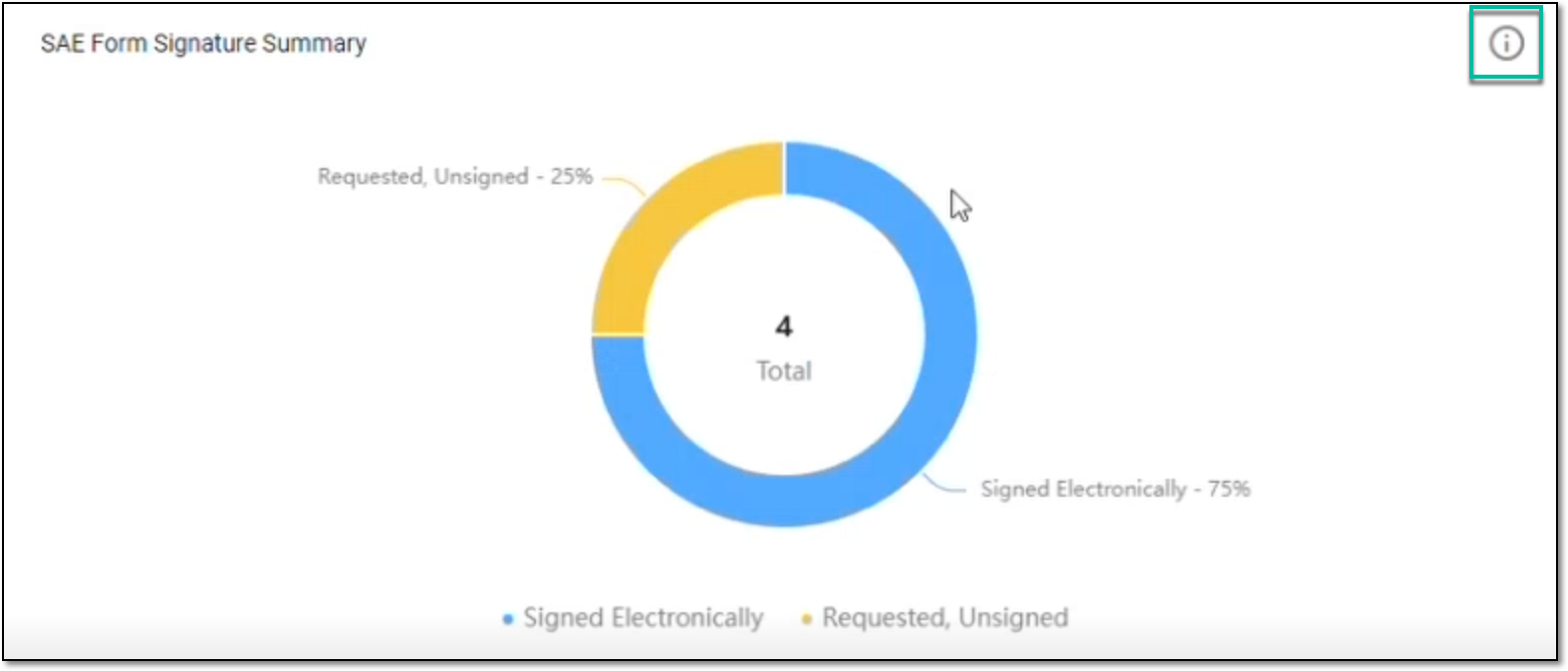 Figure 1. Selecting option to view SAE form signature summary details
-
On the page that opens, in the SAE Form Signature Summary table, analyze the SAE form signature details as explained in the following table.
Tip
Select Update Signature Status
 from the workspace toolbar to refresh the SAE
Form Signature Summary table and see the latest data. Note that the manual update can take up to a few minutes.
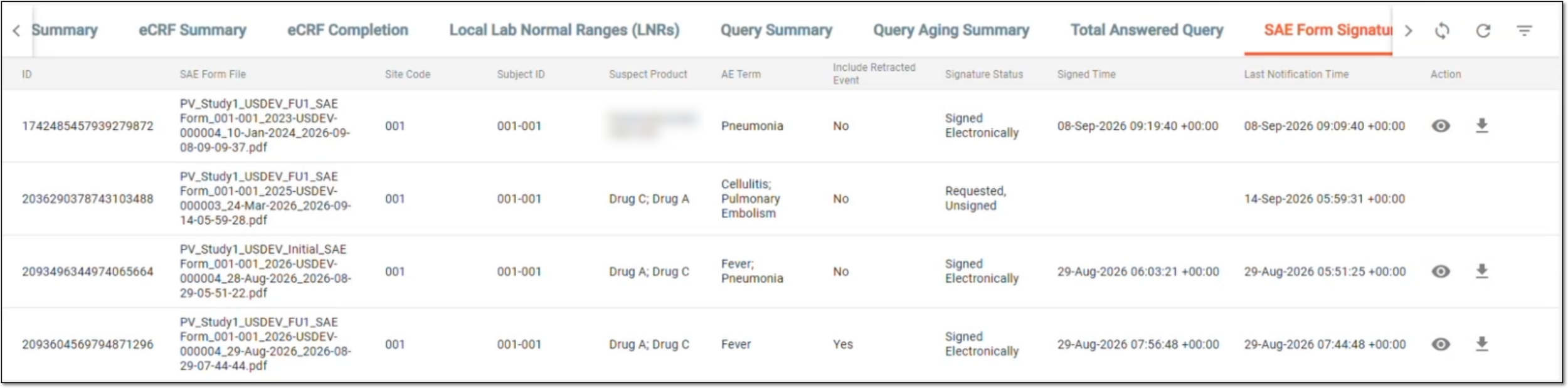 Figure 2. Analyzing SAE form signature summary details
Tip
From this page, you can also navigate to any of the following tables to view the corresponding elaborative summary of the chart:
Element
Details
ID
Represents the unique identifier of the task for the SAE form signature initiated from the PV app.
SAE Form File
Represents the name of the SAE form file in a PDF format generated by the system and intended for an electronic signature.
Site Code
Represents the code of the site where the SAE form intended for an electronic signature was completed.
You can only see data for the sites to which you have access in EDC as per ADMIN permissions.Subject ID
Represents the unique identifier of the subject for whom the SAE form intended for an electronic signature was completed.
Suspect Product
Represents the name of the product that is suspected to be related to the AE.
AE Term
Represents the list of terms used to describe the AE.
Include Retracted Event
Represents if the case includes a retracted event (Yes) or not (No).
A retracted event is an occurrence that the event was previously reportable and then reassessed as not reportable.
Signature Status
Represents if the SAE form is already signed by the personnel in charge (Signed Electronically) or not (Requested, Unsigned).
Signed Time
Represents the date and time when the SAE form has been signed by the assignee (if already).
Last Notification time
Represents the date and time when the latest email notification on the signature task was sent to the personnel in charge.
Preview
Select
 to open the signed SAE form as a PDF file in a new browser tab for preview.
This option is only available for the signed SAE forms.Download
Select
 to download the signed SAE form as a PDF file to your computer.
This option is only available for the signed SAE forms.
Once you have analyzed the SAE form signature details, from the workspace toolbar, select  to go back to the Study Analytics
page.