Analyze local lab normal ranges (LNRs) details
In Study Analytics, you can view different charts to get an instant insight into the current state of the EDC processes and entities, such as sites, subjects' phases, opened/answered queries, and so on. The Local Lab Normal Ranges (LNRs) bar chart is one of such charts provided in the dashboard that displays the total number of subjects identified with the tested diseases, that is, the bar chart shows you the number of subjects that fall within the Normal, High, and Low ranges as a result of a laboratory test required for the clinical trial.
Tip
Laboratory tests help in the identification of a disease in the human body via tests, such as organ function tests (bilirubin, creatinine, and others), screening tests (complete blood count, urinalysis, and others), and so on.
To measure the criticality of a disease, the laboratory test result of a subject is described using three ranges: normal, low, and high. The subjects that lie within a normal range signify that they are perfectly fine and their body does not have signs of the tested disease. The subjects that fall within low or high ranges usually have signs of the tested disease in their body and require medical assistance.
Using this functionality, you can view the summary details of a chart and get a detailed analysis of the laboratory tests, the subjects identified with diseases, and the criticality of the diseases in the subjects.
-
In the EDC application header, select the DASHBOARD tab.
-
On the page that opens, select the Study Analytics tab.
-
From the Local Lab Normal Ranges (LNRs) bar chart, select Go Details
 .
.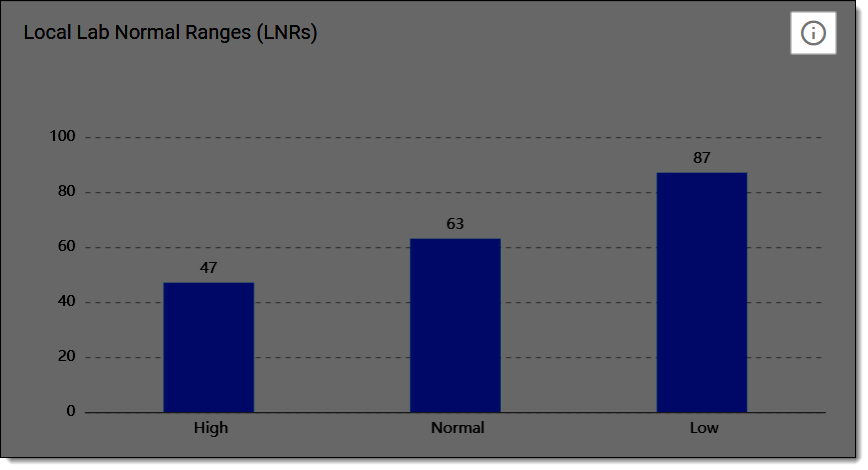 Figure 1. Selecting option to view LNRs summary details
-
On the page that opens, in the Local Lab Normal Ranges (LNRs) table, view the subject details as explained in the following table.
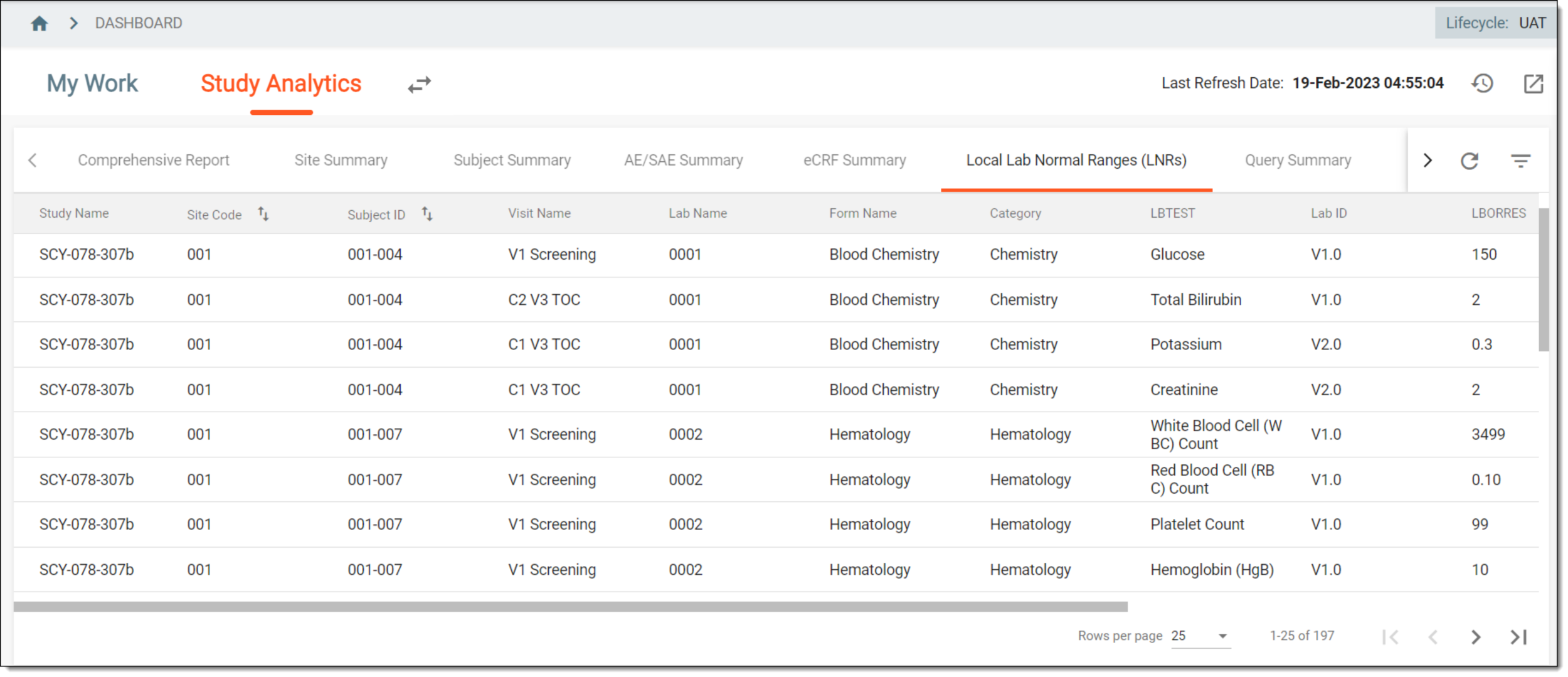 Figure 2. LNRs details
Tip
From the page shown in the preceding figure, you can navigate to any of the following tables to view the corresponding elaborative summary of the chart:
Element
Details
Study name
Represents the study for which the laboratory tests are performed.
Site Code
Represents the site code of the subjects that are involved in the laboratory tests.
Subject ID
Represents the identification number of the subject on whom the laboratory test is performed.
Visit Name
Represents the visit name that involves the execution of the laboratory test.
Lab Name
Represents the name of the laboratory in which the test is performed.
Form Name
Represents the electronic case report form (eCRF) in which the test results details of the subject must be provided after the laboratory test.
Category
Represents the eCRF category, such as Hematology.
LBTEST
This term is an abbreviation of "Lab Test". It represents the name of the laboratory test, such as Alanine Aminotransferase, Lactate Dehydrogenase, and so on.
Lab ID
Represents the identification number of the laboratory in which the laboratory test is performed on the subjects.
LBORRES
This term is an abbreviation of "Result or Finding in Original Units". It represents the original subject's test results reported or received after the laboratory test is completed.
LBORNRLO
This term is an abbreviation of "Normal Range Lower Limit in Original Units". It represents the lower extreme limit below which the disease is identified as critical and requires immediate medical attention.
LBORNRHI
This term is an abbreviation of "Normal Range Higher Limit in Original Units". It represents the higher extreme limit above which the disease is identified as critical and requires immediate medical attention.
LBNRIND
This term is an abbreviation of "Reference Range Indicator". Based on the test result values acquired after the laboratory test and defined in LBORRES, LBORNRLO, and LBORNRHI, this represents whether the subject is normal, or has high or low criticality levels of disease.
Once you have analyzed the LNRs or laboratory test details, from the workspace toolbar, select  to go back to the Study Analytics
page.
to go back to the Study Analytics
page.