Analyze query aging summary details
In Study Analytics, you can view different charts to get an instant insight into the current state of the EDC processes and entities, such as sites, subjects' phases, opened/answered queries, and so on. In the Query Aging Summary bar chart, you instantly get information about the total number of queries existing in the system against your desired number of days. This way you can analyze how many queries existed during a specific time interval, such as in the last ten days, last three months, and so on.
If you want to view a detailed analysis of the queries in a particular time interval, then using this functionality, you can view the summary details of the chart and get information about the queries existing in the specified time duration along with the details of the site, subject, and others in which the queries are created.
-
In the EDC application header, select the DASHBOARD tab.
-
On the page that opens, select the Study Analytics tab.
-
From the Query Aging Summary bar chart, select Go Details
 .
.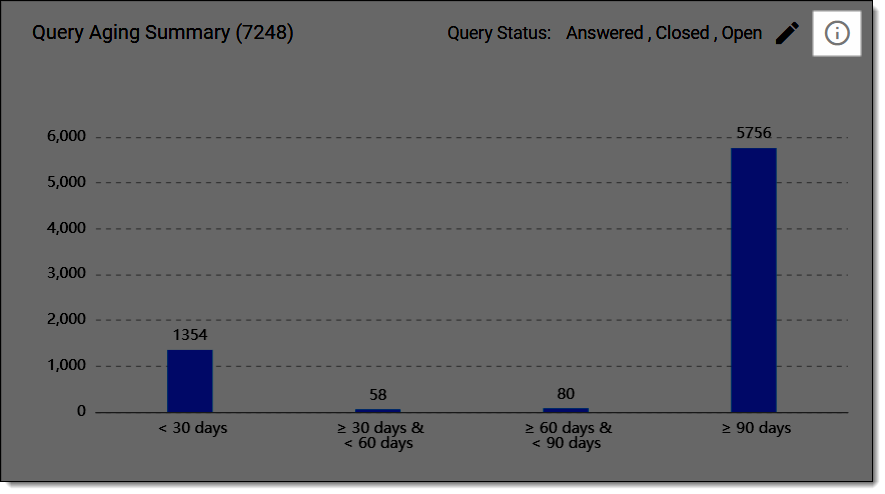 Figure 1. Selecting option to view query aging summary details
-
On the page that opens, in the Query Aging Summary table, analyze the subject details as explained in the following table.
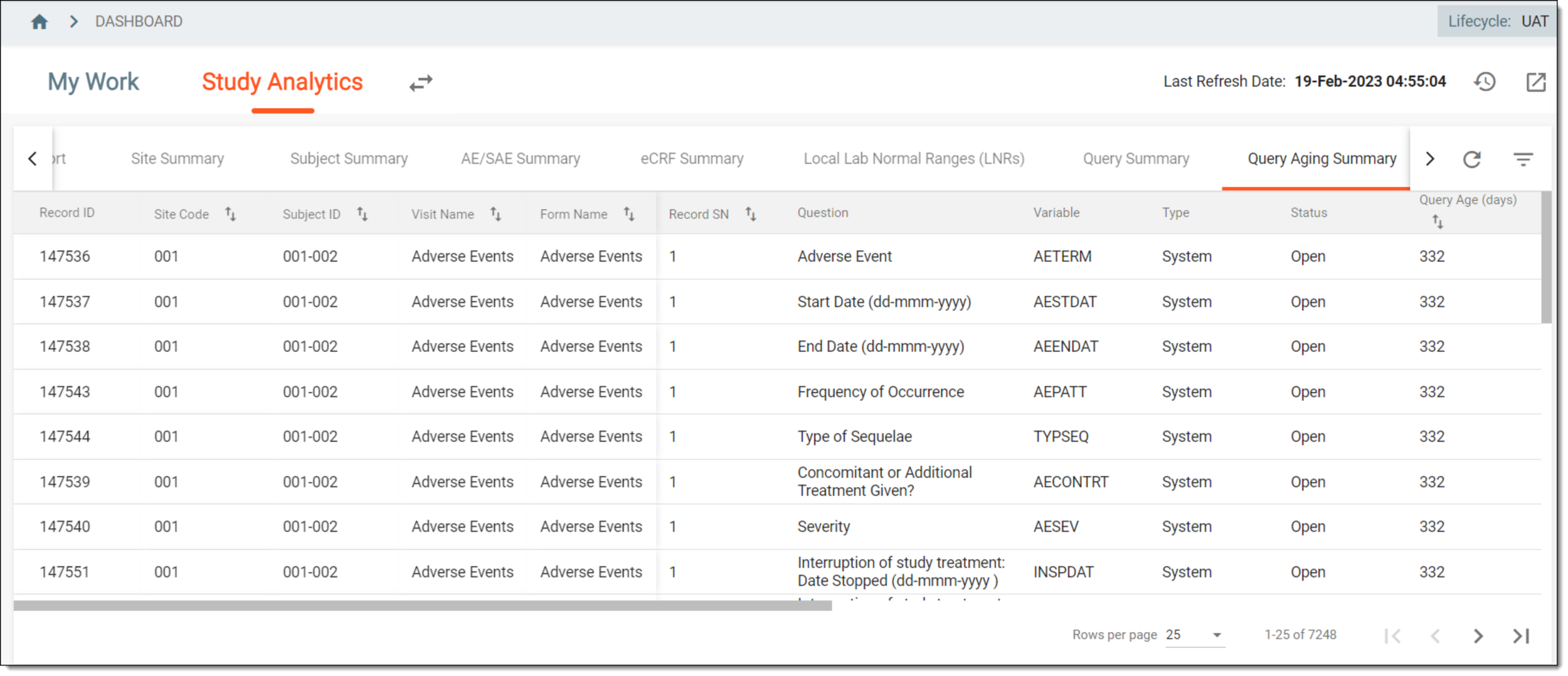 Figure 2. Query aging summary details
Tip
From the page shown in the preceding figure, you can navigate to any of the following tables to view the corresponding elaborative summary of the chart:
Element
Details
Record ID
Represents the record identification number of the query that is based on the total count of the queries that are ever created or exist in the EDC application.
For example, before you added your query, there already existed three queries in EDC. Regardless of whether the existing queries are closed, answered, or opened, the newly created query will be assigned the Record ID "4".
Site Code
Represents the site code in which the query exists.
Subject ID
Represents the identification code of the subject in which the query exists.
Visit Name
Represents the visit name in which the query exists.
Form Name
Represents the name of the eCRF in which the query is added.
Record SN
Represents the serial number of the eCRF form in which the query is added.
Question
Represents the eCRF question to which the query is added.
Variable
Represents the question variable in which the query is added, such as AETERM (adverse event term), TYPESEQ (type of sequelae), and others.
Type
Represents the query type that can be as follows:
-
System: signifies that the query is system-generated as a result/consequence of a process.
-
Manual: signifies that the query is created manually by a user.
Status
Represents the status of the query that can be any of the following:
-
Open: signifies that the query is not answered by assigned personnel.
-
Answered: this signifies that the query is answered by assigned personnel.
-
Close: signifies that the query is answered and now closed by the system user who created the query.
Query Age (days)
Represents the number of days since the query is created.
Query Topic
Represents the query inquired by the system or the user.
Creation Date
Represents the date on which the query was created.
Assigned To
Represents the user to whom the query is assigned.
Pending Action From
Represents the user from whom the action or the answer to the query is required in order to close the query.
Final Reply By
Represents the user who provided the required answer to the query.
Final Reply Date
Represents the date on which the required answer to the query is received.
Closed Date
Represents the date on which the query is finally closed.
-
Once you have analyzed the query aging details, from the workspace toolbar, select  to go back to the Study Analytics page.