Filter query aging summary chart
In Study Analytics, you can view different charts to get an instant insight into the current state of the EDC processes and entities, such as sites, subjects' phases, opened/answered queries, and so on. In the Query Aging Summary bar chart, you can view the opened, answered, and closed queries against a specific number of days. Also, using the filtering functionality, you can alter the number of days or the queries (opened, answered, or closed) to view your required data in the bar chart.
-
In the EDC application header, select the DASHBOARD tab.
-
On the page that opens, select the Study Analytics tab.
-
From the Query Aging Summary bar chart, next to the Query Status field, select Filter Conditions
 .
.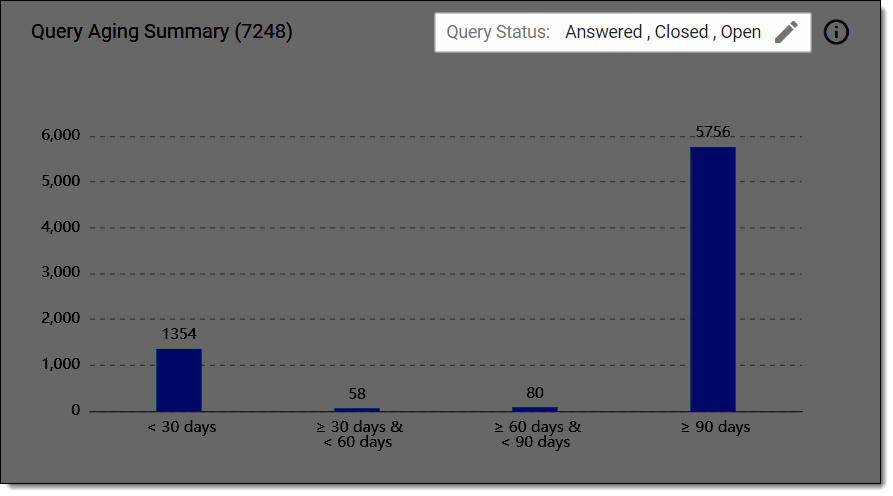 Figure 1. Selecting option to filter query aging summary bar chart
-
In the Filter Conditions dialog that opens, set the filter conditions as suggested in the following table.
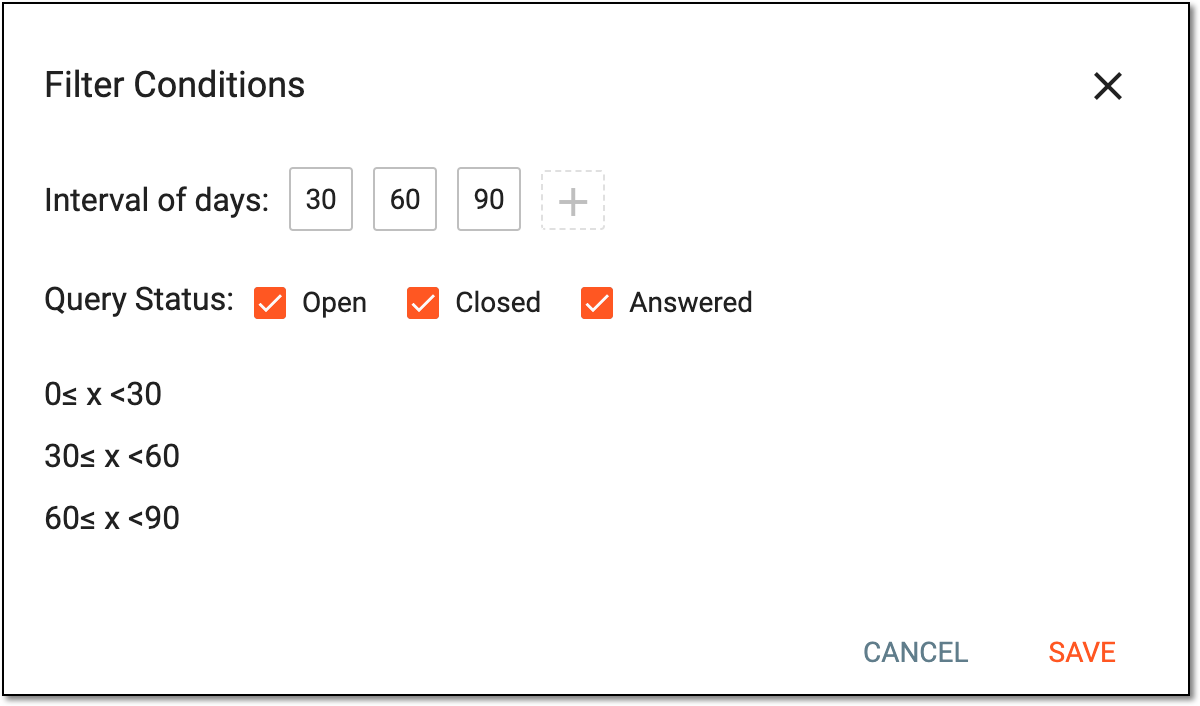 Figure 2. Specifying filter conditions
Tip
As shown in the preceding figure, the interval of 30, 60, and 90 days is set by default. You can modify the values by selecting the numeric field, and enter your desired value.
Element
Details
Interval of days
Select the numeric fields displaying 30, 60, and 90 to enter your desired number of days in the fields, or select
 to add an additional numeric field to enter the required value of days.
Based on the values you specify, the bar(s) are added in the Query Aging Summary chart to display the number of queries existing in the corresponding value of days.
If you want to delete any numeric field, hover over it and select
 .
.Query Status
Select the Open, Closed, or Answered queries checkbox to specify the type of queries for which you want to view the data in the Query Aging Summary bar chart.
Note that by default, all the checkboxes are selected and displayed in the bar chart.SAVE
Select
 to apply the filter.
CANCEL
Select
 to dismiss the changes.
Once the changes are saved, the Query Aging Summary bar chart is updated and displays the filtered data.