Site management
In a clinical trial, sites are the locations that cover various study activities intended for subject treatment and data collection. One such activity managed via IWRS is dispensation—the process of providing subjects with items (drugs). To satisfy this process, there is a need to request, ship, maintain, and account for items.
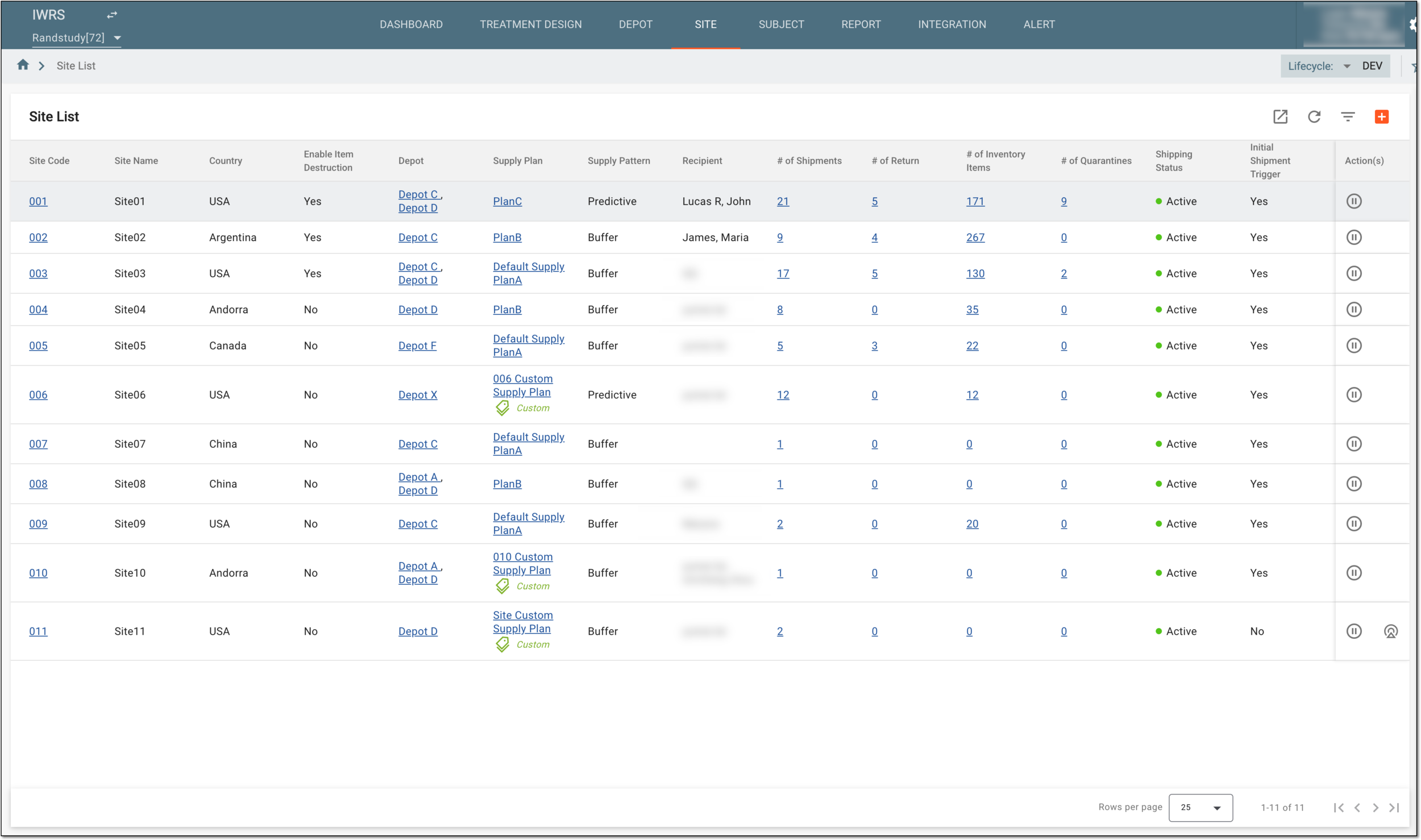
Under the SITE tab, you can access multiple item management and logistics functionality and find all the information about the sites of your study, their shipments, statuses, and other details as explained in the following table.
Important
The sites available on the list depend on the access permissions granted to your user group via the ADMIN application.
|
Column |
Details |
|---|---|
|
Site Code |
Represents the unique identifier of the site. Select the site code value to navigate to the site’s details and management page.
|
|
Site Name |
Represents the name of the site. |
|
Country |
Represents the name of the country to which the site belongs. |
|
Enable Item Destruction |
Represents whether the item destruction is enabled for a site as follows: |
|
Depot |
Represents the supplier depots for the site. Select the depot value to navigate to the depot setting page. |
|
Supply Plan |
Represents the supply plan selected for the site. Select the supply plan name to navigate to the supply plan setting of the site. The Custom |
|
Supply Pattern |
Represents the supply pattern the site applies. The patterns are dependent on which configuration is currently enabled for your site supply plan. The supply pattern can be as follows:
|
|
Recipient |
Represents the names of the configured external recipients associated with the site. |
|
# of Shipment |
Represents the number of shipments for the site. Select the number to navigate to the shipment list. |
|
# of Return |
Represents the number of return shipments initiated by the site. |
|
# of Quarantine |
Represents the number of quarantines created by the site. |
|
# of Inventory items |
Represents the number of items in the site inventory. Select the number to navigate to the site inventory. |
|
Shipping Status |
Represents the status that indicates whether the site is activated or inactivated for shipping activities. |
|
Initial Shipment Trigger |
Represents the initial shipment status for the site as follows:
|


From the Site List page, you can also export various data reports as explained in the following sections.
In IWRS, you can export the report on all the shipments made from or to all the sites of your study. The report includes the destination and origin of the shipments, their dates, statuses, number of items, and other important details.
This might be needed, for example, if you want to share the shipment statistics with a third party that has no access to the IWRS system, or if you simply need to work with the data offline.
-
In the IWRS application header, select the SITE tab.
 Figure 1. Accessing site list
-
On the Site List page that opens, from the workspace toolbar, select Export
 and
then Export Site Shipment.
and
then Export Site Shipment. Figure 2. Exporting site shipment data
-
Once selected, the widget appears displaying your download progress. Select the widget to open the My Downloads dialog.
 Figure 3. Downloads widget
-
In the My Downloads dialog that opens, you can find the following tabs:
-
Preparing: under this tab, you can find all the files whose export is in progress, and they are not yet ready for download.
-
Download is Ready: under this tab, you can find all the files whose export is complete, and they can be downloaded to your computer.
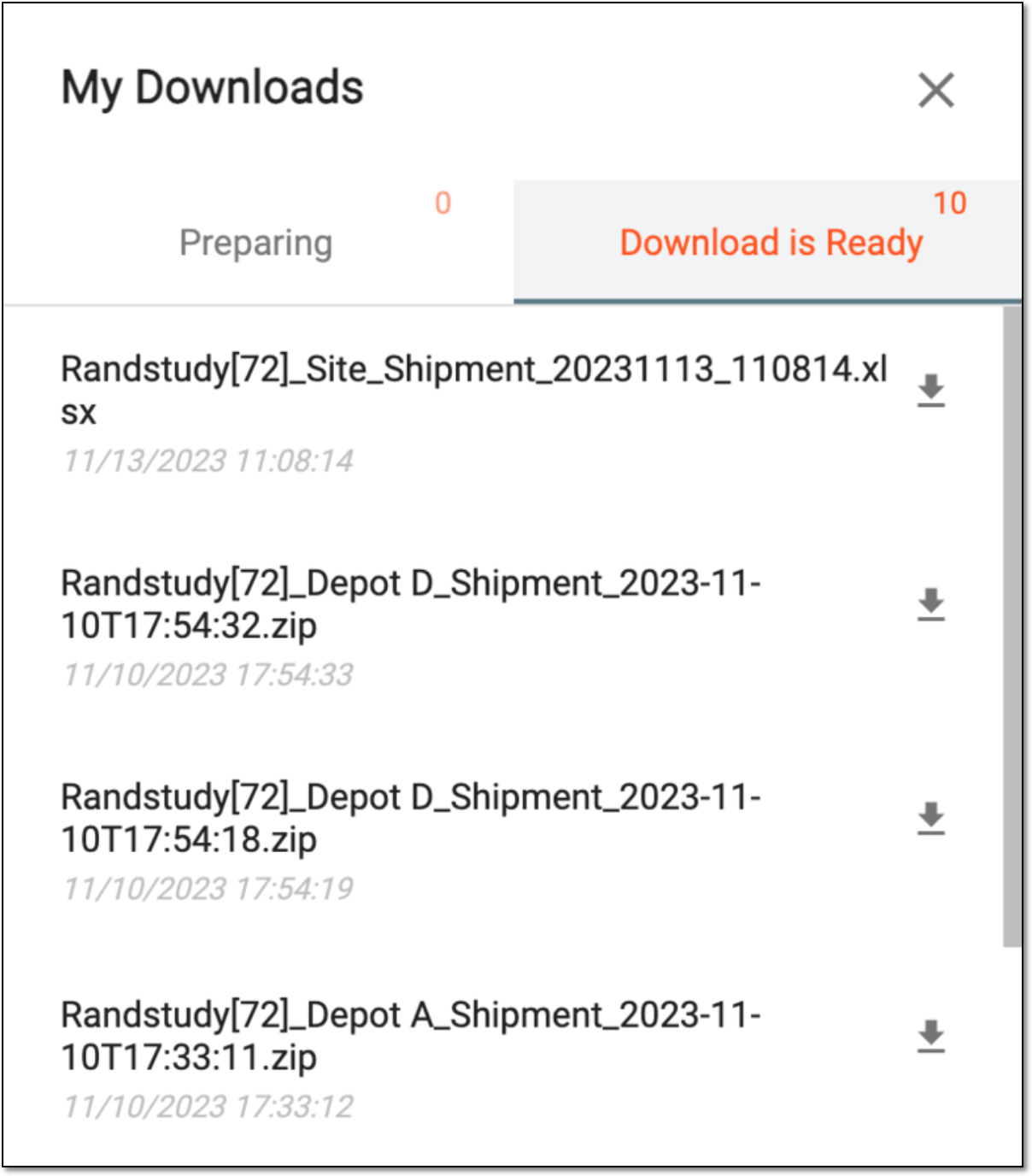 Figure 4. Viewing downloads
-
-
Under the Download is Ready tab, next to the file that you want to download, select
 .
.
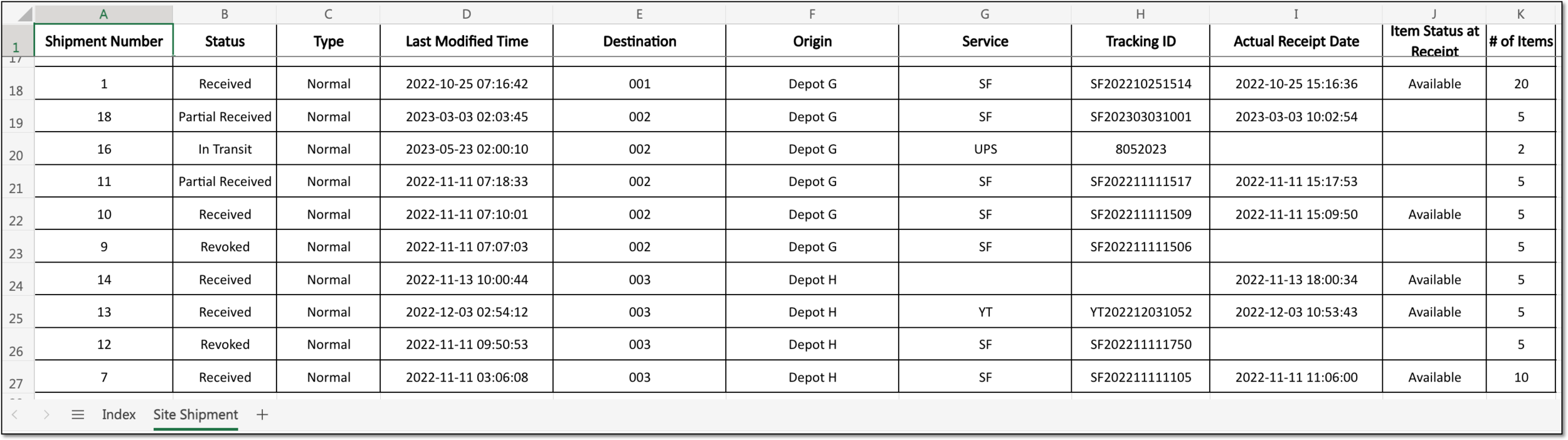
Upon exporting, the XLSX file with site shipment data is downloaded to your computer. In the resulting report, you can view all the needed details of the shipments made from or to the sites of your study.
In IWRS, you can export the complete inventory data report for all the sites of your study. In the report, you have the data organized by summary, lot, and item, exactly as under the Site Inventory tab of IWRS, but the report covers all the sites involved in your study. The report also includes the list of items that have been returned by the sites due to various reasons and details on the item lot, return shipment number, dispatch date, and more.
This might be needed, for example, if you want to share the inventory statistics with a third party that has no access to the IWRS system, or if you simply need to work with the data offline.
-
In the IWRS application header, select the SITE tab.
Figure 1. Accessing site list
-
On the Site List page that opens, from the workspace toolbar, select Export
and
then Export Site Inventory. Figure 2. Exporting site inventory data
-
Once selected, the widget appears displaying your download progress. Select the widget to open the My Downloads dialog.
Figure 3. Downloads widget
-
In the My Downloads dialog that opens, you can find the following tabs:
-
Preparing: under this tab, you can find all the files whose export is in progress, and they are not yet ready for download.
-
Download is Ready: under this tab, you can find all the files whose export is complete, and they can be downloaded to your computer.
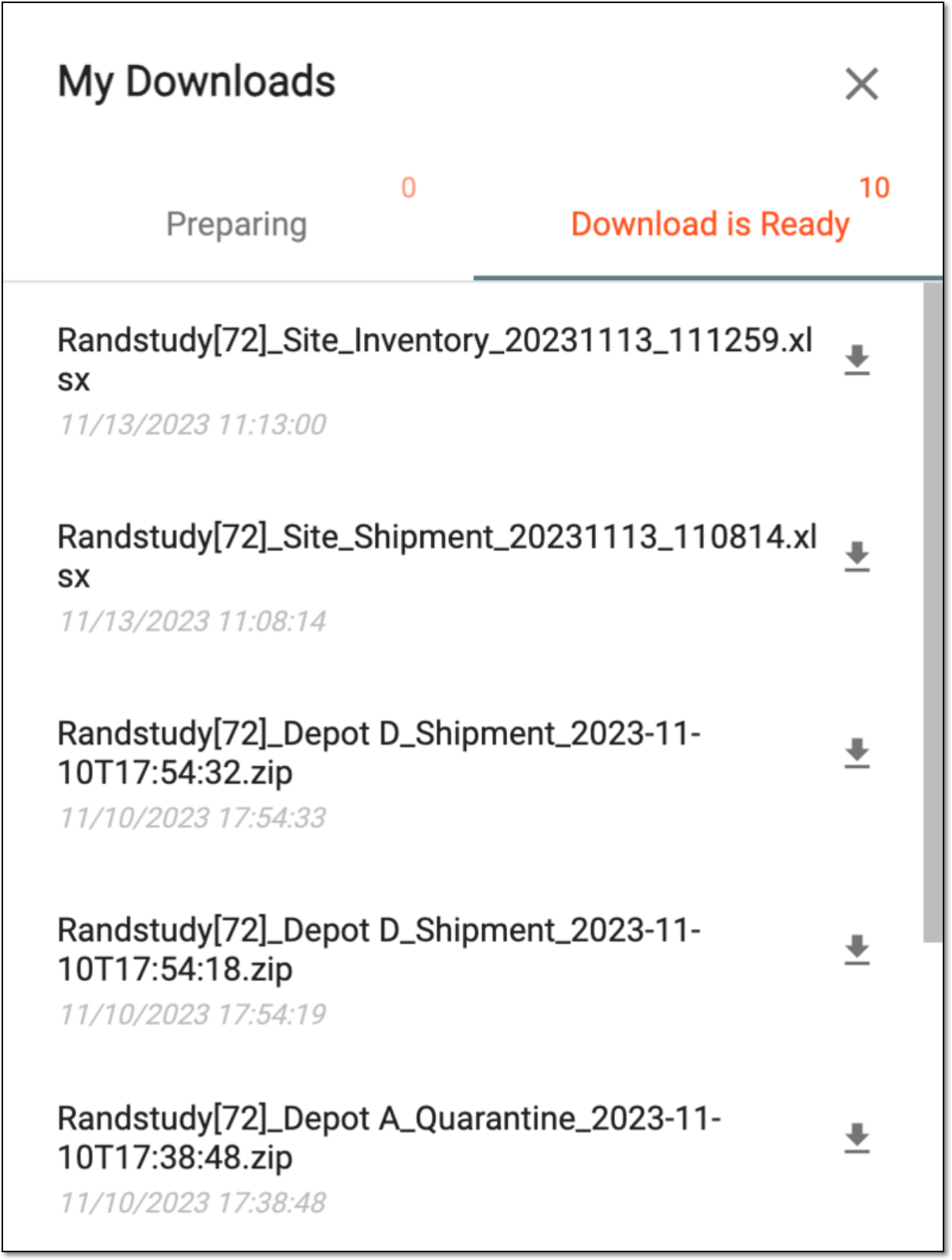 Figure 4. Viewing downloads
-
-
Under the Download is Ready tab, next to the file that you want to download, select
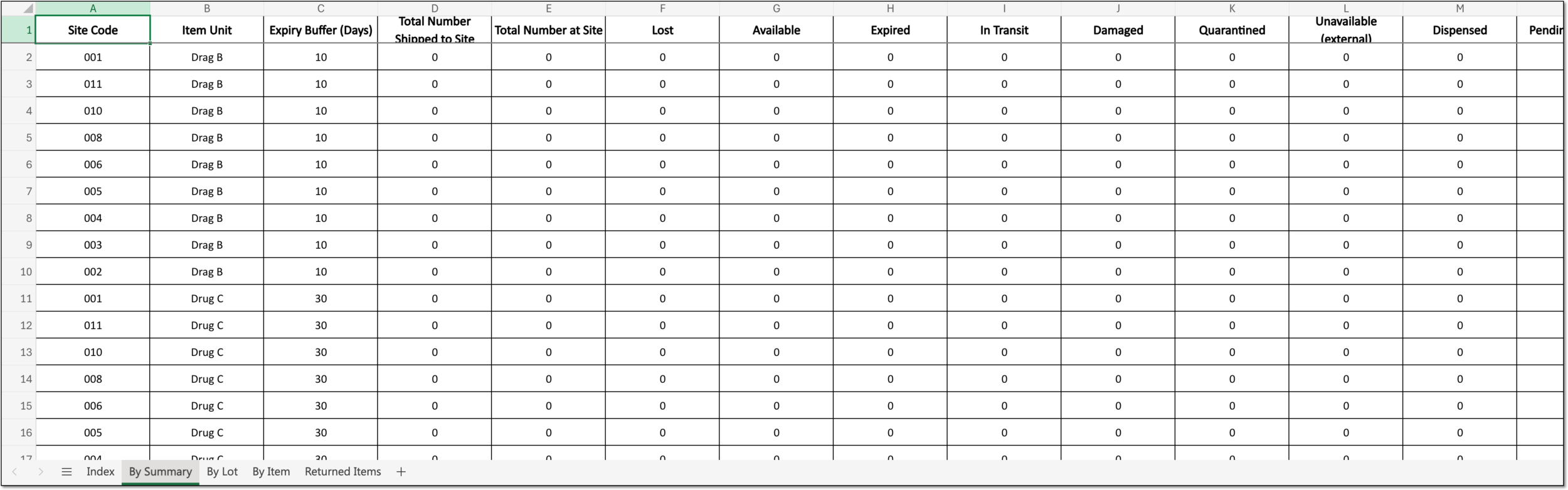
Upon exporting, the XLSX file with site inventory data is downloaded to your computer. In the resulting report, you can view all the needed details of the site inventory by switching between By Summary, By Lot, By Item, and Returned Items sheets.
In IWRS, you can export the report with all the details on existing sites created for your study. This report provides information on the site number, its shipping address, contact details, the operating timezone, and more.
This data export can become handy if you want to share the site details with a third party that has no access to IWRS or if you need to work with the data offline.
-
In the IWRS application header, select the SITE tab.
Figure 1. Accessing site list
-
From the workspace toolbar of the Site List table that appears, select Export
and then Export Site Information. Figure 2. Exporting site information
-
Once selected, the widget appears displaying your download progress. Select the widget to open the My Downloads dialog.
Figure 3. Downloads widget
-
In the My Downloads dialog that opens, you can find the following tabs:
-
Preparing: under this tab, you can find all the files whose export is in progress, and they are not yet ready for download.
-
Download is Ready: under this tab, you can find all the files whose export is complete, and they can be downloaded to your computer.
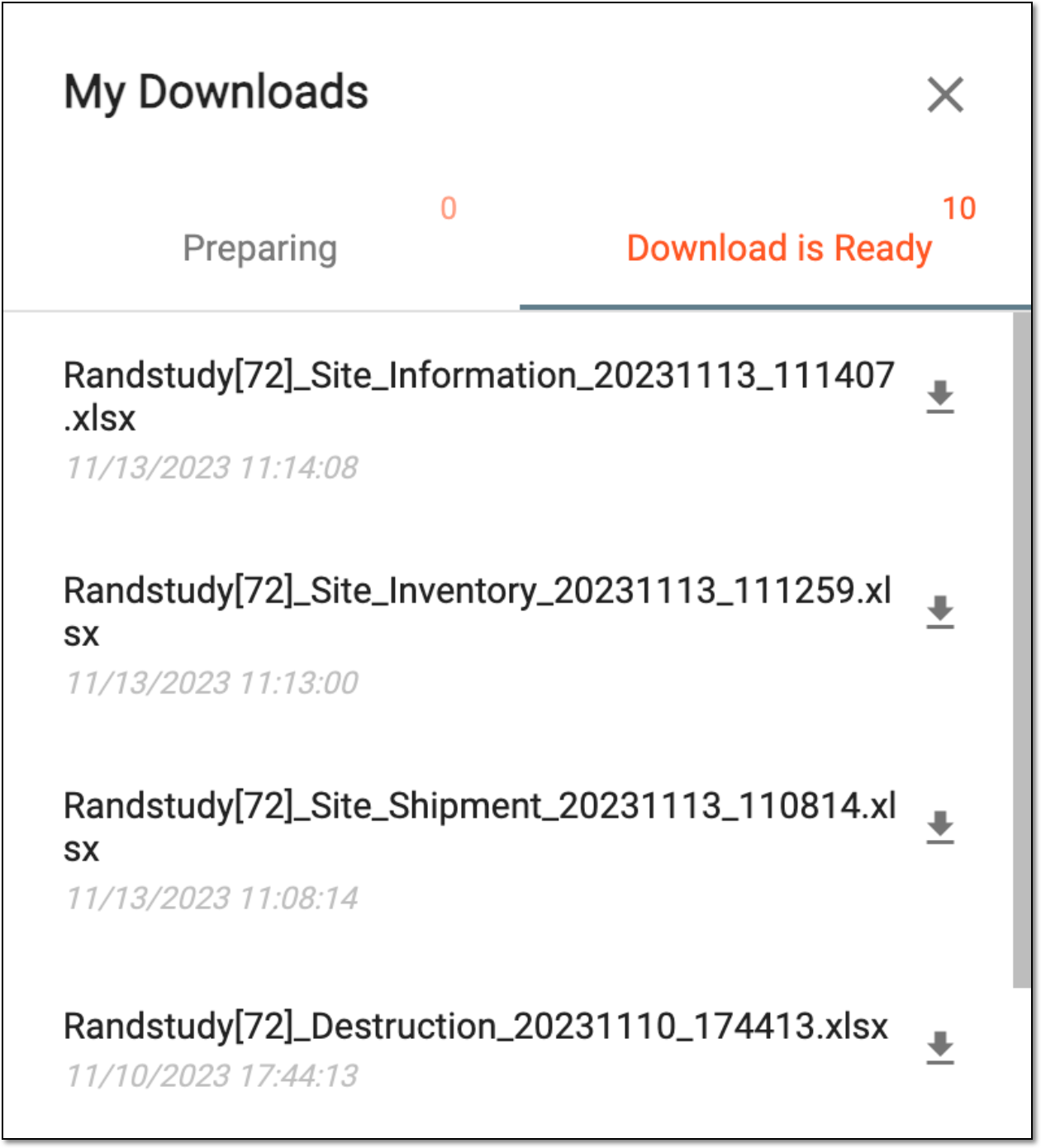 Figure 4. Viewing downloads
-
-
Under the Download is Ready tab, next to the file that you want to download, select
Upon exporting, the XLSX file with site information is downloaded to your computer. You can now work with this data offline.
In IWRS, you can export the report containing the list of depots that supply items or accept their return for all the sites of your study.
This might be needed, for example, if you want to share the site and depot relation data with a third party that has no access to the IWRS system, or if you simply need to work with the data offline.
-
In the IWRS application header, select the SITE tab.
Figure 1. Accessing site list
-
On the Site List page that opens, from the workspace toolbar, select Export
and
then Export Supply & Return Depot. Figure 2. Exporting supply and return depot list for sites
-
Once selected, the widget appears displaying your download progress. Select the widget to open the My Downloads dialog.
Figure 3. Downloads widget
-
In the My Downloads dialog that opens, you can find the following tabs:
-
Preparing: under this tab, you can find all the files whose export is in progress, and they are not yet ready for download.
-
Download is Ready: under this tab, you can find all the files whose export is complete, and they can be downloaded to your computer.
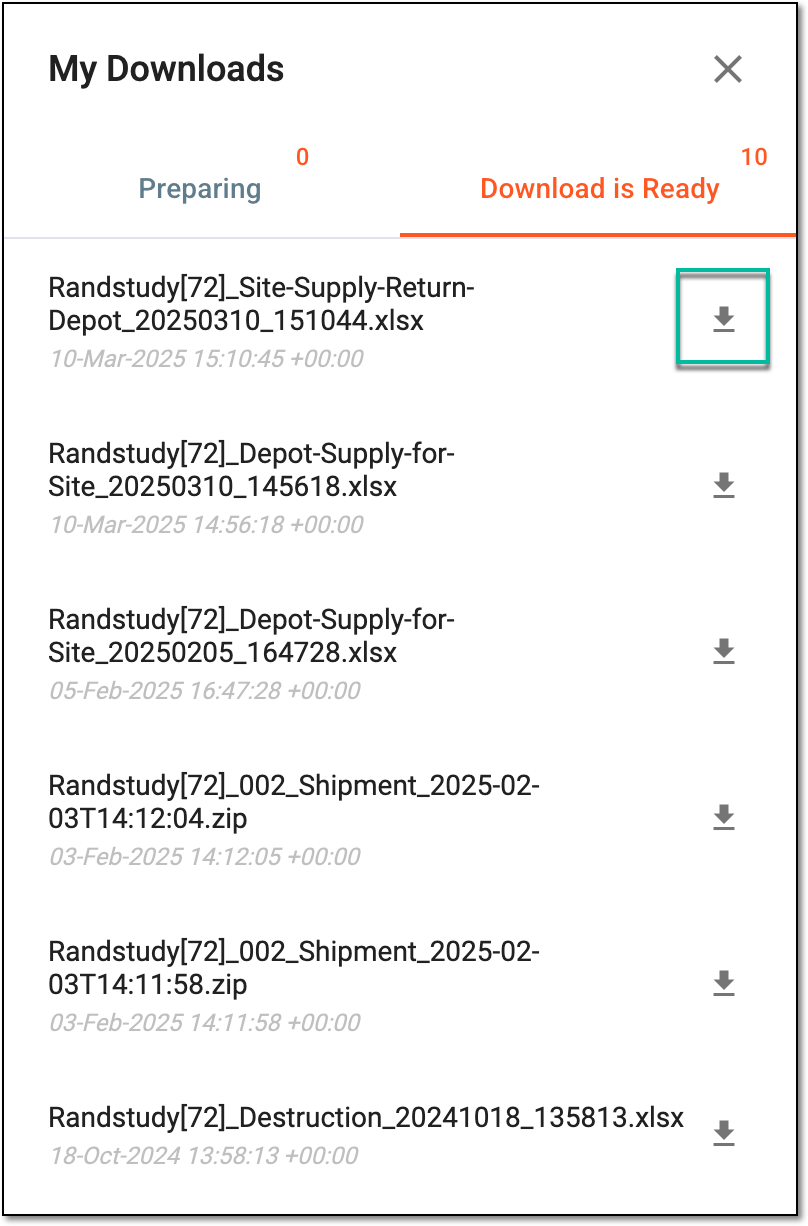 Figure 4. Downloading exported supply and return depot list for sites
-
-
Under the Download is Ready tab, next to the file that you want to download, select
.
Upon exporting, the XLSX file with site supply and return depot data is downloaded to your computer.
In IWRS, you can export the report containing data in inventory accountability of all the sites of your study. This report shows the quantities of items shipped to sites, dispensed to subjects, returned to depots, or destroyed on-site.
This might be needed, for example, if you want to share the inventory accountability statistics with a third party that has no access to the IWRS system, or if you simply need to work with the data offline.
-
In the IWRS application header, select the SITE tab.
Figure 1. Accessing site list
-
On the Site List page that opens, from the workspace toolbar, select Export
and
then Export Site Inventory Accountability. Figure 2. Exporting site inventory accountability data
-
Once selected, the widget appears displaying your download progress. Select the widget to open the My Downloads dialog.
Figure 3. Downloads widget
-
In the My Downloads dialog that opens, you can find the following tabs:
-
Preparing: under this tab, you can find all the files whose export is in progress, and they are not yet ready for download.
-
Download is Ready: under this tab, you can find all the files whose export is complete, and they can be downloaded to your computer.
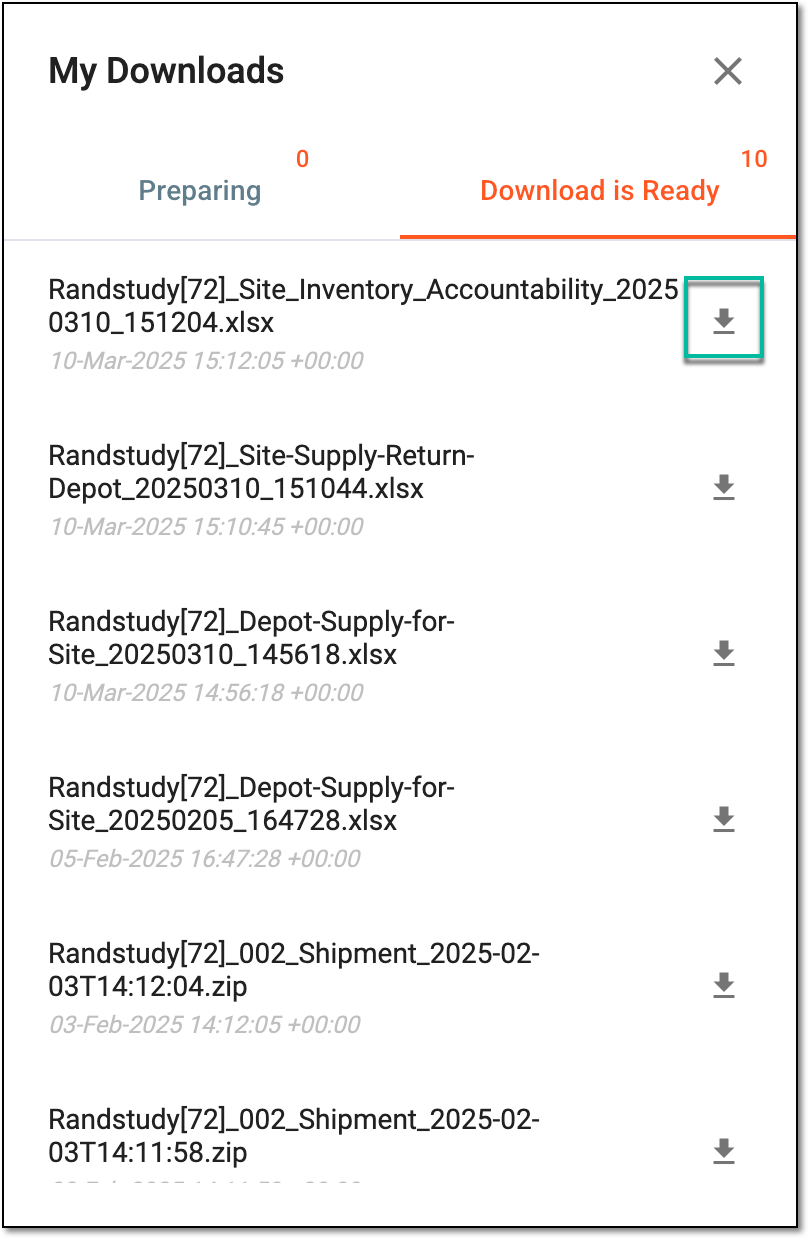 Figure 4. Downloading exported site inventory accountability data
-
-
Under the Download is Ready tab, next to the file that you want to download, select
.
Upon exporting, the XLSX file with inventory accountability data for all your study sites is downloaded to your computer.