Destroy single/multiple items at site
Item destruction refers to the process of disposing of or destroying an investigational product or other unused medication when they are no longer needed, damaged, or for another reason.
In IWRS, the sites that have item destruction enabled can destroy items that are marked as ready for destruction.
Important
To enable this functionality, turn off the Enable Destruction Batch toggle on the Study Information page.
By destroying an item from the Destruction page of IWRS, you reflect the actual physical action taken towards the drug at a certain site. This helps to keep the database up-to-date for tracking and compliance reasons.
-
In the IWRS application header, select the SITE tab.
-
In the Site List table that opens, select the needed site.
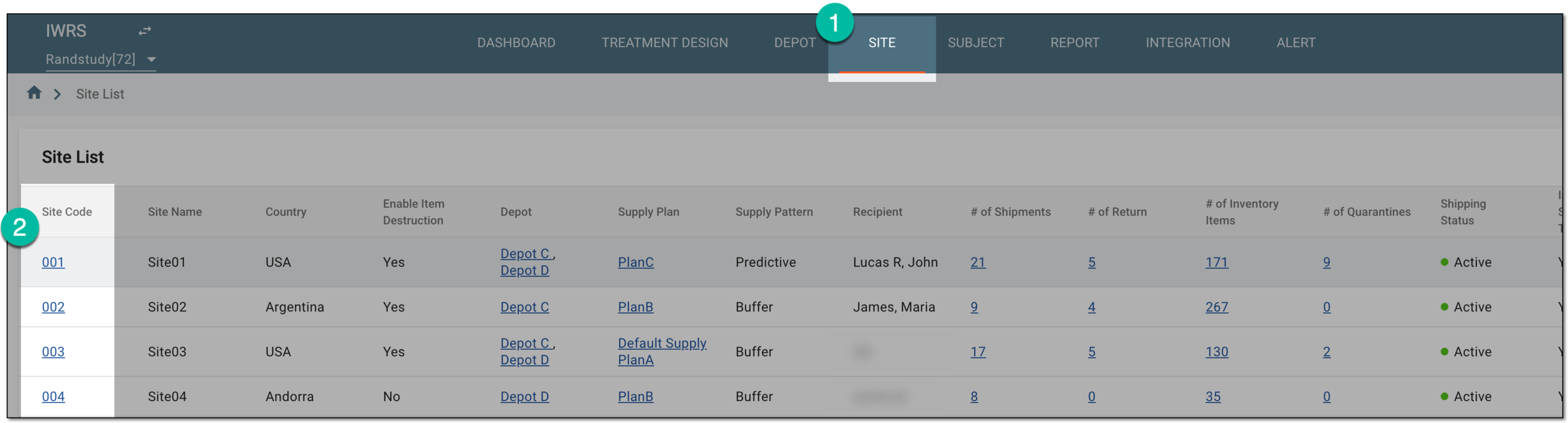 Figure 1. Selecting site to view details
-
On the page that opens, in the left pane, select Destruction.
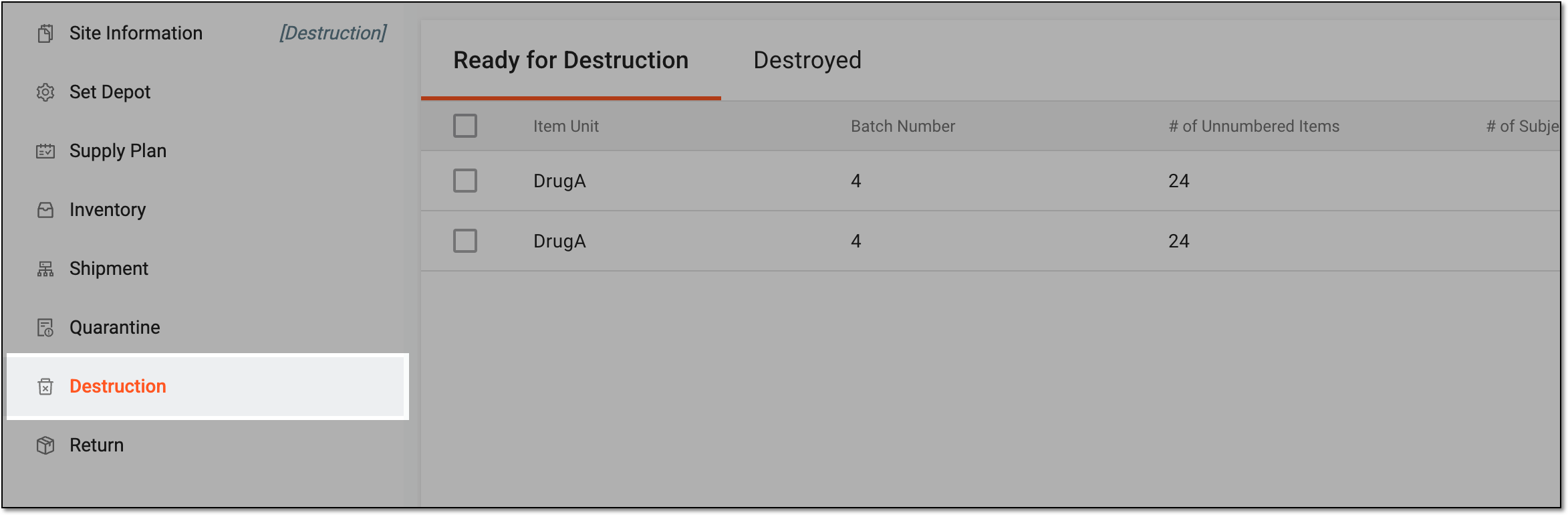 Figure 2. Accessing single/multiple item destruction for site
-
In the Ready for Destruction table that appears, select the checkboxes next to the items that you want to destroy. Then from the workspace toolbar, select Destroy
 .
. Figure 3. Selecting items to destroy
-
In the Destroy dialog, confirm your action by providing the details as explained in the following table.
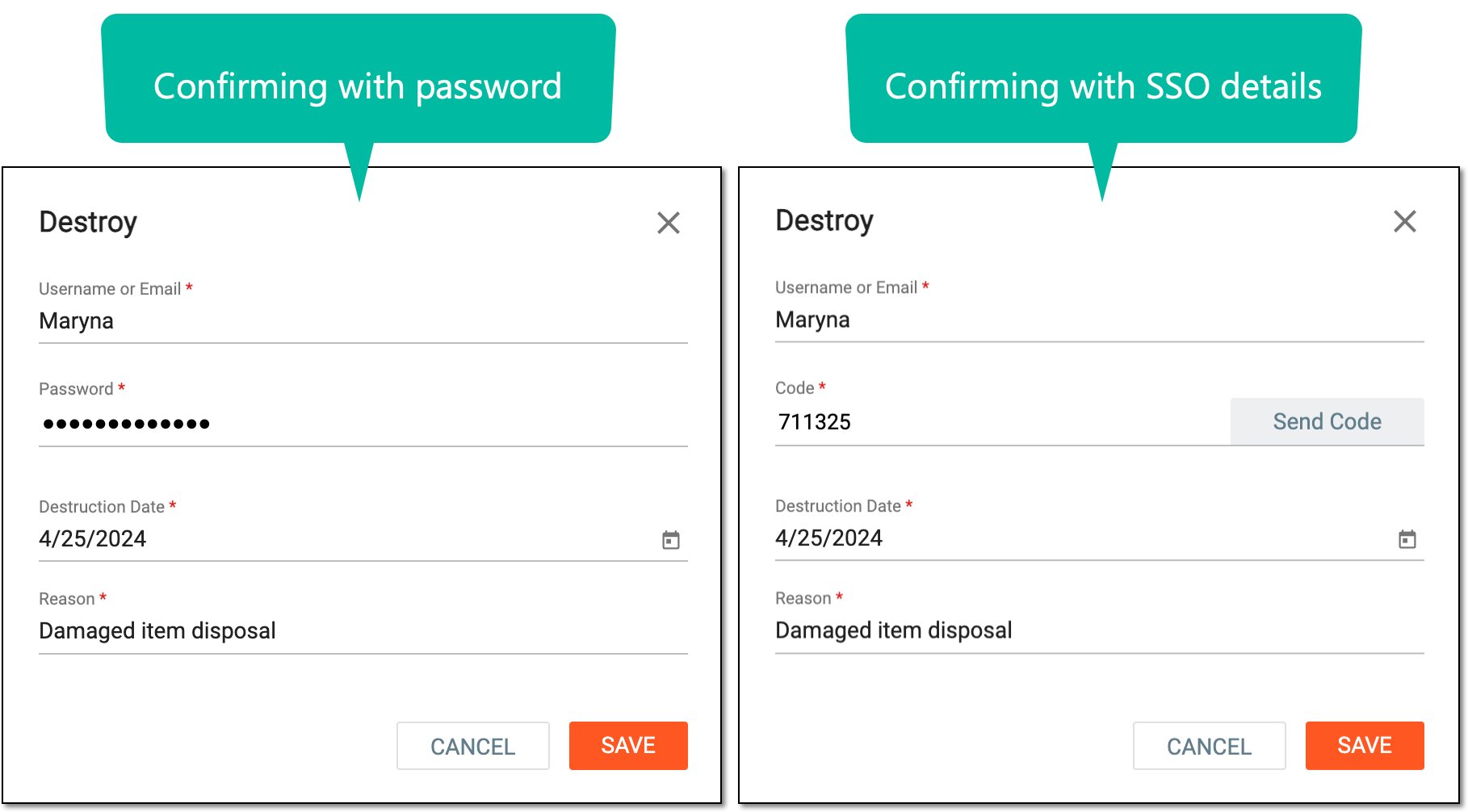 Figure 4. Confirming item destruction
Tip
In the following table, mandatory elements are marked with an asterisk (*).
Element
Details
Username or Email*
Enter your username or email that you use to log in to the eClinical applications.
Send Code
Select
 to send the temporary PIN code to your email for which the SSO method is configured.
The button is only available if you use the authorization method via SSO.Code*
Enter the temporary PIN code that you received via email.
The field is only available if you use the authorization method via SSO.Password*
Enter the password that you use to log in to the eClinical applications.
The field is only available if you use the authorization method by providing your login and password.Reason*
Enter the reason for destroying the selected items.
SAVE
Select
 to confirm your action with your signature and save the implemented changes.
CANCEL
Select
 to discard the changes, close the dialog, and return to the Ready for Destruction
page.
to discard the changes, close the dialog, and return to the Ready for Destruction
page.Important
For security, the system logs you out after three failed attempts to confirm your identity with a password or code.
Upon confirmation, the items are destroyed.