Export site item destruction data
Item destruction refers to the process of disposing of or destroying an investigational product or other unused medication when they are no longer needed, damaged, or for another reason. It is an important step in ensuring the proper management and disposal of these items to maintain compliance with regulatory requirements, participant safety, and confidentiality.
In IWRS, the sites involved in your trial can be granted permission to destroy items themselves by enabling the item destruction. The Destruction feature is available to assist site personnel in managing data on each item that is ready for destruction or already destroyed. With this feature, you can also download the data to work with it offline or share it with third parties that have no access to IWRS.
-
In the IWRS application header, select the SITE tab.
-
In the Site List table that opens, select the needed site.
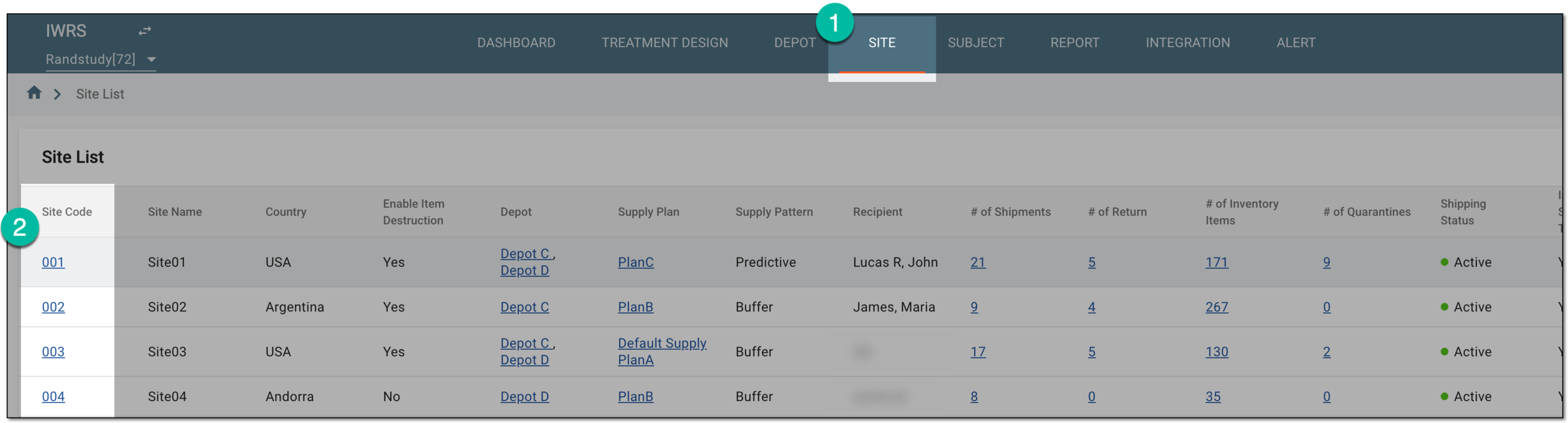 Figure 1. Selecting site to view details
-
On the page that opens, in the left pane, select Destruction.
-
In the contents panel that appears, select one of the following tabs:
-
Ready for Destruction: to view and export the data on all the items that have been marked as ready for destruction in the site inventory.
-
Destroyed: to view and export the data on all the items that have been destroyed at the site.
-
Destruction Batch: to view and export all the item destruction batches created at the site.
Important
This functionality is only available if the Enable Destruction Batch toggle is turned on via the Study Information functionality.
 Figure 2. Selecting tab for data export
-
-
From the workspace toolbar of the page that opens, select Export
 .
. Figure 3. Exporting destroyed item data
Tip
To export only specific records, select the checkboxes next to them and then click Export
.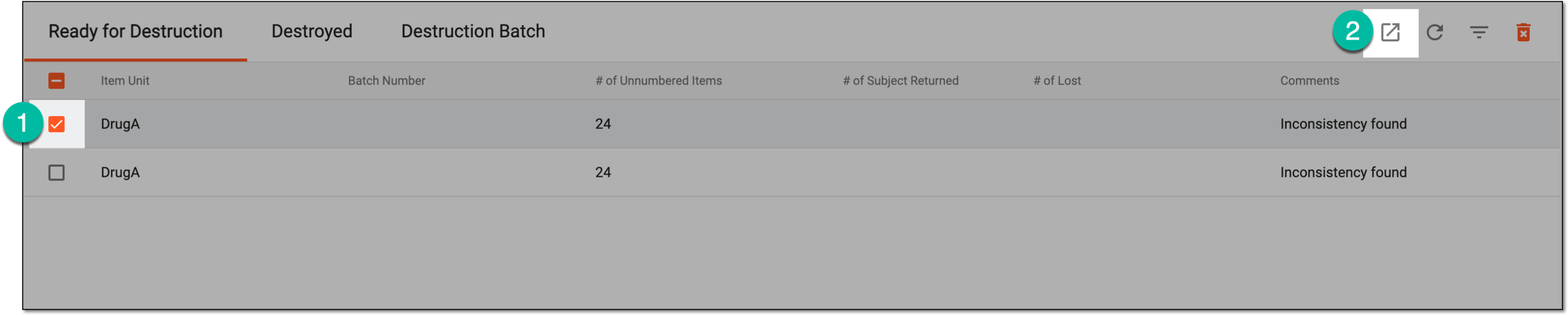 Figure 4. Exporting selective records of ready for destruction items
-
Once selected, the widget appears displaying your download progress. Select the widget to open the My Downloads dialog.
 Figure 5. Downloads widget for item destruction data
-
In the My Downloads dialog that opens, you can find the following tabs:
-
Preparing: under this tab, you can find all the files whose export is in progress, and they are not yet ready for download.
-
Download is Ready: under this tab, you can find all the files whose export is complete, and they can be downloaded to your computer.
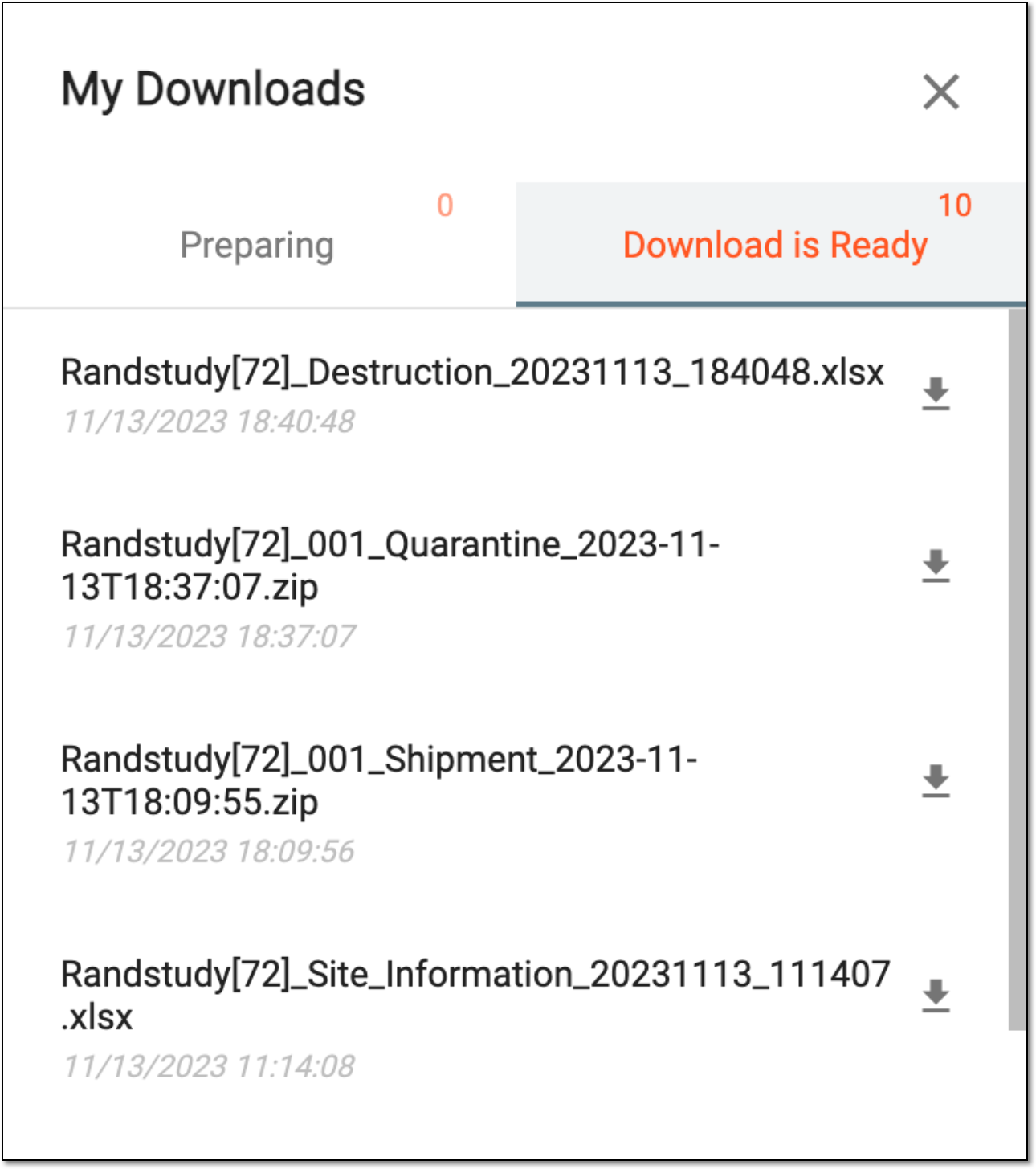 Figure 6. Viewing downloads
-
-
Under the Download is Ready tab, next to the file that you want to download, select
 .
.
Upon saving, the XLSX file with the selected tab data—Destruction Batch, or Destroyed, Ready for Destruction—is available on your computer.