Manage study information
In IWRS, you can view basic information on any selected study and manage various study settings, including randomization approval preferences, shipment configuration, and more. A portion of study information fields is pulled from the CTMS application so you cannot update these details.
-
In the IWRS application header, select the TREATMENT DESIGN tab.
-
On the page that opens, in the left pane, select the Study Information subtab.
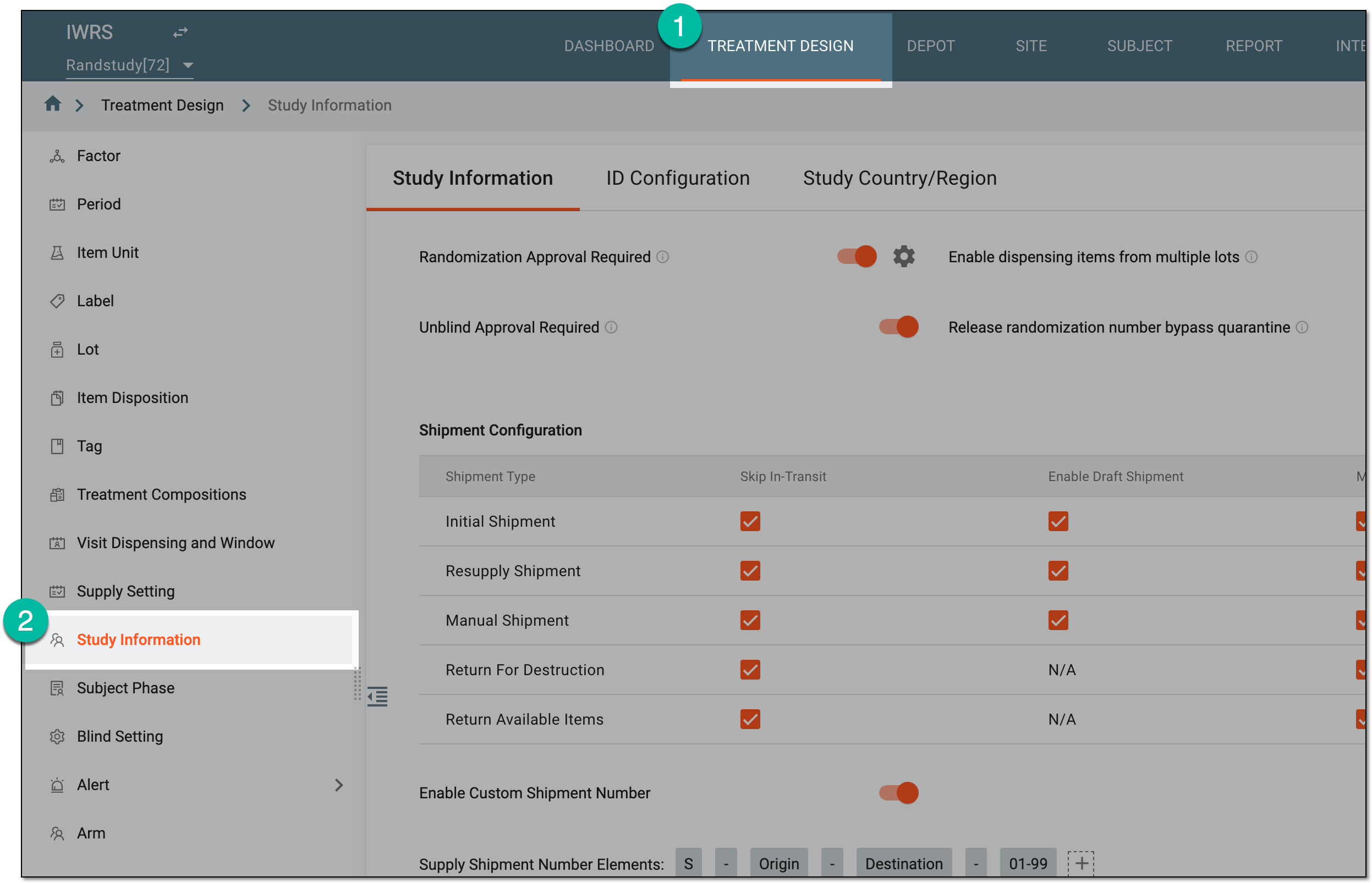 Figure 1. Accessing study configurations
-
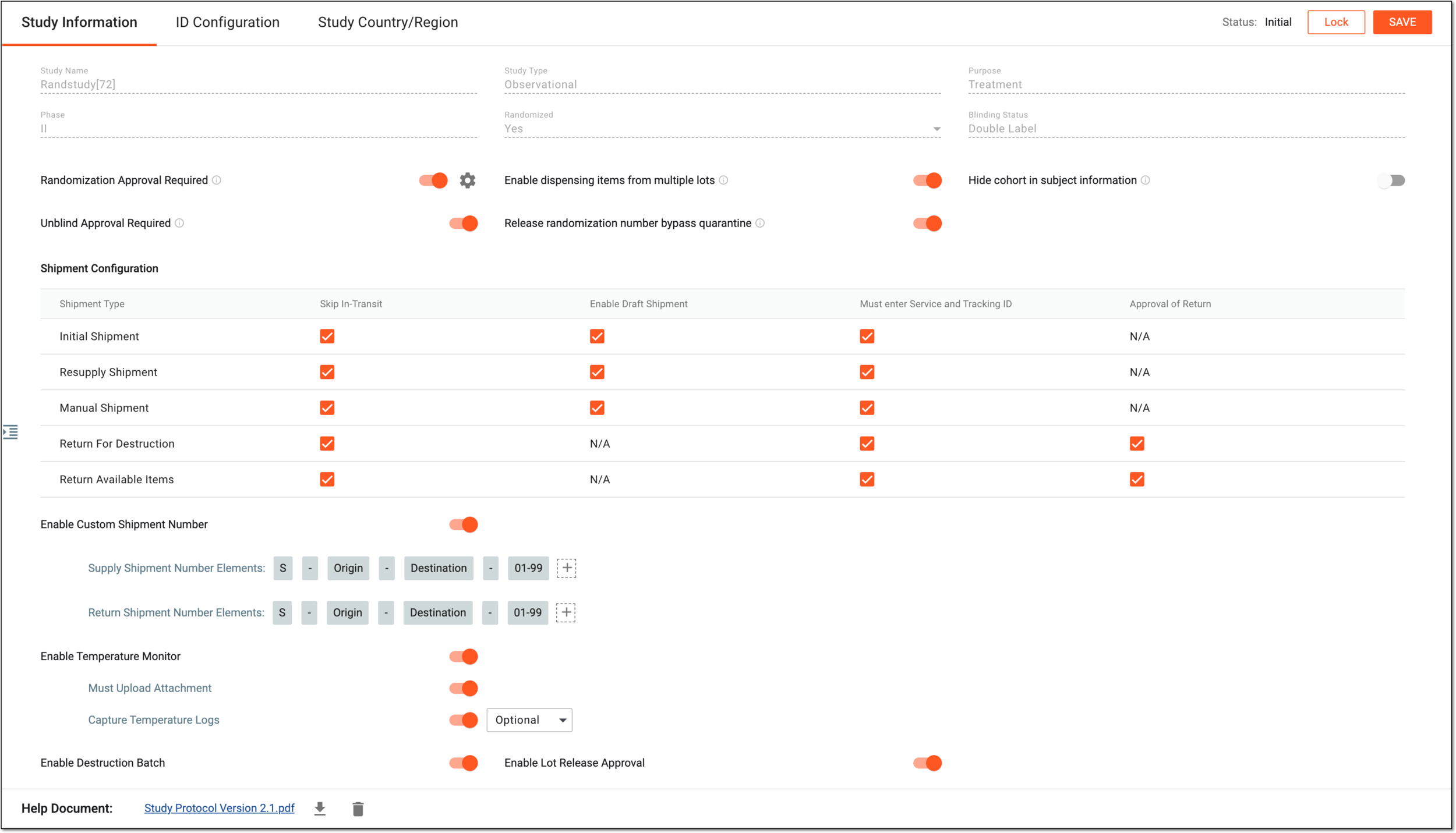
On the Study Information page that opens, view the available study information and manage various study settings as explained in the following table.
Important
The study-level configuration has tips for a few options. These tips guide the effect of the option and represent a prompt about how to use it. To view the tip, bring the cursor close to the info symbol
 next to the option of your interest.Figure 2. Managing study configurations
Element
Details
Study Name
Represents the name of the study.
Study Type
Represents the study type that can be, for example, Observational, Interventional, or Feasibility.
Purpose
Represents the purpose of the study, for example, to find ways to more effectively prevent, diagnose, or treat disease.
Phase
Represents the current phase of the study.
Randomized
Indicates whether the study is randomized (Yes) or not (No).
Blinding Status
Represents the blinding status of the study, for example, Open-Label, Blinded, or Double-Blinded.
Randomization Approval Required
Turn this toggle on for the system to request approval of the assigned user role before performing subject randomization.
This option can be disabled if the randomization functionality is not activated for your study or the randomization is handled via EDC according to ADMIN settings.Set Disable Randomization Approved Condition
Select
 to open the page where you can enter a condition for canceling approved randomization for subjects.
Use the Active toggle to control whether the condition is currently active and implemented for randomization cancellation (if turned on) or inactive and not applied to the randomization cancellation logic (if turned off).
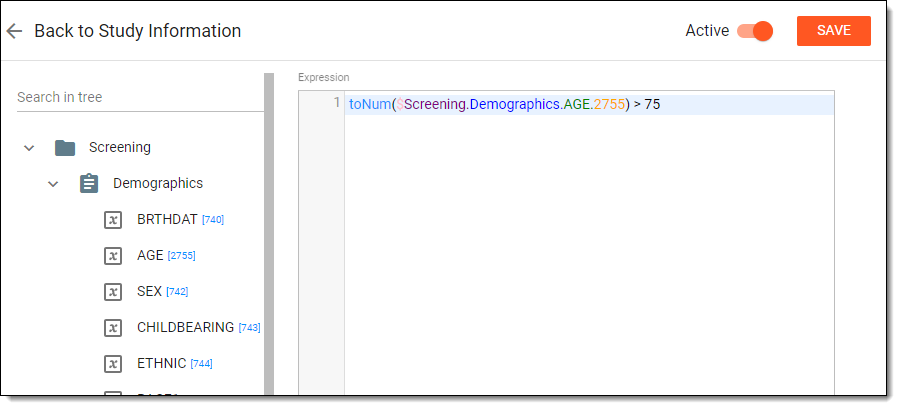 Figure 3. Entering condition
For example, you have configured a condition to cancel approved randomization for subjects over 75 years old. So if randomization for some subjects has been previously approved, and then the data has been entered in EDC indicating that the age of those subjects is over 75, approved randomization will be canceled for such subjects.
You can only enter and save the condition if according to the ADMIN settings randomization is handled via IWRS and not via EDC.Enable dispensing items from multiple lots
-
Turn this toggle on to enable dispensing items from multiple lots to a subject at a dispensation.
-
Turn this toggle off to disable dispensing items from multiple lots to a subject at a dispensation. Disabling this option results in a single dispensing of all drugs from the same lot, which risks dispensing failure.
For example, the site has four units of aspirin to be dispensed, but two of them are from Lot 001 and another two are from Lot 002. If dispensing items from multiple lots is disabled, and the site needs to dispense four units of aspirin to the subject, the system would consider that the inventory is insufficient for this dispensation.
Hide cohort in subject information
Turn this toggle on or off to hide or show the cohort name on the Subject Information page of IWRS.
Unblind Approval Required
Turn this toggle on to enable the approval process on unblinding subjects in IWRS.
Release randomization number bypass quarantine
Turn this toggle on for the system to bypass the customized quarantine period employed for additional review. This functionality can be beneficial in time-sensitive situations where immediate activation is critical for the progress of the study.
Shipment Configuration
Shipment Type
Represents all types of shipments available in IWRS. They are listed in the table so you can apply custom configurations to each of them depending on the shipment requirements of your study.
Skip In-Transit
Select checkboxes in this column next to the shipment types for which you want to skip the In Transit status.
For example, you have selected to skip the In Transit status for the Return For Destruction shipment type. So every time you return items for destruction to some depot, the system skips this status after the shipment dispatch has been confirmed.
Enable Draft Shipment
Select checkboxes in this column next to the shipment types for which you want to allow having shipments created with the Draft status, thus introducing more flexibility to the shipment generation process.
Must enter Service and Tracking ID
Select checkboxes in this column next to the shipment types for which you want to make the Service and Tracking ID fields mandatory when creating shipments.
Approval of Return
Select checkboxes in this column next to the shipment types for which you want to enable the approval process on returning items in IWRS.
Enable Custom Shipment Number
Turn this toggle on or off to enable or disable the option to customize the supply and return shipment identification numbers by composing their numbering convention via Supply Shipment Number Elements and Return Shipment Number Elements fields.
Supply Shipment Number Elements
Configure the naming convention for supply shipments with the necessary name components by selecting
 and then moving the components with the select and
drag action.
and then moving the components with the select and
drag action.This setting is only available if the Enable Custom Shipment Number toggle is turned on.Return Shipment Number Elements
Configure the naming convention for return shipments with the necessary name components by selecting
and then moving the components with the select and
drag action.This setting is only available if the Enable Custom Shipment Number toggle is turned on.Enable Temperature Monitor
Turn this toggle on or off to enable or disable the depot's and site's functionality to manage shipment temperature regimens. If enabled, the personnel receiving the shipment—once the temperature regimen breach is established—can reflect it in the system and upload a respective document to support their decision.
Must Upload Attachment
Turn this toggle on or off to make the upload of the file supporting shipment compliance mandatory or optional upon receiving shipments.
This setting is only available if the Enable Temperature Monitor toggle is turned on.Capture Temperature Logs
Turn this toggle on or off to enable or disable the upload of the protocol for temperature regimen compliance. If turned on, from the dropdown menu that appears, select Optional or Mandatory to establish the condition of temperature log handling for sites.
This setting is only available if the Enable Temperature Monitor toggle is turned on.Enable Destruction Batch
Turn this toggle on or off to enable or disable the functionality to create item batches for destruction at depots and at sites.
Enable Lot Release Approval
Turn this toggle on or off to enable or disable the functionality to request approval of the dedicated user when releasing items from packaging lot to depots and sites.
If there is an active item release request when the functionality to request approval becomes disabled, the request remains and has to be processed by the sponsor.SAVE
Select
 to implement the changes.
Lock
Select
 to prevent any modifications to the study data in IWRS. Learn more in the Lock/Unlock study data section.
This operation is applied as performed and does not require saving.Help Document
Upload Help Document
Select
 and follow the prompts to upload a file that you find useful for your study. This can be the study protocol version or any other document you need.
This file will be available for preview and download to all the system users who have access to Study Information page.This operation is applied as performed and does not require saving.[File name]
Select the file name link to preview the document contents in the new tab of your browser.
This operation is applied as performed and does not require saving.Download Help Document
Select
 and follow the prompts to download the file to your computer.
This operation is applied as performed and does not require saving.Delete Help Document
Select
 to delete the file from the system.
This operation is applied as performed and does not require saving. -
Once configured and saved, your study settings are applied, and now the system operates accordingly.