Release packaging lot items to depot/site
Releasing a lot is initiating its shipment to the selected depot or site. Typically, the items—container units or product units—in the lot are first released to the depot, and then the site requests a shipment from the depot in charge of delivering the drug to the site. However, some studies do not have depots, so they may release the drug directly to the site.
In IWRS, you can release items from the same lot multiple times. But first, to start releasing, you need to add items to the lot.
Important
Lot release can be regulated by the review and approval process to further enhance the control of study item distribution. Enable or disable the lot release approval from the Study Information page.
You can create and edit the release requests if you have the Request Release permission granted to your user role via the ADMIN application.
-
In the IWRS application header, select the TREATMENT DESIGN tab.
-
In the left pane, select the Lot subtab.
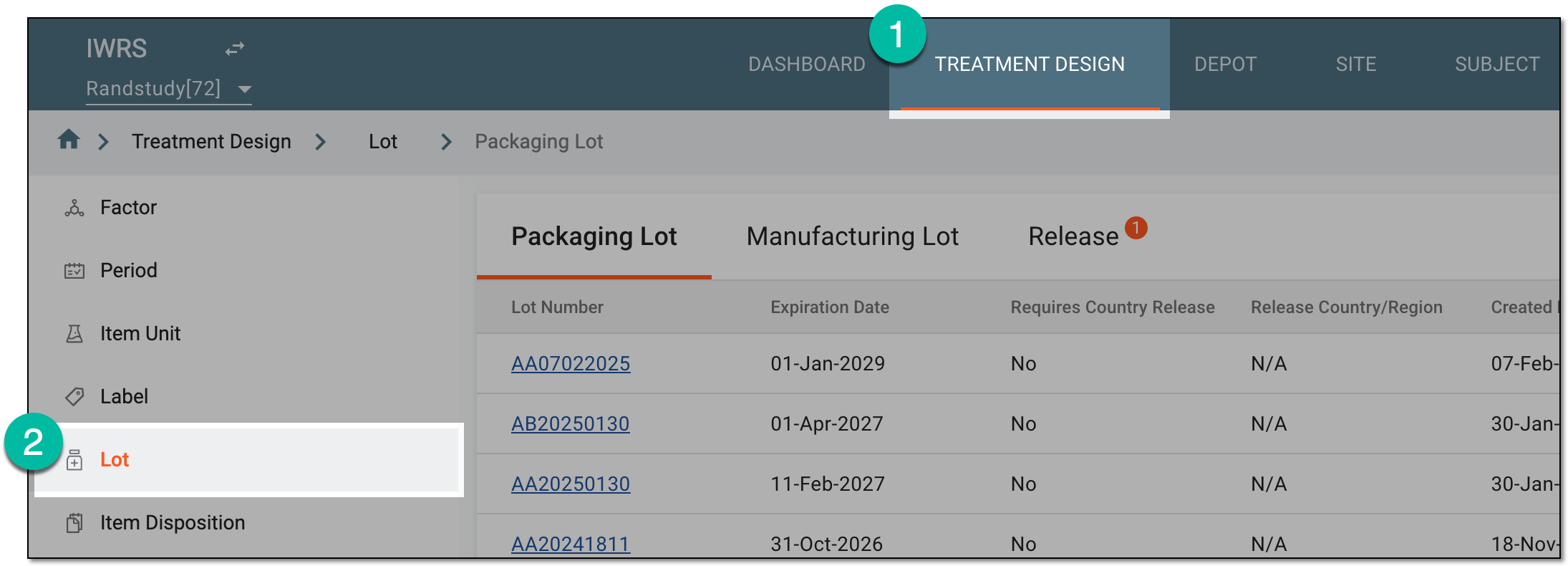 Figure 1. Accessing lot subtab
-
In the Packaging Lot table that appears, go to the lot whose items you want to release. Then from the Action(s) column, select Release
 .
. Figure 2. Releasing packaging lot items
-
In the Release dialog that appears, provide the necessary information as described in the following table.
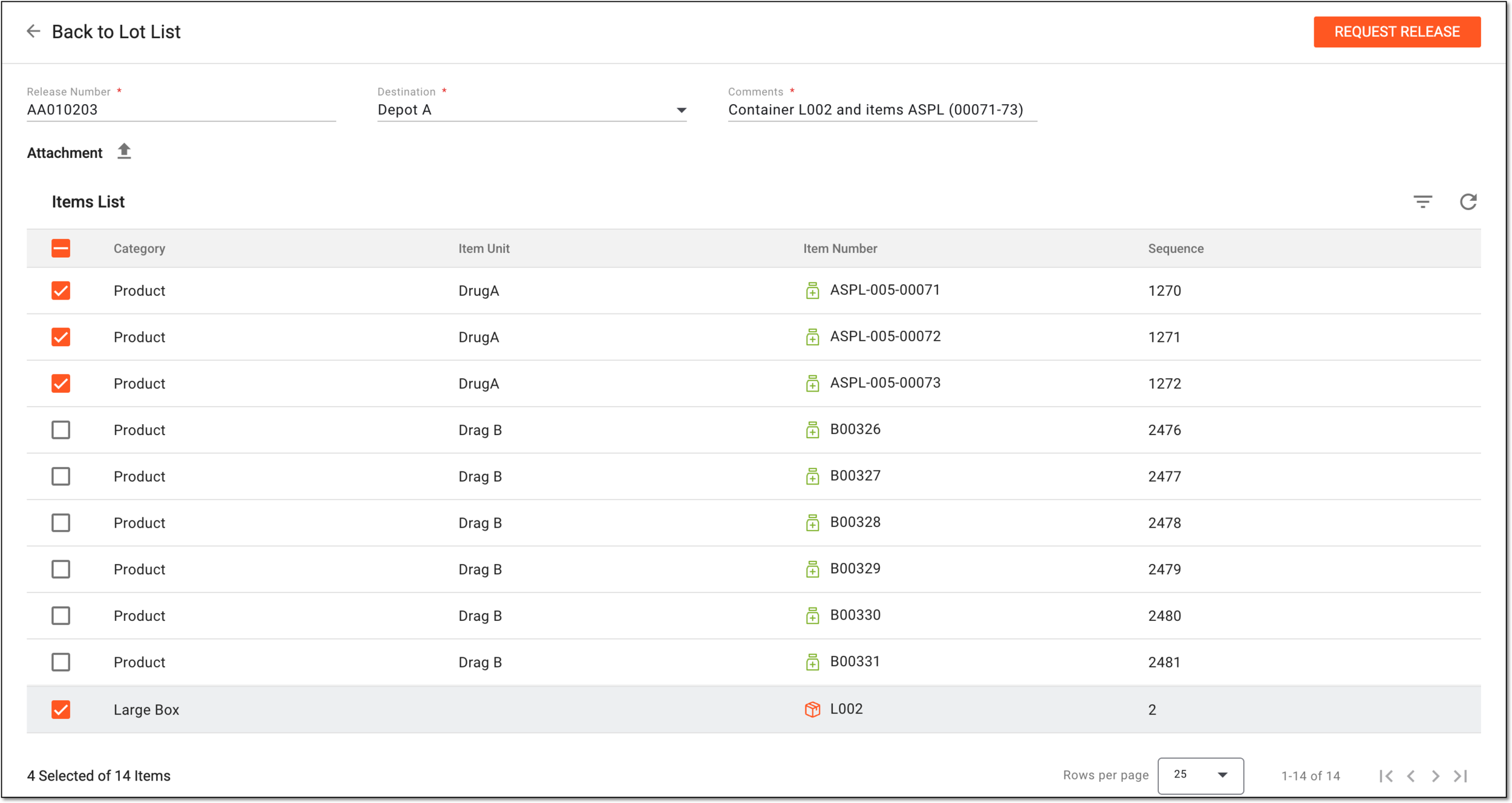 Figure 3. Selecting items to release from packaging lot
Tip
In the following table, mandatory elements are marked with an asterisk (*).
Element
Details
Release Number*
Enter the unique number to identify the configured item release. This unique identifier helps track and distinguish releases made from the same lot.
Destination*
Select the depot or site to which your lot must be released. If the lot requires country release, only the sites of the selected country or region are displayed in the destination list.
Comments*
Enter the comment to follow the lot release.
Release Date*
Enter the actual date when the items have been released. The system autopopulates the current date but it can be changed to any previous date. This is helpful if you are recording the operation that has taken place on a different date from the current one.
You cannot select the date past the current one to avoid registering future releases beforehand and only allow already performed operations to be recorded in IWRS.The release date value is unavailable if the release approval is enabled for your study and you are creating a request for item release. In such a case, the release date is specified upon request processing.Attachment
Select
 to browse and select any auxiliary documents from your computer to support the item release according to your business scenario.
If any document is uploaded by mistake, you can remove it by selecting the cross symbol
 and confirming the deletion in the resulting dialog.
Items List
Select the checkboxes next to the items you want to include in the release.
Category
Represents one of the following:
-
Product: the item available for selection is a preconfigured product unit, the name of which you can see in the Item Unit column.
-
[Container category]: the item available for selection is a container unit. The container category name is configured upon adding the level 1 container unit to the system.
Item Unit
Represents the name of the product unit to be released from the packaging lot.
The item units are not displayed for container units as they are enclosed within the container.Item Number
Represents the label associated with the selected product or container unit for tracking purposes.
Sequence
Represents the sequential number of the selected product or container unit assigned to it by the IWRS system.
RELEASE
Select
 to dispatch the selected lot items to the destination.
This button is available if the release approval is disabled for your study.REQUEST RELEASE
Select
 to initiate the lot release approval process to ensure the defined configurations are correct prior to
dispatching the items to the destination.
to initiate the lot release approval process to ensure the defined configurations are correct prior to
dispatching the items to the destination.This button is available if the release approval is enabled for your study. -
Once done, the selected items from the lot are released or the release request is initiated based on your study configurations.