Create new packaging lot
In a clinical trial, the investigational product is released in lots that have their specific number and expiry term. A packaging lot is a batch of items collected into one package to be released (shipped) to the depot or site or for other logistic purposes.
In IWRS, you can create the packaging lot manually for product units or container units and then add them as items to this lot as per your business needs.
-
In the IWRS application header, select the TREATMENT DESIGN tab.
-
In the left pane, select the Lot subtab.
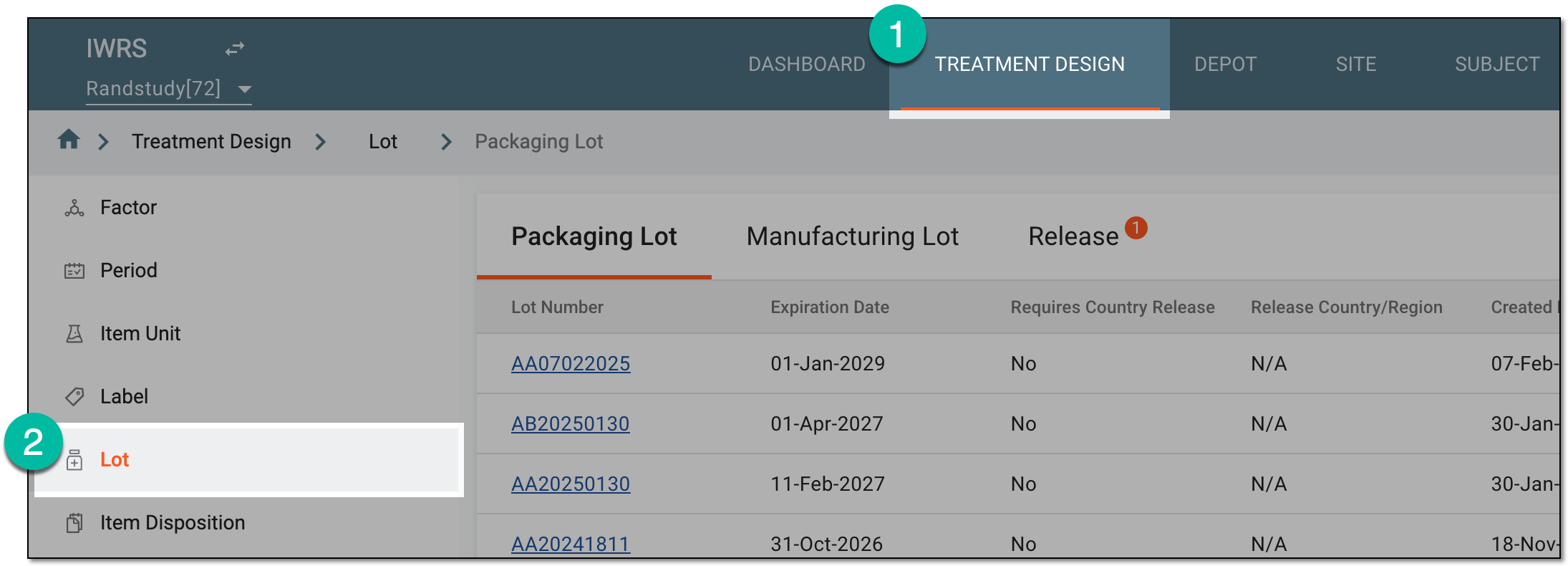 Figure 1. Accessing lot subtab
-
On the Packaging Lot page that appears, from the workspace toolbar, select New Item
 .
. Figure 2. Adding new packaging lot
-
In the Add dialog that appears, start creating your lot by setting the preferences as described in the following table.
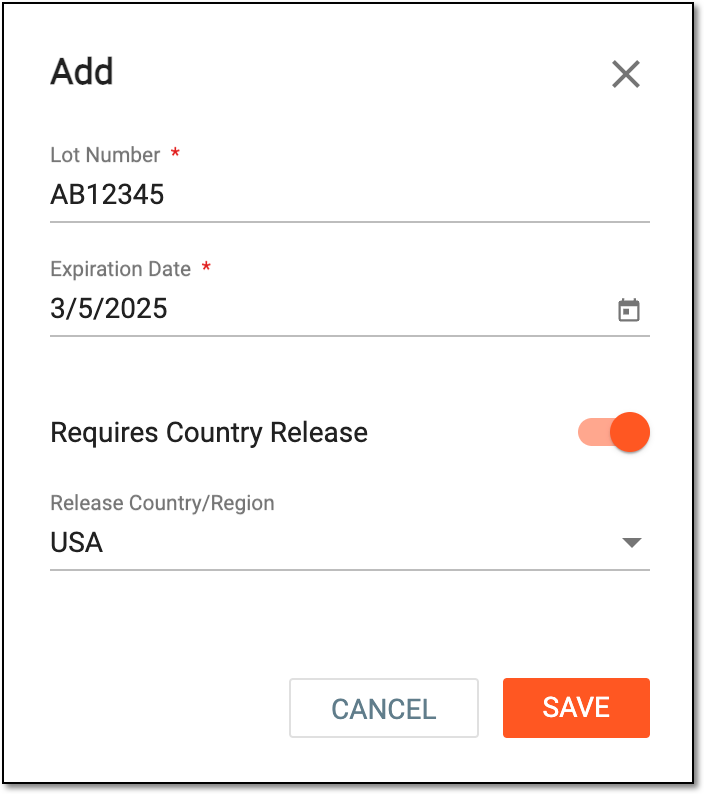 Figure 3. Configuring packaging lot details
Tip
In the following table, mandatory elements are marked with an asterisk (*).
Element
Details
Lot Number*
Enter a unique lot number.
The lot number is entered once upon creation and cannot be edited later.Expiration Date*
Select the default expiry date for all of the items in the packaging lot.
There can be more custom expiration dates managed from lot details once the lot is created.Requires Country Release
Turn this toggle on or off to specify if the lot must be released only in a specific country or region or not, respectively.
Release Country/Region
From the dropdown list, select the country or region where you want to release the lot. Upon selection, this lot can only be released to and used at depots or sites that are located in the chosen country or region.
This field only appears when the Requires Country Release toggle is turned on.Even upon the lot release, you can edit lot details and change the release country.SAVE
Select
 to create your lot.
CANCEL
Select
 to stop creating a new lot, close the form, and return to the packaging lot list. In such a case, no changes are saved.
Once saved, a new packaging lot is created. Now proceed to adding items to a lot.