Create item destruction batch at depot
Item destruction refers to the process of disposing of or destroying an investigational product or other unused medication when they are no longer needed, damaged, or for another reason.
In IWRS, the depots that have been marked as return can destroy items that are marked as ready for destruction by creating destruction batches—bundles of items that are to be destroyed together—and approve their disposal.
Important
To enable this functionality, turn on the Enable Destruction Batch toggle on the Study Information page.
By destroying a batch of items from the Destruction page of IWRS, you reflect the actual physical disposal action taken toward the drug. This helps to keep the database up-to-date for tracking and compliance reasons.
-
In the IWRS application header, select the DEPOT tab.
-
In the Depot List table that opens, select the needed depot.
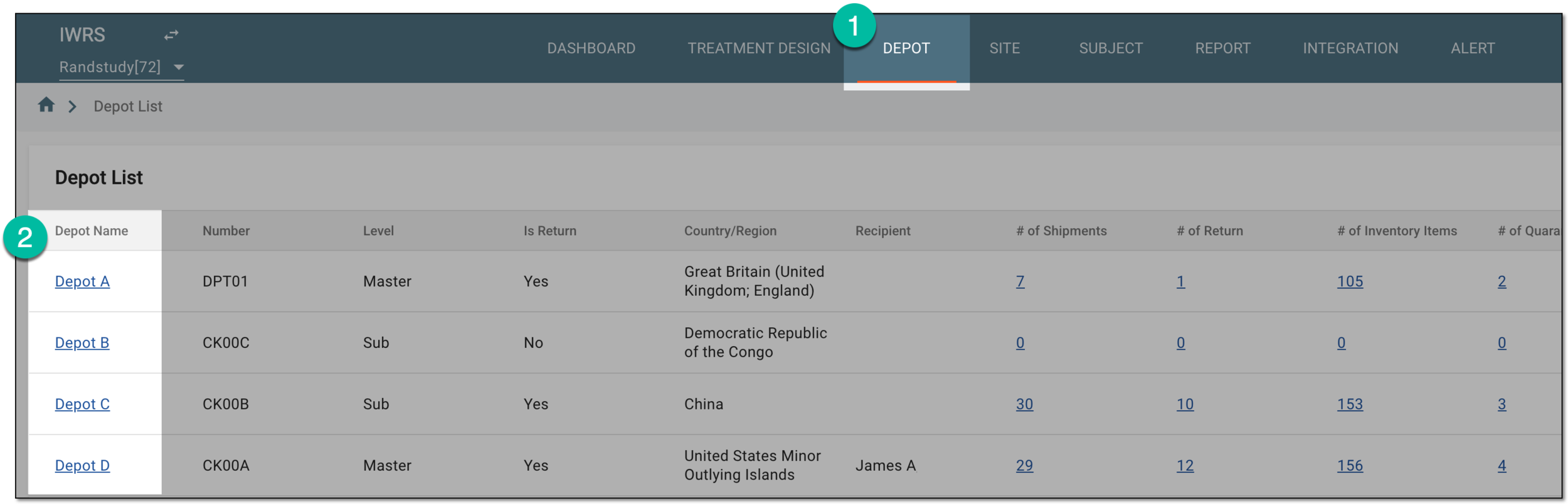 Figure 1. Selecting depot to open its details
-
On the page that opens, in the left pane, select Destruction.
-
In the Ready for Destruction table that appears, select the checkboxes next to the items that you want to add to the destruction batch. Then from the workspace toolbar, select Destroy
 .
.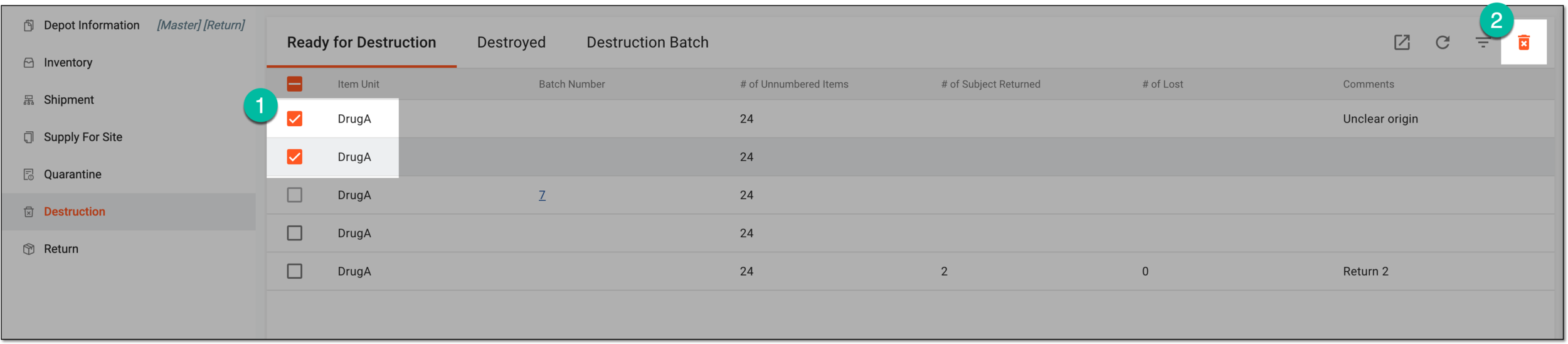 Figure 2. Selecting items to create destruction batch
-
In the Destroy dialog that opens, enter the details for the destruction batch as explained in the following table.
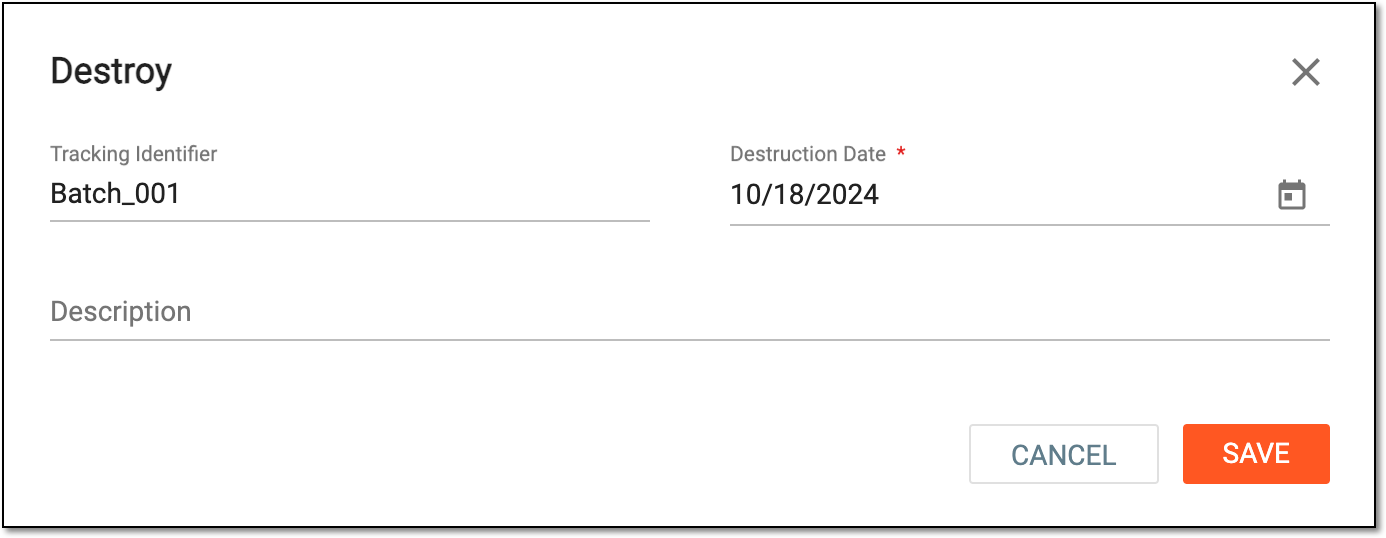 Figure 3. Creating item destruction batch
Tip
In the following table, mandatory elements are marked with an asterisk (*).
Element
Details
Tracking Identifier
Enter a number or character combination that helps identify the destruction batch and trace it for future reference.
Destruction Date*
Select the actual date when the items added to the batch were destroyed.
You cannot select the date past the current one to avoid registering future destructions beforehand and only allow already performed operations to be recorded in IWRS.Description
Enter a comment to provide any auxiliary details on destroyed items.
SAVE
Select
 to implement the changes.
CANCEL
Select
 to discard the changes without saving, close the dialog, and return to the Ready for
Destruction table.
to discard the changes without saving, close the dialog, and return to the Ready for
Destruction table.
Once saved, the batch of items for destruction is created and becomes available for approval under the Destruction Batch page.
Important
If the Approve Batch permission is granted to your user role in ADMIN, you are redirected to the batch approval page directly upon batch creation.