Change item disposition manually
The Inventory > By Item tab gives you detailed information on each item accounted for in the depot: its label number, disposition, expiration date, and so on.
The data in the By Item table can be organized by product units or container units based on your study configurations.
Important
If no container units are configured in IWRS, then all operations in Inventory occur in product units.
In IWRS, you can manually change your item disposition to reflect the current status of each product or container unit and keep the inventory data up-to-date.
Note the following aspects of changing the container unit disposition:
-
Container units have their two dispositions—Open and Complete. If you change the disposition of the child-level container or the product within the container, the parent-level container changes its disposition to Open because its integrity is impossible with the child entity being modified.
-
Marking all child entities of the Open container as available again does not change the parent container status to Complete automatically; you need to pack the container manually.
-
Only the container units that are Complete are available for changing the disposition with the action buttons as explained in the respective table.
Keep in mind, that available options to which you can change the item disposition depend on the disposition filter that is currently applied to your items. You can view the availability of each action button for different groups of filtered items in the following table.
|
Button |
All |
Available |
Dispensed |
In Transit |
Abnormal |
Quarantined |
Expired |
Lost |
Pending Disposal |
Destroyed |
Returned |
|---|---|---|---|---|---|---|---|---|---|---|---|
|
Mark as Ready for Destruction |
|
|
|
|
|
|
|
|
|
|
|
|
Mark as to be Returned
|
|
|
|
|
|
|
|
|
|
|
|
|
Mark as Lost |
|
|
|
|
|
|
|
|
|
|
|
|
Mark as |
|
|
|
|
|
|
|
|
|
|
|
|
Mark as Available |
|
|
|
|
|
|
|
|
|
|
|
|
Cancel Return/Destruction Status |
|
|
|
|
|
|
|
|
|
|
|


-
In the IWRS application header, select the DEPOT tab.
-
In the Depot List table that appears, select the depot name for which you want to change the item disposition.
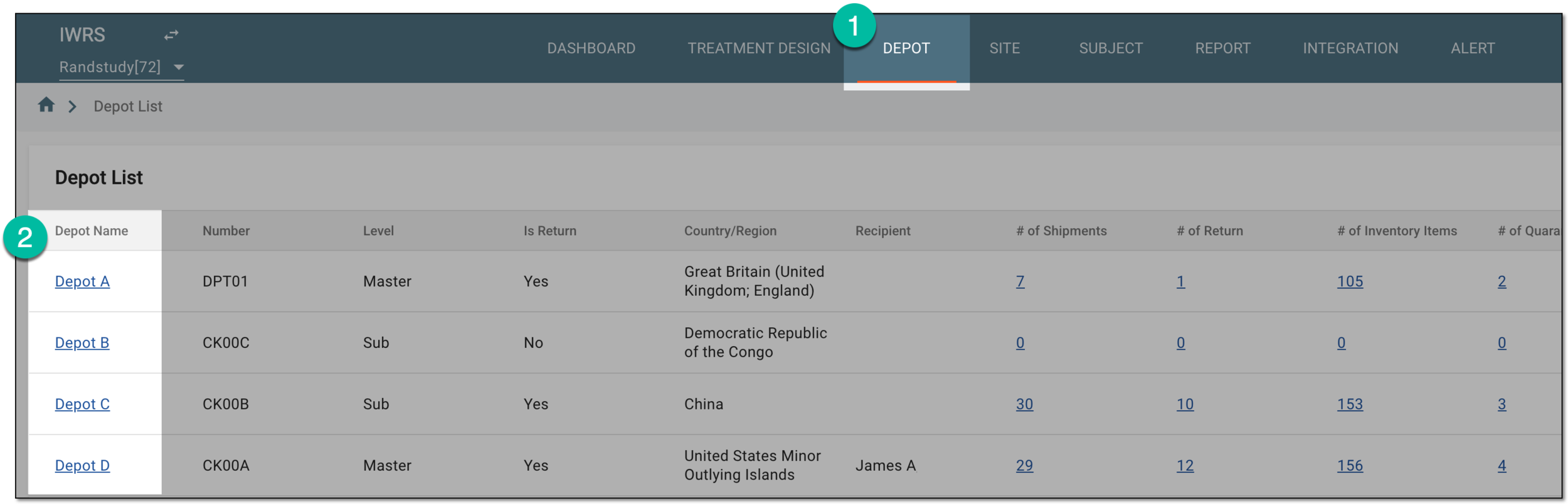 Figure 1. Selecting depot to open its details
-
On the Depot Information page that opens, in the left pane, select the Inventory subtab.
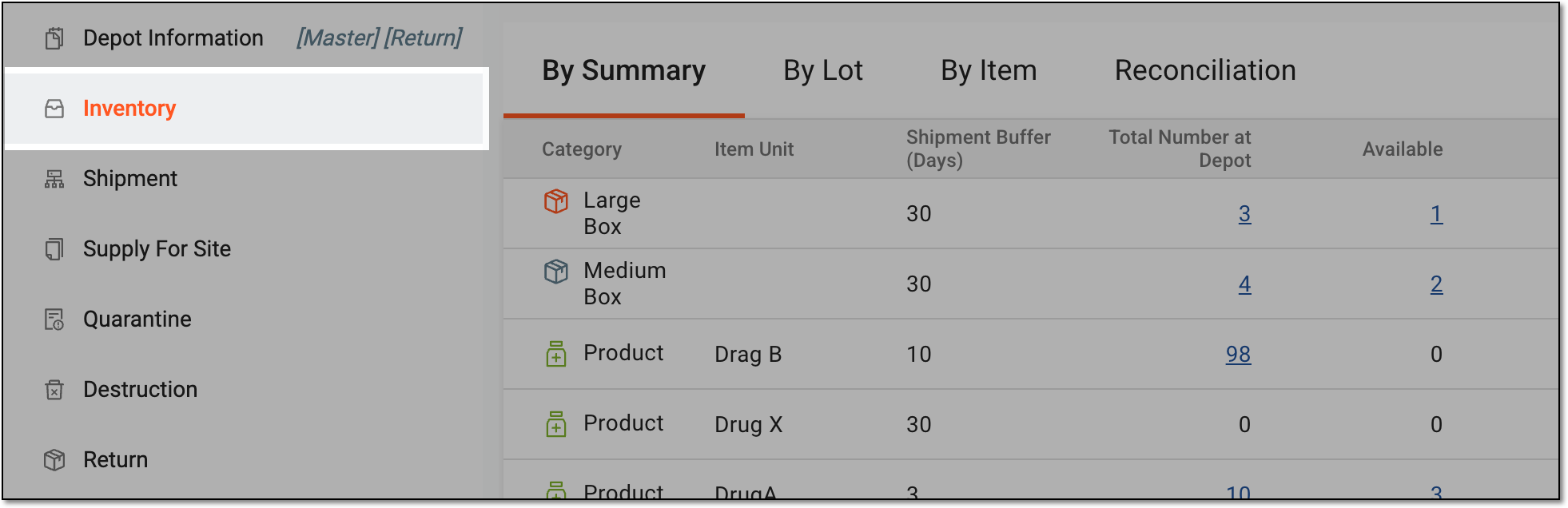 Figure 2. Accessing depot inventory
-
On the page that opens, in the contents panel, select the By Item tab.
-
In the table that appears, filter your items by their disposition.
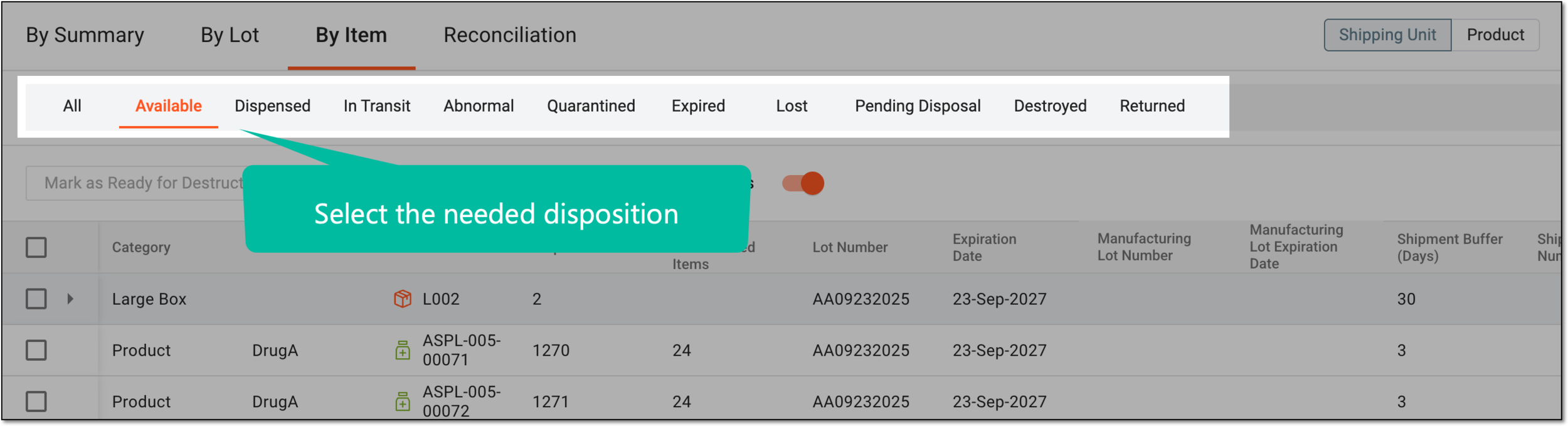 Figure 3. Filtering inventory by item disposition
For instance, you know the item is marked as Lost by mistake and you want to change its disposition to Available. Then, to find the item faster, you can filter the inventory by the Lost disposition.
-
In the item list, select the checkboxes next to the items whose disposition you want to change. Then select one of the action buttons as explained in the following table.
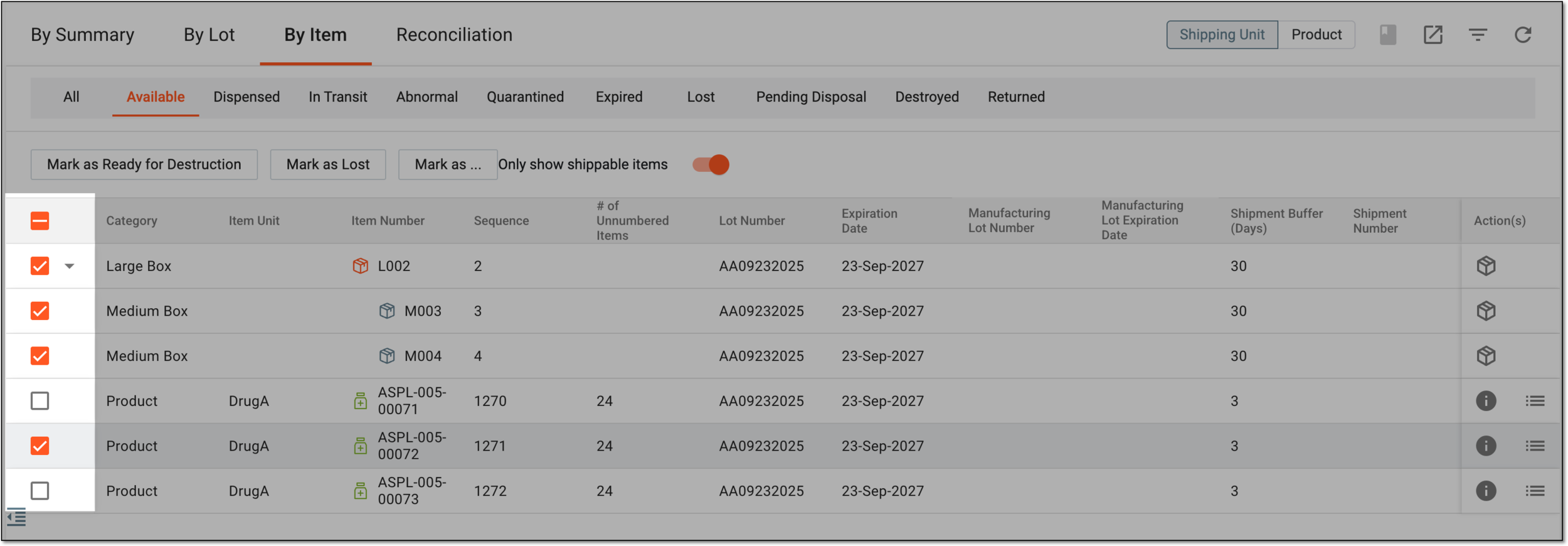 Figure 4. Selecting items to change disposition
Important
You cannot change the disposition of items in transit, returned, or destroyed. Hence, no selection is available under the In Transit, Returned, and Destroyed dispositions.
Button
Details
Mark as to be Returned
Select to mark the items as such that must be sent back to the return depot. Then confirm the action in the resulting dialog.
Items marked as to be returned appear under the Pending Disposal disposition.
The Mark as to be Returned disposition is only applicable for sites as they have to return compromised items to respective depots for further handling.Mark as Ready for Destruction
Select to mark the items as such that are ready for destruction and then confirm the action in the resulting dialog.
Upon confirmation, the item changes its disposition to Pending Disposal.
This button is available for return depots and destruction sites.Mark as Lost
Select to mark the items as such that have been lost. Then provide the mandatory reason for the action in the resulting dialog.
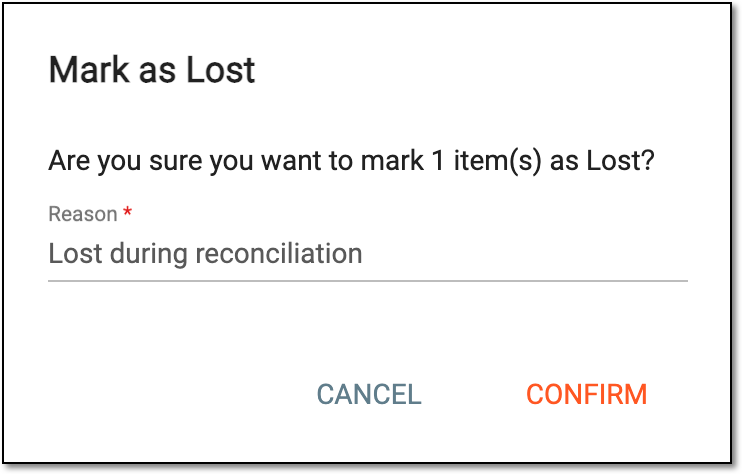 Figure 5. Marking item as lost
Items marked as lost appear under the Lost disposition.
Mark as
Select one of the available dispositions as follows.
Mark as Available
Select to mark the items as available again after they have been previously marked as quarantined, damaged, or lost. Then provide the mandatory reason for the action in the resulting dialog.
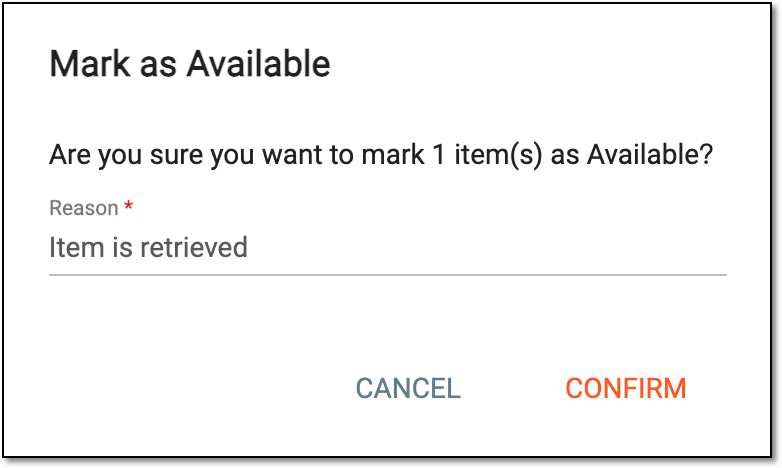 Figure 7. Marking item as available
Items marked as available appear under the Available disposition.
This action is not active for the Available disposition.If the item expiration date is passed, marking it as available results in its disposition change to Expired, not Available.Cancel Return/Destruction Status
Select to cancel the return status for the items marked as To Be Returned/Ready for Destruction. Then confirm the action in the resulting dialog.
Items, for which the return/destruction is canceled, appear under their previous dispositions. These items and all their data are also removed from the reconciliation list unless the reconciliation list is already signed. For signed reconciliation, the item data remains in the list even after its return or destruction is canceled.
This action is only available for the Pending Disposal disposition.Important
For the items with Quarantined/Available disposition, if the item is released from the quarantine, the system evaluates if the item expiration date is earlier than the current date, and if so, it automatically moves to the Expired disposition.
If the drug is marked as Damaged/Lost and expires after that, its disposition remains Damaged/Lost and does not change to Expired. However, if you decide to mark this item Available again, the system counts the expiration dates and puts it into the Expired disposition and not Available.
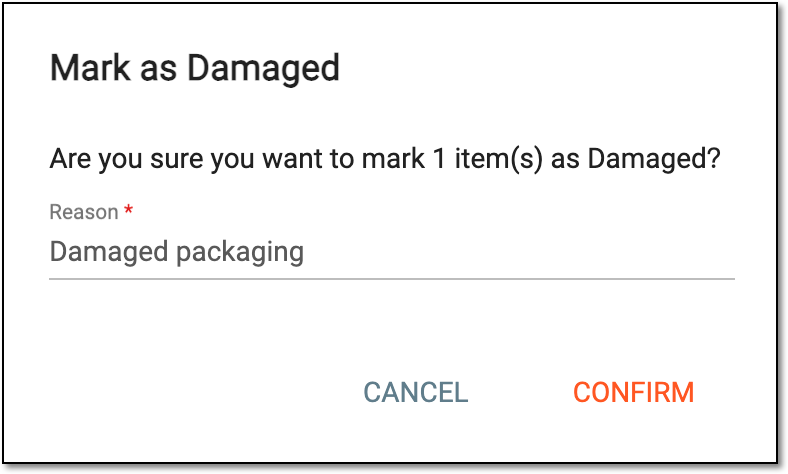
Based on your selection, the respective items obtain new dispositions.