Filter depot inventory by item disposition
The Inventory > By Item tab gives you detailed information on each item accounted for in the depot: its label number, disposition, expiration date, and so on.
The data in the By Item table can be organized by product units or container units based on your study configurations.
Important
If no container units are configured in IWRS, then all operations in Inventory occur in product units.
Fro convenience of item management, you can filter the inventory by a certain disposition, for example, to see the products and containers that are available, currently transferred to a different depot, or those that are already expired.
-
In the IWRS application header, select the DEPOT tab.
-
In the Depot List table that appears, select the depot name for which you want to view the inventory items by disposition.
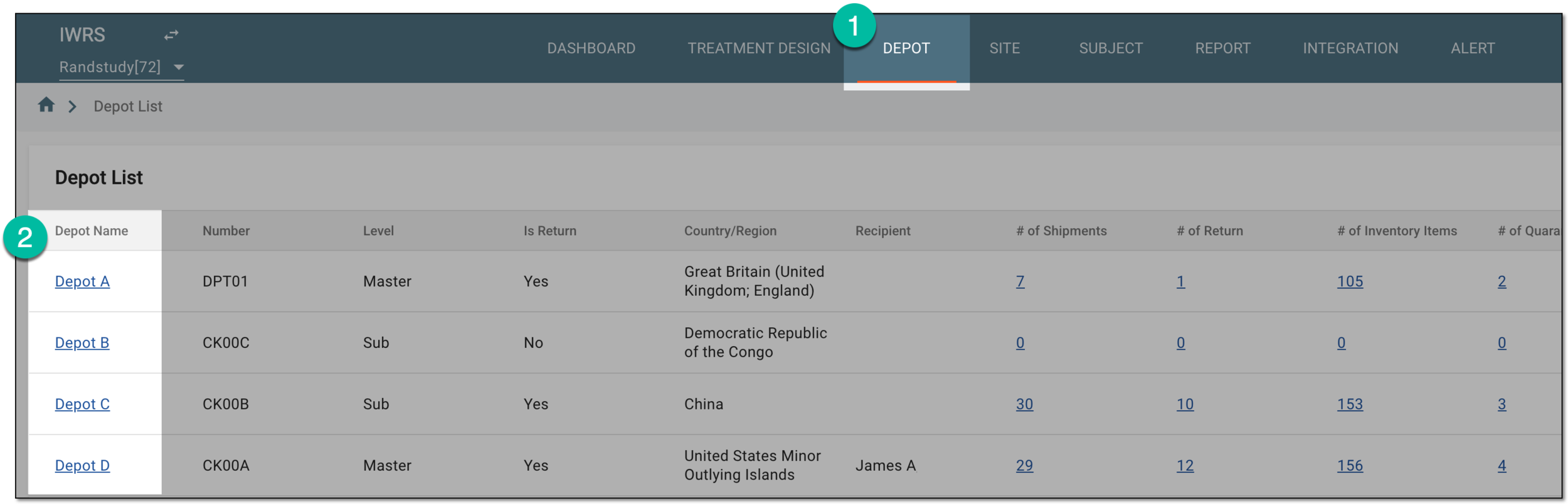 Figure 1. Selecting depot to open its details
-
On the Depot Information page that opens, in the left pane, select the Inventory subtab.
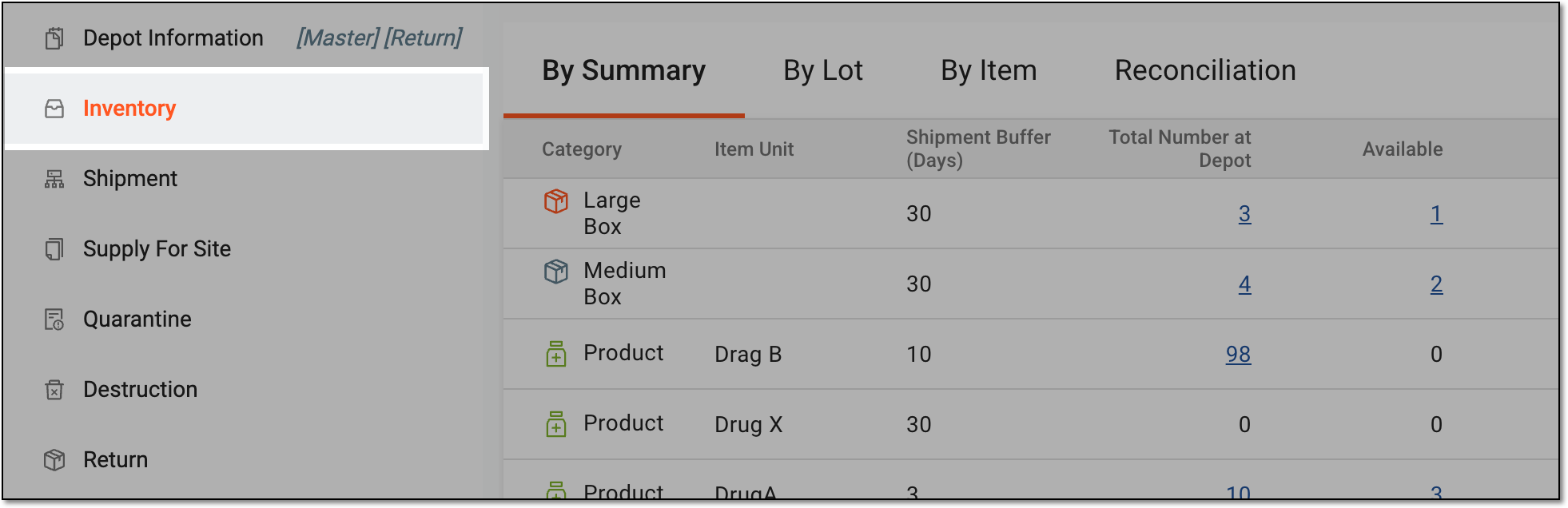 Figure 2. Accessing depot inventory
-
On the page that opens, in the contents panel, select the By Item tab.
-
Under the By Item tab, select the respective tile to filter the inventory as explained in the following table.
 Figure 3. Filtering inventory by item disposition
Filter
Details
All
Select to display all items accounted for in the depot.
Available
Select to display only available items accounted for in the depot.
Only show shippable items
Set as follows:
-
Turn this toggle on to only display the items that can be shipped to other depots or sites.
-
Turn this toggle off to display the items that are available and can be shipped to other depots or sites, and the items that are available but cannot be used in shipments due to some reason, for instance, the expiration date is out of the permissible range.
This toggle is only available when the inventory is filtered by the Available item
                                  disposition.
Dispensed
Select to display only items that are dispensed to the subjects.
In Transit
Select to display only items that are currently transferred to another depot, site, or elsewhere but are still accounted for in the selected depot.
Abnormal/Damaged
The name of the button depends on the availability of custom dispositions in your study, as follows:
-
For the studies with manually created custom dispositions, the button is called Abnormal. Select it to display the items that are damaged or fall under other abnormal dispositions added manually by a user.
-
For the studies with no manually created custom dispositions, the button is called Damaged. Select it to view the damaged items.
Quarantined
Select to display the items that are quarantined.
Expired
Select to display the expired items accounted for in the depot.
Lost
Select to display the lost items accounted for in the depot.
Pending Disposal
Select to display the items accounted for in the depot that are ready to be returned or destroyed.
Destroyed
Select to display the items destroyed by the depot.
Returned
Select to display the items returned by the depot to the supplier.
-
After selecting the respective filter, you have organized the depot inventory by item disposition. You can also change an item disposition if needed.