Unblind subject
This feature provides you with the ability to unblind a subject for timely and appropriate treatment in the event of a medical emergency or serious adverse reaction in the blinded clinical trial. When the subject is unblinded, their details, such as an arm name and the event history are made visible to both blinded and unblinded users across the eClinical platform.
In IWRS, you can unblind any subject at study level or visit/period level as explained in the following sections.
Important
The feature to unblind subjects is available only after you request the subject unblind and the authorized user approves the request.
You can skip the unblinding request step if it is irrelevant to your study. Under the Study Information tab of IWRS, you can customize if the unblinding requires approval.
In IWRS, you can unblind any subject at the study level and make its information visible to all users. For the blinded user roles to be able to view unblinded information, the respective permissions must be granted in the IWRS application.
-
In the IWRS application header, select the SUBJECT tab.
-
From Subject List that opens, select the needed site and subject.
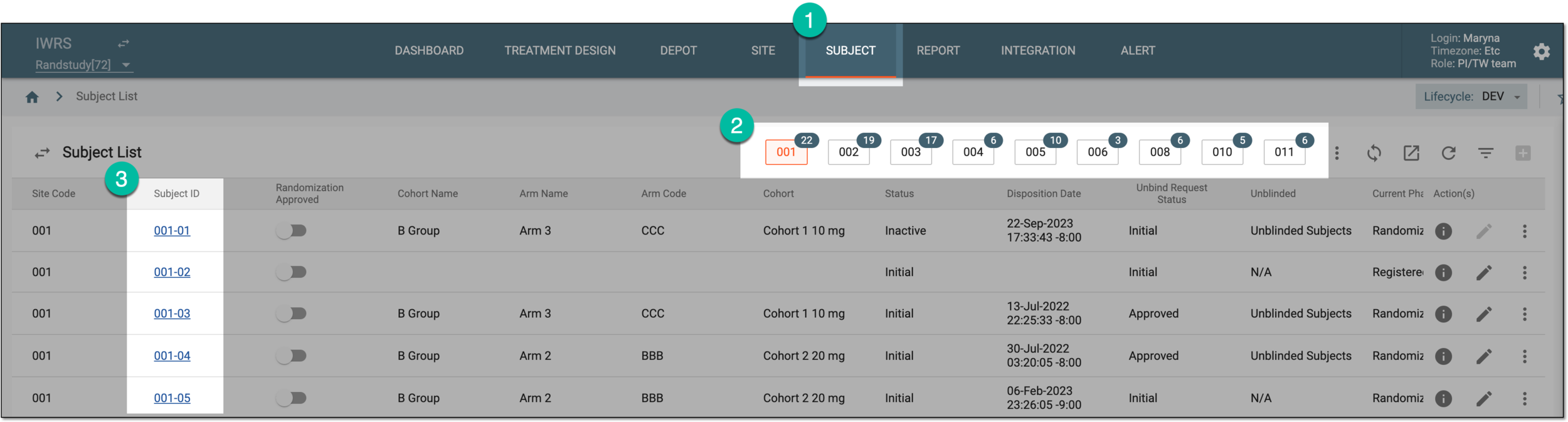 Figure 1. Selecting site and subject
-
Under the Subject Information subtab that opens by default, select
 .
.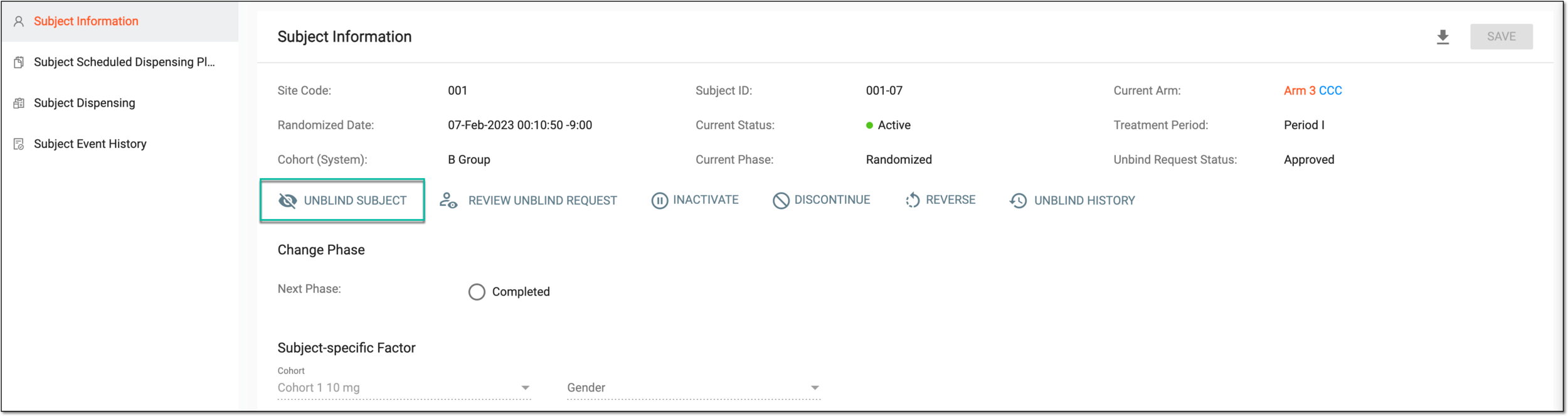 Figure 2. Selecting option to unblind subject
-
In the UNBLIND SUBJECT dialog that appears, select the Study option and complete the fields as explained in the following table.
Important
The details you need to provide for action confirmation depend on the authentication method configured for you in the system—via SSO or via providing your login and password.
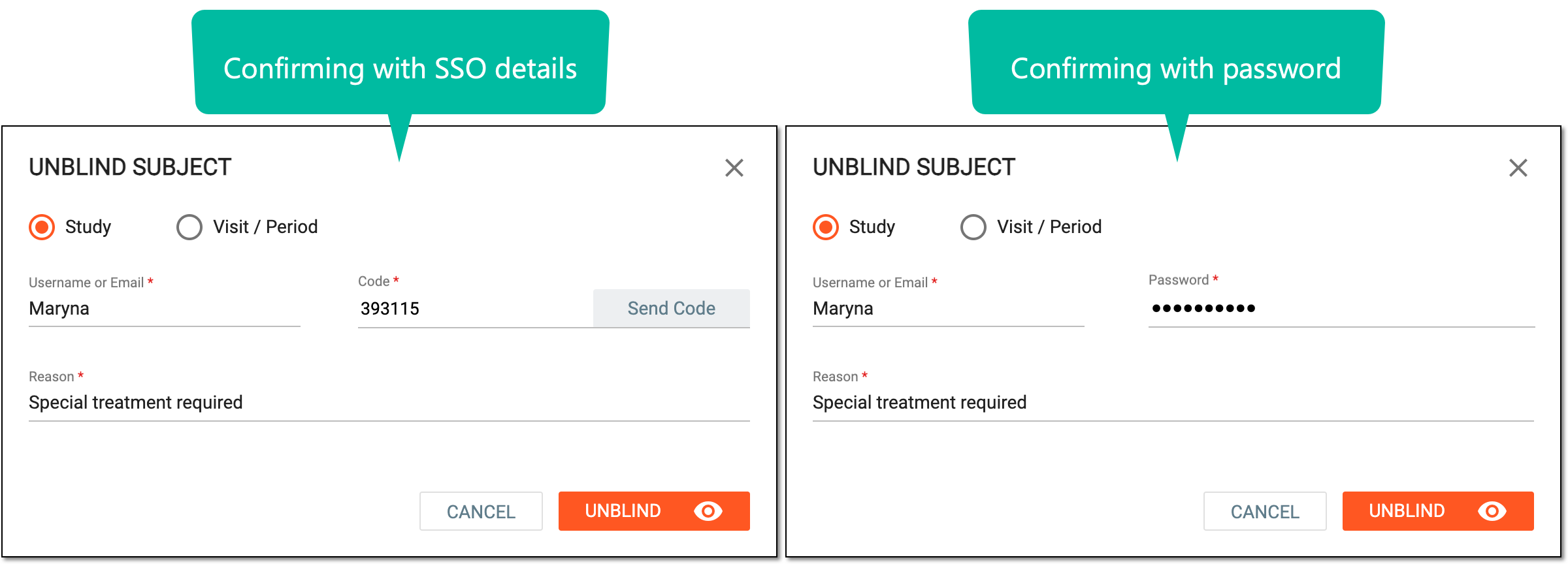 Figure 3. Unblinding subject at study level
Tip
In the following table, mandatory elements are marked with an asterisk (*).
Element
Details
Username or Email*
Enter your user name or email address that you use to log in to the eClinical system.
Send Code
Select
 to send the temporary PIN code to your email for which the SSO method is configured.
The button is only available if you use the authorization method via SSO.Code*
Enter the temporary PIN code that you received via email.
The field is only available if you use the authorization method via SSO.Password*
Enter your password that you use to log in to the eClinical system.
The field is only available if you use the authorization method by providing your login and password.Reason*
Enter the reason why the subject must be unblinded at the study level.
UNBLIND
Select
 to confirm the unblinding of the subject.
CANCEL
Select
 or
or  to dismiss the changes without saving.
Important
For security, the system logs you out after three failed attempts to confirm your identity with a password or code.
Upon confirmation, the subject is unblinded at the study level.
In IWRS, you can unblind any subject at the visit/period level to make those subjects unblinded for the specified visit or period. For the blinded user roles to be able to view unblinded information, the respective permissions must be granted in the IWRS application.
-
In the IWRS application header, select the SUBJECT tab.
-
On the Subject List page that opens, select the site and then the needed subject as suggested in the following figure.
Figure 4. Selecting site and subject
-
Under the Subject Information subtab that opens by default, select
.Figure 5. Selecting option to unblind subject
-
In the UNBLIND SUBJECT dialog that appears, select the Visit/Period option and complete the fields as explained in the following table.
Important
The details you need to provide for action confirmation depend on the authentication method configured for you in the system—via SSO or via providing your login and password.
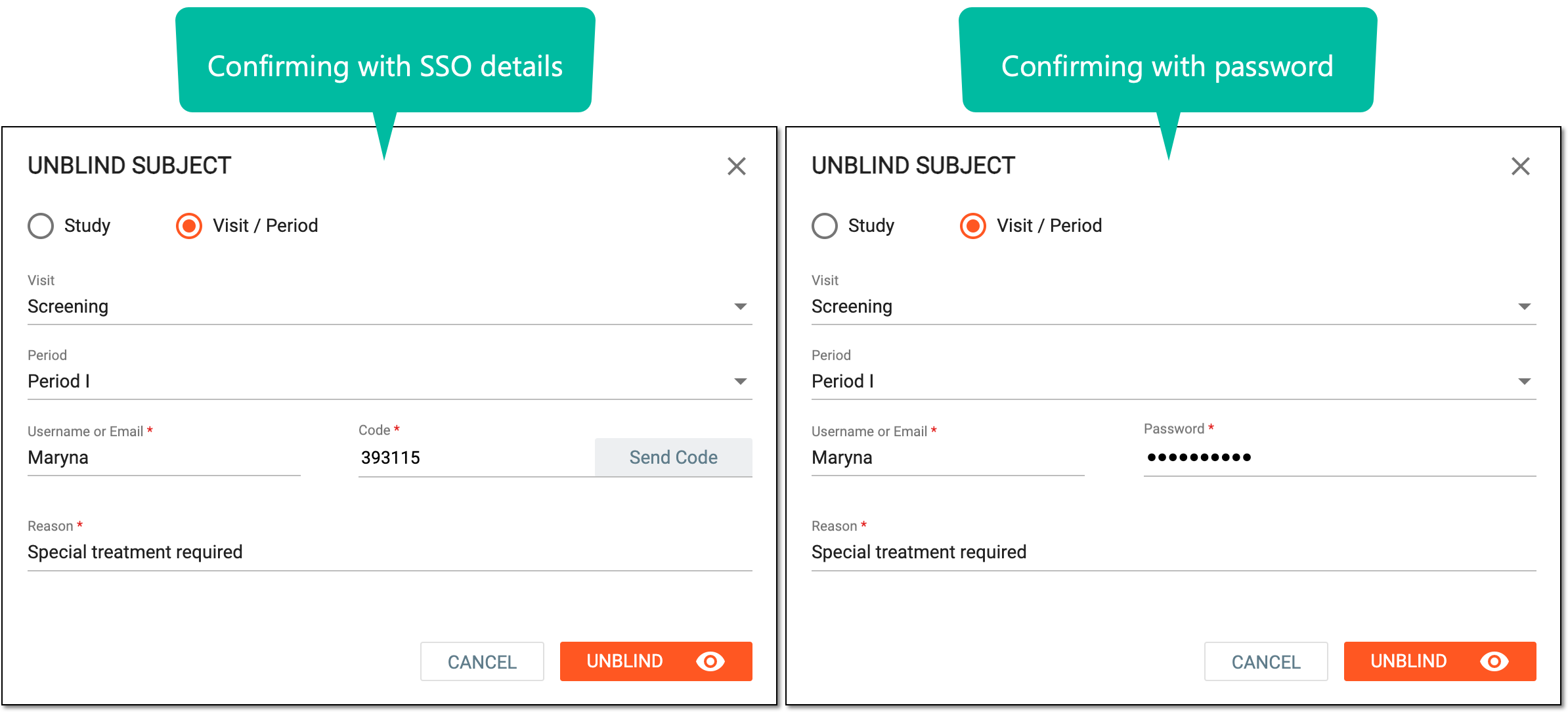 Figure 6. Unblinding subject at visit/period level
Tip
In the following table, mandatory elements are marked with an asterisk (*).
Element
Details
Visit
Select the visit(s) for which you want to unblind the subject.
Period
Select the period(s) for which you want to unblind the subject.
Username or Email*
Enter your user name or email address that you use to log in to the eClinical system.
Send Code
Select
to send the temporary PIN code to your email for which the SSO method is configured.The button is only available if you use the authorization method via SSO.Code*
Enter the temporary PIN code that you received via email.
The field is only available if you use the authorization method via SSO.Password*
Enter your password that you use to log in to the eClinical system.
The field is only available if you use the authorization method by providing your login and password.Reason*
Enter the reason why the subject must be unblinded for the selected visit(s) and period(s).
UNBLIND
Select
to confirm the unblinding of the subject.CANCEL
Select
or to dismiss the changes without saving.Important
For security, the system logs you out after three failed attempts to confirm your identity with a password or code.
Upon confirmation, the subject data is unblinded for the selected visit(s) and period(s).