Revert depot return shipment status
When managing return shipments for your depot in IWRS, you reflect their current delivery status in the system. The sender has to confirm the shipment dispatch from the depot, while the applicant must acknowledge the shipment receipt or loss.
There can be cases when a shipment is mistakenly marked as sent or received in IWRS due to human error or other circumstances. However, such action has not yet occurred. You can fix that mistake by reverting the shipment status to the previous one.
You can revert the following return shipment processing actions for a depot:
Important
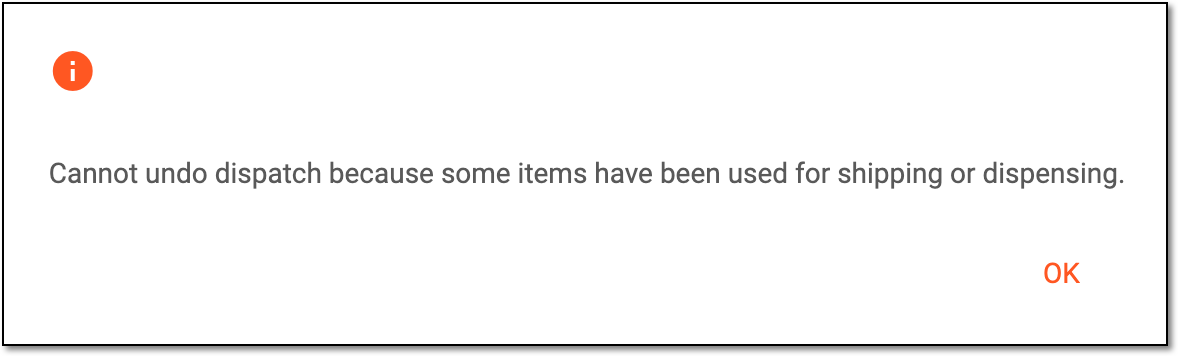
You cannot revert the shipment status if at least one of the items has already been resupplied to another destination.
 |
-
In the IWRS application header, select the DEPOT tab.
-
In the Depot List table that opens, select the needed depot.
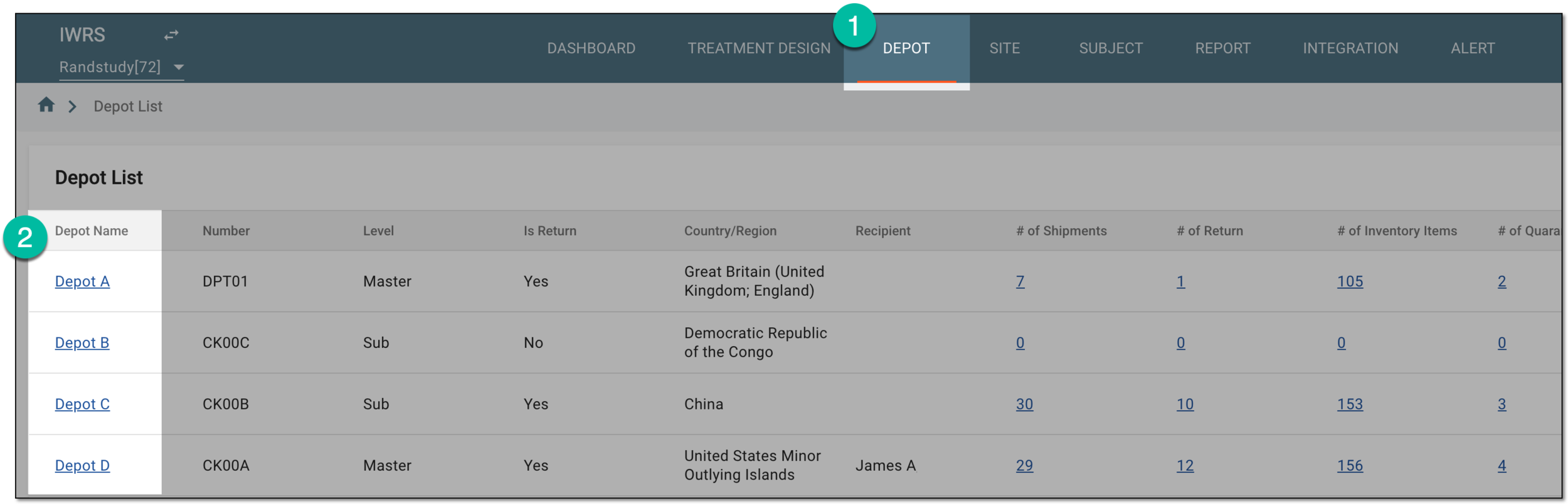 Figure 2. Selecting depot to open its details
-
In the left pane of the page that opens, select Return.
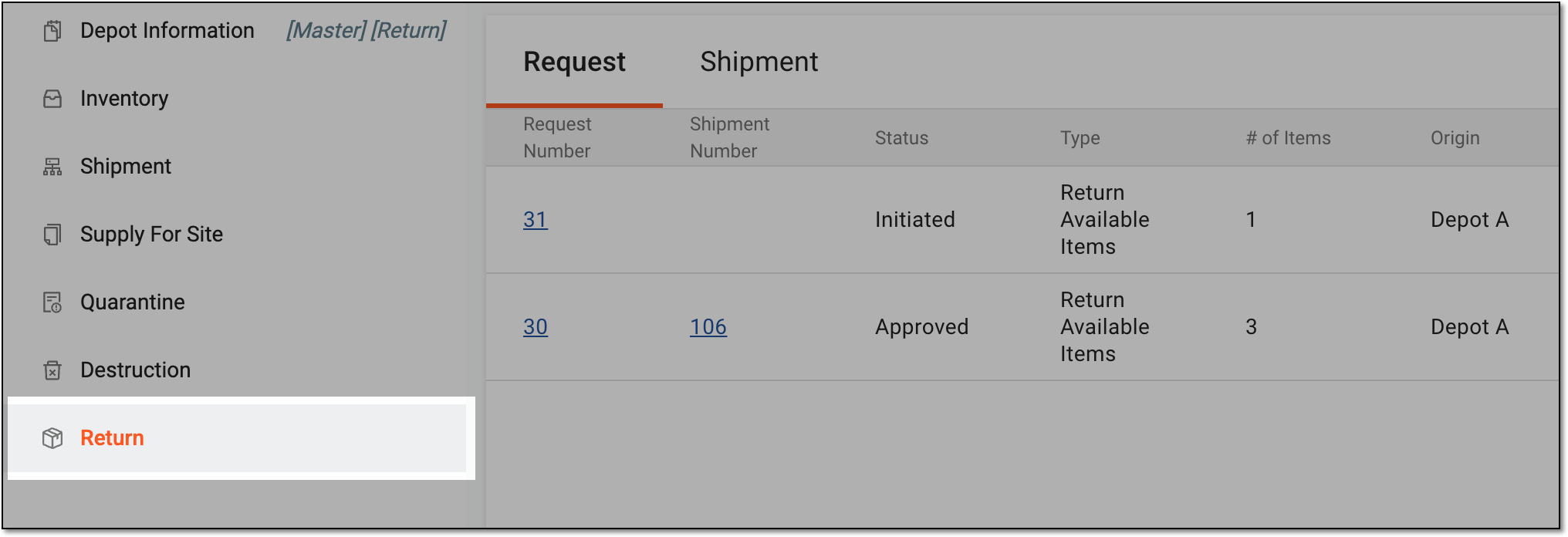 Figure 3. Accessing depot item return
-
In the contents panel that appears, select the Shipment tab to open the list of all return shipments sent to or from the depot.
-
In the table that appears, locate the return shipment whose status you need to revert and select the Shipment Number value.
 Figure 4. Selecting lost shipment for status revert
-
On the Details page, go to the Item Details block and, based on the current shipment status, select one of the following:
-
UNDO DISPATCH: select this button to revert the sent shipment to its previous status, hence, discarding the item dispatch at the sender's side.
-
UNDO RECEIPT: select this button to return the received or lost shipment to the previous status, hence, discarding the item receipt at the applicant's side.
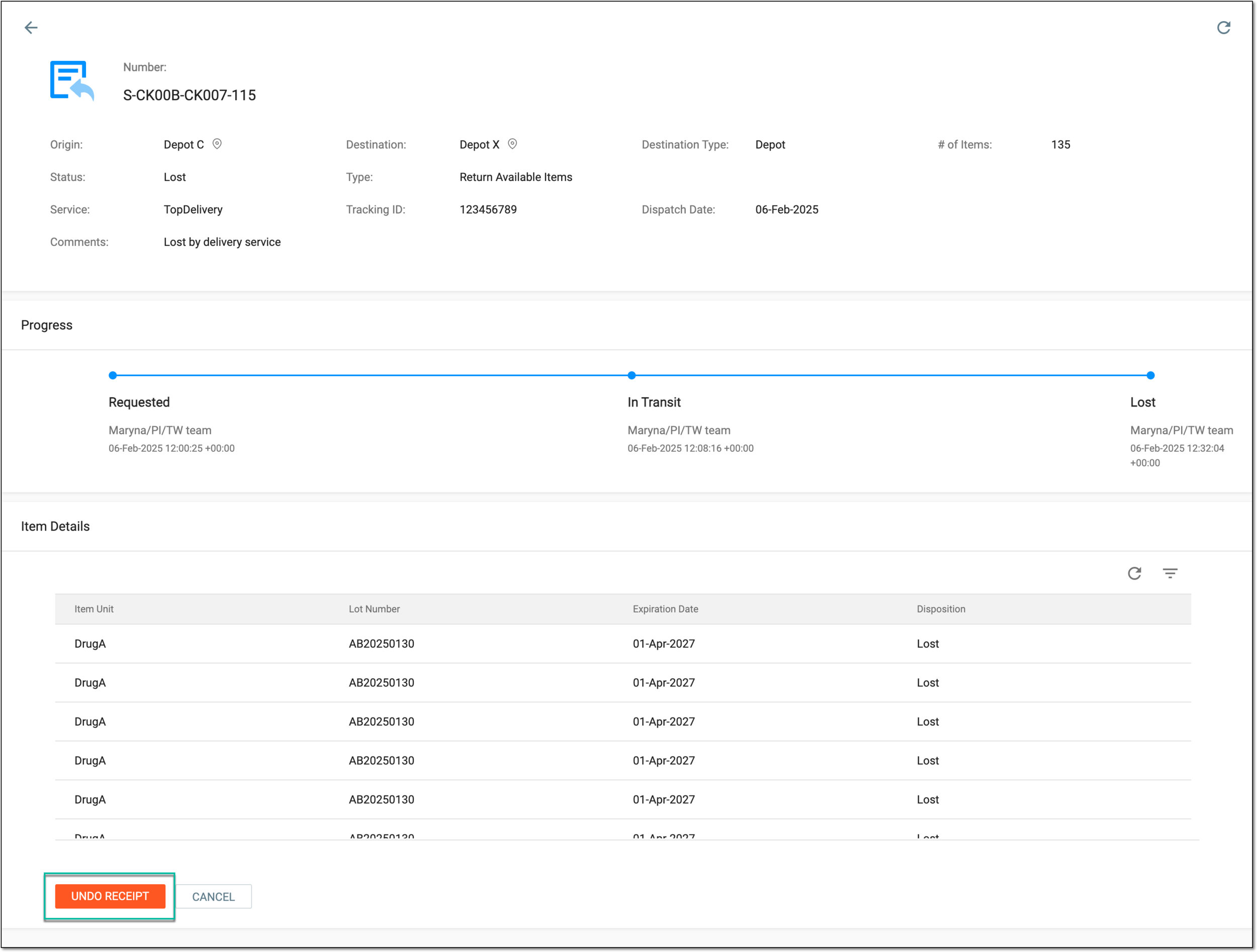 Figure 5. Example of undoing shipment receipt
-
-
In the confirmation dialog that appears, select
 to proceed with the status revert.
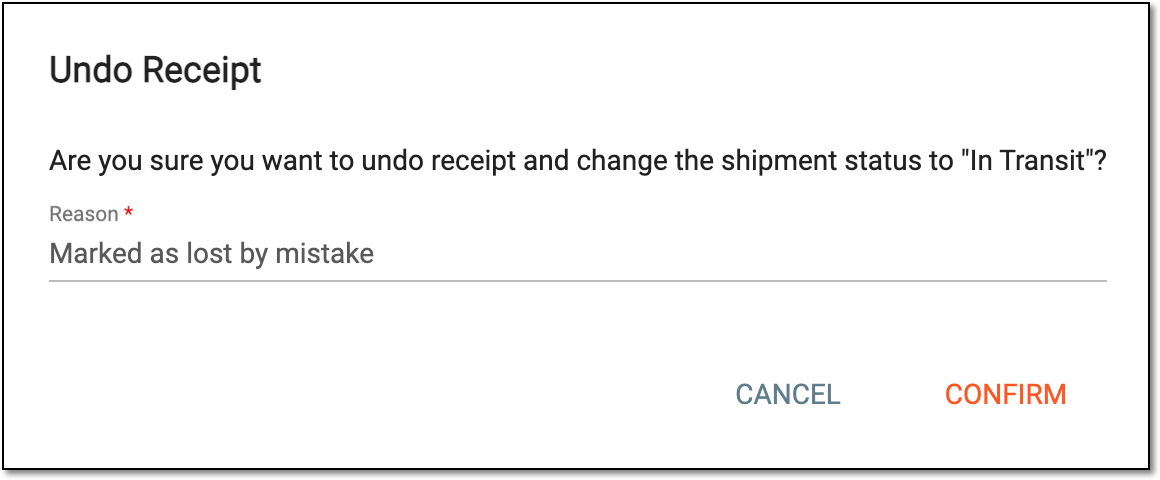 Figure 6. Confirming to undo previous action with shipment
Once confirmed, the status of the return shipment is reverted to the previous one. The items within the shipment obtain their respective statuses.