Mark return shipment as received
A depot is a warehouse where the drug manufacturer supplies items for further distribution between sites. In the course of a clinical trial, the need may arise to return dispensing items from one depot to another. In IWRS, you can return available items to any depot so they can be reused there, or you can send items for destruction to the return depot if they have been, for example, damaged or else.
After some depot or site has sent their available items or items that need to be destroyed to the destination depot, a corresponding shipment requires confirmation to be marked as received upon successful delivery. A shipment can be marked as fully or partially received depending on how the items have been delivered by the shipping carrier.
Tip
If the return shipment has been lost during transportation, you can mark the shipment as lost instead of receiving it.
-
In the IWRS application header, select the DEPOT tab.
-
In the Depot List table that opens, select the needed depot.
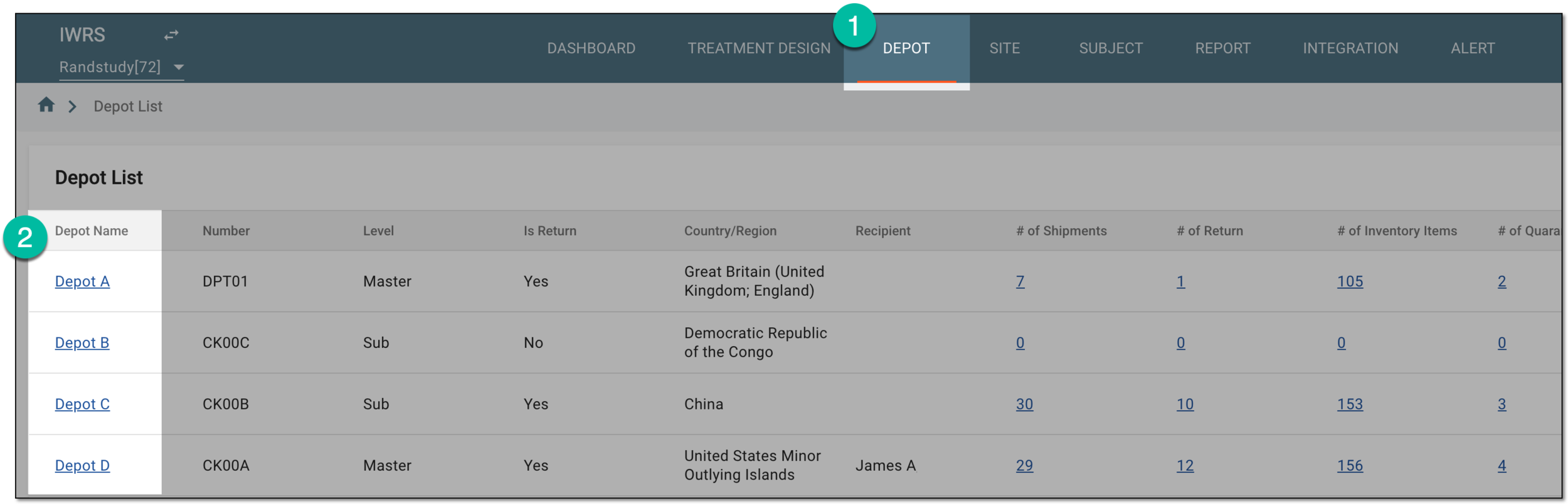 Figure 1. Selecting depot to open its details
-
In the left pane of the page that opens, select Return.
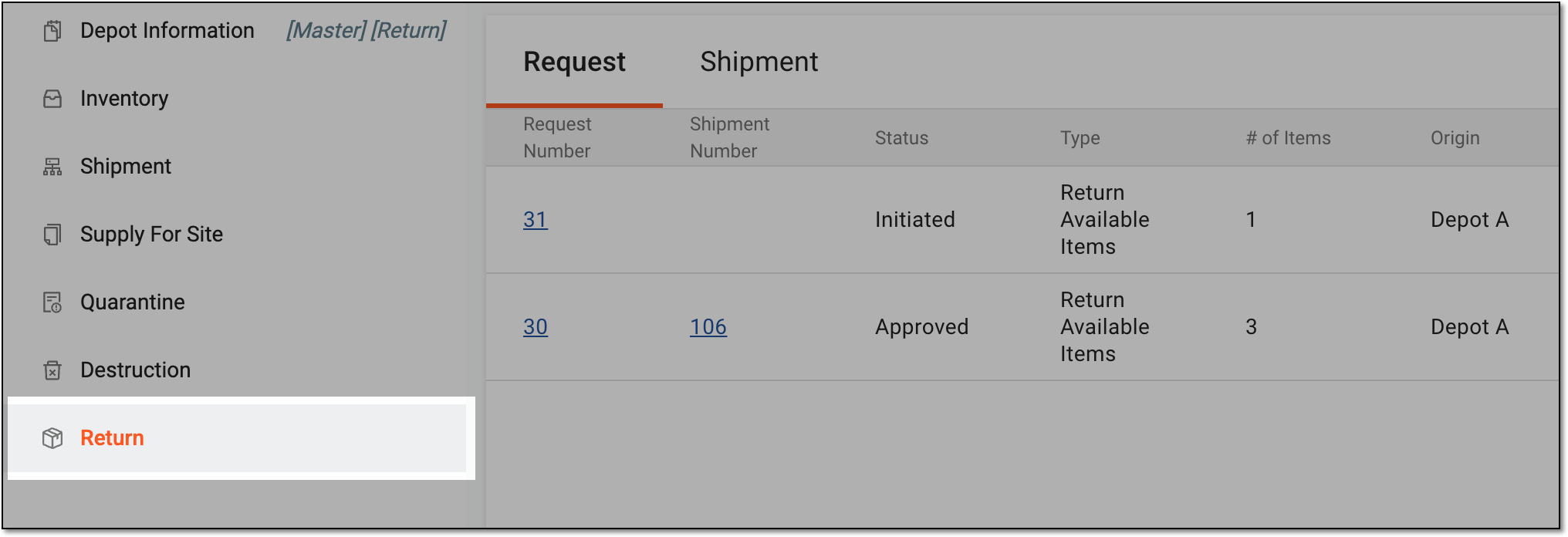 Figure 2. Accessing depot item return
-
In the contents panel that appears, select the Shipment tab to open the list of all return shipments sent to or from the depot.
-
In the Shipment table, select the needed shipment with the In Transit status.
 Figure 3. Selecting shipment in transit
Tip
There are shipments with the In Transit status that are sent from the depot and that can be marked as received. The shipments cannot be marked as received in the depots from which they have been sent.
To distinguish the difference between the two types of in-transit shipments, refer to their shipping number. The shipments that have just digits in their name, for example, 35, are the shipments that can be marked as received. You can also check the Origin column to verify what depot or site has sent the shipment.
-
On the shipment details page that opens, go to the Item Details block and receive the shipment in one of the following ways.
Select the Fully Received option to confirm that you have received all the items listed in the shipment and fill in the fields as explained in the following table.
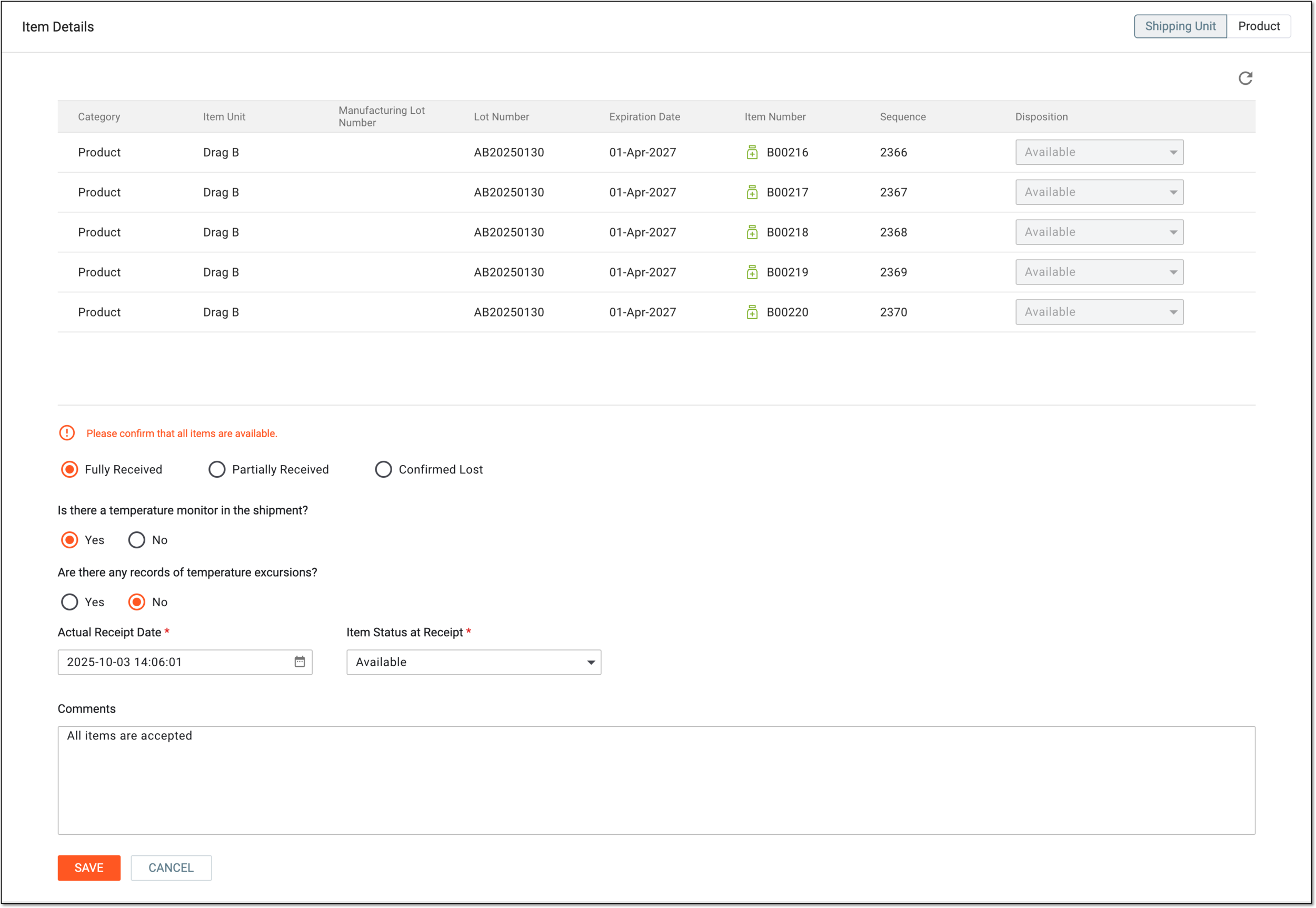 Figure 4. Receiving return shipment in full
Tip
In the following table, mandatory elements are marked with an asterisk (*).
Element
Details
Is there a temperature monitor in the shipment?
Select if the items of the shipment require the specific temperature regimen and if there is a temperature monitoring device with the shipment (Yes) or not (No).
The temperature monitoring feature can be enabled or disabled for your study from the Study Information module.Are there any records of temperature excursions?
Select if there are any documents supporting how the temperature regimen was handled during shipment (Yes) or if there are not any (No).
Actual Receipt Date*
Provide the date on which the shipment has been received at the depot. By default, the current date and time are displayed, however, you can select another date and time when the shipment has been received.
Item Status at Receipt*
Select the status for the items received in the shipment:
-
Available: the shipment is intact and added to the applicant's inventory.
-
Damaged: the shipment is damaged and cannot be further processed.
-
Quarantined: the shipment is to be quarantined before further processing.
If Are there any records of temperature excursions? = Yes, the item
                                        status is autopopulated with Quarantined and cannot be manually changed, as the compromised items must be quarantined.
Upload Temperature Logs
Select
 to upload the temperature log document in the CSV format to support the temperature regimen compliance or breach.
This option is only available if Are there any records of temperature excursions? = Yes.Upload Attachment*
Select
to upload the attachment file to support your shipment receipt. The attachment file can be of any format suitable for your business
needs.This option is only available if Are there any records of temperature excursions? = Yes. The upload can be mandatory or optional depending on the setting under the Study Information module.Comments
Provide any details related to the received shipment.
SAVE
Select
 to confirm your action.
CANCEL
Select
 to discard your changes and return to the Shipment List page.
-
Select the Partially Received option to confirm that you have received selective items from the shipment.
-
Next to the unacceptable shipment items of the Item Details block, select the checkboxes and change their disposition in one of the following ways:
-
To provide different item dispositions, in the Disposition column next to each selected item, choose the disposition that best describes why the item is unacceptable.
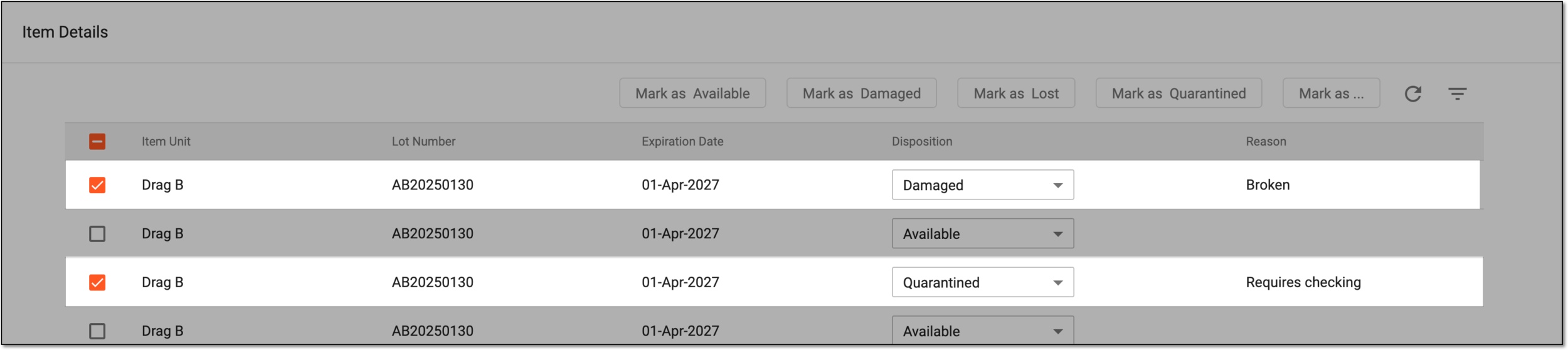 Figure 5. Changing individual item dispositions in return shipment
-
To provide the same disposition to all items, above the table, select the disposition button that best describes the reason why the items are unacceptable.
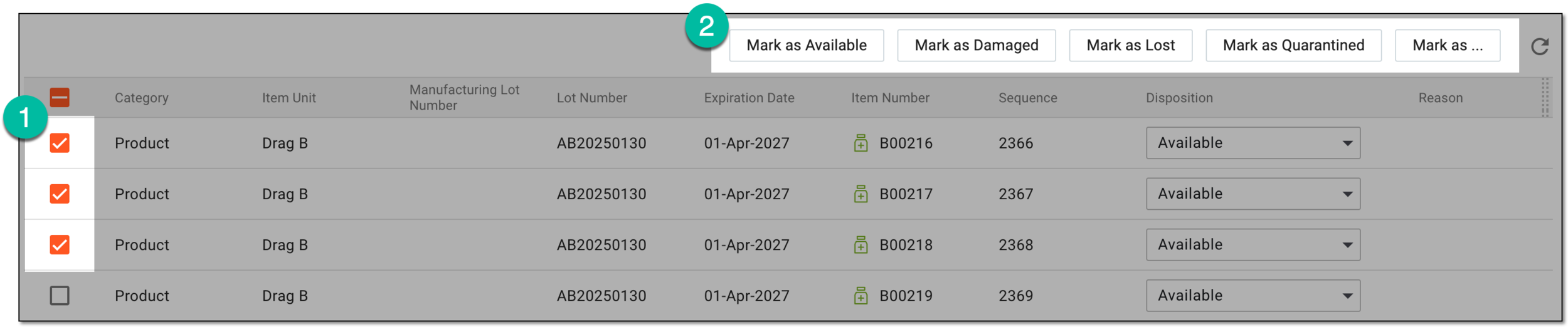 Figure 6. Changing multiple item disposition in return shipment
-
-
In the dialog that opens, state the reason why the item must obtain the selected disposition and select
.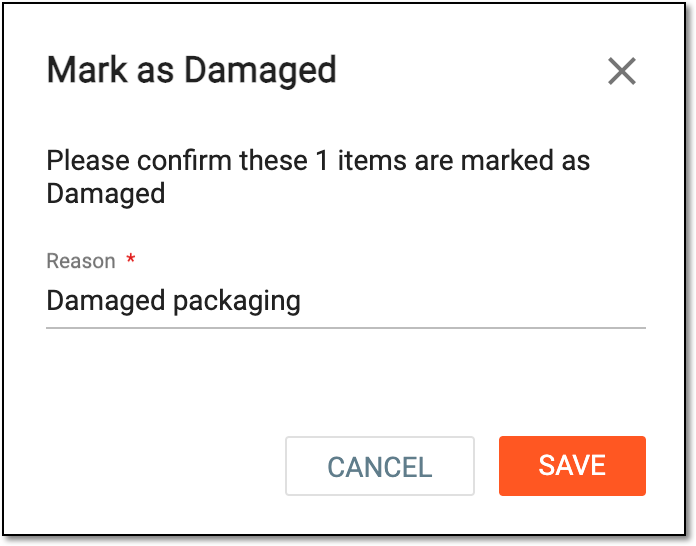 Figure 7. Providing reason for item disposition change
Tip
For individual disposition changes, you provide the reason for each item separately.
-
Once the item dispositions are set, fill in the rest of the shipment receipt details as explained in the following table.
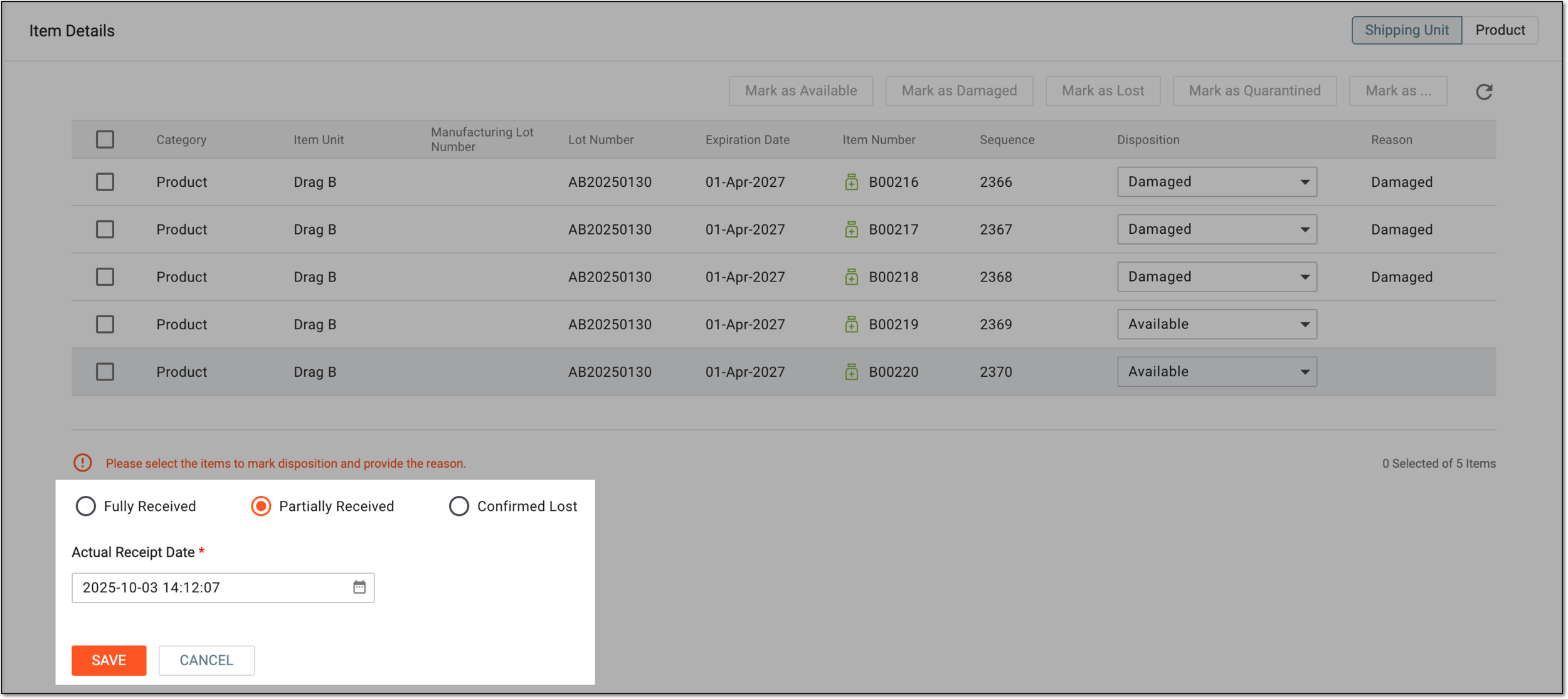 Figure 8. Finalizing partial return shipment receipt
Tip
In the following table, mandatory elements are marked with an asterisk (*).
Element
Details
Actual Receipt Date*
Provide the date on which the return shipment has been received at the depot. By default, the current date and time are displayed, however, you can select the exact date and time the shipment was received.
SAVE
Select
to confirm your action.CANCEL
Select
to discard the shipment receipt and return to the return shipment list.
-
Once saved, the return shipment is received fully or partially based on your action. The items now obtain their respective dispositions in the depot inventory.