Export depot return shipment details
A depot is a warehouse where the drug manufacturer supplies items for further distribution between sites. In the course of a clinical trial, the need may arise to return dispensing items from one depot to another. In IWRS, you can return available items to any depot so they can be reused there, or you can send items for destruction to the return depot if they have been, for example, damaged or else.
When the return request with either available items or items for destruction has been initiated, a shipment is automatically generated by the system. This shipment can undergo different phases depending on its delivery status. No matter the status, you can export any return shipment with its details in the XLSX file to your computer. The exported data can then be shared with the depot staff for tracking purposes.
-
In the IWRS application header, select the DEPOT tab.
-
In the Depot List table that opens, select the needed depot.
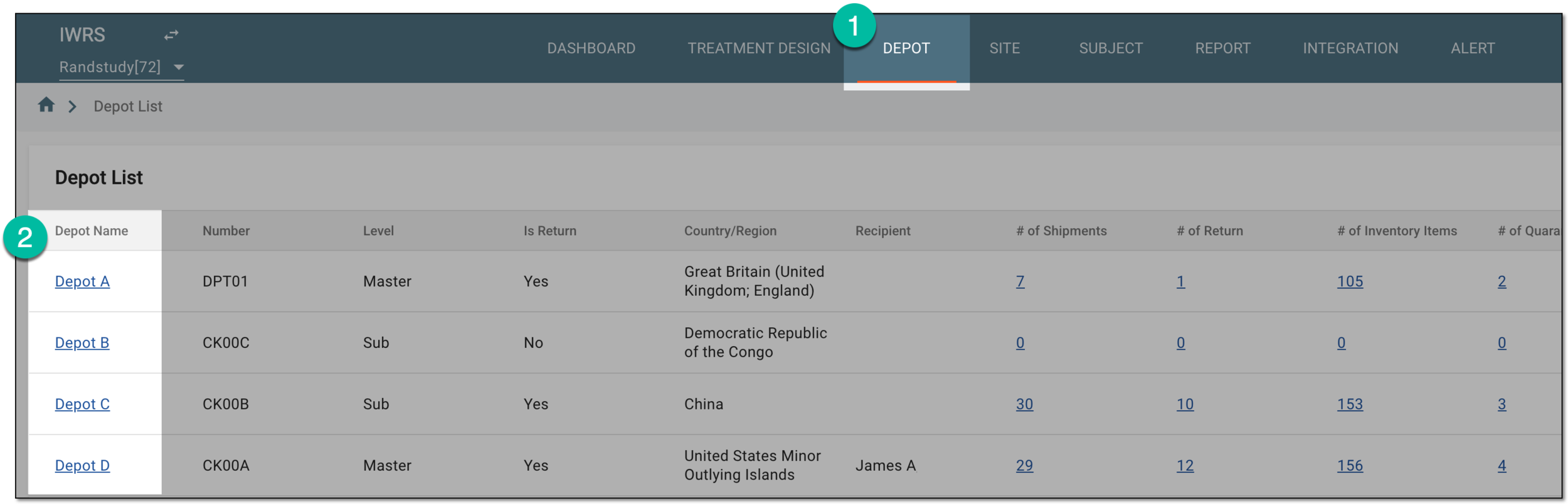 Figure 1. Selecting depot to open its details
-
In the left pane of the page that opens, select Return.
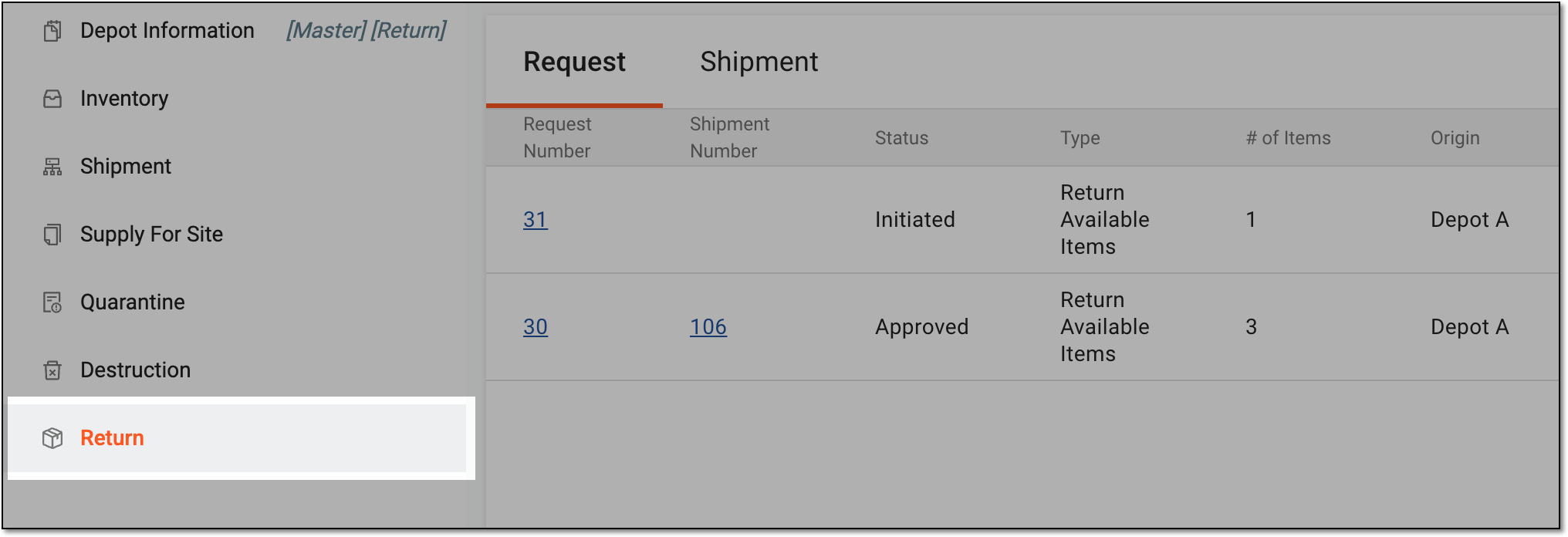 Figure 2. Accessing depot item return
-
In the contents panel that appears, select the Shipment tab to open the list of all return shipments sent to or from the depot.
-
In the Shipment table, select checkboxes next to the return shipments that you want to export. Then from the workspace toolbar, select Export
 .
. Figure 3. Exporting return shipments
Tip
Each return shipment is exported in a separate XLSX file. If exporting multiple return shipments, the XLSX files are exported in a ZIP archive.
-
Once selected, the widget appears displaying your download progress. Select the widget to open the My Downloads dialog.
 Figure 4. Downloads widget
-
In the My Downloads dialog that opens, you can find the following tabs:
-
Preparing: under this tab, you can find all the files whose export is in progress, and they are not yet ready for download.
-
Download is Ready: under this tab, you can find all the files whose export is complete, and they can be downloaded to your computer.
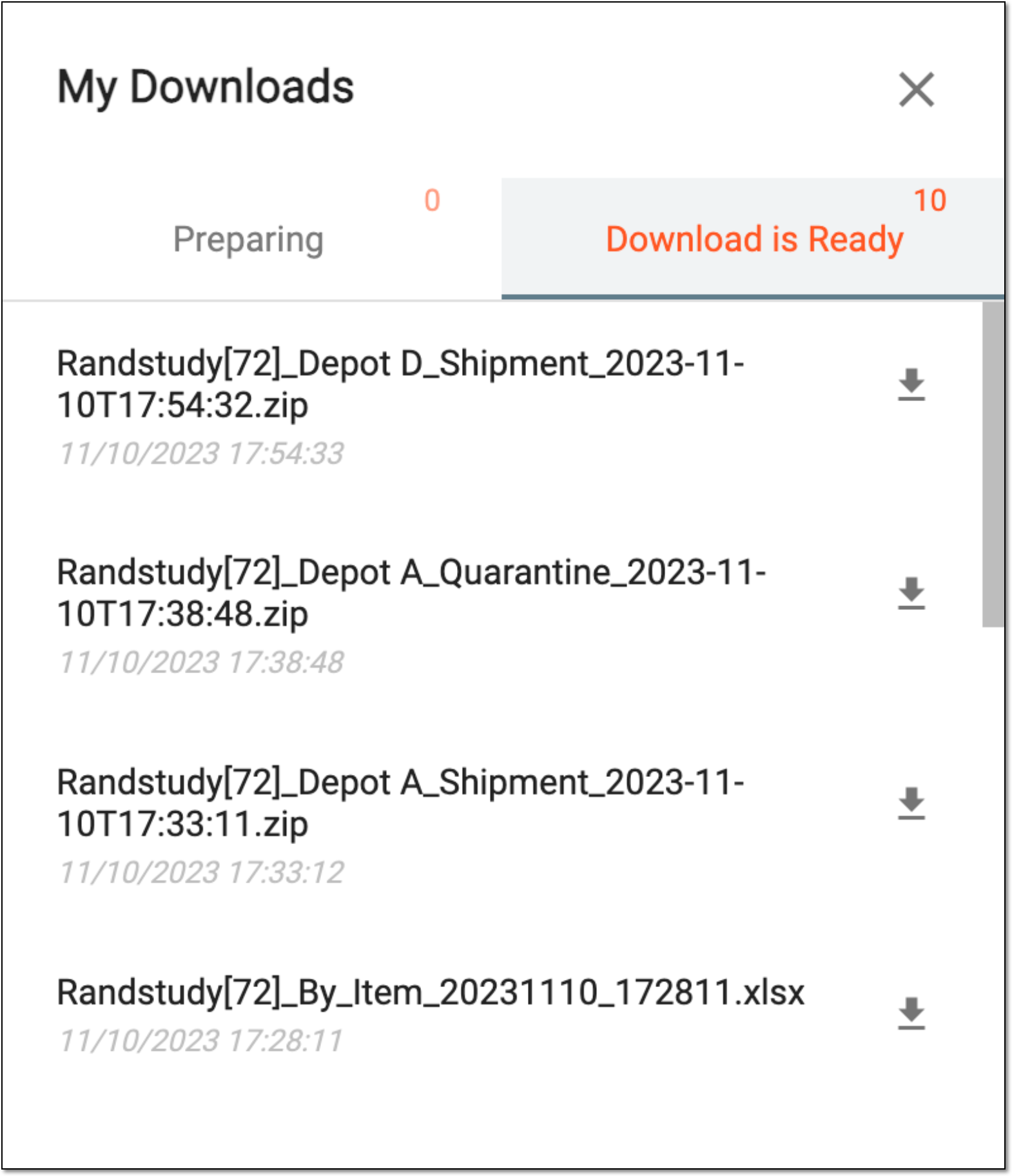 Figure 5. Viewing downloads
-
-
Under the Download is Ready tab, next to the file that you want to download, select
 .
.
Once exported, the file is saved on your computer. You can now share this file with the depot personnel if needed.