Return depot items for destruction
A depot is a warehouse to which the drug manufacturer supplies items for further distribution between sites. In the course of a clinical trial, you might need to return the previously received items from the depots where they are detected as damaged or otherwise compromised to another depot for further destruction. In IWRS, you can return both product units and container units for destruction.
Some of the reasons for returning items for destruction include expired products that are no longer suitable for use and need to be sent to the return depot for disposal; items may become damaged or compromised during storage or transportation, rendering them unsuitable for use; in the event of study termination, the remaining items must be sent to the return depot for destruction as it is a part of the overall study closure process.
Important
In IWRS, you can only return items for destruction with the To be Returned disposition status to the return depot.
From the return depot, items cannot be marked as To be Returned. Therefore, it is not possible to send items for destruction from such depots.
-
In the IWRS application header, select the DEPOT tab.
-
In the Depot List table that opens, select the needed depot.
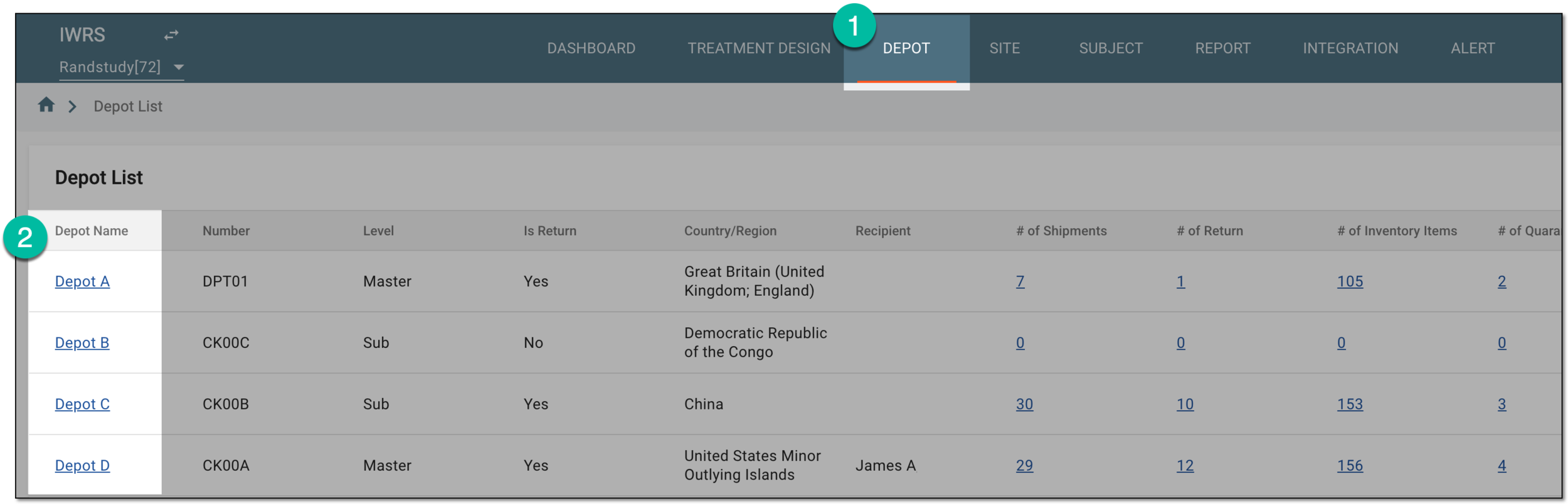 Figure 1. Selecting depot to open its details
-
In the left pane of the page that opens, select Return.
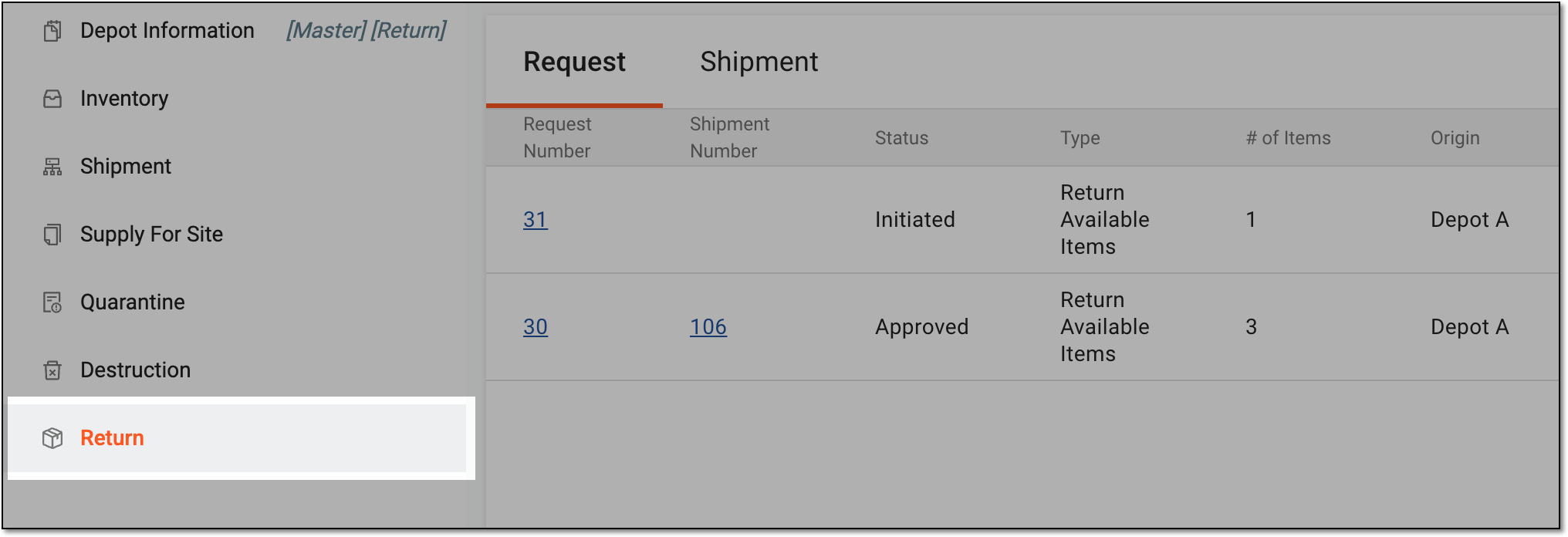 Figure 2. Accessing depot item return
-
In the Request table that appears, from the workspace toolbar, select Add
 and then
Return for Destruction.
and then
Return for Destruction.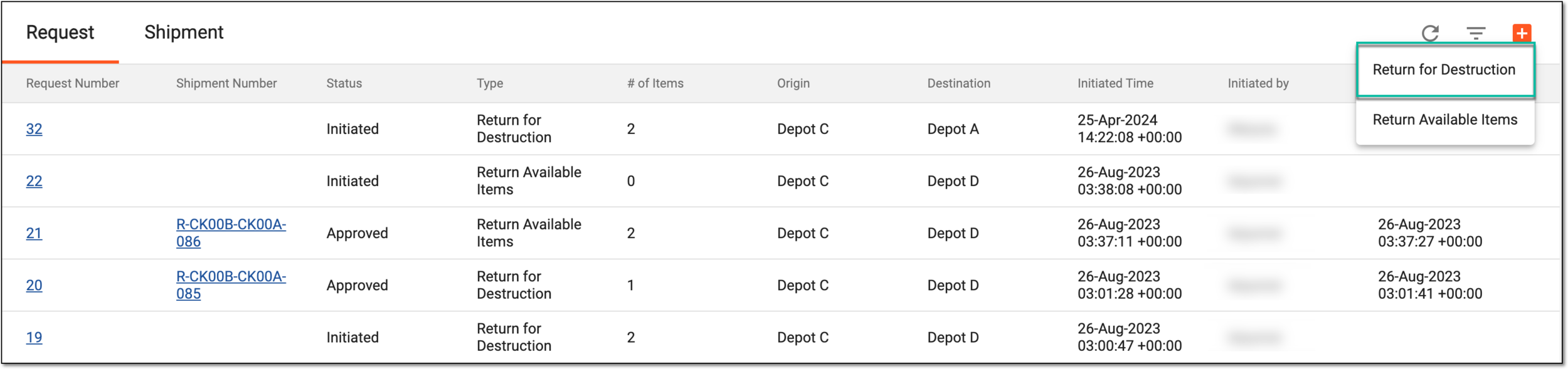 Figure 3. Selecting to return items for destruction
-
On the New Return Shipment page that opens, perform the following steps:
-
In the Item Unit List table, select checkboxes next to items that you want to return.
Important
Only the product and container units with the To be Returned disposition status are displayed in this table.
-
In the Destination field, select the return depot where the items need to be delivered. Remember, only depots that have been configured as return depots can be selected.
-
Select
 .
.
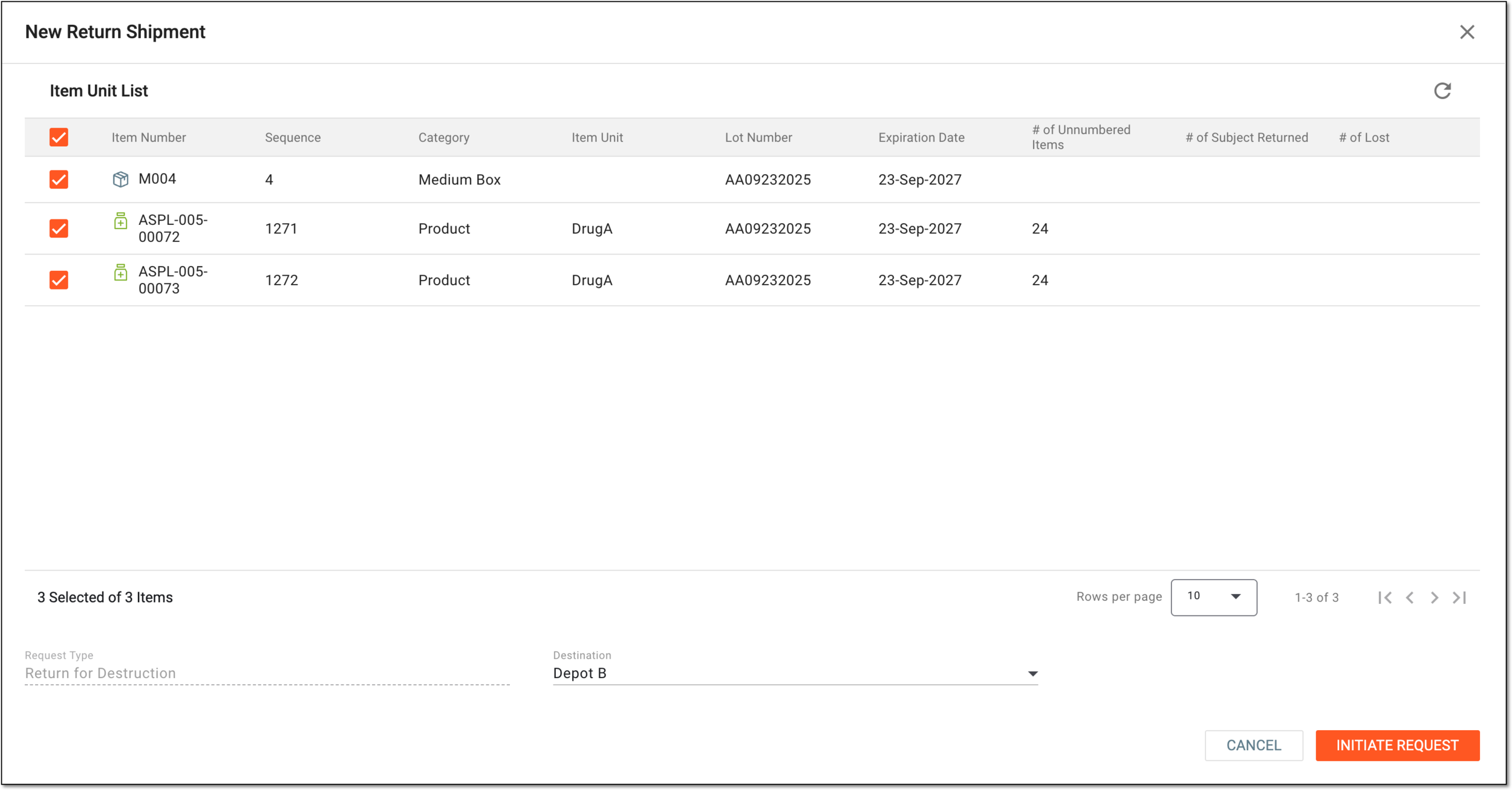 Figure 4. Creating return shipment with items for destruction
-
-
Once the return request has been initiated, you can view the details of this request on the same page. If needed, you can add more items to the list or change the destination return depot and select
 to update the return request.
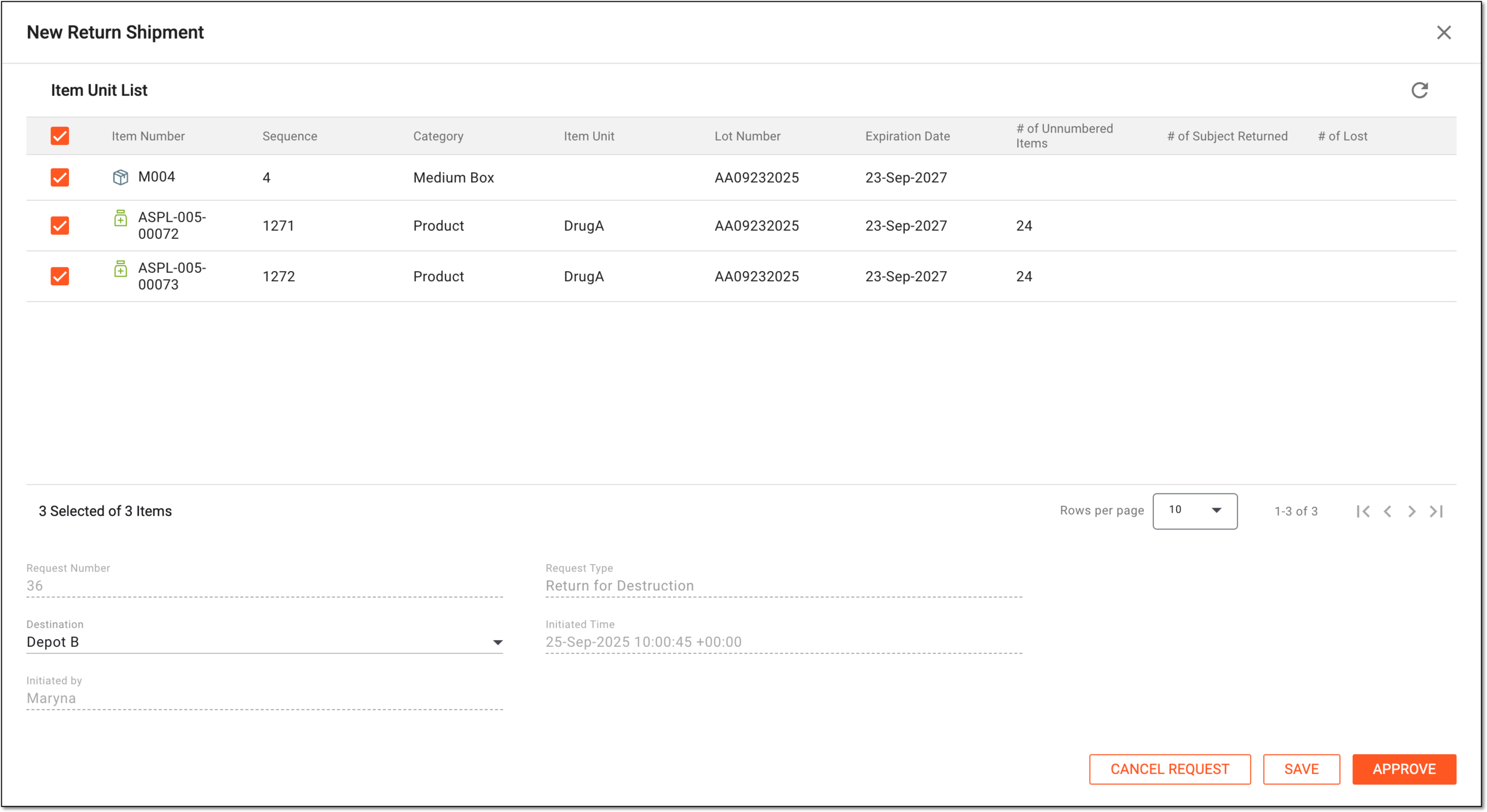 Figure 5. Approving return shipment with items for destruction
Tip
The return requests can be canceled by selecting
 and then confirming this action. All items from the
canceled return request will go back to the site inventory.
and then confirming this action. All items from the
canceled return request will go back to the site inventory.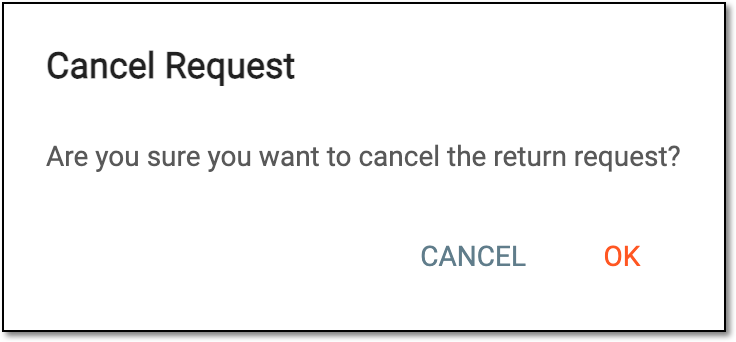 Figure 6. Canceling return request
-
After ensuring that all return request details are correct, select
 .
. -
In the Approve dialog that appears, confirm your action as explained in the following table.
Important
The details you need to provide for action confirmation depend on the authentication method configured for you in the system—via SSO or via providing your login and password.
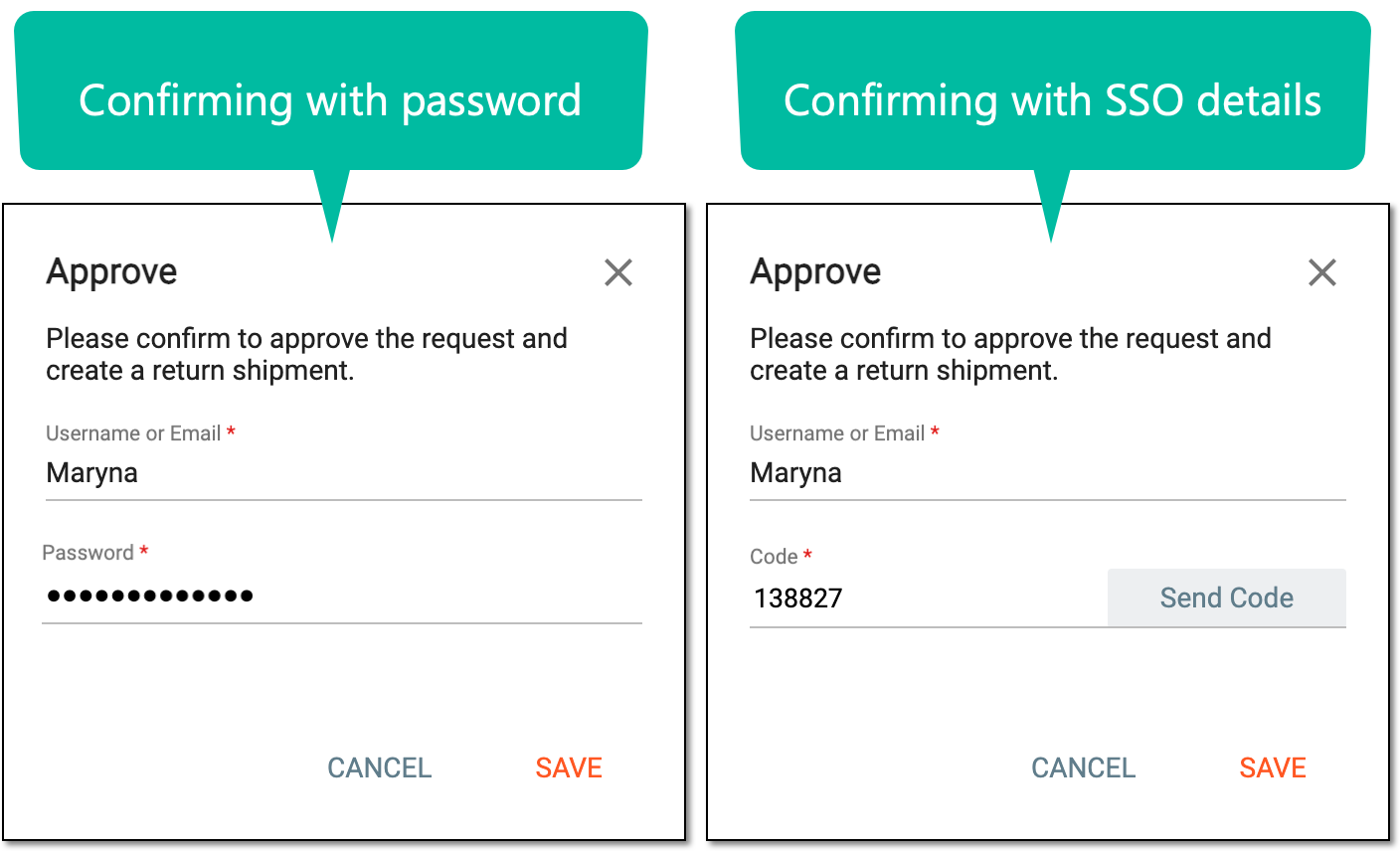 Figure 7. Approving return request
Tip
In the following table, mandatory elements are marked with an asterisk (*).
Element
Details
Username or Email*
Enter your username or email that you use to log in to the eClinical applications.
Send Code
Select
 to send the temporary PIN code to your email for which the SSO method is configured.
The button is only available if you use the authorization method via SSO.Code*
Enter the temporary PIN code that you received via email.
The field is only available if you use the authorization method via SSO.Password*
Enter the password that you use to log in to the eClinical applications.
The field is only available if you use the authorization method by providing your login and password.Reason*
Enter a valid reason for granting/denying the user role access to unblinded subject data in the IWRS application.
SAVE
Select
to confirm your action with your signature and save the implemented changes.CANCEL
Select
 to discard the changes and close the dialog.
Important
For security, the system logs you out after three failed attempts to confirm your identity with a password or code.
Once approved, the return request is created and a corresponding shipment becomes automatically generated by the system. You now need to confirm this shipment so the items can be sent for destruction or revoke the shipment if the item return is no longer required.