Create data acknowledgment task
Data acknowledgment before the end of the study is a process of confirming the receipt and accuracy of data and findings collected during a clinical trial.
In EDC, you can create a data acknowledgment task when specific system documents are ready to be confirmed and downloaded by their assignees.
For instance, before closing the study in EDC, the responsible data manager (DM) has to verify the query report and download it from EDC prior to archiving data. Thus, you can create the data acknowledgment task for the All Query Reports system document and assign it either to a specific data manager or to the DM role in the EDC system.
Important
To create the data acknowledgment task, you must have the System Document > Add permission granted to your user role via the ADMIN application.
Before initiating a data acknowledgment task, make sure that the appropriate email template is created because you need to select the template of the assignee notification when creating the task.
-
In the EDC application header, select the REPORTS tab.
-
On the page that opens, in the left pane, select End of Study > System Document.
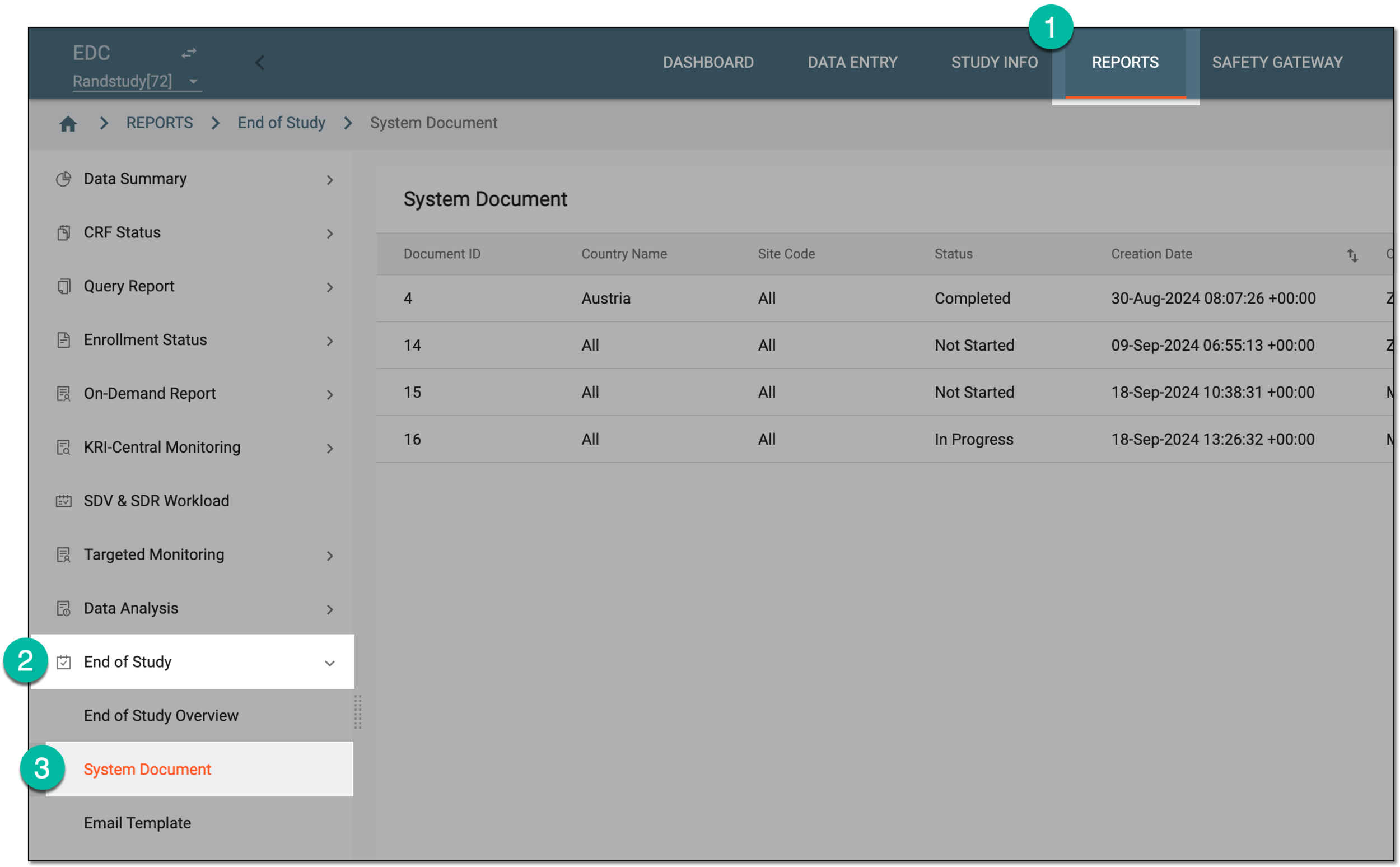 Figure 1. Accessing system documents
-
On the System Document page that appears, from the workspace toolbar select Setting
 .
. Figure 2. Accessing system document settings
-
In the Setting dialog that appears, select one or multiple of the documents:
-
Subject PDFs: the information in this document is fetched from the Raw Data report which provides an opportunity to export individual subject PDFs.
-
All Query Report: the information in this document is fetched from the All Query report.
-
Subject SAEs: the information in this document is fetched from the SAE report.
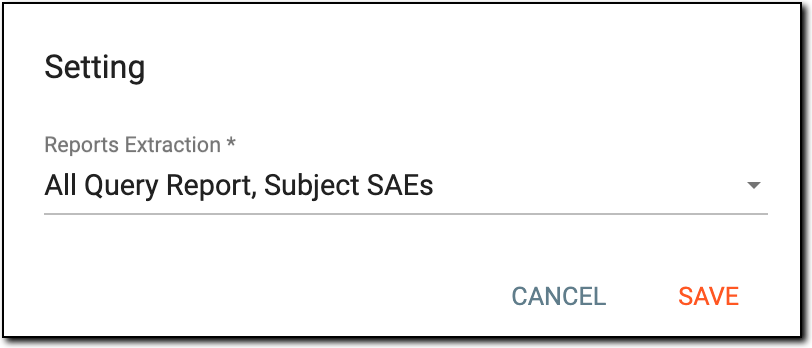 Figure 3. Selecting system document for data acknowledgment
-
-
Select
 to apply the document selection.
 -
Once the document is selected and saved, from the workspace toolbar of the System Document page, select New Item
 .
. Figure 4. Adding data acknowledgment task
-
On the page that appears, fill in the details as explained in the following table.
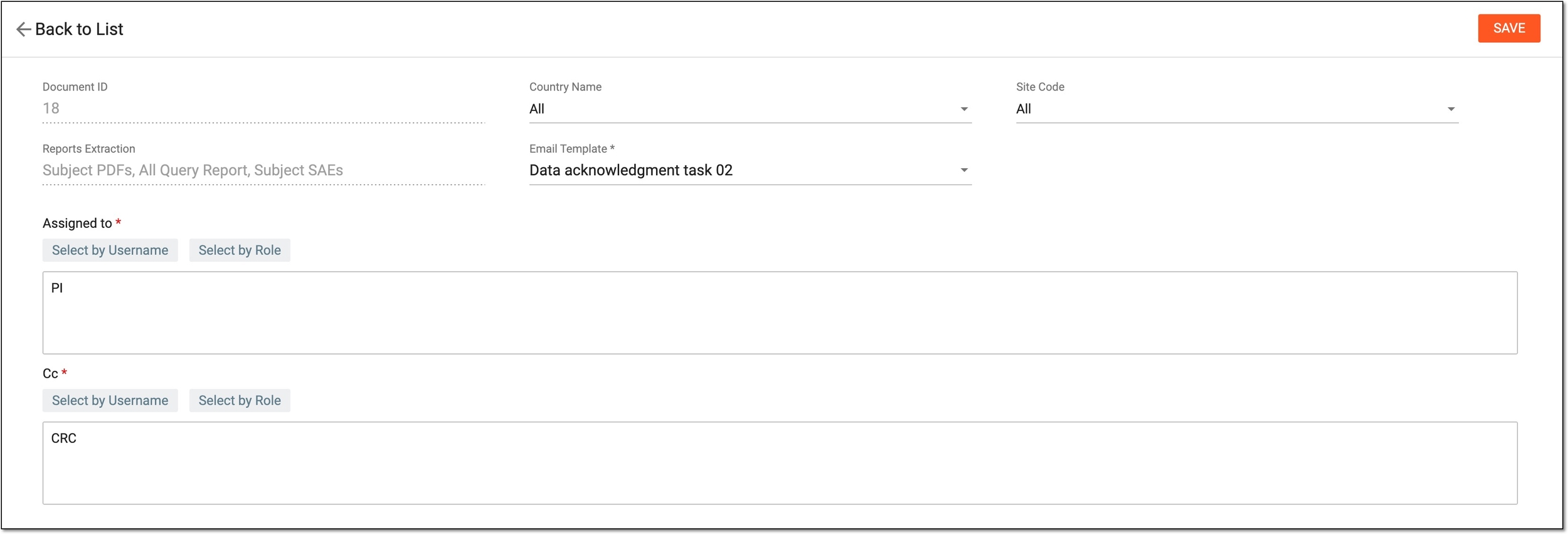 Figure 5. Configuring data acknowledgment task
Tip
In the following table, mandatory elements are marked with an asterisk (*).
Element
Details
Document ID
Represents the unique identification number of the system document for which the data acknowledgment task is created. The document ID is automatically assigned by the eClinical system and cannot be manually updated.
Country Name
Select the name of the country of the location of the sites where the data acknowledgment task must be completed. Select All to create the task applicable to all countries of your study.
Site Code
Select the site code where the data acknowledgment task must be completed. Select All to create the task applicable to all the sites in the selected country(ies).
Reports Extraction
Represents the names of the documents selected during the document selection process.
You cannot change the selection at this stage. If needed, discard the task creation by selecting Back to List , choose another document(s), and then repeat steps 6 and 7 of this procedure.
Email Template*
Select the previously created email template that you want to use as a notification for the assignee on their data acknowledgment task.
Assigned to*
Select the name of the user or the user role to whom you want to assign the task.
If multiple users are added, they all become the recipients of the same letter, thus, providing an opportunity for group communication via email for those involved in the task completion.
CC*
Select the name of the user or the user role whom you want to add as a receiver of the system document task notification but not make the assignee of the task.
Adding users as CC is helpful, for instance, to keep the sponsor representatives notified of the system document task progress without giving them the ability to sign the document.
SAVE
Select
 to save the implemented changes.
Once saved, the data acknowledgment task is created in the In Progress status, meaning that the system documents of the task are being generated by the system.
Once the status changes to Not Started, it means that the document is ready and the assignees receive an email that they can now acknowledge the data.
