Acknowledge system document
Data acknowledgment before the end of the study is a process of confirming the receipt and accuracy of data and findings collected during a clinical trial.
In EDC, once the respective task is created and the system document is ready, the responsible assignee can acknowledge the data before it can be downloaded from the system and the study is closed in EDC.
Important
You can only acknowledge the data if the task is assigned to you or your user role and you have the System Document > Write permission granted to your user role via the ADMIN application.
When the data acknowledgment task is assigned to a specific user, that user must acknowledge the data and the associated document becomes available to them for download.
However, if the task is assigned to a role, it only requires acknowledgment by a single user within that role. Once acknowledged, the system document associated with the task becomes accessible to all the users assigned to that role.
-
In the EDC application header, select the REPORTS tab.
-
On the page that opens, in the left pane, select End of Study > System Document.
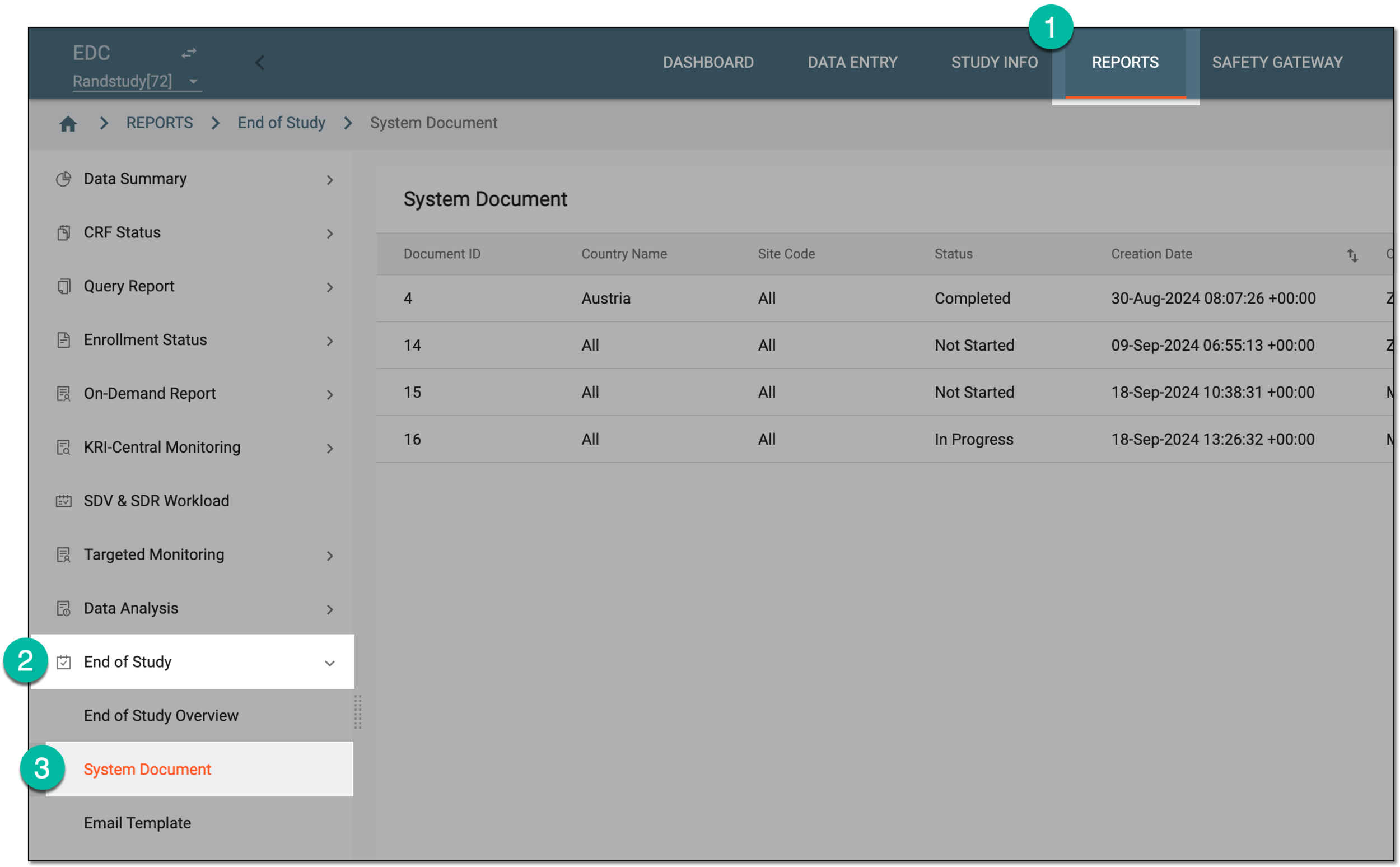 Figure 1. Accessing system documents
-
On the System Document page that opens, next to the needed task, under the Action column, select Acknowledge
 .
.Important
If the task is not assigned to you, or if it is assigned to your role and someone else in the same role has acknowledged the task, then the acknowledgment option
does not appear. Figure 2. Acknowledging system document
-
In the Enter User Signing Password Information dialog that appears, complete the fields as explained in the following table.
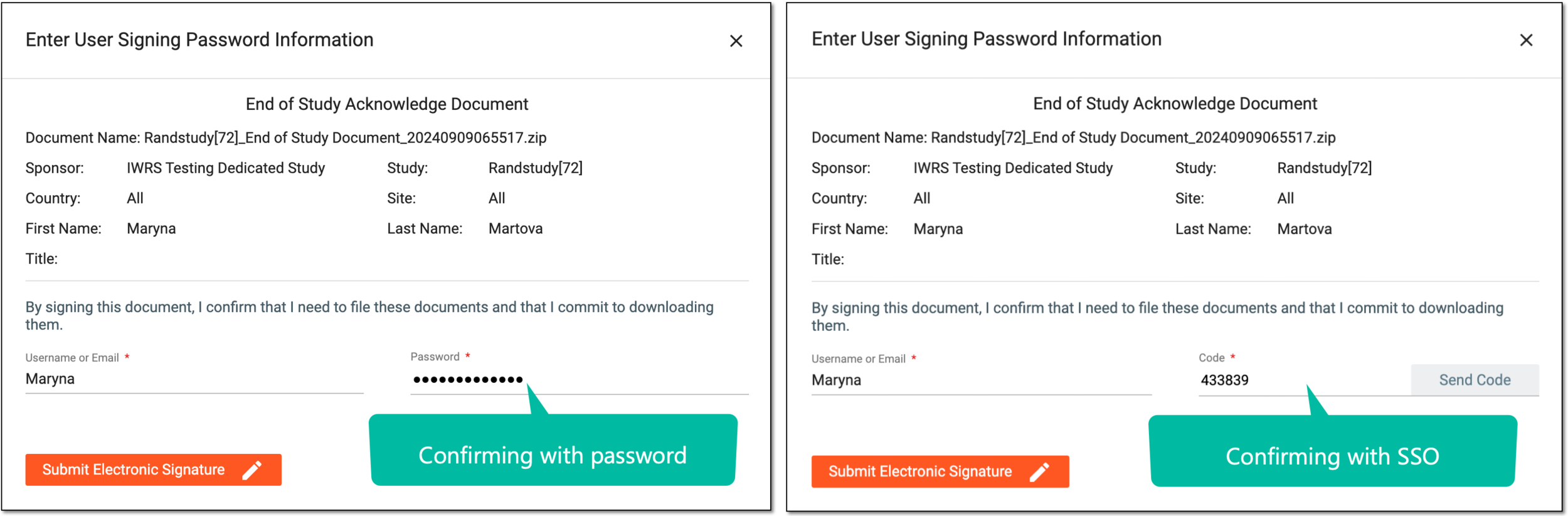 Figure 3. Confirming system document acknowledgment
Tip
In the following table, mandatory elements are marked with an asterisk (*).
Element
Details
Username or Email*
Enter your username or email that you use to log in to the eClinical applications.
Send Code
Select
 to send the temporary PIN code to your email for which the SSO method is configured.
The button is only available if you use the authorization method via SSO.Code*
Enter the temporary PIN code that you received via the email.
The field is only available if you use the authorization method via SSO.Password*
Enter the password that you use to log in to the eClinical applications.
The field is only available if you use the authorization method by providing your login and password.Submit Electronic Signature*
Select
 to confirm your action with your signature and save the implemented changes.
Select the cross symbol to discard your action, close the dialog, and return to the System Document page.
Once the signature is submitted, the system document is acknowledged and can be downloaded.
Tip
The status of the signed task is changed to Acknowledged, and this change is momentarily reflected in the End of Study Overview statistics.