Create data acknowledgment email template
An email template is a model created in EDC for the use of various processes, in this case—data acknowledgment tasks, to facilitate user interaction with the system, as you can create several versatile templates and then reuse them for creating various tasks.
-
In the EDC application header, select the REPORTS tab.
-
On the page that appears, in the left pane, select End of Study > Email Template.
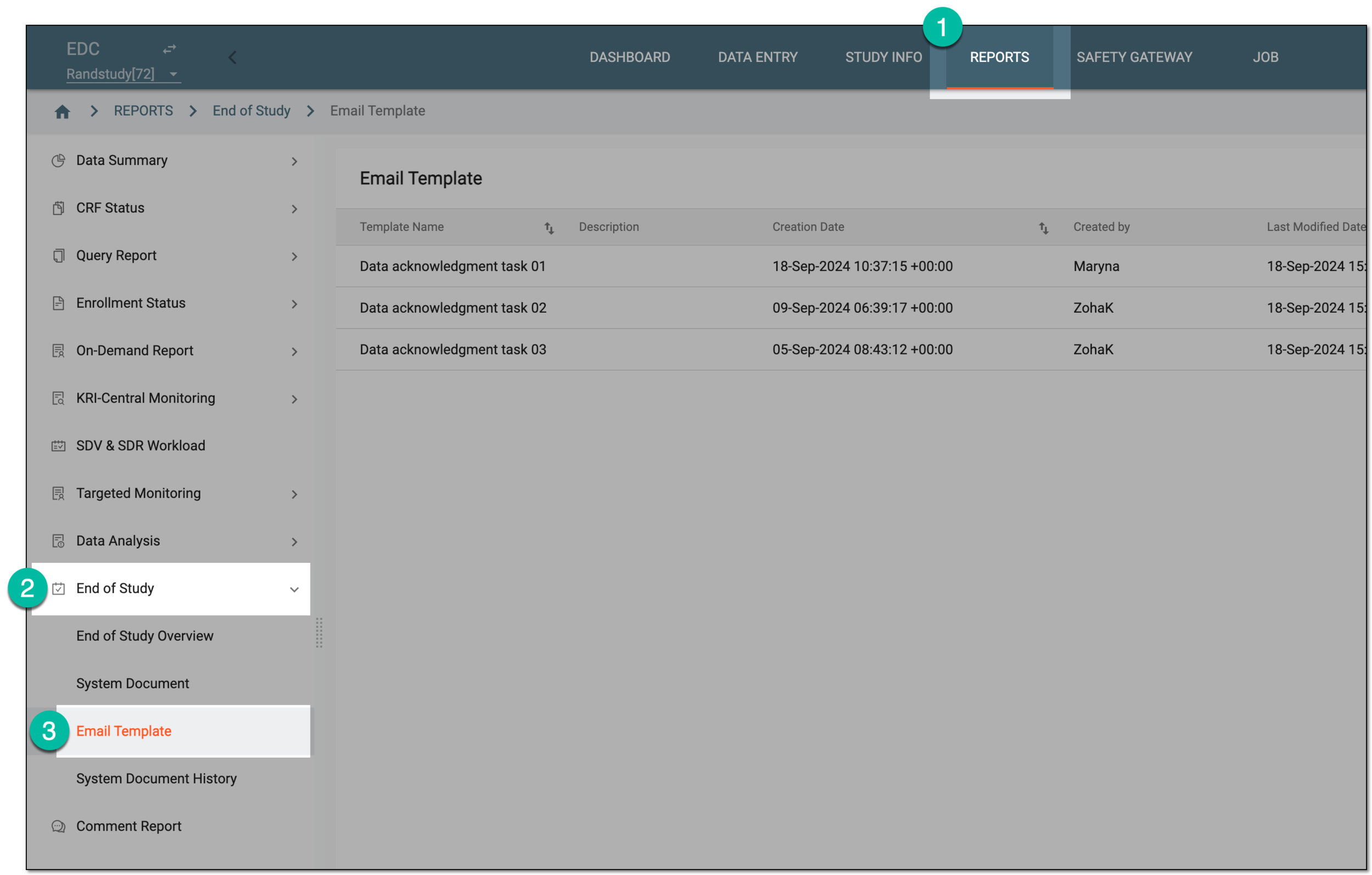 Figure 1. Accessing data acknowledgment email templates
-
On the Email Template page that opens, from the workspace toolbar, select New Item
 .
. Figure 2. Adding new data acknowledgment email template
-
In the form that opens, configure the email template details as explained in the following table.
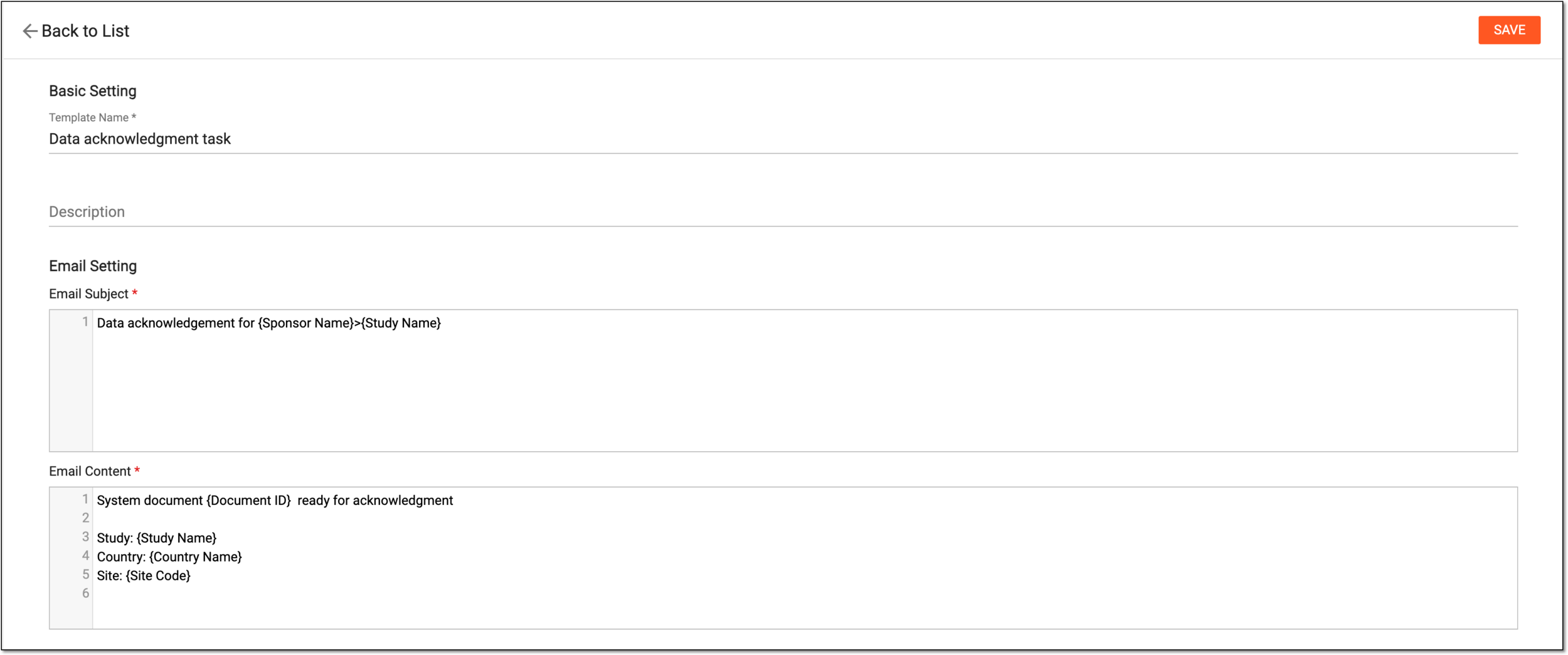 Figure 3. Configuring data acknowledgment email template
Tip
In the following table, mandatory elements are marked with an asterisk (*).
Column
Details
Basic Setting
Template Name*
Enter the name of the email template.
Description
Enter brief information explaining the purpose of creating this email model or specifics of its use.
Email Setting
Email Subject*
Enter the subject of the email template. You can also start typing with the opening brace "{" to expand the list of predefined variables that you might want to include in the email subject.
For instance, if you want the email subject to have a study name, type "{Study Name}" in this field. Once this template is used in a specific task and the email is triggered according to it, in the letter, the variable will be replaced with the corresponding study name.
Email Content*
Enter the content of the email template. You can also start typing with the opening brace "{" to expand the list of predefined variables that you want to include in the email content.
For instance, if you want the email content to have study country and site information, type "{Country Name} and {Site Code}" in this field along with your other text. Once this template is used in a specific task and the email is triggered according to it, in the letter, the variables will be replaced with corresponding information.
SAVE
Select
 to save the implemented changes.
Once saved, the email template is created and can be used while creating the data acknowledgment tasks.