Export subject data PDF
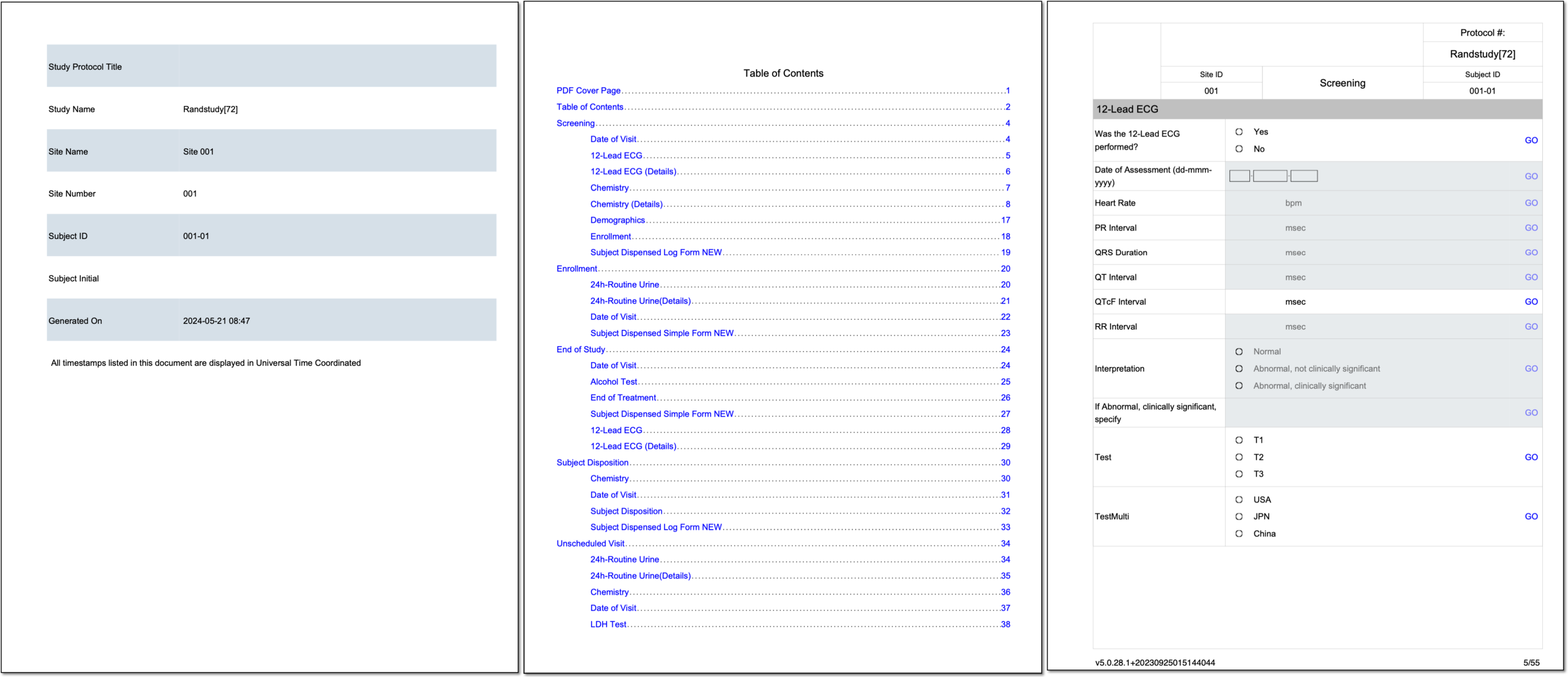
In EDC, the raw data report can be used as an exhaustive and complete source of information on the study data. Moreover, using this report, you can extract detailed raw data for a particular subject or subject group. By exporting subject details, you get a ZIP archive containing all the individual PDF files on the selected subjects and their raw case report form (CRF) data, such as short introductory information on the study and subject, an interactive table of contents to easily navigate the file, and a complete list of the subject's CRFs with filled demographic, health, laboratory, and other data.
-
In the EDC application header, select the REPORTS tab.
-
On the page that opens, in the left pane, select the Data Summary subtab to expand the list of available reports and select Raw Data.
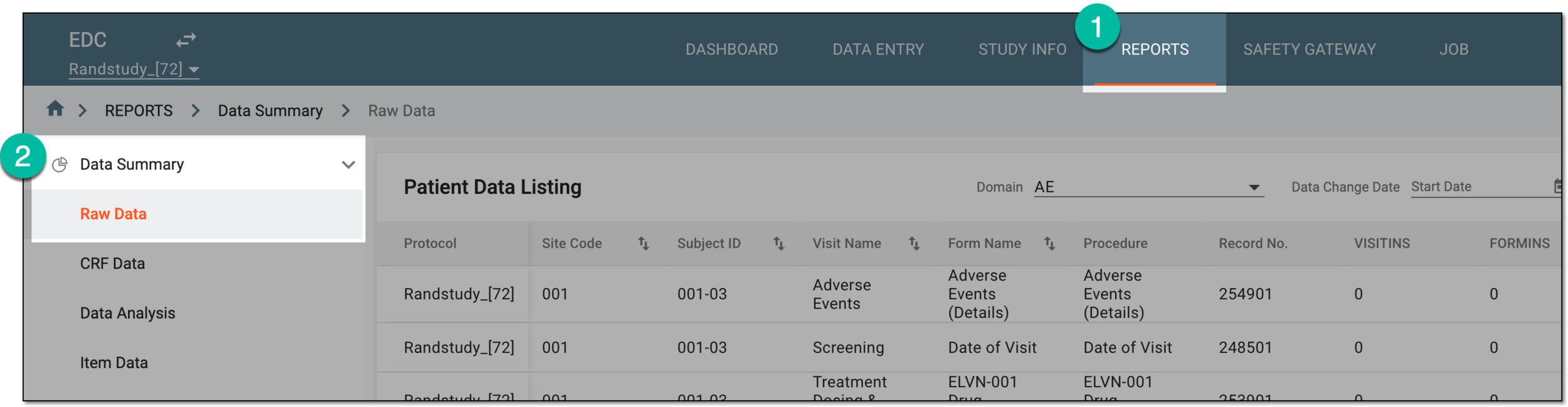 Figure 1. Accessing raw data report
-
On the Patient Data Listing page that opens, from the workspace toolbar, select Export
 and then the Export Subject PDFs option.
 Figure 2. Selecting to export subject PDFs
-
In the Export Subject PDFs dialog that opens, select the values as shown in the figure and explained in the following table.
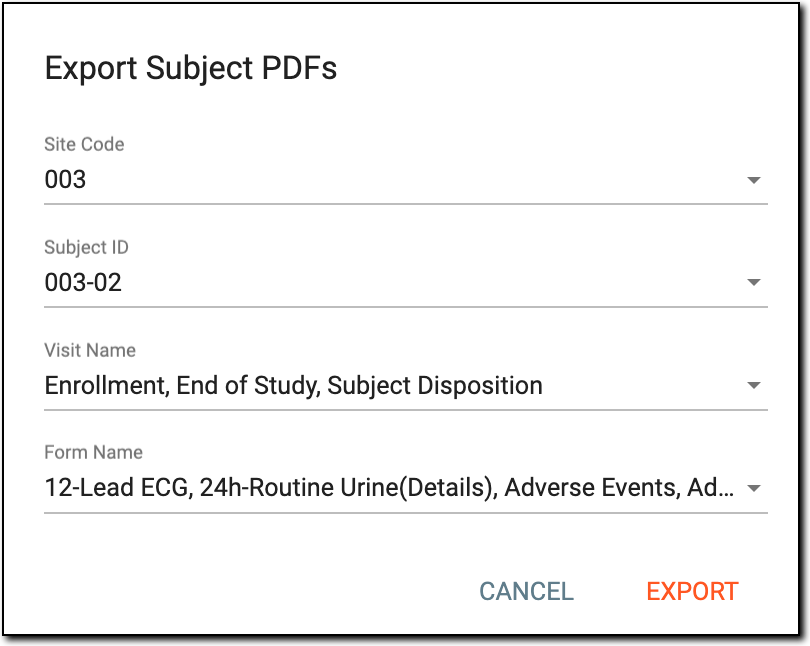 Figure 3. Selecting options to export subject data
Element
Details
Site Code
Select the codes of specific sites for the subjects of which you want to generate the individual reports. Select All to generate a set of individual reports for the subjects of all the sites registered in a study.
[Unique ID Label]
Select the IDs of the subjects for whom you want to generate the individual reports. Select All to generate a set of individual reports for all the subjects of the sites selected in the previous field.
The field name depends on the unique ID label configuration of your study in IWRS.Visit Name
Select the name of a visit for which you want to generate the report. Select All to generate a set of individual reports of all the visits of the sites and subjects selected in the previous fields.
Form Name
Select the name of the form for which you want to generate the report. Select All to generate a set of individual reports of all the forms of the visits, sites, and subjects selected in the previous fields.
EXPORT
Select
 to complete the exporting process.
CANCEL
Select
 to discard the report export and close the dialog.
 -
Once all selections are made, the download widget and a progress bar appear. Select the widget to open the My Downloads dialog.
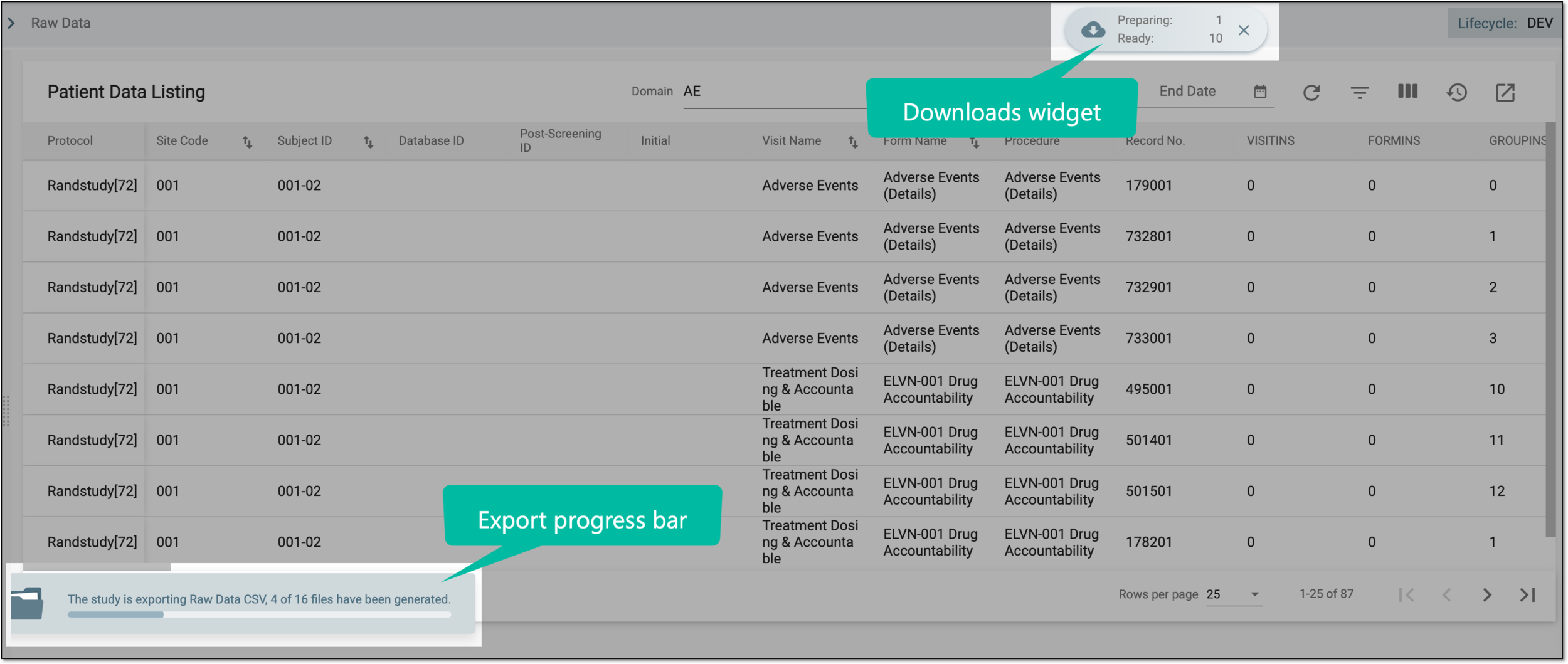 Figure 4. Viewing downloads widget and progress bar
-
In the My Downloads dialog that opens, you can find the following tabs:
-
Preparing: lists all the files whose export is in progress, and they are not yet ready for download. Wait until the needed file moves to the Download is Ready tab.
-
Download is Ready: lists the files whose export is complete, and they can be downloaded to your computer by selecting
 .
.
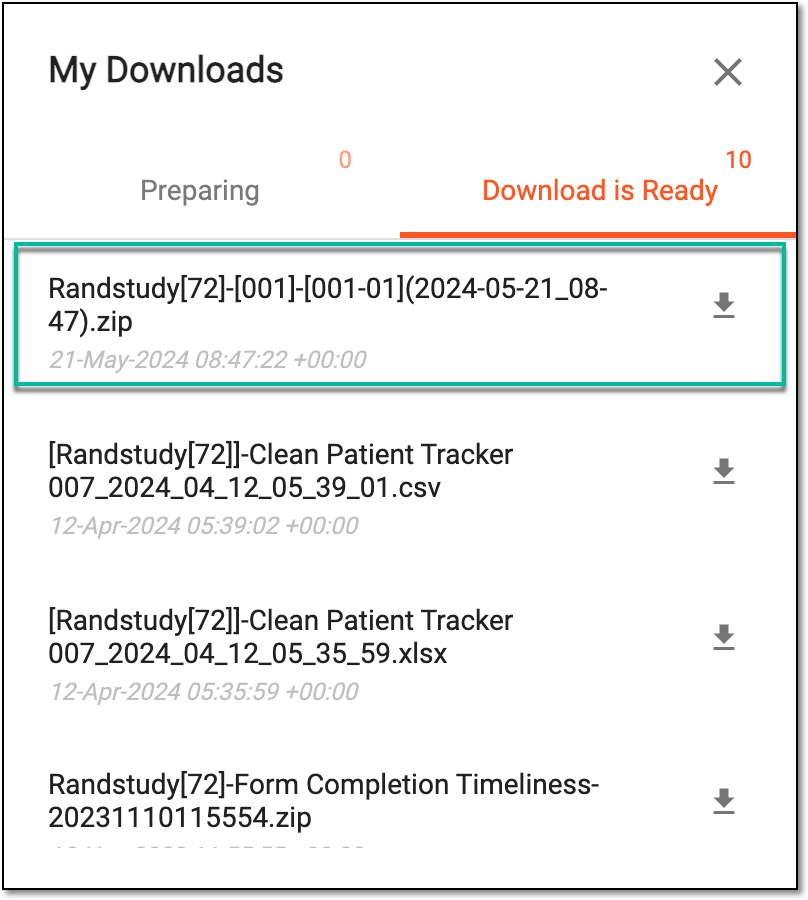 Figure 5. Viewing downloads
-
Once downloaded and saved, the subject details are now available on your computer in the PDF format. Each subject's file has the following sections:
-
A short introductory information on the study and subject.
-
An interactive table of contents to easily navigate the file.
Tip
If the subject has changed their sites, in the table of contents, the CRFs completed at the previous site are marked with an asterisk.
-
A complete list of the subject's CRFs with filled demographic, health, laboratory, and other data. Select GO next to any CRF record to open the respective form in EDC.
Tip
You need to enter your credentials to open EDC if you are not already authorized.
-
An audit report for all data entry and CRF status changes—review, signature, soft-lock, and so on. Select BACK next to any audit record to go to the respective CRF within the PDF file.