Configure raw data export file name
The Raw Data report is designed to display all the study data variables and their values. This exhaustive report can be a complete source of information on the study data. Thus, you can review the details online or use the exported report version to set up SAS listings or to reenter the data in another system.
Sometimes, you might need to customize the exported raw data file name to fit your requirements.
-
In the EDC application header, select the REPORTS tab.
-
On the page that opens, in the left pane, select the Data Summary subtab to expand the list of available reports and select Raw Data.
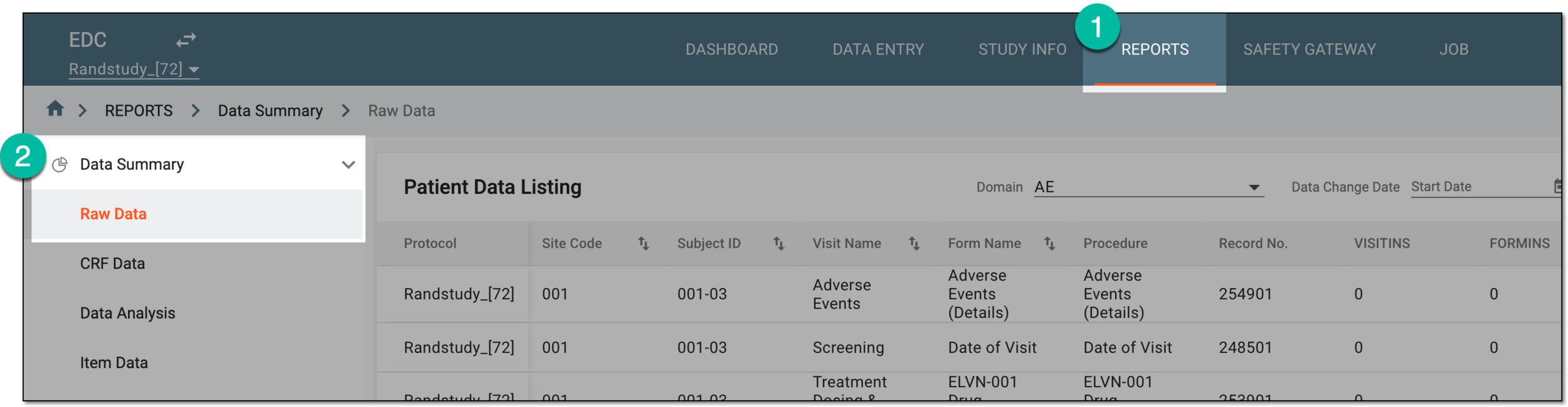 Figure 1. Accessing raw data report
-
On the Patient Data Listing page that opens, from the workspace toolbar, select Export
 > Export File Name Setting.
 Figure 2. Selecting to configure export file name
-
In the Export File Name Setting dialog that appears, enter the names for your different report versions.
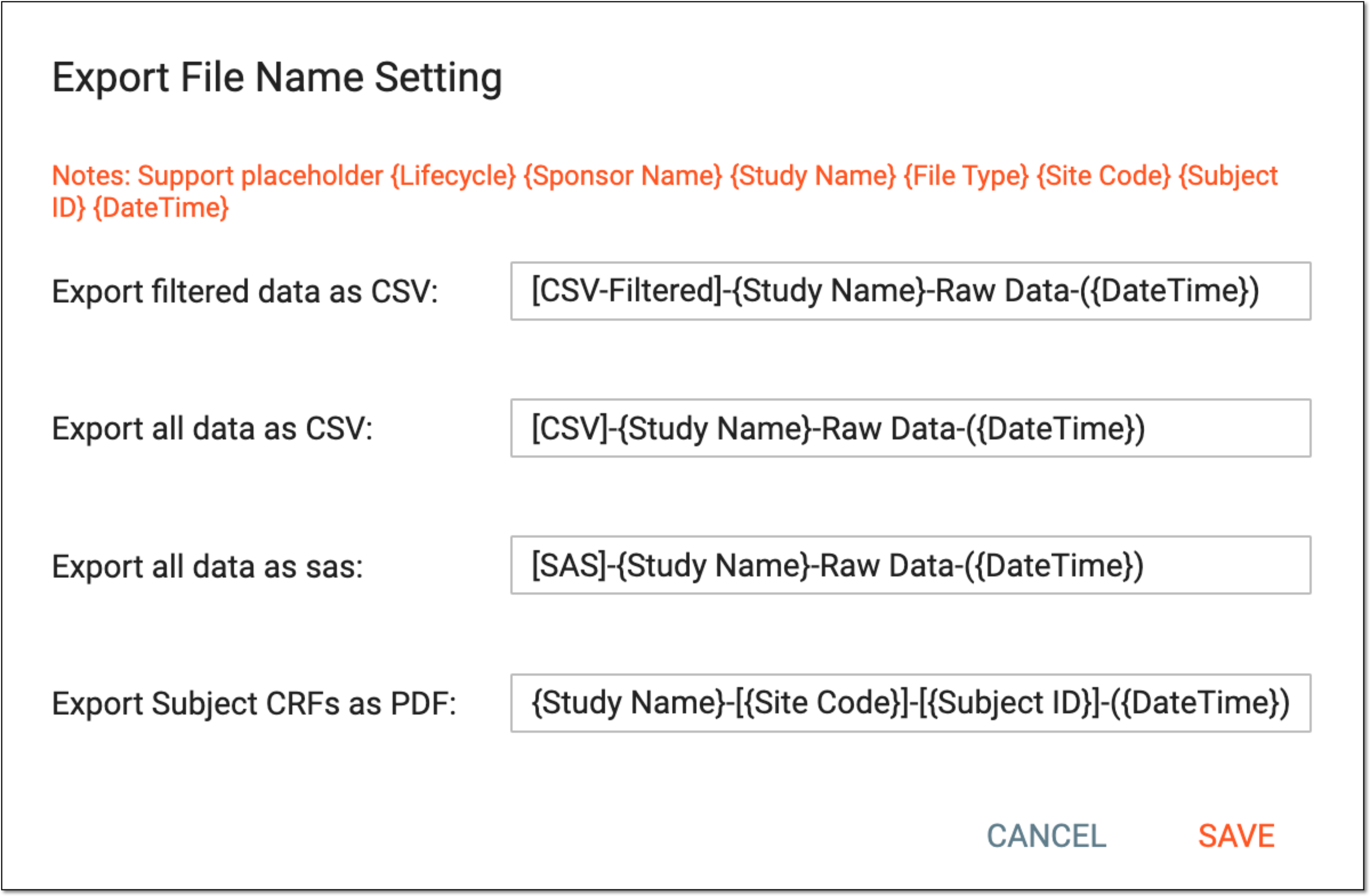 Figure 3. Configuring export file names
Tip
You can use placeholders, such as Lifecycle, Sponsor Name, Study Name, File Type, Site Code, Subject ID, and DateTime, that the system is to substitute with the relevant values upon report generation.
-
Select
 to save the implemented changes.
Once saved, the exported files now obtain the configured custom names.