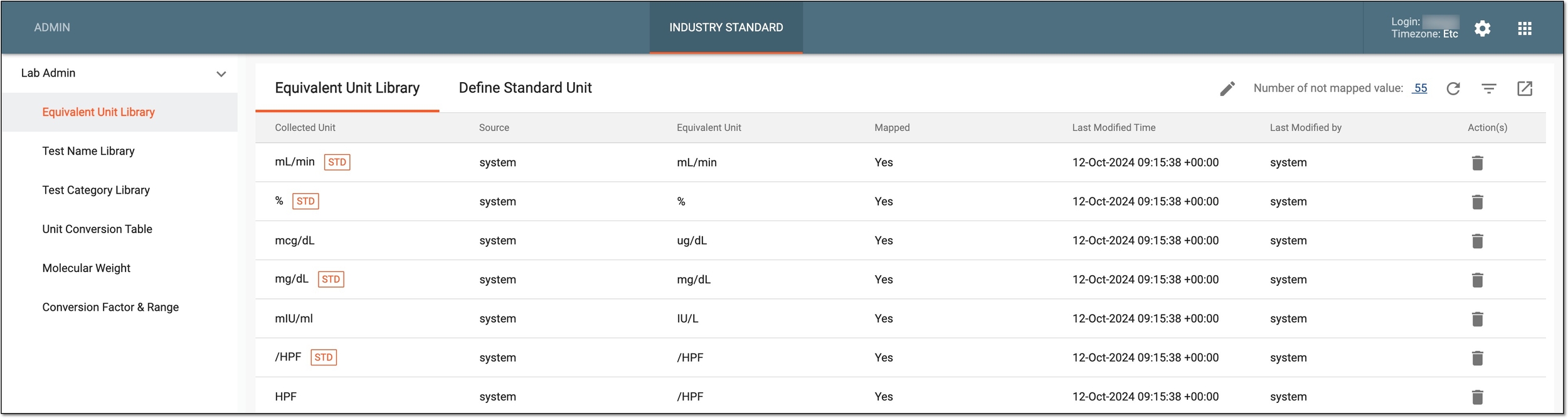
Configure lab data conversion setting for raw data export
The Raw Data report is designed to display the study data variables and their values collected via the case report forms (CRFs), including the laboratory data collected under the LB domain. By exporting the raw data with the LB domain selected, you can generate an exhaustive lab data report to use for medical review, regulatory inspections, reconciliation, and other needs.
In EDC, it is also possible to configure how the lab data is converted to its standardized version in the exported report.
-
In the EDC application header, select the REPORTS tab.
-
On the page that opens, in the left pane, select the Data Summary subtab to expand the list of available reports and select Raw Data.
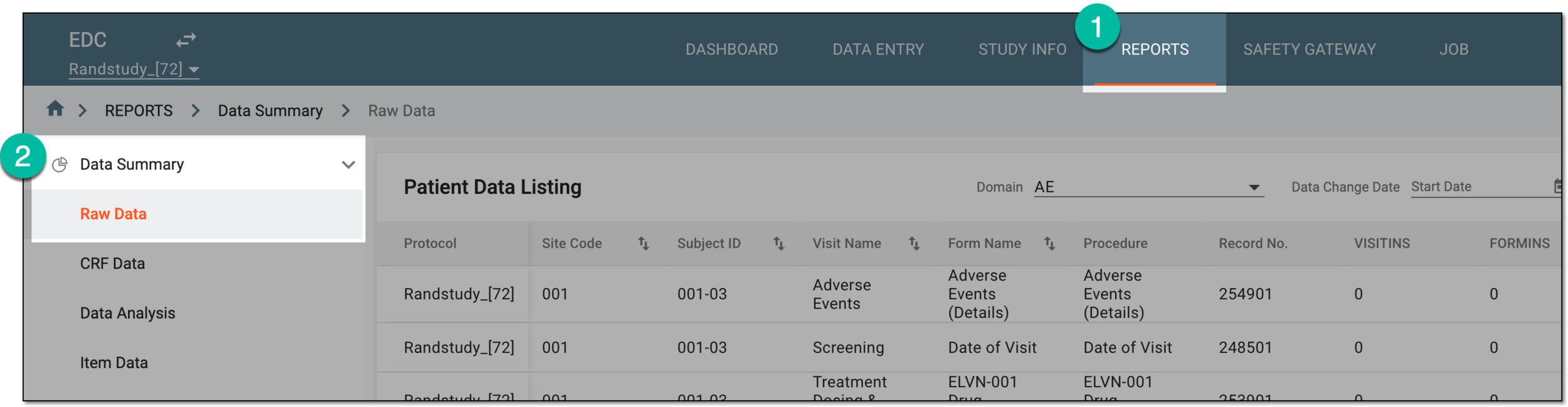 Figure 1. Accessing raw data report
-
On the Patient Data Listing page that opens, from the workspace toolbar, select Export
 and then the Setting for LB_SI_GR Export option.
 Figure 2. Accessing lab data export setting
-
In the Setting for LB_SI_GR Export dialog that appears, select one of the following options:
-
Based on global R script: the system exports the report containing the raw lab data converted into a standardized format according to the custom R script file uploaded to EDC to outline the lab data conversion parameters.
Tip
The R script can be prepared for your study by the EDETEK team. If you already have the R script, ensure to consult the EDETEK team to ensure its compatibility with system requirements.
-
Based on standard conversion in Lab Admin: the system exports the report containing the raw lab data converted into a standardized format according to the conversion parameters configured for the sponsor in Lab Admin.
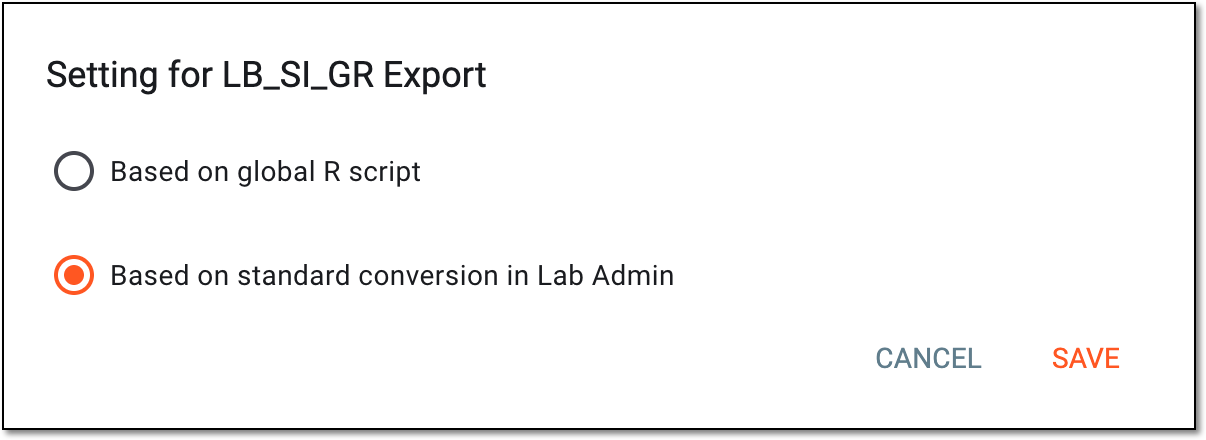 Figure 3. Configuring lab data export setting
-
-
Select
 to implement the configuration.
An individual piece of data collected within a domain. It represents a specific attribute or characteristic that can vary among subjects in a study. Each variable is defined by its format (such as categorical, continuous, and so on) and plays a crucial role in data analysis, allowing researchers to assess relationships and outcomes in the study.
For instance, within the "Demographics" domain, variables might include "Age," "Gender," and "Ethnicity."
A specialized document in a clinical trial designed to collect the subject data.
See also eCRF.
A specific area or category of data within a clinical trial that encompasses a set of related variables that share a common theme. Each domain organizes data to facilitate analysis and reporting, ensuring that information is structured and easily interpretable.
For example, in a clinical trial, domains might include demographics, efficacy, safety, and laboratory results.
A module of the eClinical administrative system that enables users to configure and maintain laboratory test assessment and unit conversion rules for the EDC application to follow.