Generate CRF data report
In a clinical study, it is very useful to be able to analyze data on a certain CRF from all the sites and for all the subjects in one place in a convenient structured format. This report is designed to display the input data according to the CRF structure.
Tip
The CRF data in the report is provided in the site's primary language—which can differ from the study language—as the site's primary language is the original language of data entry.
-
In the EDC application header, select the REPORTS tab.
-
On the page that opens, in the left pane, select the Data Summary subtab to expand the list of available reports and select CRF Data.
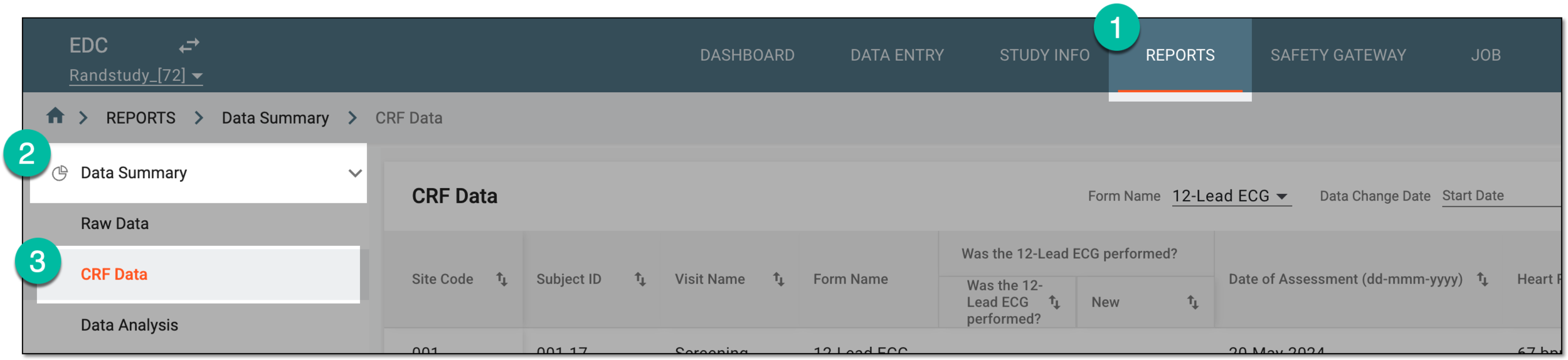 Figure 1. Accessing CRF data report
-
On the page that opens, sort the report by the CRF of your interest using the Form Name filter. In the resulting report table, you can view at what sites and for which subjects this CRF is completed as well as review all the input data.
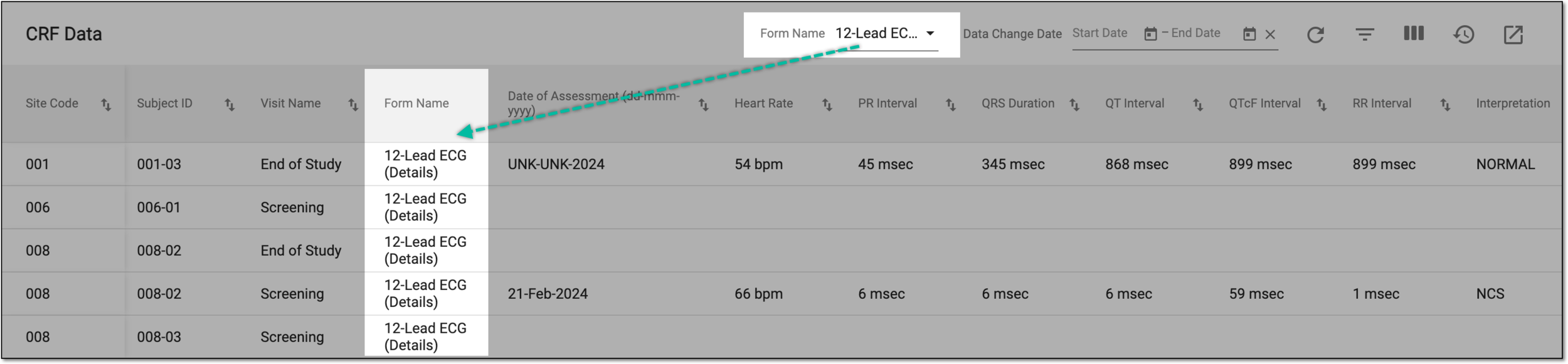 Figure 2. Selecting form
Important
For blinded users, the forms with sensitive data—for instance, disclosed subject test details—do not appear in the Form Name dropdown list.
-
To generate the report containing only newly created or modified records within the specified interval, above the report table, use the Data Change Date filter. Select the desired start and end dates, and in the report, see all the data modified within the specified time frame.
 Figure 3. Sorting report data by date
-
To generate an even more detail-oriented report, enable Filter
 and select the needed parameters. You can also save custom filter
settings for future use to aid your routine tasks within this report.
and select the needed parameters. You can also save custom filter
settings for future use to aid your routine tasks within this report.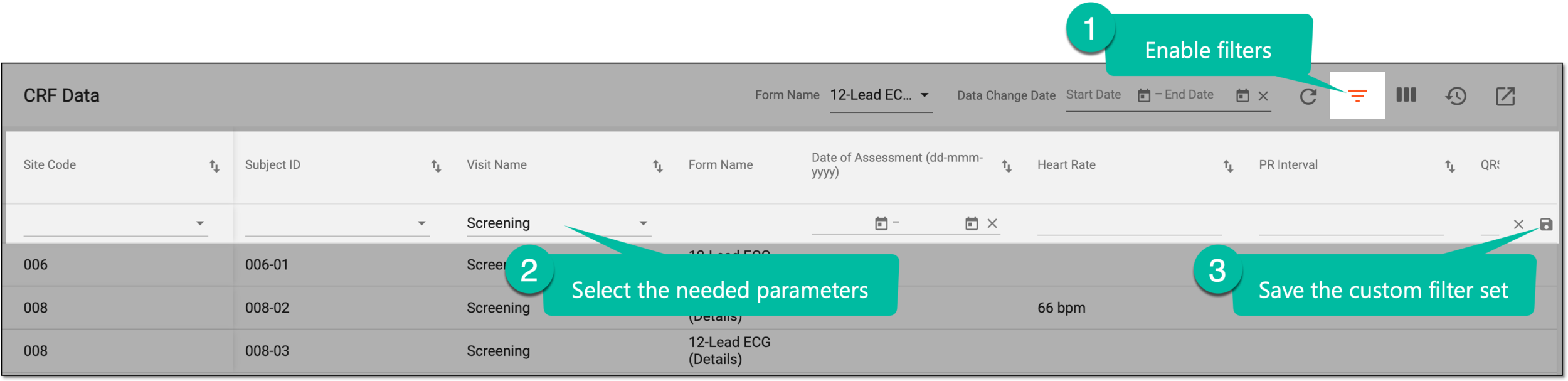 Figure 4. Filtering report data and saving custom filters
Tip
You can save multiple custom filter sets or delete the unused ones. To apply the custom filter set and sort the report, select Filter
 and from the My Filters list that appears, select the previously saved configuration.
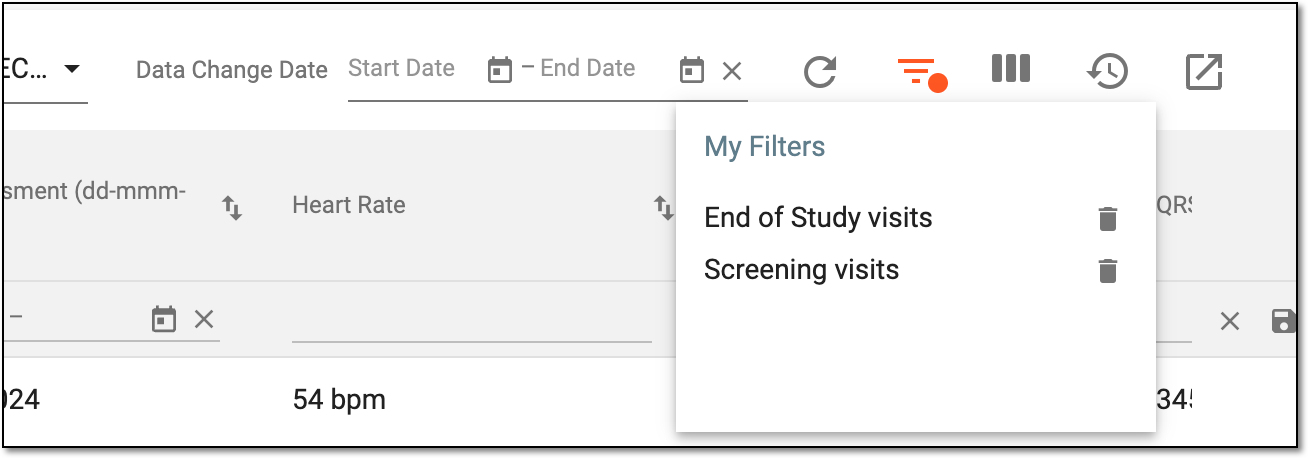 Figure 5. Accessing custom filter sets
You have generated the needed report data. Once the data is analyzed, you can leave the page or proceed with further suggested actions.