Generate data analysis report
In EDC, the Data Analysis report is a tool to review specific configurable data sets and generate charts to depict data fluctuations for overall statistics or individual subjects.
-
In the EDC application header, select the REPORTS tab.
-
On the page that opens, in the left pane, select the Data Summary subtab to expand the list of available reports and select Data Analysis.
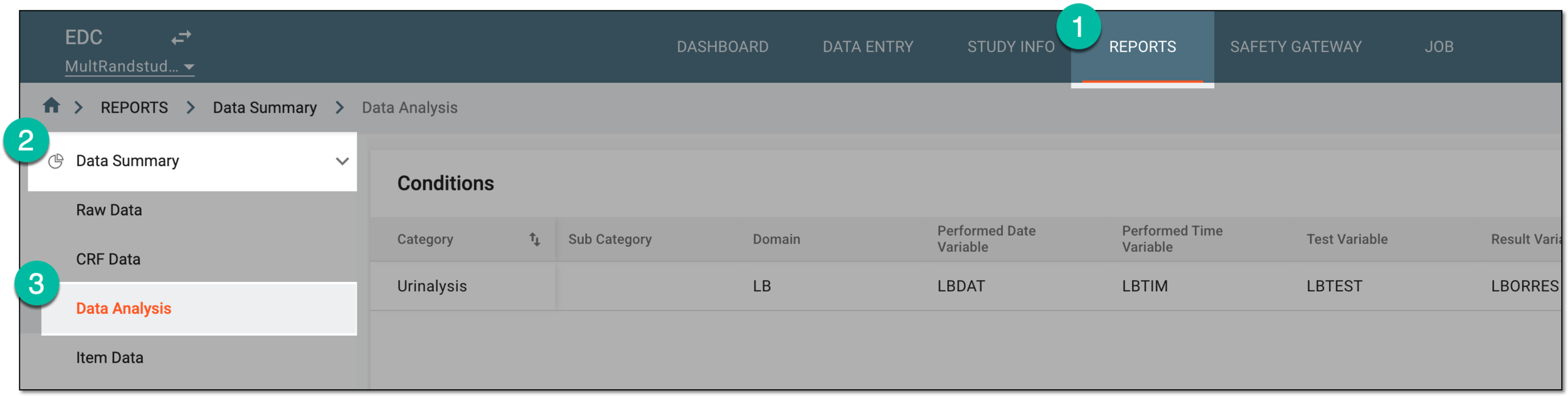 Figure 1. Accessing data analysis report
-
On the page that opens, on the workspace toolbar, select New Item
 .
. Figure 2. Selecting option to add data analysis report
-
In the New Data dialog that opens, enter the values of the report you want to generate as per your business needs.
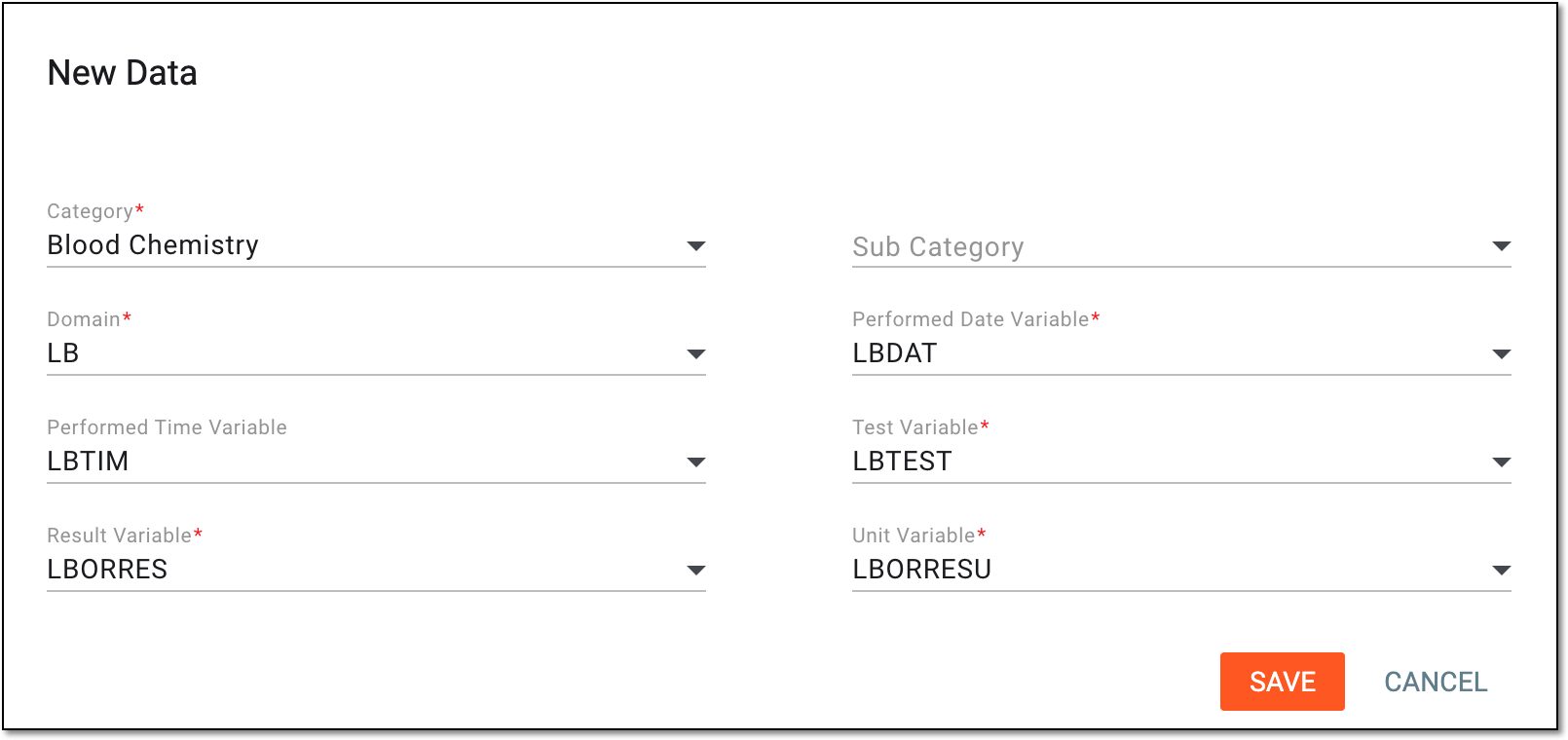 Figure 3. Setting data category and variables for analysis report
-
Select
 to save the implemented changes and generate the report.
Once saved, the new report is added to the system. You can now analyze the applicable data charts by selecting Charts  in the
Actions column next to the report.
in the
Actions column next to the report.

Tip
You can also edit the report data category and variables by selecting Edit  in the Actions column.