Upload custom lab grading script
Lab grading is the categorization of lab results into predefined levels to simplify the interpretation of laboratory data. It consolidates the landscape of numerical values into actionable insights that can guide study decision-making and research analyses. Grading the severity of abnormal lab values is typically guided by the protocol or other scientific criteria relevant to the study. Biostatisticians develop an R script to implement the grading scheme where they define criteria for abnormality levels based on the range of collected lab values as recorded in different CRFs.
A default R script is built into the EDC system for grading lab results. You can either use this script or upload the custom one that better aligns with your study's scientific or medical objectives. The script must contain instructions on how to assess collected lab data and what column to use for storing grades. A dataset with lab results is created within the raw data package where the dedicated column logs grades corresponding to each lab value.
-
In the EDC application header, select the STUDY INFO tab.
-
In the left pane of the page that opens, select Conversion > Conversion Define.
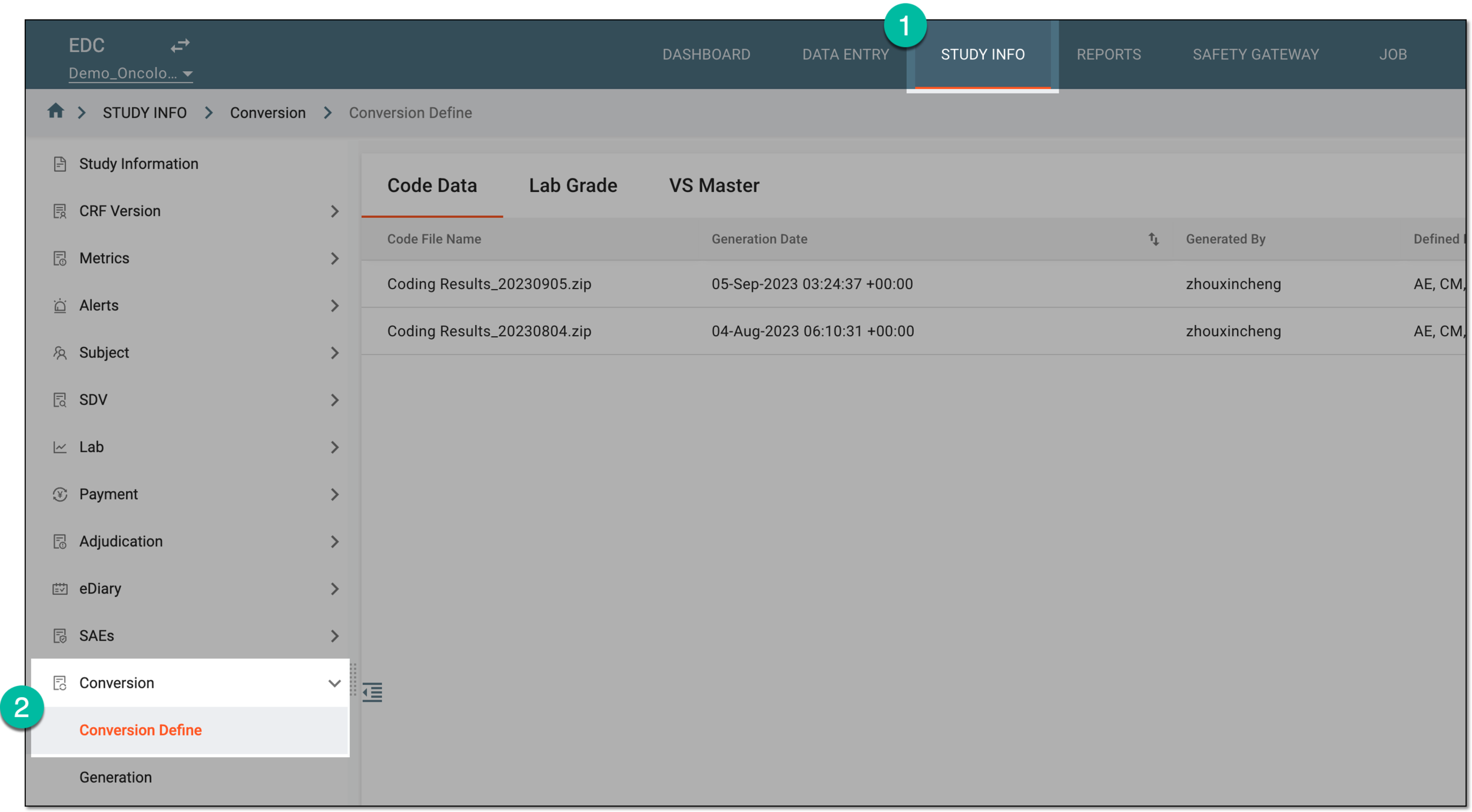 Figure 1. Accessing conversion definitions
-
In the contents panel that appears, select the Lab Grade tab.
-
From the workspace toolbar that appears, select Upload
 .
.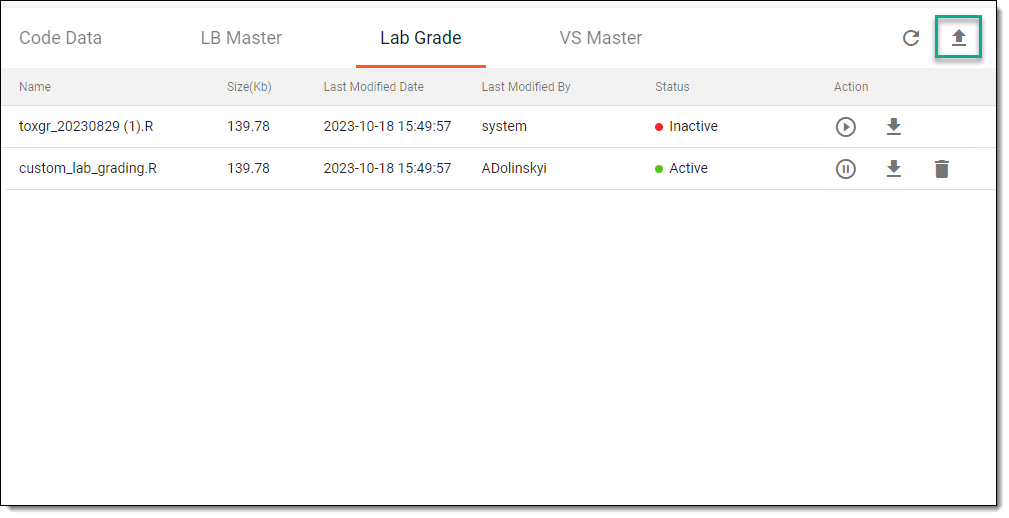 Figure 2. Selecting option to upload custom lab grading script
-
In the dialog that appears, browse your computer to locate and select the necessary R script.
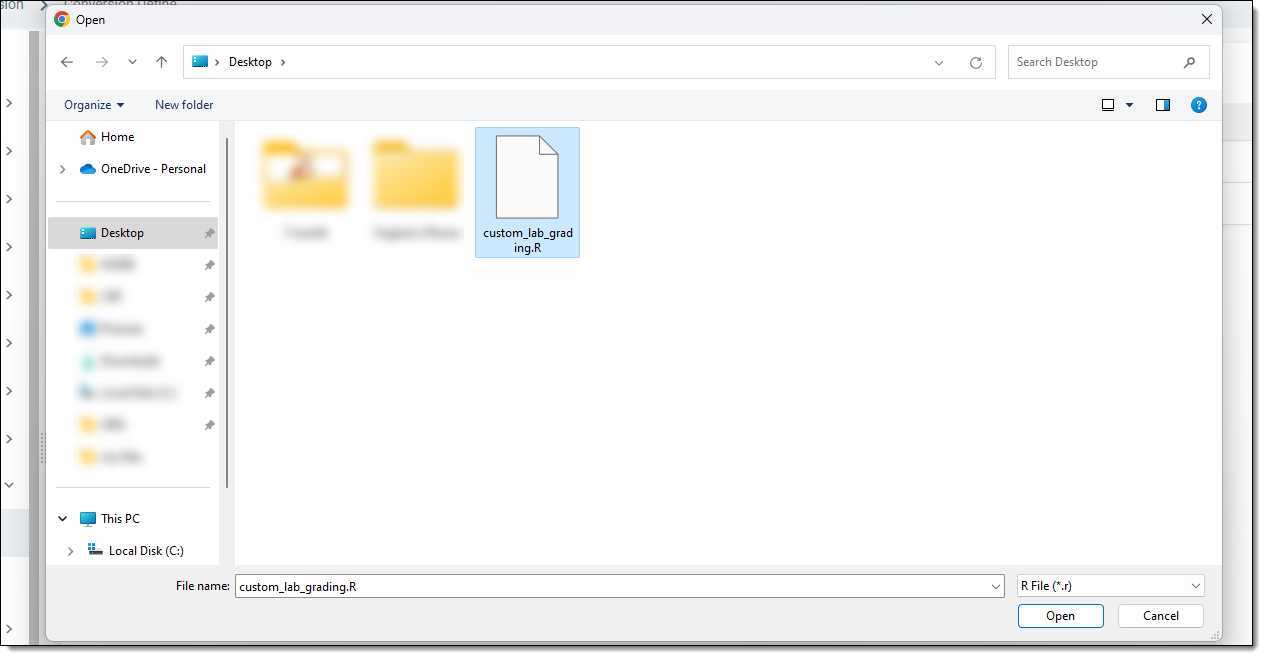 Figure 3. Uploading custom lab grading script
Once selected, the custom lab grading script is uploaded. It becomes active and is used for grading lab data by default.