Raw data generation
The generation of a raw data package helps researchers to create a ZIP archive after all necessary data standardization and conversion settings are applied. This ensures that the raw data is transformed in accordance with predefined configurations before being compiled into datasets. It minimizes the risk of data discrepancies stemming from manual handling, ensuring that the data remains standardized for subsequent analysis and interpretation within the study context.
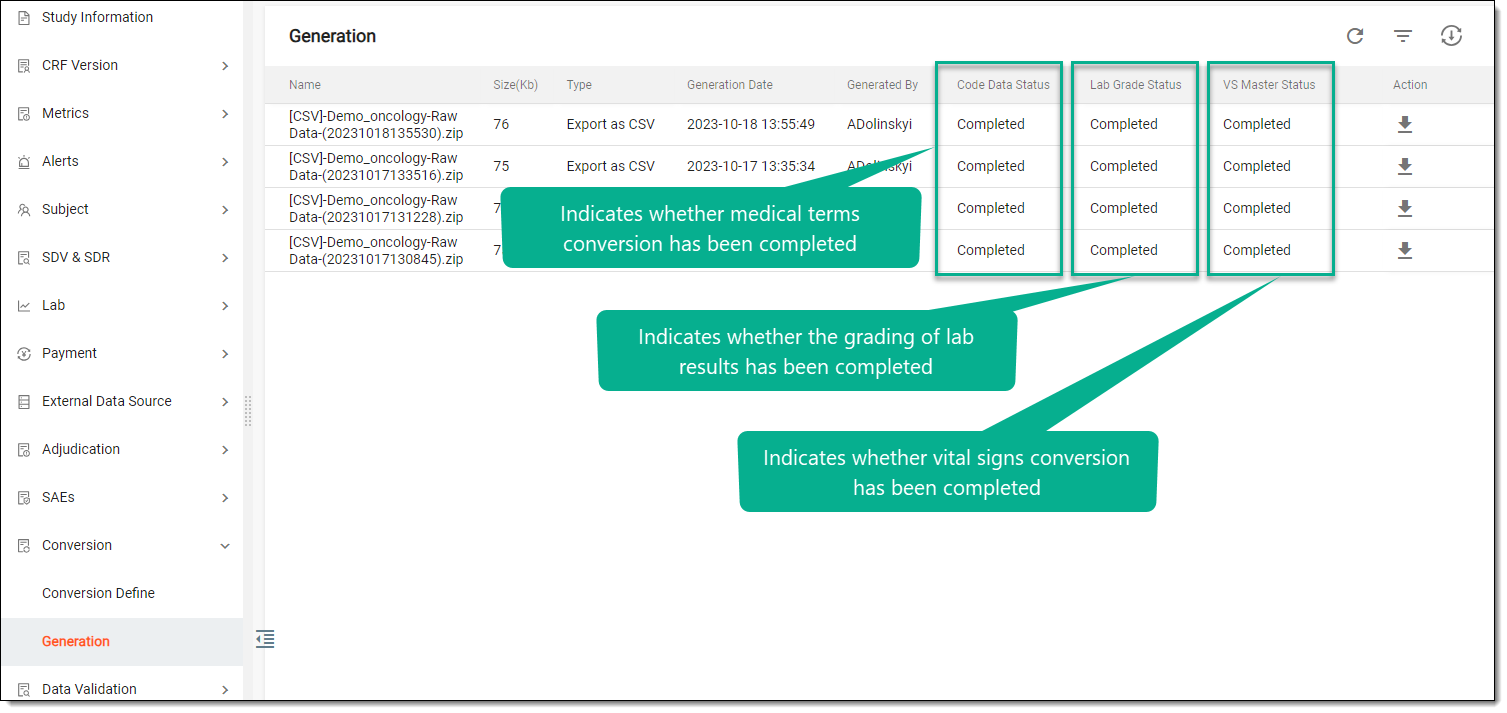
Before you proceed with generating a raw data package, you can apply the available conversion settings:
-
Raw data coding: to convert subject-related data (for example, AE definitions) into globally recognized medical terms.
-
Lab grading: to assess lab data according to the predefined grading system.
-
Vital signs standardization: to convert vital signs measurements taken in the imperial system into their metric system equivalents.
Tip
It is not mandatory to use all available data standardization and conversion instruments before generating the raw data package. You can apply only those conversion settings that are relevant to your specific research objectives or data requirements.
When you initiate the generation of a raw data package, the system performs a variety of steps to convert and assemble the data into organized datasets. The process involves the following stages:
-
The system converts subject-related data (for example, AE definitions) into globally recognized medical terms. This occurs only if the data coding is defined and mapping columns generated. If no such configurations are in place, this step is bypassed.
-
The system checks if there is an active lab grading script that can be sourced for assessing lab data according to the predefined grading scheme. If there is no active script, this step is bypassed.
-
The system converts vital signs measurements taken in the imperial system into their metric system equivalents if the vital signs unit mapping is defined. If no mapping has been previously applied, this step is bypassed.
-
The system compiles the original and converted subject data into datasets and places them into a ZIP package.
-
In the EDC application header, select the STUDY INFO tab.
-
In the left pane of the page that opens, select Conversion > Generation.
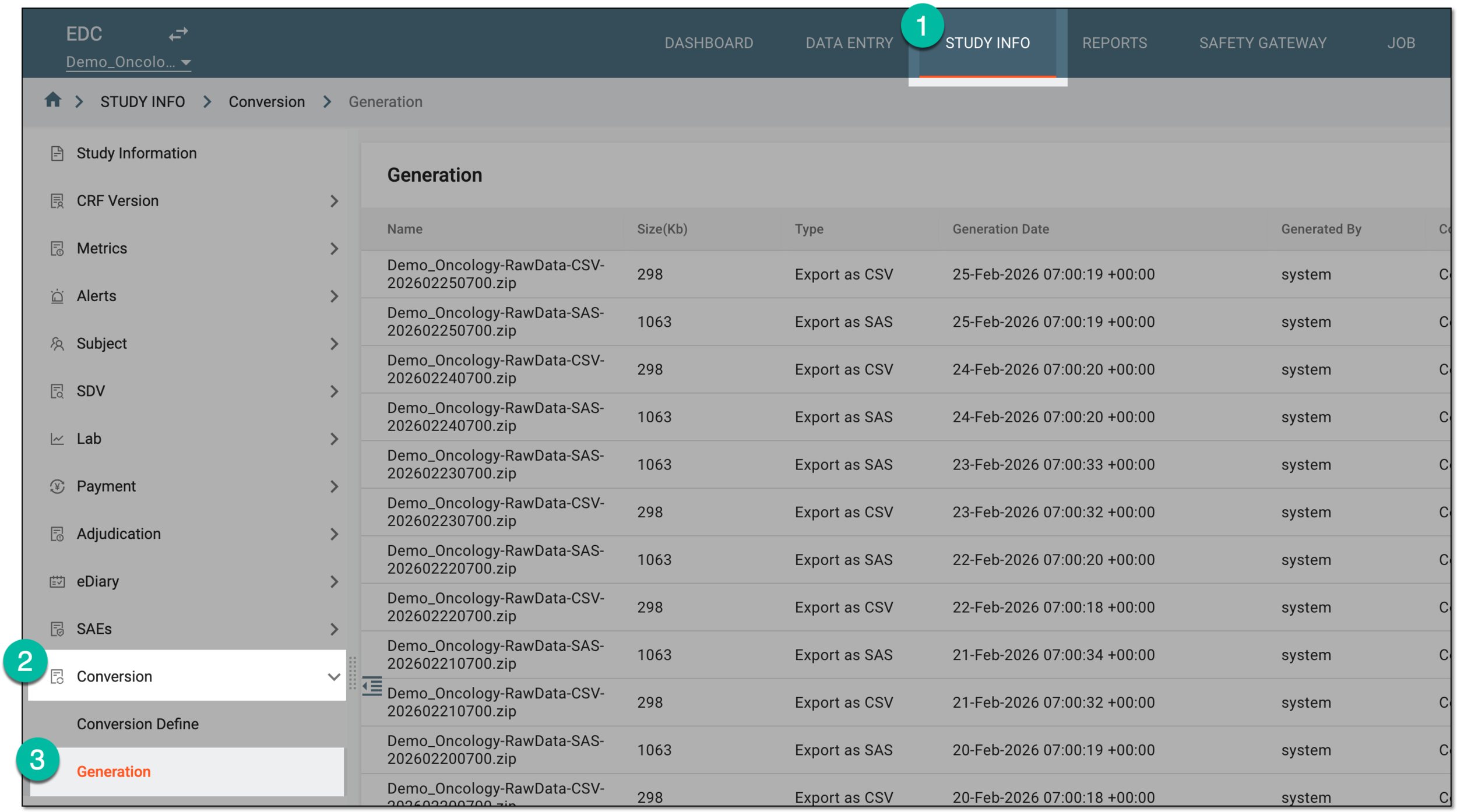 Figure 1. Accessing raw data generation
-
From the workspace toolbar of the table that appears, select Generate
 .
.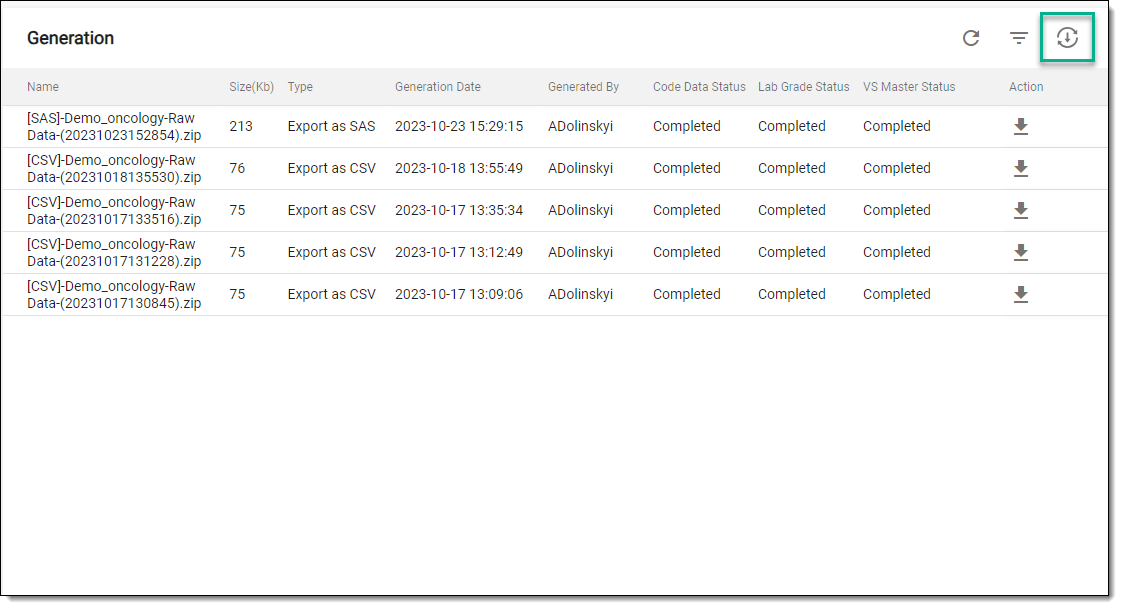 Figure 2. Selecting option to generate raw data package
-
In the Export dialog that opens, select the format in which you want datasets to be exported in the generated ZIP package. Then select
 .
.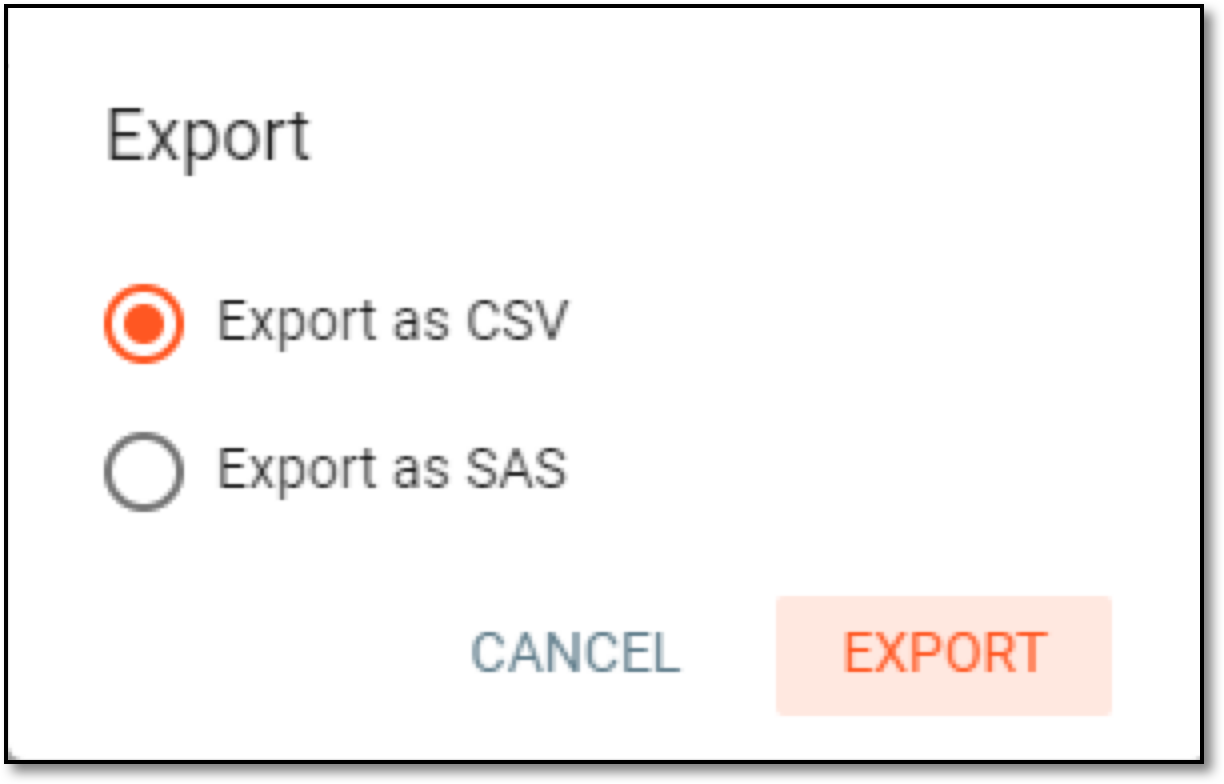 Figure 3. Selecting dataset format
-
In the confirmation dialog that opens, select
 to initiate raw data package generation.
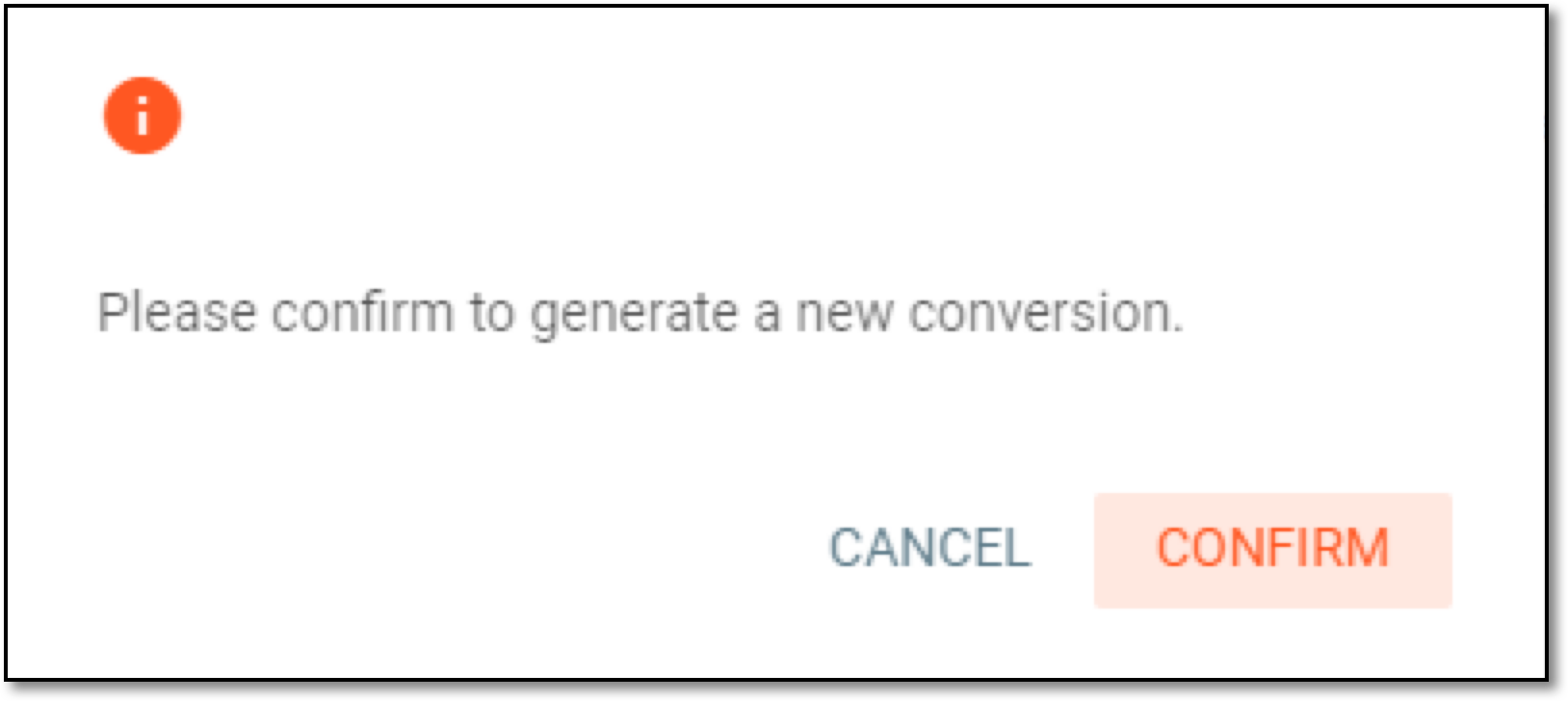 Figure 4. Confirming raw data package generation
-
Wait for the system to generate a raw data package. You can observe a progress bar that appears on the page to be apprised of the package generation progress; the generation time depends on the size of the data file.
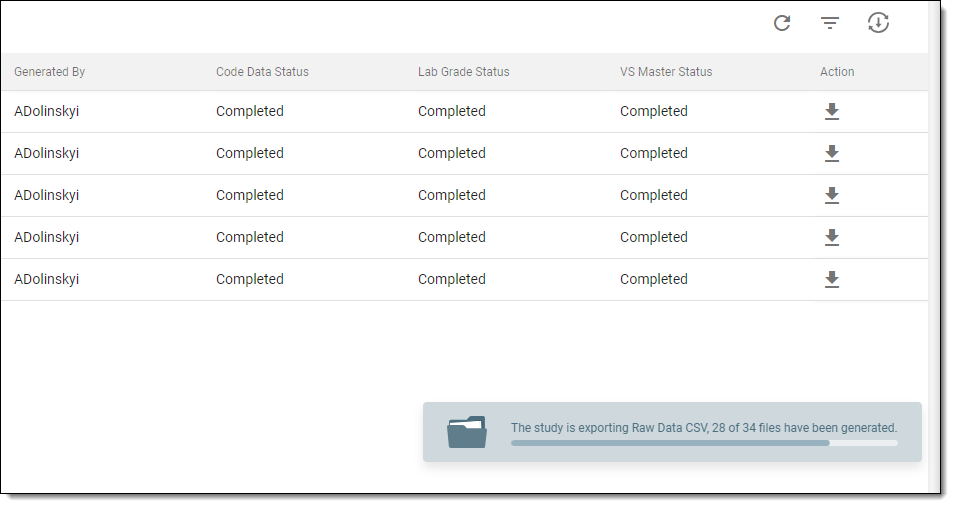 Figure 5. Raw data package generation progress
Once the process is completed, the raw data package is generated and it is ready to be exported.
After a raw data package has been generated, you can export the resulting ZIP archive to your computer to perform data analysis offline or share the package with other teams, clinicians, or third-party data analysts. The archive contains multiple datasets in the CSV or SAS format depending on the file type selected during package generation.
-
In the EDC application header, select the STUDY INFO tab.
-
In the left pane of the page that opens, select Conversion > Generation.
Figure 1. Accessing raw data generation
-
In the Generation table that appears, next to the raw data package you want to download, select Export
 .
.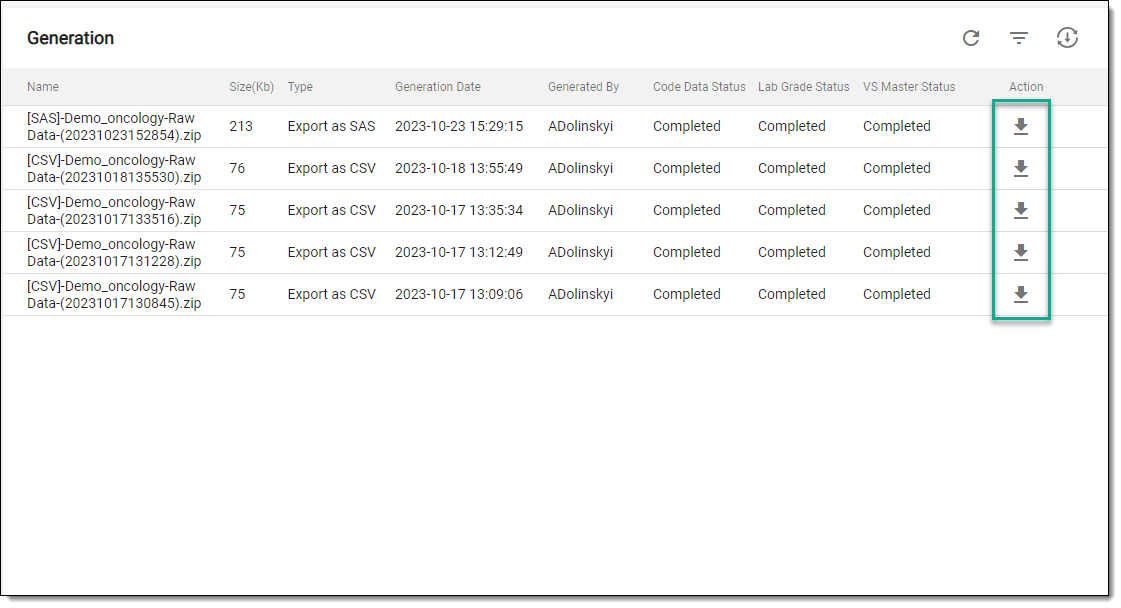 Figure 2. Exporting raw data package
-
In the Export dialog that opens, select one of the following exporting options:
-
Export Converted Raw Data: to download a ZIP file with datasets where the raw data and its converted counterparts are included.
-
Export Mapped Coded Data: to download an XLSX file containing decoded values from either MedDRA or WHODrug that are intended for standardizing medical terminology within the raw data.
Tip
This option is available only if the mapping columns are generated for the study.
-
Export Coded LB Master: to download an XLSX file containing unit specifications for lab data measurements.
Tip
This option is available only if there is LB domain data present for the study.
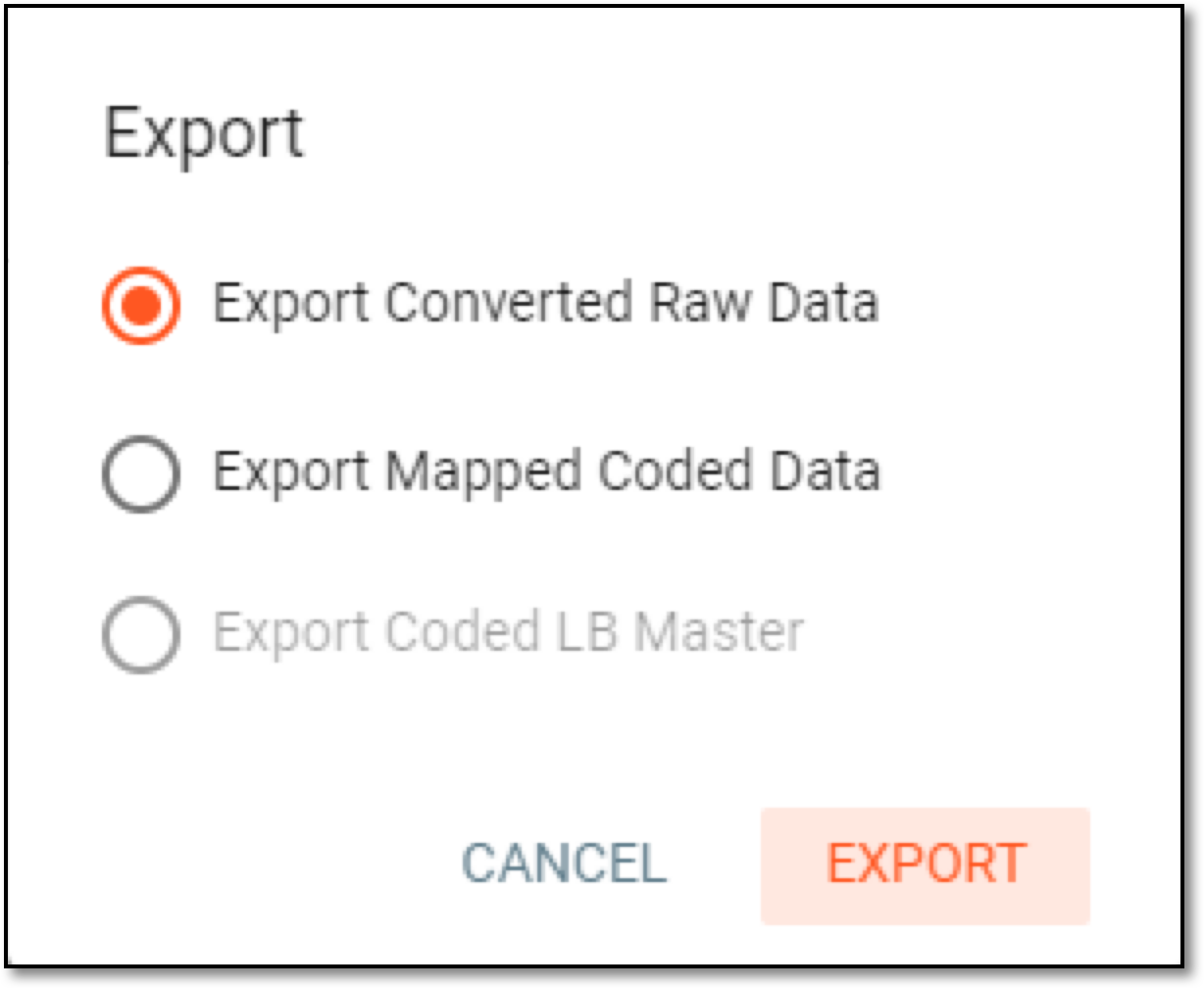 Figure 3. Selecting export option
-
-
Select
to download a raw data package.
Once selected, the raw data package is downloaded to your computer. You can now work with the datasets offline.