Raw data coding
In multicentric clinical trials, raw data can be gathered at various sites. Given that these sites can be located worldwide, the terms used for data recording can vary. It falls upon the medical coder to standardize data points so they can be universally understood, regardless of the original recording format. The MedDRA or WHODrug dictionaries serve as globally recognized frameworks for converting raw data into standardized medical coding terms, ensuring universal data comprehension and integration.
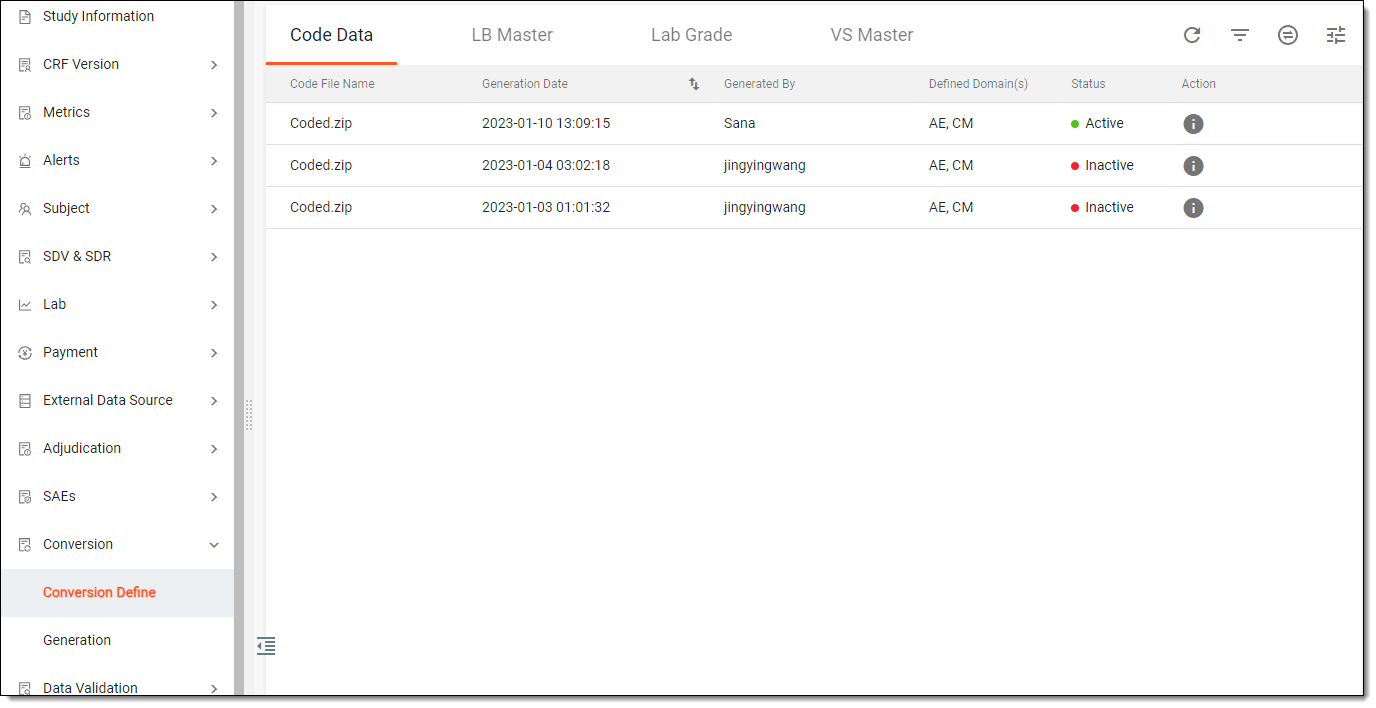
In EDC, the raw data is collected via CRFs during the data entry process and then stored in the local database. The EDC app provides a set of tools required to configure the automated conversion of raw data according to the MedDRA or WHODrug dictionary terminology. The following conversion settings can be applied in the suggested sequence:
-
Define data coding: select domains and variables whose data needs to be standardized according to the specified medical dictionary terminology.
-
Generate mapping columns: upload the file containing medical terms that have been used during data collection in EDC and need to be converted into standardized terminology. Once the file is uploaded, the system automatically generates new columns for each selected domain. These columns are intended for recording converted term values as per the selected dictionary.
-
Generate raw data package: generate data in a ZIP package after the necessary medical terminology conversion settings have been applied. The raw data is converted according to the defined configuration before being compiled into datasets. You can then share the generated package containing converted terms with other teams, clinicians, or third-party data analysts.
Tip
It is not mandatory to use the data coding feature before generating the raw data package. You can apply medical terminology conversion settings when they are relevant to your specific research objectives or data requirements.
The first step of configuring the automated raw data conversion according to the MedDRA or WHODrug dictionary is to define a data coding by selecting domains and necessary variables where the data needs to be standardized according to the globally recognized medical terminology.
-
In the EDC application header, select the STUDY INFO tab.
-
In the left pane of the page that opens, select Conversion > Conversion Define.
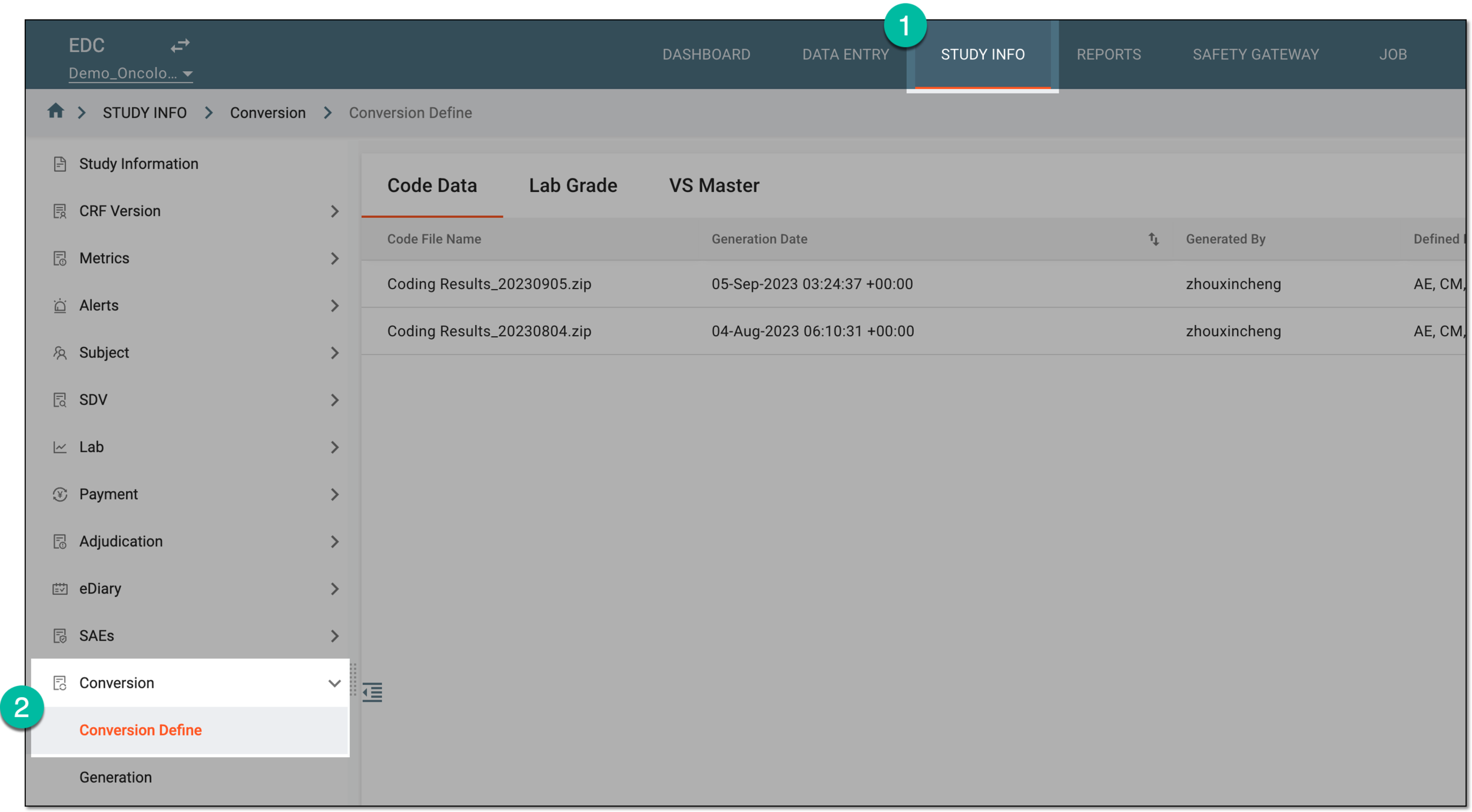 Figure 1. Accessing conversion definitions
-
Under the Code Data tab that opens by default, from the workspace toolbar, select Define
 .
.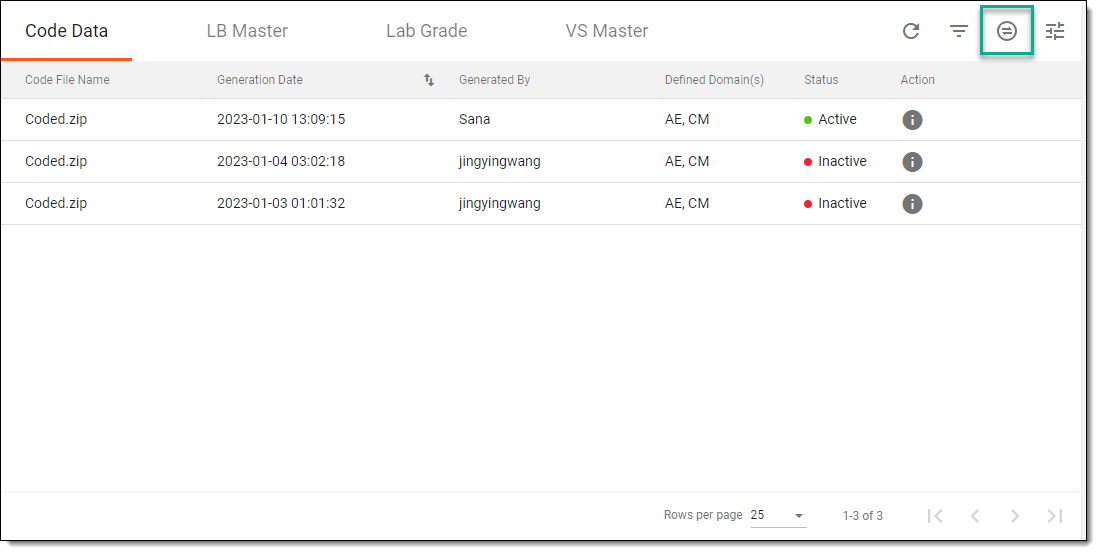 Figure 2. Selecting option to define conversion
-
In the Conversion Define dialog that appears, define data conversion configuration as explained in the following table.
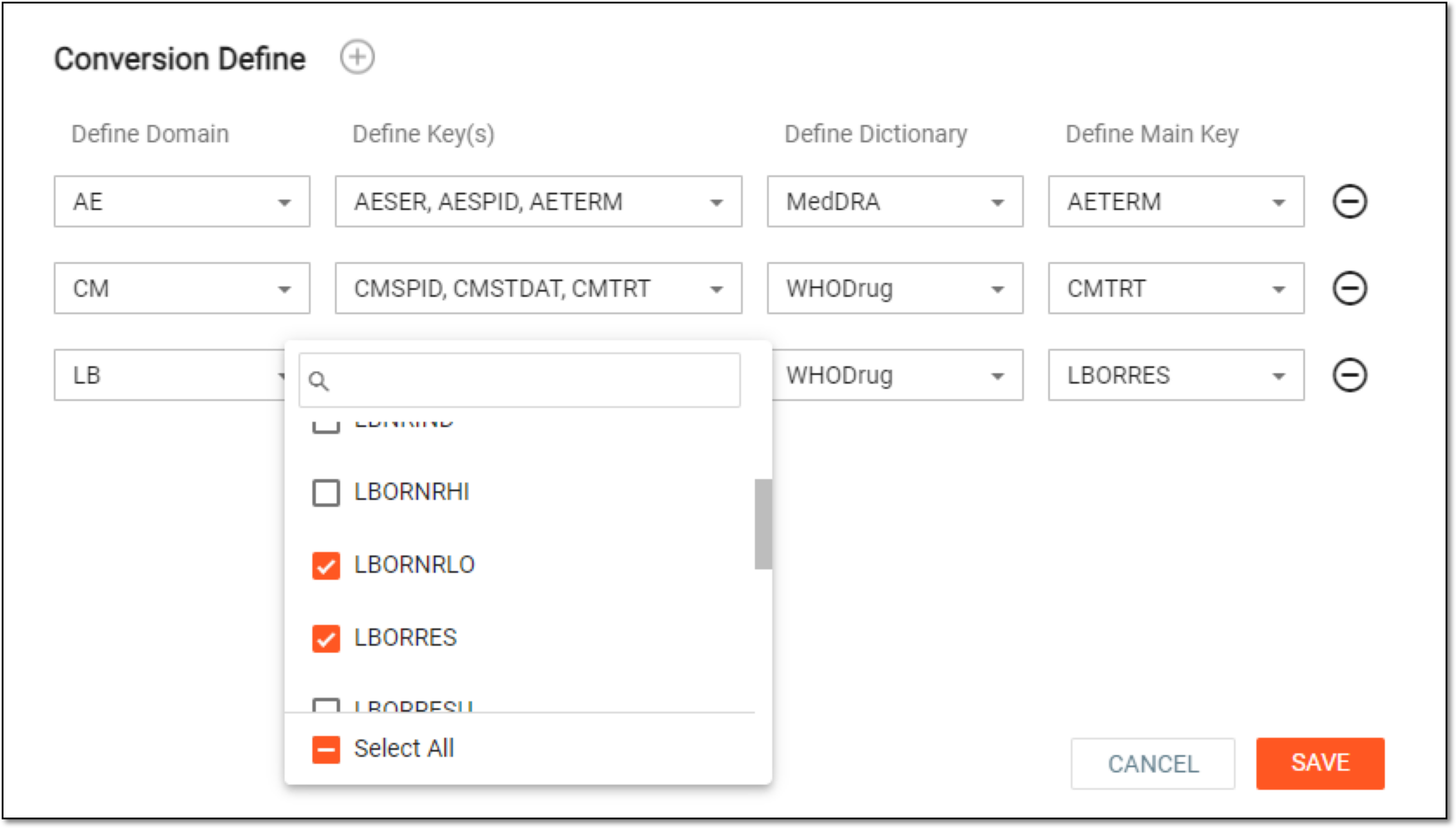 Figure 3. Defining data coding
Element
Details
Define Domain
Select the domain whose variables you want to translate into globally recognized medical terms.
Define Key(s)
Select unique domain identifiers that dictate how raw data needs to be translated from its original format into standardized dictionary terminology. You can start defining keys only after selecting a domain.
Define Dictionary
Select one of the following dictionaries according to which the data is to be converted in selected domains:
-
MedDRA: a standardized medical terminology and classification system primarily used for the registration, documentation, and safety monitoring of medical products. It is commonly employed to code adverse event data in clinical trials and post-marketing pharmacovigilance.
-
WHODrug: a dictionary that provides a standardized nomenclature and coding system for drug information. It is primarily used in the coding of medication data in clinical trials and pharmacovigilance.
Define Main Key
Select the main variable whose data is to be converted into standardized terminology and decoded in corresponding columns of the generated dataset. The system will query the selected dictionary library for the best match to decode each value during the generation of mapping columns. You can only select the main key from the list of previously defined domain keys.

Select the plus symbol to add a new row to the data coding configuration.

Select the minus symbol next to any existing row to remove it from the data coding configuration.
SAVE
Select
 to define data coding configuration.
CANCEL
Select
 to discard the changes.
 -
Once saved, the data coding configuration is defined. You can now generate mapping columns.
After defining the data coding, the primary conversion settings are applied, and you are ready to generate mapping columns by uploading the file containing medical terms used during data collection in EDC. The terms in this file are to be converted into standardized medical terminology as per the selected dictionary. Once the file has been uploaded, the system automatically generates new columns for each specified domain. These columns are required for the system to store converted and standardized term values.
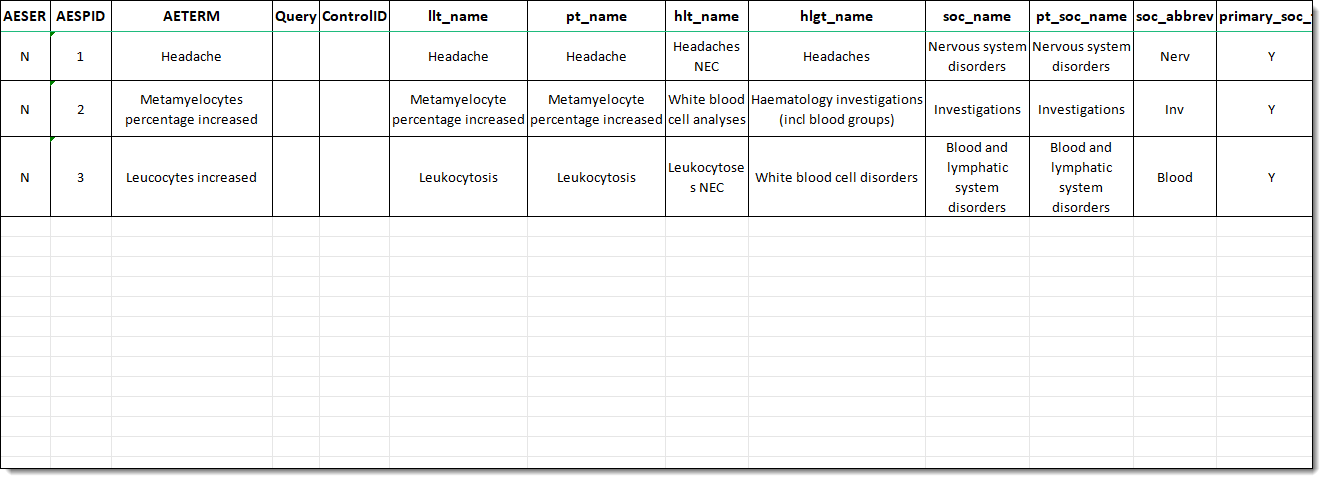
For example, you need to convert AE terms into standardized MedDRA format. In this scenario, the AETERM variable is defined as a main domain key. Once you upload the file containing AE terms listed under the AETERM column, the system undergoes the following steps:
-
Querying MedDRA: the system matches the provided terms in the AETERM column of the file with the corresponding terms in MedDRA.
-
Decoding terms: after finding the match, EDC receives decoded values at different hierarchical levels of the MedDRA dictionary.
-
Generating columns: the decoded values are added to the local EDC database, generating new columns to store these values.
When the system completes the process successfully, decoded information will be included in datasets with corresponding AE terms every time you generate a new raw data package.
-
In the EDC application header, select the STUDY INFO tab.
-
In the left pane of the page that opens, select Conversion > Conversion Define.
Figure 2. Accessing conversion definitions
-
Under the Code Data tab that opens by default, from the workspace toolbar, select Mapping
 .
.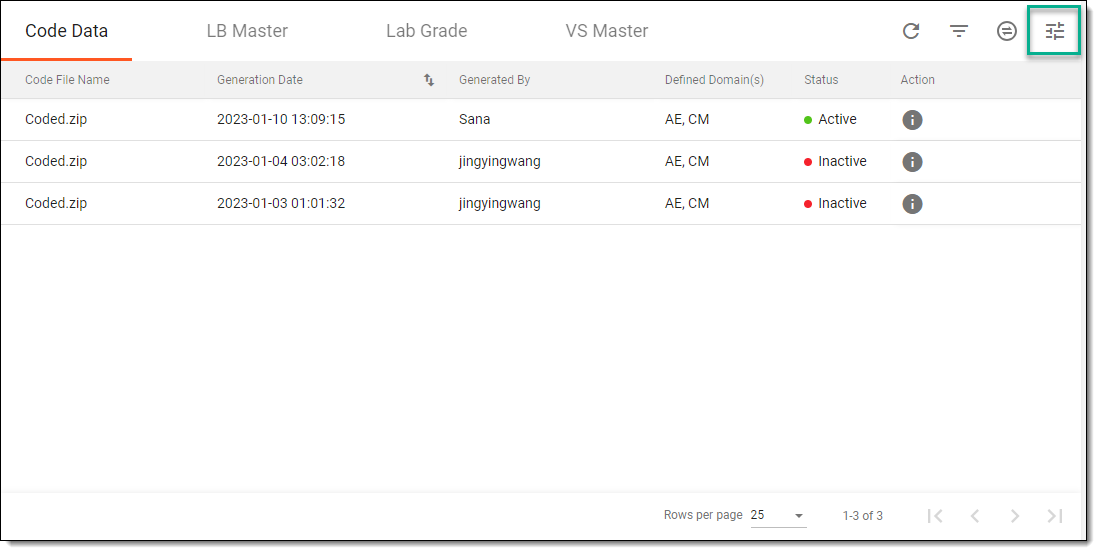 Figure 3. Selecting option to define conversion mapping
Important
Before using this feature, make sure that you have correctly defined data coding.
-
On the page that opens, select Upload
 and import a file with your study terminology pertaining to a specific domain or
domains.
and import a file with your study terminology pertaining to a specific domain or
domains.Important
The uploaded file must be in a ZIP format containing XLSX files. Each XLSX file needs to include data pertaining to one specific domain and be named in the following way: '{domain name}_coded'.
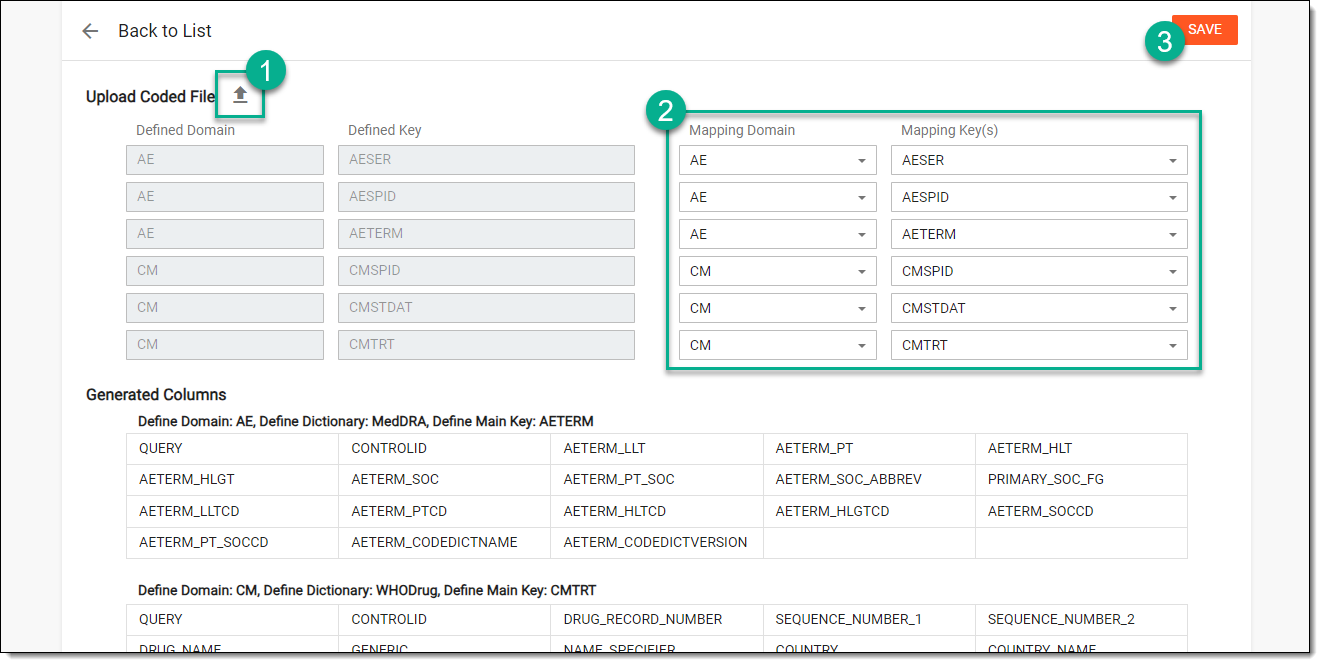 Figure 4. Uploading study terminology
-
After the file is uploaded and decoded, additional columns are generated. Review these columns for each domain and then update mapping keys if needed.
-
Select
to implement the changes.
Once saved, the mapping columns are generated and the previous data coding configuration becomes inactive. The system will now use the new configuration to generate a raw data package where the indicated terminology will be standardized according to the selected dictionary and decoded in newly generated columns in corresponding datasets.
The decoded data can be exported separately so you can check how your study terminology has been converted into standard MedDRA terms and decoded in newly generated columns.
After you generate mapping columns, the data coding configuration becomes active, making the previous one inactive. At any time, you can update column mapping if the changes have been introduced to the existing study terminology or data requirements.
-
In the EDC application header, select the STUDY INFO tab.
-
In the left pane of the page that opens, select Conversion > Conversion Define.
Figure 1. Accessing conversion definitions
-
Under the Code Data tab that opens by default, select View
 next to the
active data coding configuration.
next to the
active data coding configuration.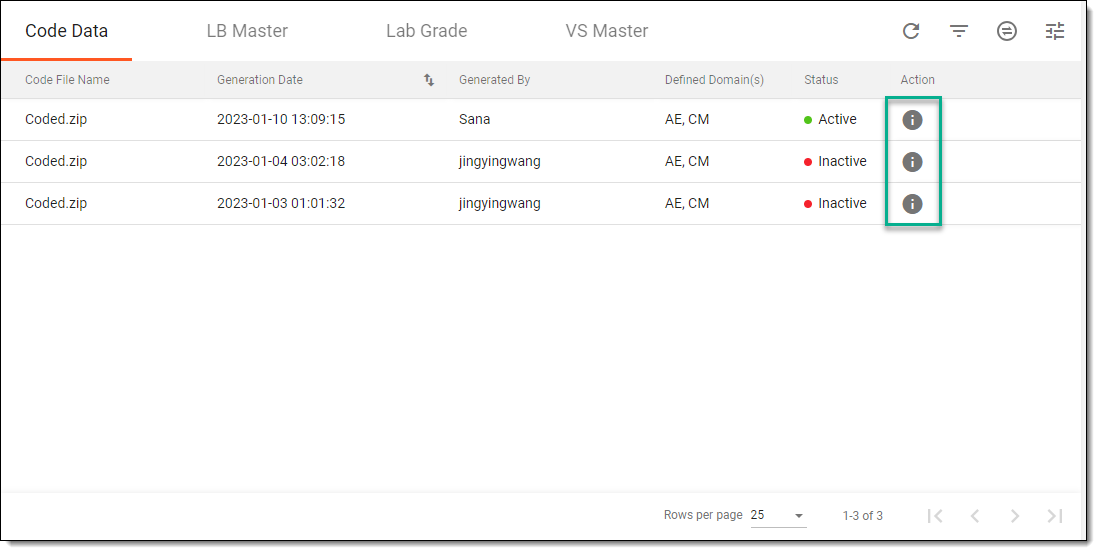 Figure 2. Selecting option to update data coding
Tip
For inactive data coding configurations, selecting the View option opens the page where you can only preview old settings. No changes can be introduced to inactive configurations.
-
On the page that opens, update mapping domains and keys as needed and select
.Important
To avoid corrupting the conversion, it is recommended to leave the selected values in the Mapping Domain and Mapping Key(s) fields as is. However, you can update the existing configuration in case you need to map new columns.
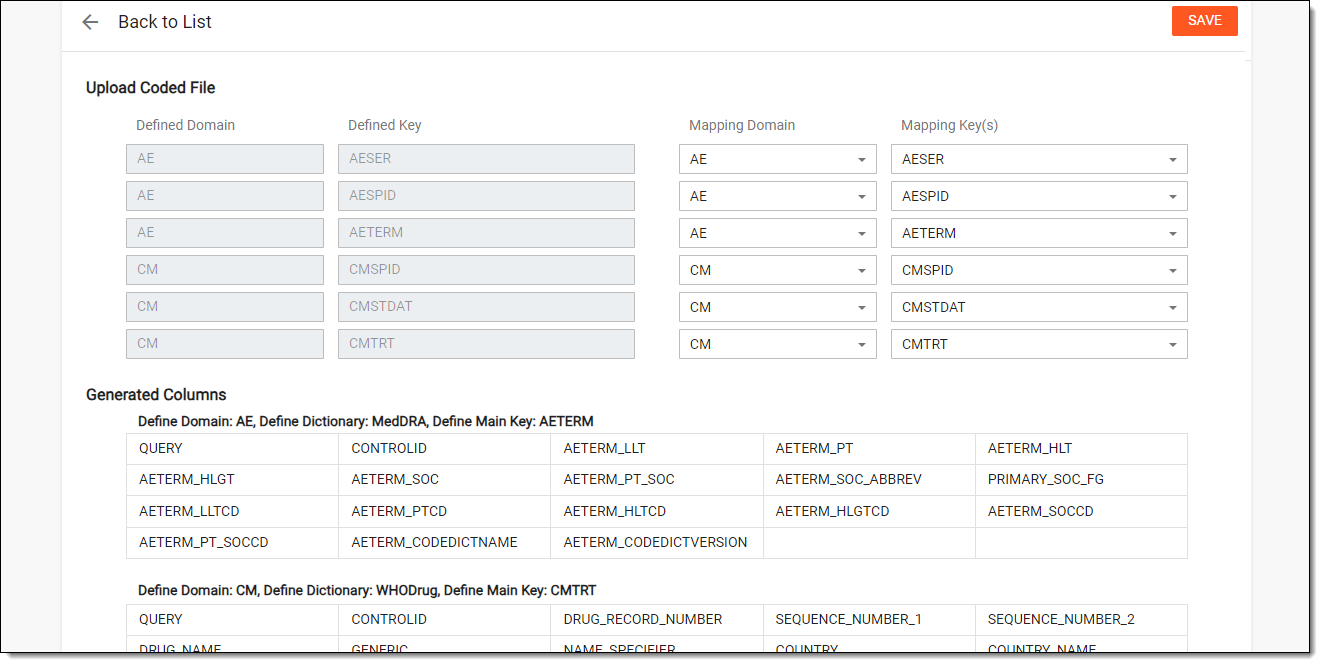 Figure 3. Updating mapping columns
Once saved, the column mapping is updated for the active data coding configuration.