Generate raw data report
The Raw Data report is designed to display all the study data variables and their values collected via the case report forms (CRFs). The report only shows the data from the submitted CRFs, meaning that the report does not account for the data from the forms that are saved as drafts and not yet finalized. This ensures data clarity as it prevents displaying temporary data entries that can be changed or removed upon actual form submission. This exhaustive report can be a complete source of information on the study data. Thus, you can review the details online or use the exported report version to set up SAS listings or to reenter the data in another system.
Tip
If you generate and export the report but do not have permission granted to your user role to see some blinded data, the respective values are displayed as blank in the system and the exported file.
The raw data in the report is provided in the site's primary language—which can differ from the study language—as the site's primary language is the original language of data entry.
-
In the EDC application header, select the REPORTS tab.
-
On the page that opens, in the left pane, select the Data Summary subtab to expand the list of available reports and select Raw Data.
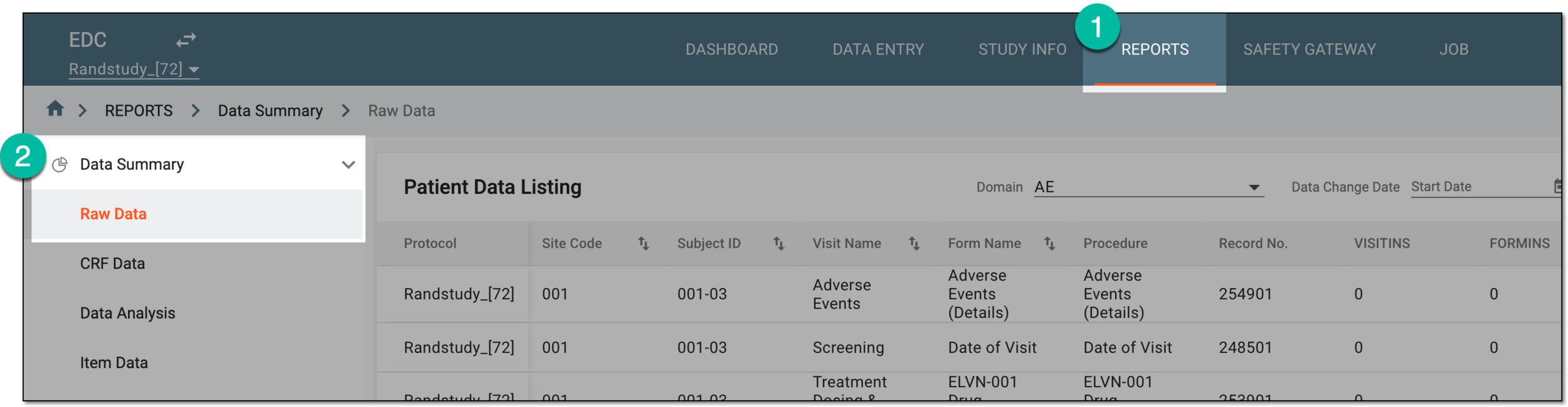 Figure 1. Accessing raw data report
-
On the Patient Data Listing page that opens, apply the following sorting instruments to generate your report.
-
To review the raw data for a specific domain, from the Domain dropdown menu, select the domain name of your interest. In the resulting report table, you can view the respective data.
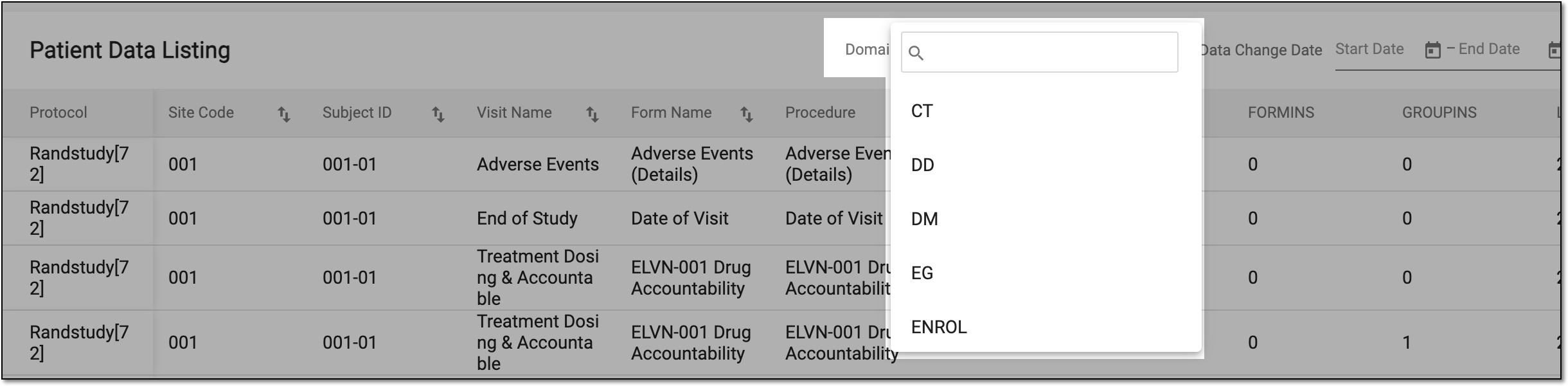 Figure 2. Selecting domain
Important
For blinded users, the domains containing all blinded form data do not appear in the Domain dropdown list.
For the LB (lab data) domain, it is possible to configure the lab data conversion settings.
-
To generate the report containing only newly created or modified records within the specified interval, above the report table, use the Data Change Date filter. Select the desired start and end dates, and the report data is sorted accordingly.
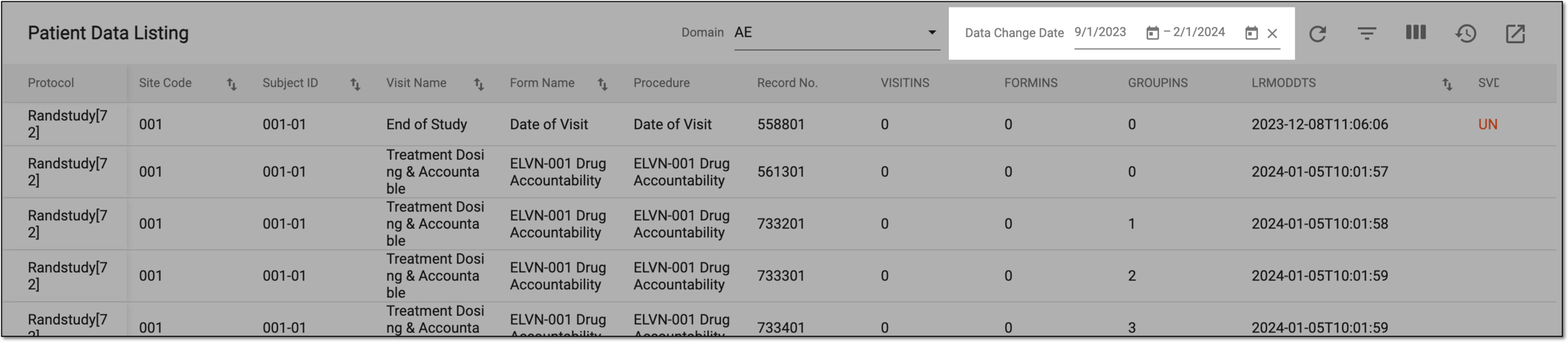 Figure 3. Sorting report data by date
-
To generate an even more detail-oriented report, enable Filter
 and select the needed parameters. You can also save custom filter settings for future use to aid your routine tasks within this report.
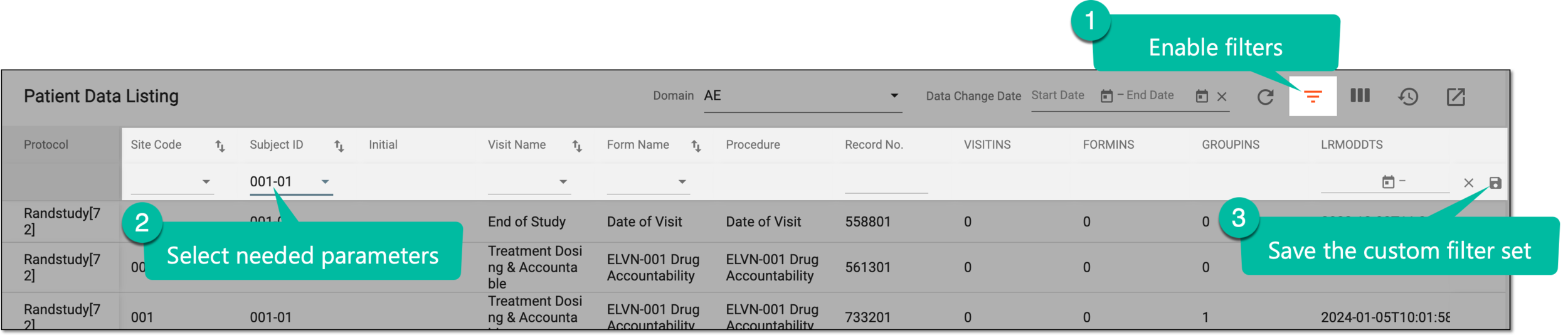 Figure 4. Filtering report data and saving custom filters
Tip
You can save multiple custom filter sets or delete the unused ones. To access the custom filter sets, select Filter
 and from the My Filters list that appears, select the previously saved configuration.
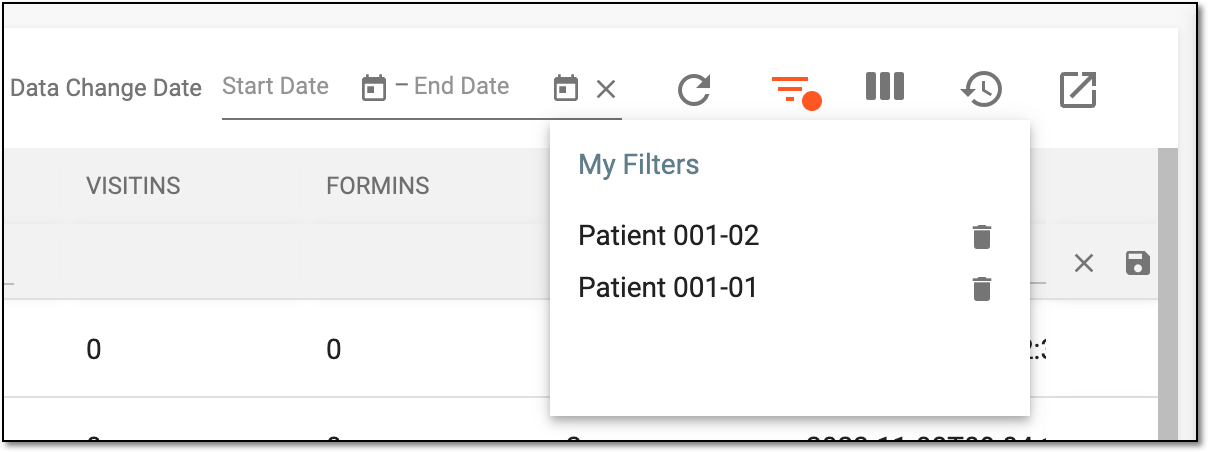 Figure 5. Accessing custom filter sets
-
You have generated a raw data report that you can analyze as needed. You can also export the report to your computer.