Configure dispatch integration setting
The integration enables the automation of data transfers between IWRS and various vendor data providers. Currently, the shipment data exchange is supported via integration. To establish the shipment data providers for your study, you add the respective vendors to the list of integrations and configure their integration settings.
One such integration type is dispatch integration based on which the system extracts the dispatch file on the shipments from the vendor's server and populates the data in IWRS for further shipment management. You can configure as many dispatch integrations as needed for your study based on the number of depots or depot groups whose shipment data must be extracted from a vendor.
Important
You can only configure dispatch integrations if this option is enabled for the vendor.
-
In the IWRS application header, select the INTEGRATION tab.
-
From the left pane, select the Integration Setting subtab.
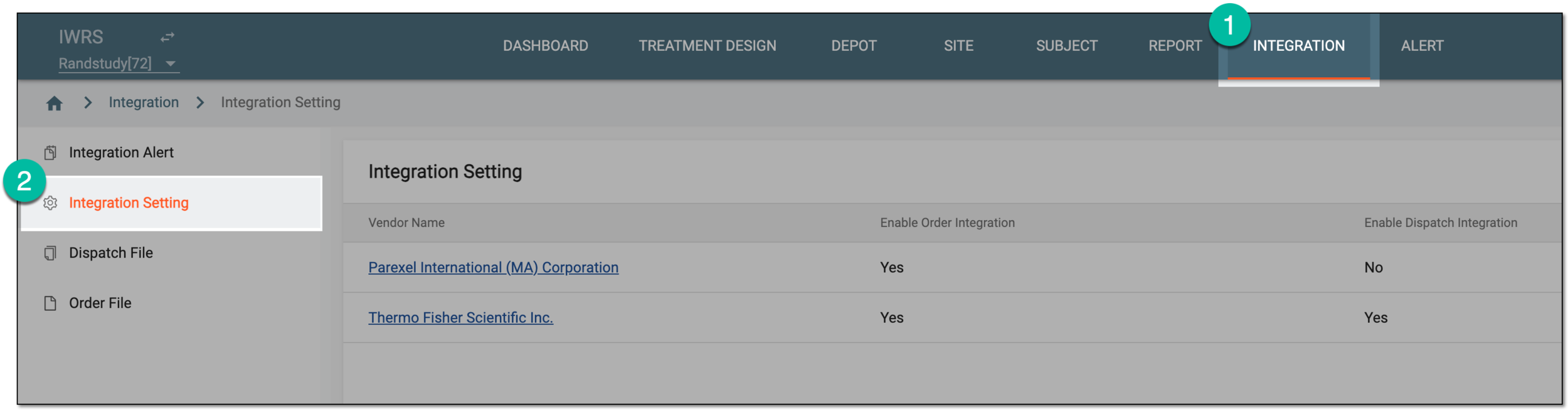 Figure 1. Accessing integration setting
-
In the Integration Setting table that appears, locate the vendor for whom you want to configure dispatch integration and from the Vendor Name column, select the hyperlink.
 Figure 2. Selecting vendor to configure integration
-
On the page that opens, select the Dispatch Integration Setting tab.
-
From the workspace toolbar, select New Item
 .
. Figure 3. Adding new dispatch integration
-
In the New dialog that appears, configure the data exchange details as explained in the following table.
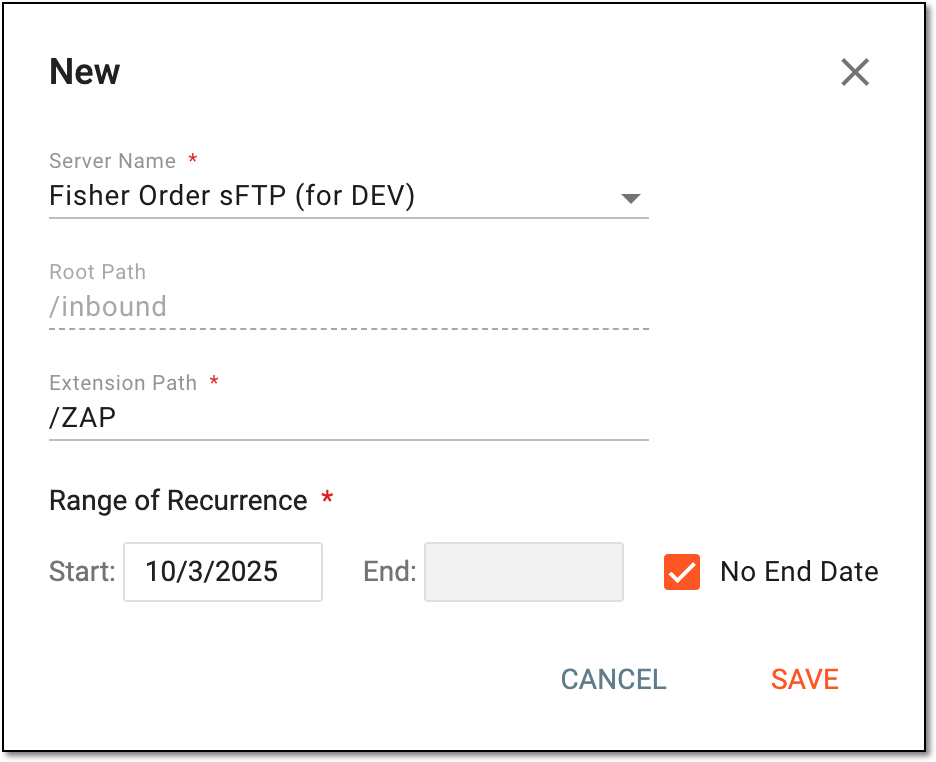 Figure 4. Configuring new dispatch integration
Tip
In the following table, mandatory elements are marked with an asterisk (*).
Element
Details
Server Name*
Select the field to open the Select File Server dialog and choose the vendor's server from which the shipment data is to be extracted according to this dispatch integration.
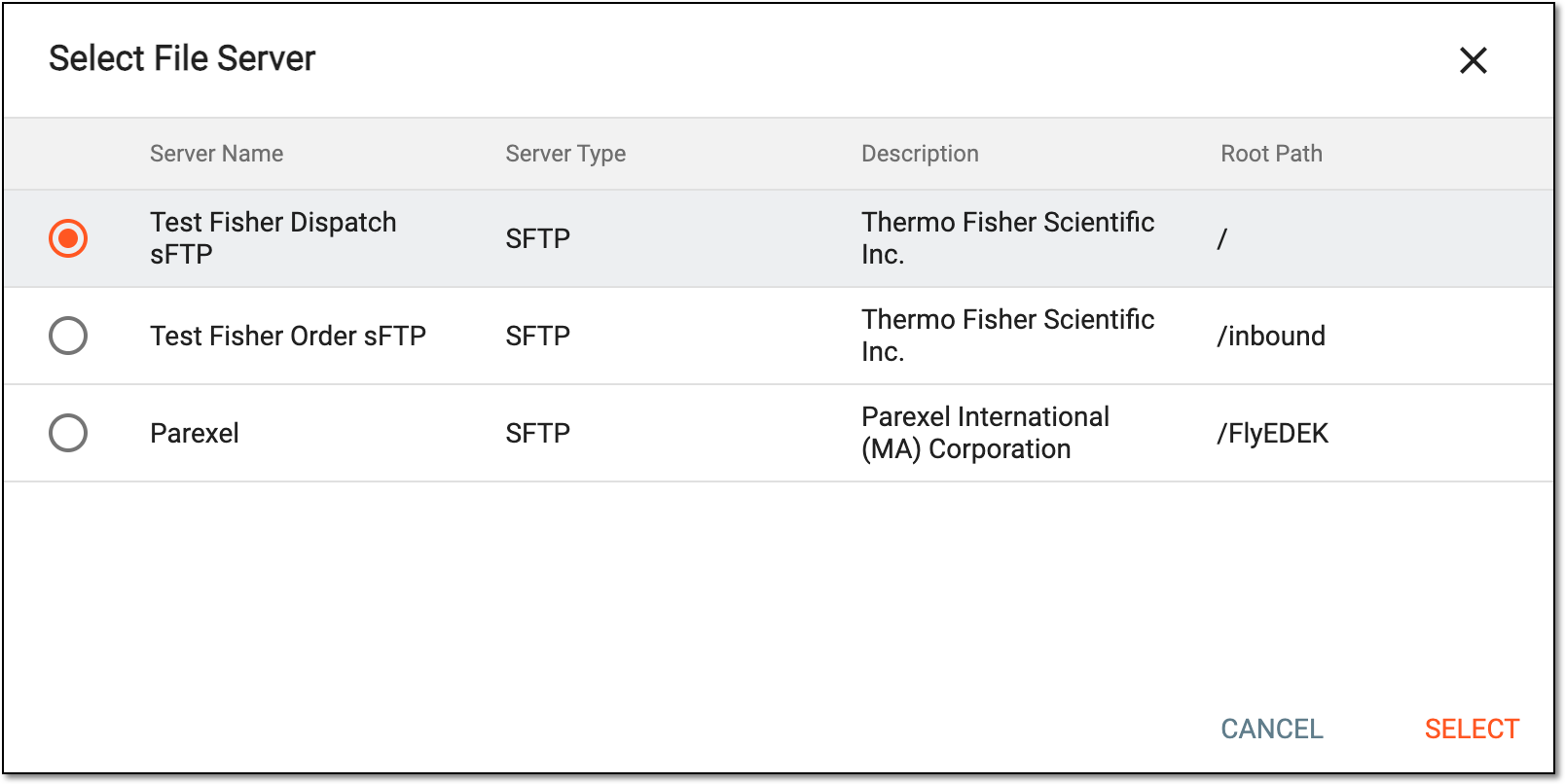 Figure 5. Selecting file server
Root Path
Represents a portion of the destination path to the server where the extracted data is to be stored. For instance, this portion can stand for the study name or company name. This value is autopopulated based on the selected file server.
Extension Path*
Enter the target directory path to establish the connection to the file location on the vendor's server.
The complete path to the destination folder on the file server is a combination of the root path and extension path.
Range of Recurrence*
Select the following parameters to establish the time frame for the file extraction:
-
Start: select the date when the file extraction must begin on a daily basis.
-
End: select the date when the daily file extraction must be ceased.
-
No End Date: select this checkbox if there is no end date for file extraction. This way, you disable the End field, and the system extracts the files daily until it is manually stopped due to inactivation or deletion.
SAVE
Select
 to apply the implemented changes.
CANCEL
Select
 to discard the changes without saving, close the dialog, and return to the Order Integration
Setting table.
to discard the changes without saving, close the dialog, and return to the Order Integration
Setting table. -
Upon saving, the dispatch integration setting is added. The system starts the daily file extraction from the vendor's server on the established date. Once the process initiates, you can track the history of all dispatch file transfers for this integration setting.