View order file transfer history for integration setting
In IWRS, you can configure integrations with various vendors with whom you have shipment relations and require constant data exchange. This allows for automated data export and import. For the data export, the order integration setting is configured. Based on such a setting, the system sends the order file generated for all the supply shipments in IWRS to the vendor's server.
For each order integration setting, you can review the complete history of sent files, their details, destinations, process outcomes, and more.
-
In the IWRS application header, select the INTEGRATION tab.
-
From the left pane, select the Integration Setting subtab.
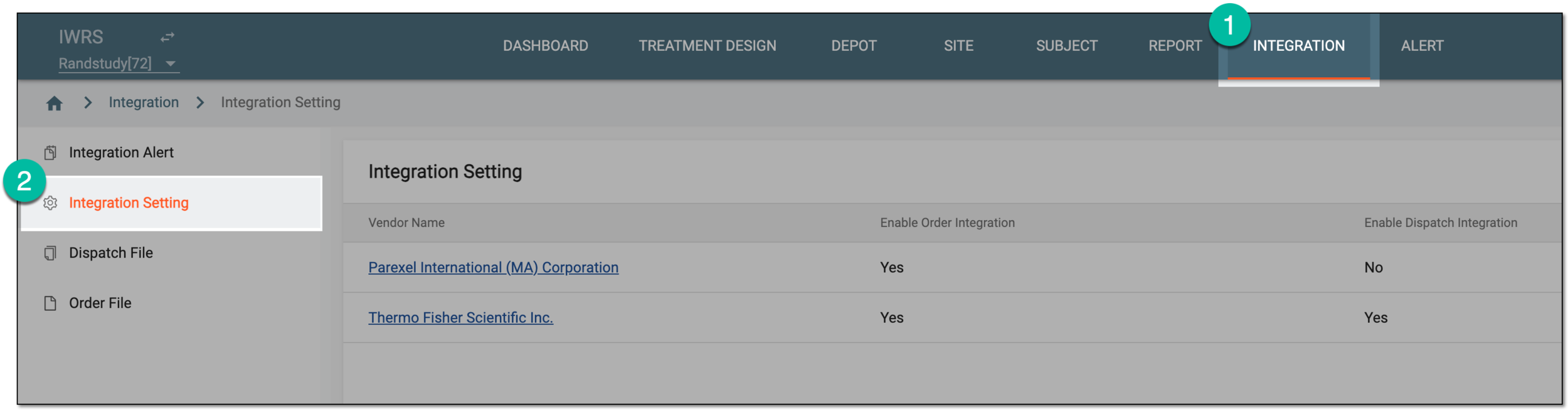 Figure 1. Accessing integration setting
-
In the Integration Setting table that appears, locate the vendor of your interest and from the Vendor Name column, select the hyperlink.
 Figure 2. Selecting vendor to access integration settings
-
On the page that opens, select the Order Integration Setting tab.
-
In the table that appears, locate the order integration for which you want to view the history of sent files. Then from the Actions column next to it, select File Transfer History
 .
. Figure 3. Accessing order integration file history
-
In the File Transfer History dialog that appears, view the complete history of files transferred to the vendor's server according to this integration setting.
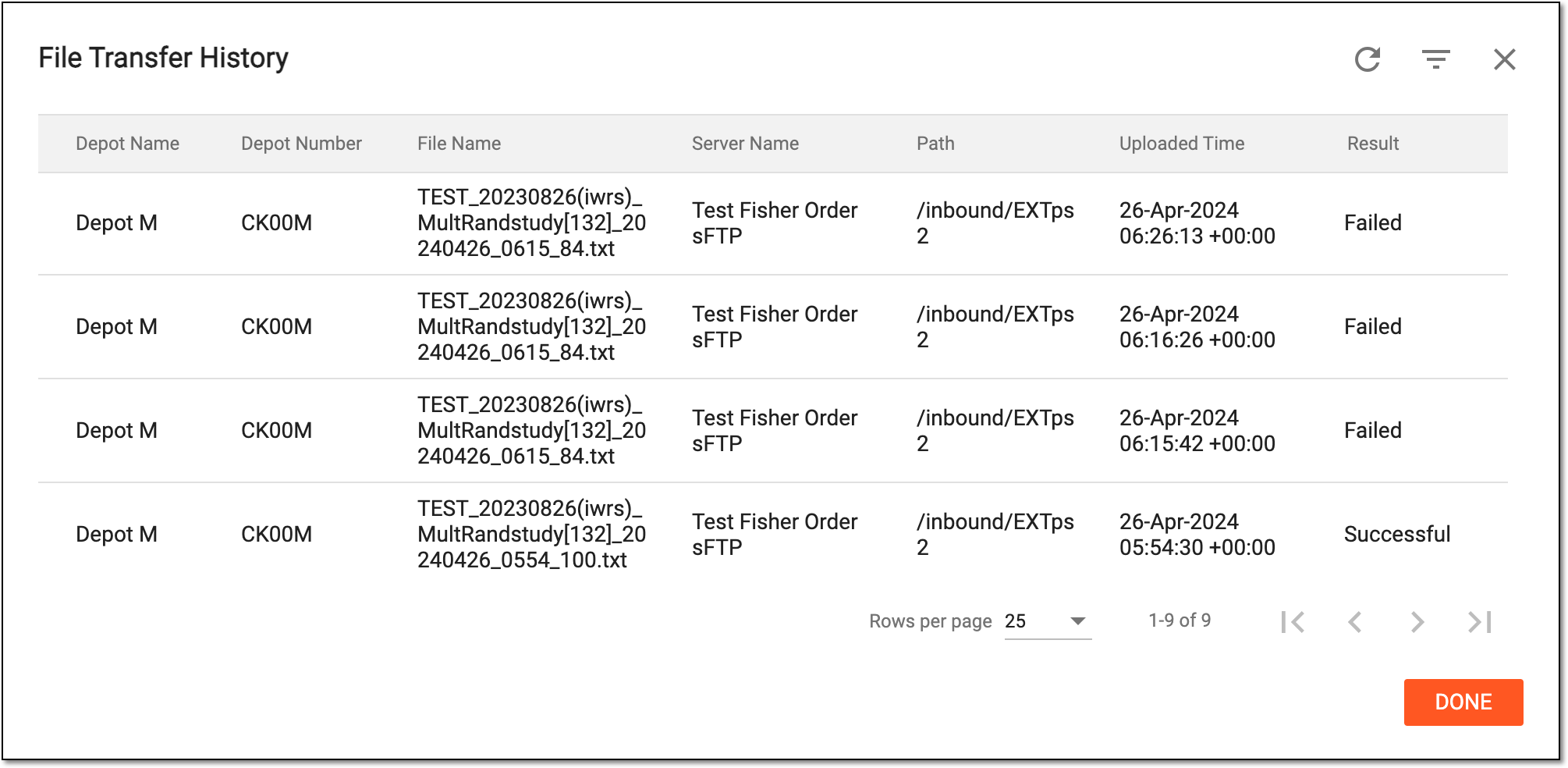 Figure 4. Viewing order integration file history
-
Select
 to close the dialog and return to the Dispatch Integration Setting list.
You have viewed the history of file transfers according to a specific order integration setting.