Initiate study design migration for lifecycle
In IWRS, study development and design occur in multiple consecutive lifecycles—DEV, UAT, and PROD—to ensure that all the aspects are properly configured and tested before initiating the actual trial with real data. Study design here means the configurations done for a study in terms of subject (registration, randomization, and cohorts), item (supply and dispensing), and data management (blind setting and study information).
When a new lifecycle is first initialized and not yet configured, the system offers you to select if you want to configure the study design from scratch, or if you want to migrate your configurations from the previous lifecycle. In this section, you can learn how to initiate the study design migration per lifecycle.
Important
You can only perform study design migration if the Study Startup permission is granted to your role via ADMIN.
-
Access a new lifecycle in one of the following ways:
-
Upon logging in to IWRS, select the lifecycle for which you want to migrate the study design.
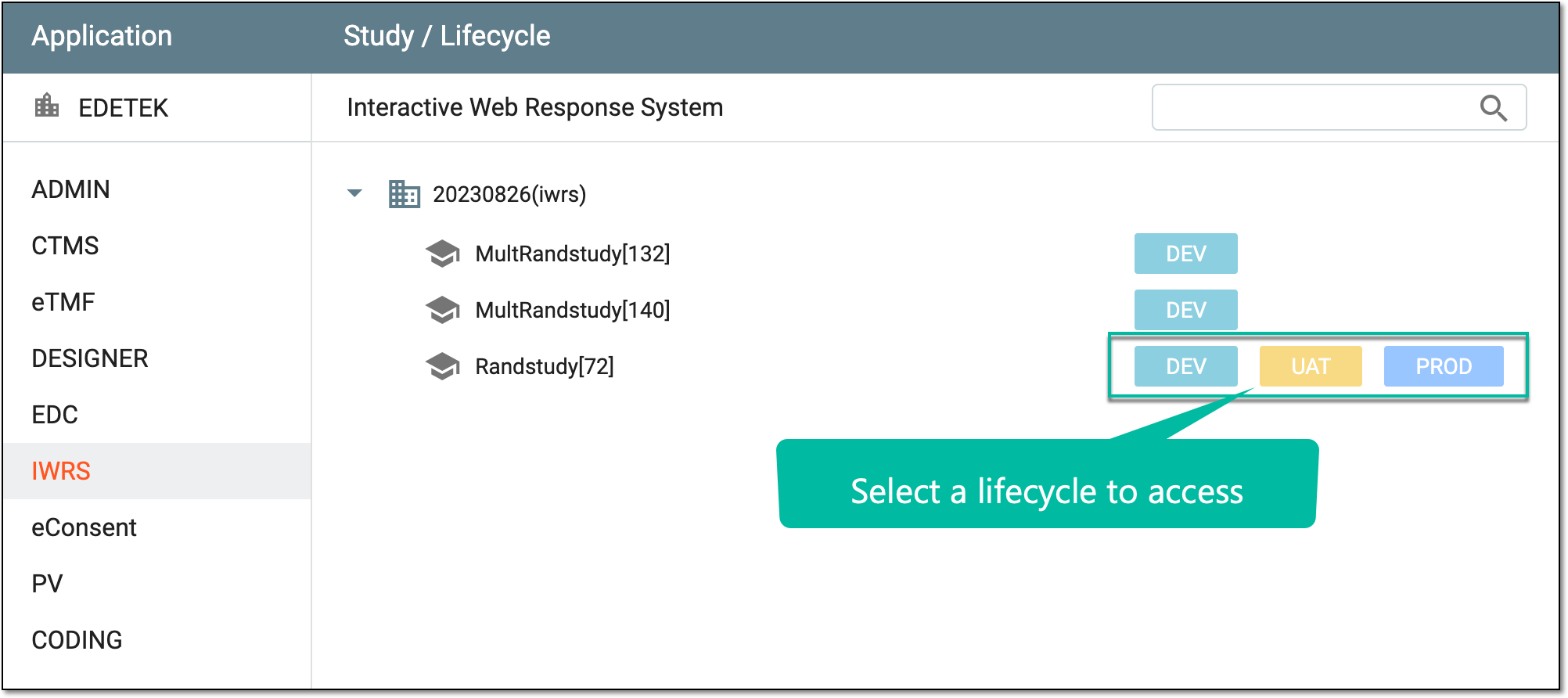 Figure 1. Selecting lifecycle upon opening IWRS
-
In the IWRS toolbar, expand the Lifecycle menu and select the lifecycle for which you want to migrate the study design.
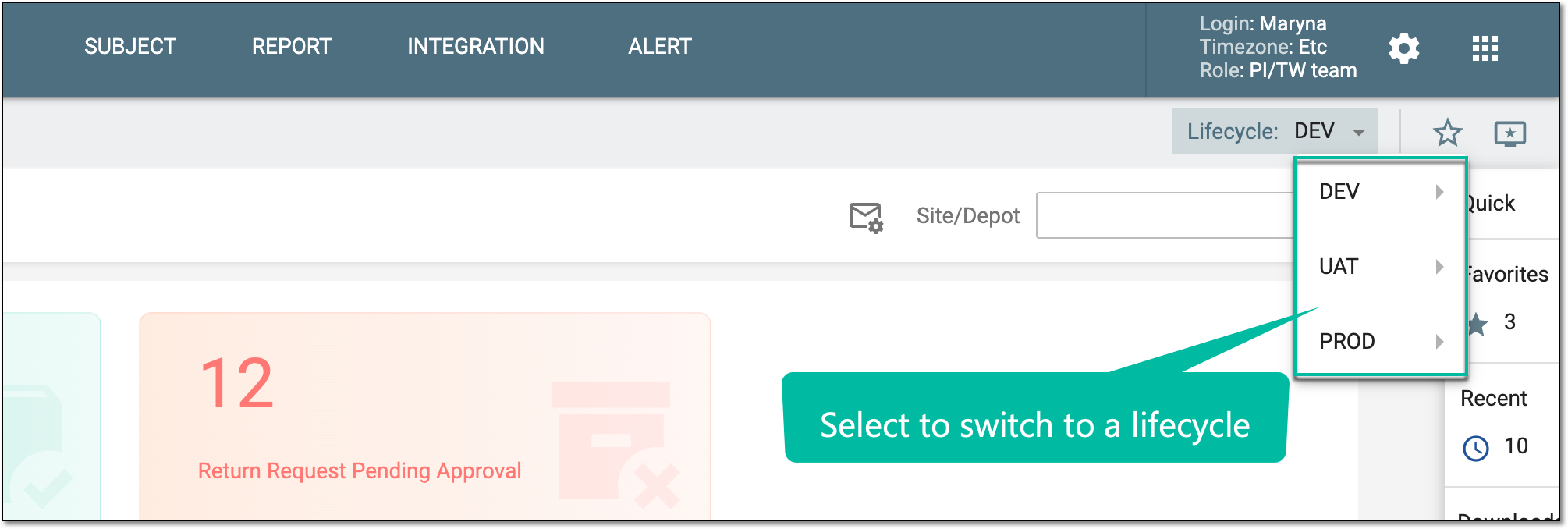 Figure 2. Selecting lifecycle from IWRS toolbar
-
-
Once the new lifecycle environment opens, the IWRS Study Startup dialog appears. In the dialog, make the selection as explained in the following table.
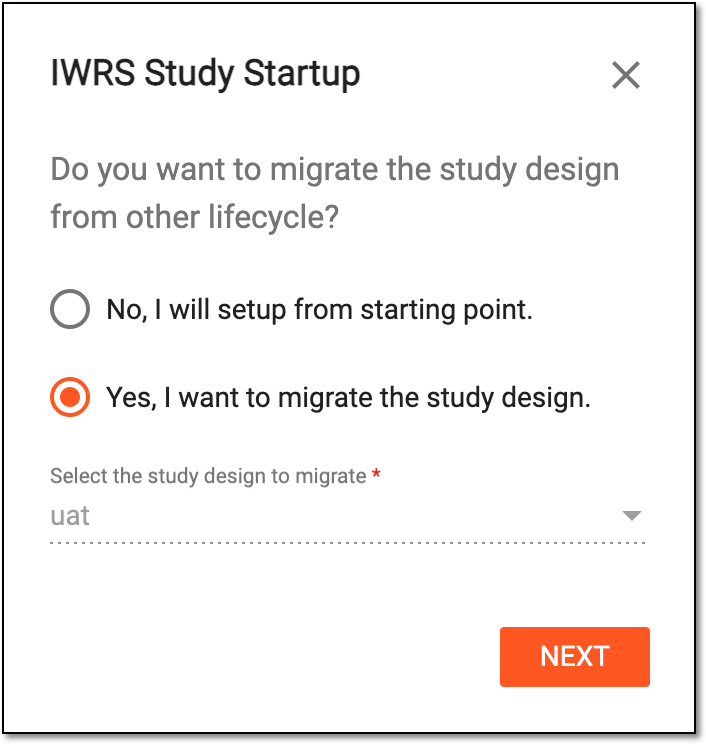 Figure 3. Selecting to migrate study design
Tip
In the following table, mandatory elements are marked with an asterisk (*).
Element
Details
No, I will setup from starting point
Select this option if you do not want to perform any migration between lifecycles and would prefer configuring all the study details and settings from scratch in the respective IWRS modules. Then confirm your action to proceed to the system with the default settings and configure it manually.
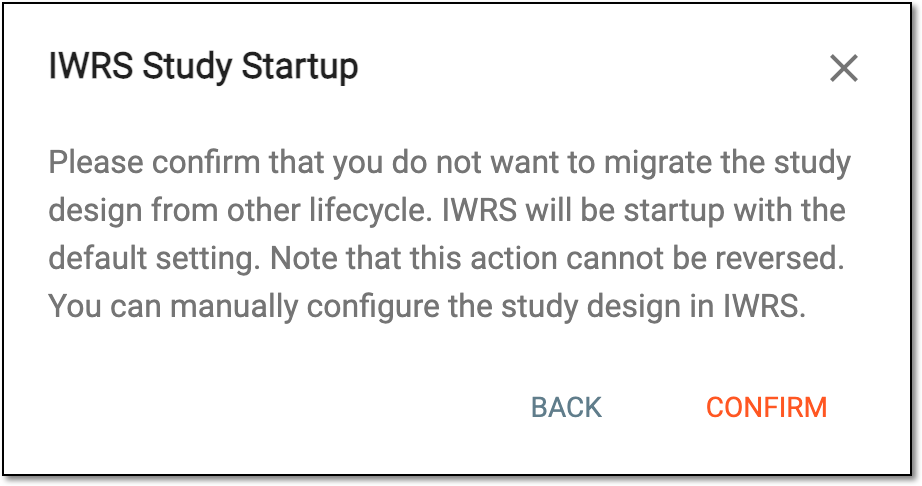 Figure 4. Confirming to skip migration
Note that if you select to skip migration and confirm your action, you cannot reverse it.Yes, I want to migrate the study design
Select this option to migrate certain study design categories configured for the previous lifecycle.
Select the study design to migrate*
Represents the previous lifecycle from which the configurations are to be migrated.
This field is only available if you select to migrate the study design.NEXT
Select
 to proceed with your selected action and go to the next step.
 -
In the same IWRS Study Startup dialog, select the categories of configurations you want to migrate to a new lifecycle as explained in the following table.
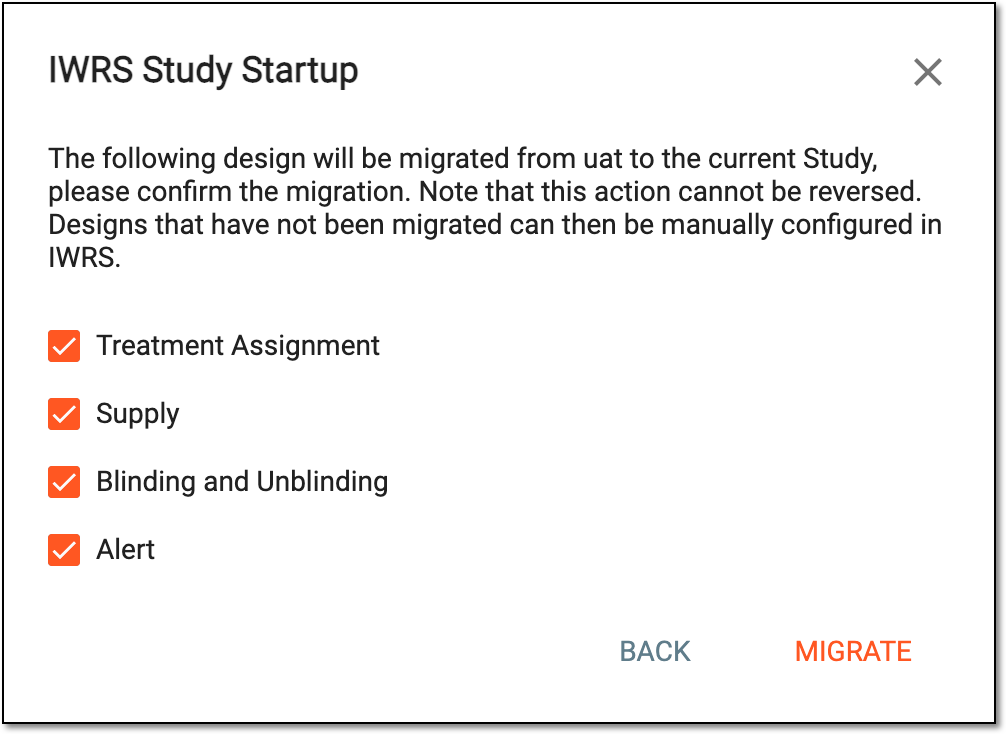 Figure 5. Selecting migration categories
Important
Ensure that the CRF version is the same for the previous and target lifecycles otherwise, you cannot migrate the Treatment Assignment and Supply parameters. Go to Study Designer to manage CRF versioning and then try migrating again.
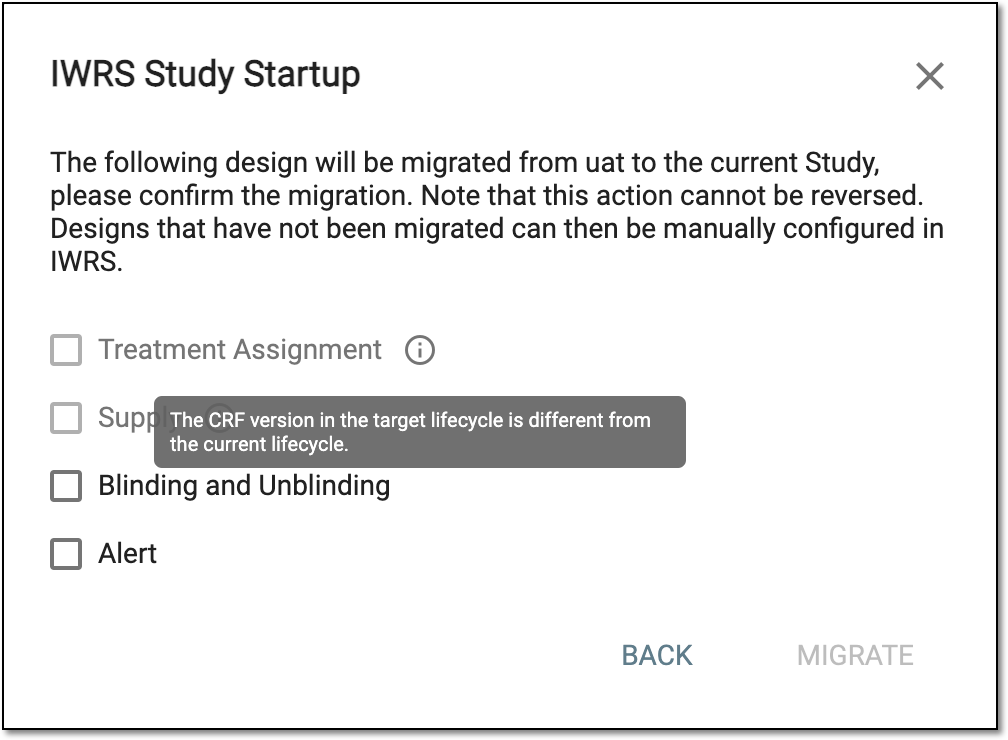 Figure 6. Facing migration issues
Migration category
System modules
Details
Treatment Assignment
The system migrates all the factors that are used for stratification and inclusion criteria throughout your study periods and randomization schemes.
The system migrates your randomization scheme configurations, such as sample sizes or random number length, but not randomization numbers, as they must be unique for different lifecycles and not duplicated.
The system migrates all the cohorts and their settings, such as inclusion criteria, arms, randomization schemes, and so on.
The system migrates all the details and configurations for dispensing visits, dispensing windows, and randomization windows.
Supply
The system migrates all the details of the supply plan of your study.
The system migrates the configurations for the predictive window calculation.
The system migrates the expiry control settings for the items of your study.
Blinding and Unblinding
The system migrates the settings of blinded elements and data within the IWRS system per user role.
The system migrates all the basic study configurations, such as study details, subject registration parameters, and subject ID configuration settings.
Alert
Treatment Design > Alert
The system migrates the alert configurations, such as the event that triggers the alert, the mail template, and such. However, the recipient lists for alerts are not migrated and must be added from scratch in the new environment. This is done because usually, the recipients of the development and testing lifecycles are different from recipients in the production one.
-
Select
 to complete the process.
Important
The migration process is irreversible and can only be done once per lifecycle initiation. The configurations that are not migrated here can then be managed manually in the designated modules of IWRS.
Once the migration is completed, you can proceed to operate your study in the new lifecycle.